
Introduction
This manual provides detailed instructions for the installation, operation, and maintenance of your Ossuret 7-inch Android 14 Car Stereo. Please read this manual thoroughly before using the product to ensure proper functionality and to prevent damage.
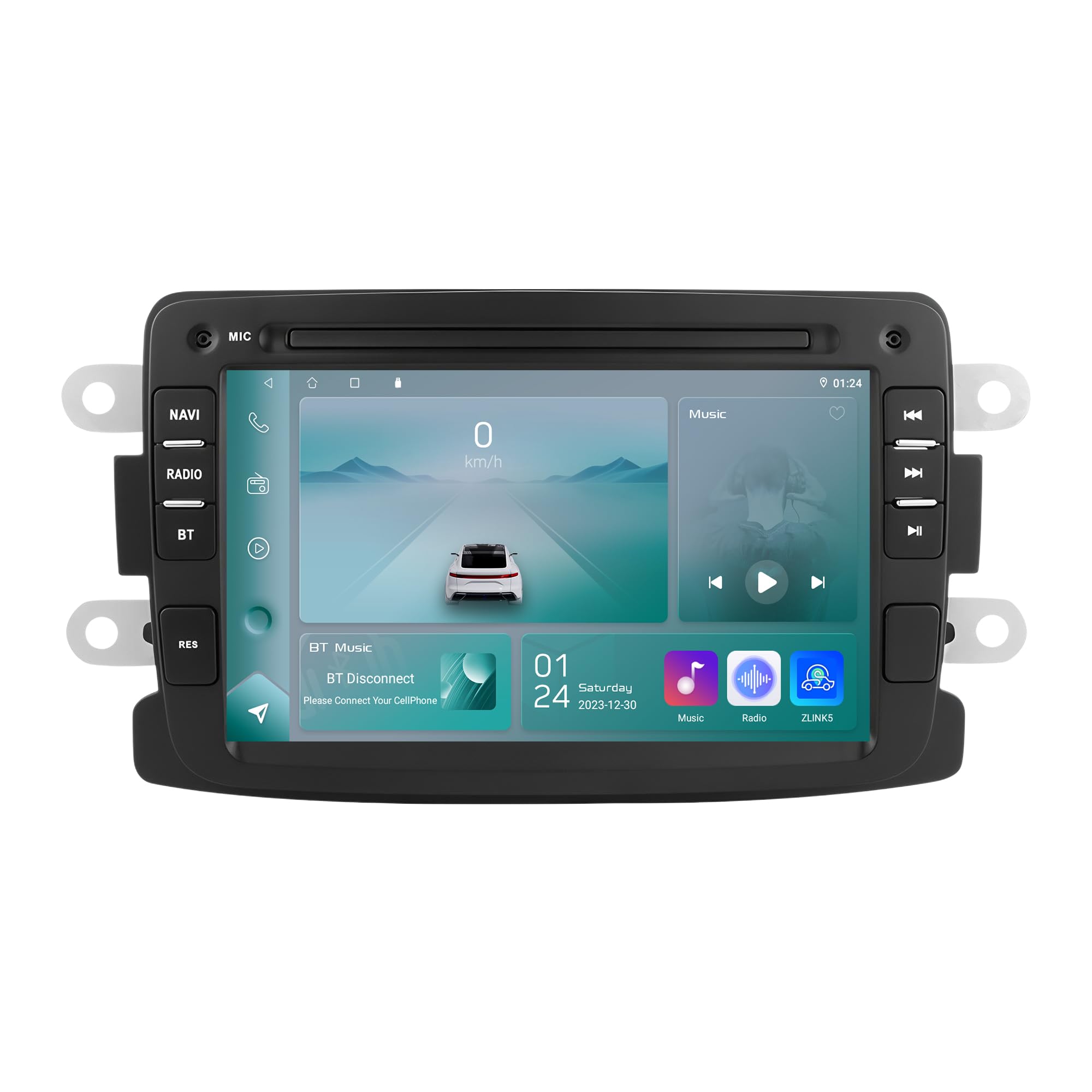
Figure 1: Ossuret 7-Inch Android 14 Car Stereo. This image shows the main unit with its display.
Vehicle Compatibility
This car stereo is designed for specific vehicle models. Please verify your vehicle's compatibility before installation.
- For Dacia: Logan (2012-2017), DOKKER (2012-2017), Duster (2011-2017), Sandero (2012-2017), Lodgy (2012-2017)
- For Renault: Captur (2013-2017), Symbol (2013-2017)
- For LADA: Xray 2 (Note: Some steering wheel control buttons may not function with LADA Xray 2)
What's in the Box
Ensure all components listed below are present in the package before proceeding with installation.

Figure 2: Package Contents. This image displays all items included with your Ossuret car stereo, such as various cables, adapters, and the main unit.
- USB Cable
- RCA Harness
- GPS Antenna
- Rear Camera Input RCA Cable
- External Microphone
- 4 Pin USB Cable
- 6 Pin USB Cable
- Power Cable
- Canbus Decoder
- Radio Antenna Adapter Cable
- Radio Antenna Adapter
Installation Guide
Professional installation is recommended. Disconnect the vehicle's battery before starting the installation process. Refer to your vehicle's specific wiring diagrams for accurate connections.

Figure 3: Before and After Installation. This image illustrates the visual transformation of the dashboard after the Ossuret car stereo is installed, replacing the original unit.
General Installation Steps:
- Preparation: Ensure the vehicle is turned off and the battery is disconnected.
- Remove Old Unit: Carefully remove the existing car stereo and trim panels.
- Connect Wiring: Connect the power cable, RCA harness, GPS antenna, and other necessary cables to the new Ossuret unit. Ensure all connections are secure.
- Canbus Decoder: If your vehicle requires a Canbus decoder (included), connect it as per the wiring diagram to ensure proper communication with vehicle systems.
- Test Functionality: Before fully reassembling the dashboard, reconnect the battery and test the basic functions of the stereo (power, audio, touch screen).
- Secure Unit: Mount the new stereo securely into the dashboard opening.
- Reassemble: Reinstall all trim panels and ensure a neat finish.
Operating Your Car Stereo
Basic Operations
- Power On/Off: Press and hold the power button (usually located on the front panel) to turn the unit on or off.
- Volume Control: Adjust the volume using the physical knob or the on-screen controls.
- Touch Screen: Navigate through menus and applications using the capacitive touch screen.
- Home Screen: Access the main Android interface by pressing the Home button or icon.
Wireless Carplay / Android Auto
The unit supports wireless Apple Carplay and Android Auto via the pre-installed Zlink application. This allows seamless integration of your smartphone's features onto the car stereo display.

Figure 4: Carplay and Android Auto System. This image demonstrates how your smartphone's interface can be mirrored and controlled directly from the car stereo screen.
- Ensure your smartphone's Wi-Fi and Bluetooth are enabled.
- On the car stereo, open the "Zlink" application.
- Follow the on-screen prompts to connect your phone via Bluetooth or Wi-Fi.
- Once connected, your phone's compatible apps will appear on the stereo screen.
Bluetooth Function
Connect your mobile phone via Bluetooth for hands-free calling and audio streaming.

Figure 5: Bluetooth Functionality. This image highlights the hands-free calling feature and the built-in microphone for clear communication.
- Pairing: Go to the Bluetooth settings on the stereo and your phone. Search for available devices and select "Ossuret" (or similar name). Enter the PIN if prompted (usually 0000).
- Hands-free Calling: Once paired, you can make and receive calls directly from the stereo. The built-in microphone captures your voice.
- Bluetooth Music (A2DP): Stream audio from your phone to the car stereo. Control playback (play/pause, skip) from the stereo screen.
- Phonebook Download: The unit supports downloading your phone's contact list for easy access.
GPS Navigation
The car stereo features integrated GPS navigation with preloaded European maps and supports online navigation apps.

Figure 6: GPS Navigation. This image shows the detailed map interface with navigation guidance and support for various navigation applications.
- Offline Navigation: Use the preloaded maps without an internet connection.
- Online Navigation: Connect to Wi-Fi and use popular navigation apps like Google Maps, Waze, etc.
- Voice Guidance: Receive turn-by-turn voice directions.
- Dual Zone Function: Navigate while listening to music or other audio.
USB Connection
Connect external USB devices for media playback or data transfer. The unit supports up to 2TB external memory.

Figure 7: USB Connection. This image illustrates the file browsing capability when a USB device is connected, allowing access to various media and data files.
- Insert your USB drive into the designated USB port.
- Access the file manager or media player application to browse and play content.
Multimedia Playback
The unit supports a wide range of audio and video formats for an enhanced entertainment experience.

Figure 8: Multimedia Playback. This image shows the car stereo playing a video, indicating its support for various multimedia formats.
- Music Formats: MP3, WMA, AAC, RM, FLAC, etc.
- Video Formats: MPEG-1/2/4, H264, H263, VC1, RV, RMVB, DivX, Sorenson Spark, Spark, VP8, AVS Stream, etc.
- Picture Formats: JPG/BMP/JEPG/GIF/PNG
Steering Wheel Control
The car stereo is compatible with your vehicle's factory steering wheel controls, allowing you to manage volume, tracks, and channels without taking your hands off the wheel. This feature helps minimize distractions while driving.
Rear View Camera Input
The unit supports a rear view camera (not included). When the vehicle is shifted into reverse gear, the display will automatically switch to the rear camera feed, providing a clear view of obstacles behind the vehicle and assisting with safe parking.
Care and Maintenance
- Cleaning the Screen: Use a soft, lint-free cloth to gently wipe the touch screen. Avoid abrasive cleaners or solvents that may damage the screen.
- General Cleaning: Keep the unit free from dust and debris. Use a soft, dry cloth for cleaning the exterior.
- Temperature: Avoid exposing the unit to extreme temperatures, direct sunlight for prolonged periods, or high humidity.
- Software Updates: Periodically check the manufacturer's website for any available software updates to ensure optimal performance and new features.
Troubleshooting
If you encounter issues, refer to the table below for common problems and their solutions. If the problem persists, contact customer support.
| Problem | Possible Cause | Solution |
|---|---|---|
| Unit does not power on. | Loose power connection, blown fuse, vehicle battery issue. | Check power cables and connections. Inspect vehicle fuses. Ensure vehicle battery is charged. |
| No sound. | Volume too low, mute activated, incorrect audio source, speaker wiring issue. | Increase volume. Check if mute is active. Select correct audio source. Verify speaker connections. |
| Touch screen unresponsive. | Software glitch, screen calibration issue. | Restart the unit. If available, perform screen calibration in settings. |
| Bluetooth connection issues. | Phone not discoverable, incorrect pairing, interference. | Ensure phone Bluetooth is on and discoverable. Delete previous pairings and re-pair. Move phone closer to the unit. |
| GPS signal lost or inaccurate. | GPS antenna obstruction, poor satellite reception, outdated maps. | Ensure GPS antenna has a clear view of the sky. Update maps if necessary. |
Technical Specifications
| Feature | Specification |
|---|---|
| Brand | Ossuret |
| Operating System | Android 14 |
| RAM | 2 GB |
| ROM | 32 GB |
| CPU | 4Core*A53 1.5Ghz |
| Screen Size | 7 Inches |
| Touch Screen Type | Capacitive Touch Screen |
| Screen Resolution | 1024 x 600 |
| Connectivity Technology | Bluetooth, USB, Wi-Fi |
| Special Features | Android Auto, Apple CarPlay, GPS Navigation, Steering Wheel Control, Rear Camera Input |
| Compatible Devices | Smartphone |
| Audio Output Mode | Stereo |
| Number of Channels | 2.0 |
| Control Method | Tactile |
| USB Port Compatibility | Up to 2TB external memory |
| Warranty | 1 year |
| Country of Origin | China |
Warranty and Support
Warranty Information
This Ossuret car stereo comes with a 1-year warranty from the date of purchase. This warranty covers manufacturing defects and malfunctions under normal use. Please retain your proof of purchase for warranty claims.
Customer Support
For technical assistance, troubleshooting beyond this manual, or warranty inquiries, please contact Ossuret customer support through the retailer where the product was purchased or visit the official Ossuret website for contact information.


