
1. Introduction
Thank you for choosing the TerraVolt P3200 Portable Power Station. This manual provides essential information for the safe and efficient operation, maintenance, and troubleshooting of your device. Please read this manual thoroughly before using the product and retain it for future reference.
The TerraVolt P3200 is a high-capacity portable power station designed to provide reliable power for various applications, including home backup, outdoor activities, and professional work. It features a 2048Wh LiFePO4 battery, 3200W continuous output (6400W peak), and multiple charging options.

Figure 1: TerraVolt P3200 Portable Power Station
2. Safety Instructions
To ensure safe operation, always follow these guidelines:
- Do not disassemble, repair, or modify the unit. Incorrect reassembly may cause fire or electric shock.
- Do not place the unit near fire or expose it to heat. Keep out of direct sunlight.
- Do not charge, use, or store the unit in a bathroom or an area exposed to water or moisture.
- Use only the provided or approved accessories.
- Ensure proper ventilation during use and charging. Do not block ventilation openings.
- Keep the unit away from children and pets.
- In case of fire, use a dry powder fire extinguisher.
- Avoid dropping, heavy impacts, or strong vibrations.
- Do not insert foreign objects into the ports or openings.
3. Product Overview
The P3200 features a robust design with integrated wheels and an extendable handle for easy transport. It offers a comprehensive array of input and output ports to power various devices.
3.1. Ports and Controls
The unit is equipped with 16 versatile interfaces, including AC outlets, USB-A, USB-C (PD 100W and PD 30W), and car sockets. The digital display provides real-time information on input/output wattage, battery percentage, and remaining charge/discharge time.
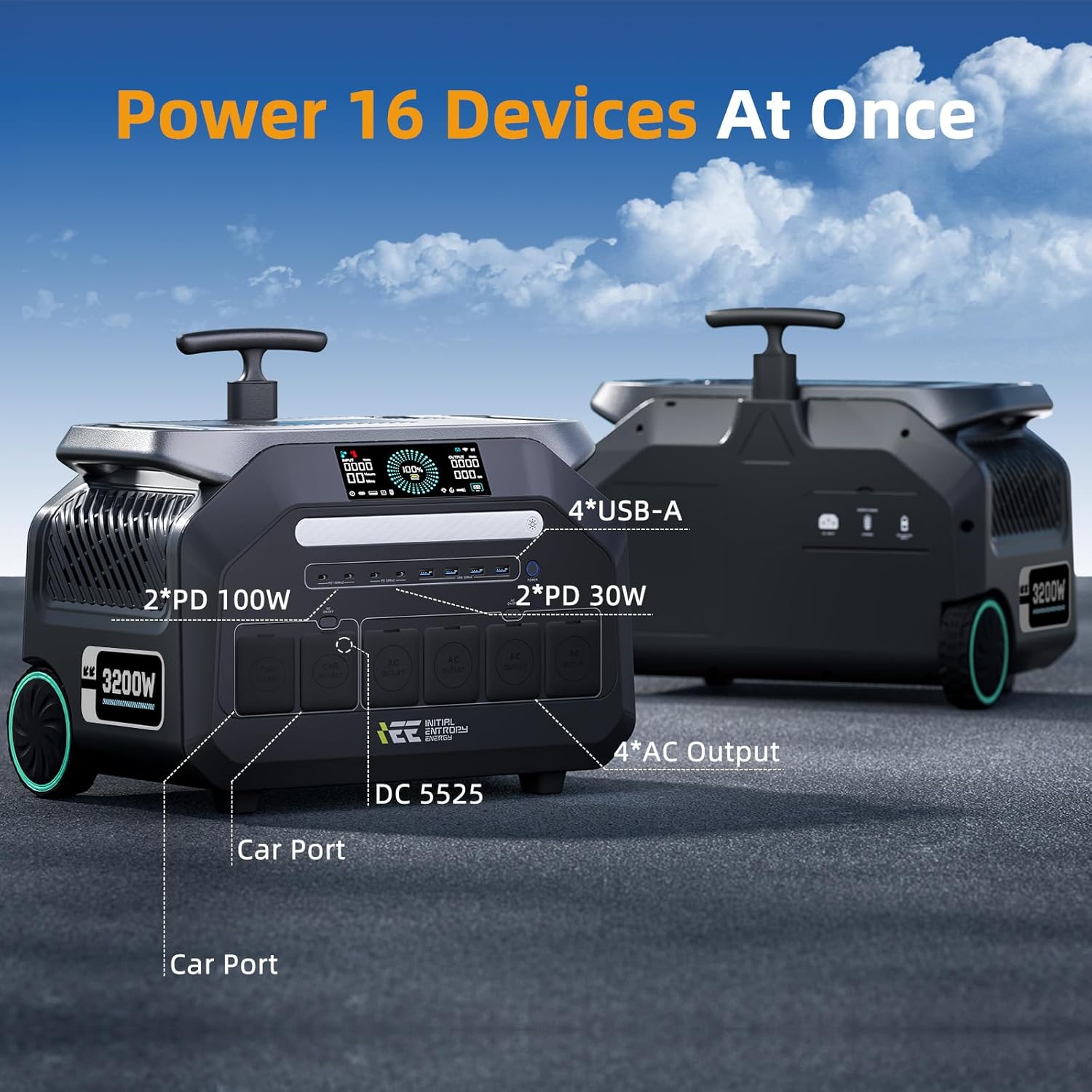
Figure 2: P3200 Output Ports Diagram
3.2. Dimensions and Weight
- Product Dimensions: 17.5"L x 11.7"W x 14.4"H
- Item Weight: 52 pounds (approx. 24 kg)

Figure 3: P3200 Portability with Wheels and Handle
4. Setup and Initial Use
4.1. Unpacking
Carefully remove the P3200 and all accessories from the packaging. Verify that all included components are present:
- 1 × P3200 Power Station
- 1 × User Manual
- 1 × AC Charging Cable
- 1 × Car Charging Cable
- 1 × Solar Charging Cable
- 1 × Jump-starter
- 1 × 4-in-1 Data Cable
- 1 × Warranty Card
4.2. Initial Charging
Before first use, fully charge the P3200 using the AC charging cable. Connect the AC charging cable to the unit's AC input port and then to a wall outlet. The display will show the charging status. The unit supports 1800W AC fast charging, reaching 80% in approximately 55 minutes and fully charging in about 70 minutes.

Figure 4: AC Charging the P3200
5. Operation
5.1. Powering On/Off
Press and hold the main power button to turn the unit on or off. The display will illuminate upon activation.
5.2. Connecting Devices
Connect your devices to the appropriate output ports (AC, USB-A, USB-C, Car Socket). Ensure the total power consumption does not exceed the unit's 3200W continuous output. The P3200 can power up to 16 devices simultaneously.

Figure 5: P3200 Powering Multiple Appliances
5.3. Emergency Power Supply (EPS) Function
The P3200 features a UL-certified EPS function with a 5-8ms switching time. In the event of a power outage, the unit can automatically switch to battery power, providing uninterrupted power to connected critical devices like computers or medical refrigerators.
5.4. Smart App Control
Monitor and manage your P3200 remotely using the dedicated smartphone application via Bluetooth or Wi-Fi. The app allows you to view real-time status, adjust settings, and control output ports.

Figure 6: Smart App Control Interface
Video 1: Demonstration of TerraVolt P3200 features, including fast charging, EPS switchover, and powering various devices.
6. Charging the Power Station
The P3200 offers multiple charging methods:
- AC Wall Outlet: Connect the AC charging cable to a standard wall outlet. Supports 1800W fast charging.
- Solar Panels: Connect compatible solar panels (up to 1000W max input) using the solar charging cable. The unit can be fully recharged via solar in approximately 2 hours.
- Car Charger: Use the car charging cable to charge the unit from your vehicle's 12V outlet (max 120W).
- AC + Solar Dual-Mode: Combine AC and solar charging for the fastest recharge times.

Figure 7: Solar Charging the P3200
7. Maintenance and Storage
7.1. Battery Care
The P3200 uses a LiFePO4 battery, known for its long lifespan of over 4000 charge cycles, retaining approximately 80% of its initial capacity. This translates to an estimated lifespan of 12 years with regular use.
- For optimal battery health, avoid completely draining the battery frequently.
- Charge the unit to at least 50% every 3-6 months if not in regular use.

Figure 8: LiFePO4 Battery Lifespan
7.2. Cleaning and Storage
- Wipe the unit with a dry, soft cloth. Do not use abrasive cleaners or solvents.
- Store the unit in a cool, dry place, away from direct sunlight and extreme temperatures.
- Ensure the unit is stored with adequate ventilation.
8. Troubleshooting
If you encounter issues with your P3200, refer to the following common problems and solutions:
| Problem | Possible Cause | Solution |
|---|---|---|
| Unit does not turn on | Battery is completely drained; Power button not pressed long enough | Charge the unit; Press and hold the power button for 3-5 seconds. |
| No output from ports | Output ports not activated; Overload protection triggered; Device incompatible | Ensure AC/DC output buttons are pressed; Reduce connected load; Check device power requirements. |
| Slow charging | Low input power; High ambient temperature | Ensure charger/solar panels provide sufficient power; Charge in a cooler environment. |
| App not connecting | Bluetooth/Wi-Fi off; App not updated; Unit too far from phone | Enable Bluetooth/Wi-Fi on phone; Update app; Move phone closer to the unit. |
If the problem persists, please contact customer support.
9. Technical Specifications
| Feature | Specification |
|---|---|
| Brand | TerraVolt |
| Model Name | P3200 Power Bank |
| Wattage (Continuous) | 3200 watts |
| Wattage (Peak/Surge) | 6400 watts |
| Battery Capacity | 2048Wh (1800 Amp Hours) |
| Battery Type | LiFePO4 |
| Power Source | Corded Electric, Solar |
| Voltage | 120 Volts |
| AC Charging Input | 1800W Max |
| Solar Charging Input | 1000W Max |
| Car Charging Input | 120W Max |
| Total Power Outlets | 16 (4 AC, 4 USB-A, 4 USB-C, 2 Car Socket, 2 DC5521) |
| Special Features | Digital Display, Fast Charging, Overload Protection, Portable, Short Circuit Protection, EPS, Smart APP Control |
| Noise Level | Below 30dB |
| Product Dimensions | 17.5"L x 11.7"W x 14.4"H |
| Item Weight | 52 pounds |
| Material | ABS |
10. Warranty and Support
The TerraVolt P3200 Portable Power Station comes with a 5-year manufacturer's warranty. This warranty covers defects in materials and workmanship under normal use.
For technical assistance, warranty claims, or any questions regarding your P3200, please contact TerraVolt customer support. Refer to the warranty card included in your package for specific contact details and terms.
Customer Support: Available 24/7 for a worry-free experience.