
1. Introduction
Thank you for choosing the NEWFAST RE523 Dual-Band WiFi Extender. This device is designed to expand your existing wireless network coverage, eliminate dead zones, and provide a stable, high-speed internet connection throughout your home or office. This manual provides detailed instructions for setup, operation, and troubleshooting to ensure optimal performance.

Figure 1.1: NEWFAST RE523 WiFi Extender in operation.
2. Product Overview
2.1 Package Contents
- 1 x NEWFAST AC1200 WiFi Repeater (Model RE523)
- 1 x User Manual
- 1 x RJ-45 Ethernet Cable
2.2 Device Layout and Indicators
The NEWFAST RE523 features a compact design with adjustable antennas and an intuitive LCD display for status indication.
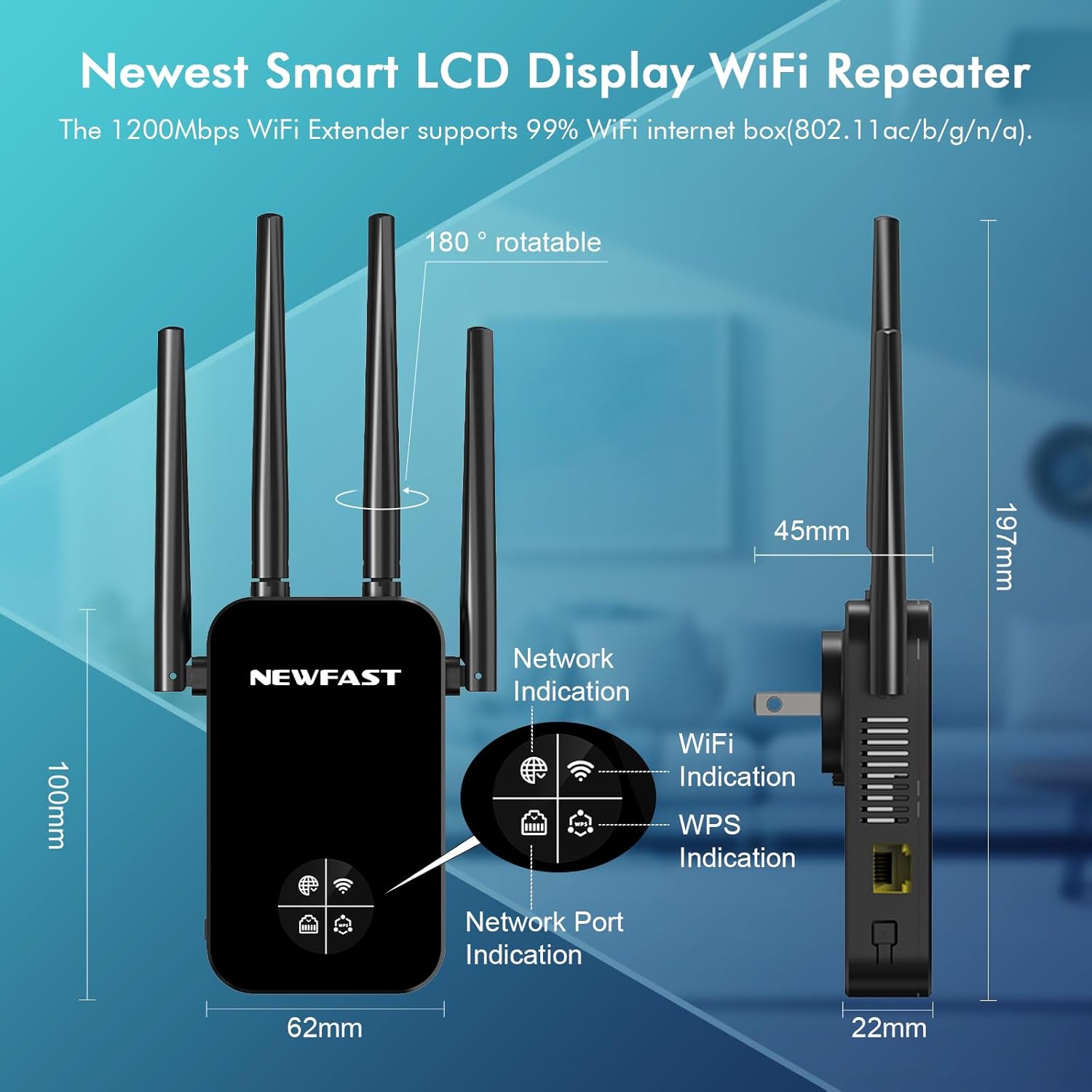
Figure 2.1: Device dimensions and indicator lights.
- Network Indication: Displays the status of the network connection.
- WiFi Indication: Shows the status of the wireless signal.
- WPS Indication: Lights up during WPS connection attempts.
- Network Port Indication: Indicates activity on the Ethernet port.
- 180° Rotatable Antennas: Four external antennas for optimal signal direction.

Figure 2.2: Internal components and external features.
- High-Performance Chip: Ensures stable and fast data transfer.
- Heat Dissipation: Vents designed for efficient cooling.
- WPS/Reset Button: Used for quick setup and factory reset.
- Ethernet Port: For wired connections to devices or the main router.
3. Setup Instructions
The NEWFAST RE523 WiFi Extender offers two primary methods for setup: WPS (Wi-Fi Protected Setup) and Web Interface.
3.1 WPS (Wi-Fi Protected Setup) Method
This is the simplest method for extending your wireless network.
- Plug the NEWFAST RE523 extender into a power outlet near your main wireless router.
- Wait for the extender to power on and the WiFi indicator light to stabilize.
- Press the WPS button on your main wireless router.
- Within 2 minutes, press and hold the WPS/Reset button on the NEWFAST RE523 extender for 2-3 seconds.
- The WPS indicator on the extender will flash, indicating it is attempting to connect.
- Once the connection is successful, the WiFi indicator on the extender will show a stable signal, and the extender will broadcast an extended network with your existing WiFi name (SSID) followed by '_EXT' or similar.

Figure 3.1: WPS One-Tap Connection Setup.
3.2 Web Interface Method
If your router does not support WPS or you prefer manual configuration, use the web interface.
- Plug the NEWFAST RE523 extender into a power outlet.
- Connect your computer or mobile device to the extender's default WiFi network (e.g., 'NEWFAST_EXTENDER' or similar, usually found on a label on the device). No password is required initially.
- Open a web browser and enter the default IP address (e.g.,
192.168.10.1) or domain name (e.g.,re.newfast.com) provided in the quick start guide or on the device label. - Log in using the default username and password (e.g., 'admin' for both).
- Follow the on-screen instructions to select your main WiFi network, enter its password, and configure the extender's settings.
- Once configured, the extender will restart and broadcast the extended network.
4. Operating Modes
The NEWFAST RE523 supports multiple operating modes to suit various networking needs.

Figure 4.1: Multiple Operating Modes.
- Repeater Mode (Default): Extends the coverage of an existing wireless network. Ideal for eliminating WiFi dead zones in homes.
- AP (Access Point) Mode: Converts a wired network connection into a wireless access point. Useful for adding WiFi capability to a wired-only network.
- Router Mode: Functions as a primary router, creating a new private network. Connects to a modem via Ethernet.
- Bridge Mode: Connects two separate network segments, often used to connect wired devices to a wireless network.
- Client Mode: Allows wired devices (e.g., smart TV, gaming console) to connect to a wireless network via the extender's Ethernet port.
5. Network Security
The NEWFAST RE523 supports robust security protocols to protect your wireless network.

Figure 5.1: Encryption and Network Security Features.
- Supported Protocols: WPA, WPA2, WPA-PSK, WPA2-PSK, WPS.
- MAC Address Filtering: Allows you to specify which devices can connect based on their MAC address.
- Network Filtering: Controls access to specific network resources.
- Domain Filtering: Blocks access to unwanted websites or domains.
It is recommended to use WPA2-PSK encryption with a strong, unique password for optimal network security. Access these settings via the web interface.
6. Troubleshooting
If you encounter issues with your NEWFAST RE523 WiFi Extender, refer to the following common problems and solutions.
6.1 No Internet Access After Setup
- Check Main Router: Ensure your main router has an active internet connection.
- Relocate Extender: The extender might be too far from your main router. Move it closer, ensuring the signal indicator shows a strong connection.
- Reconfigure: Try re-running the setup process, ensuring you enter the correct password for your main WiFi network.
6.2 Slow Connection Speed
- Optimal Placement: Place the extender halfway between your router and the dead zone. Avoid physical obstructions like thick walls or metal objects.
- Interference: Other electronic devices (microwaves, cordless phones) can cause interference. Try moving the extender away from such devices.
- Band Selection: For higher speeds, ensure your devices are connecting to the 5GHz band if available and supported.
6.3 Cannot Access Web Management Page
- Correct IP/Domain: Verify you are using the correct IP address or domain name (e.g.,
192.168.10.1orre.newfast.com). - Direct Connection: Connect your computer directly to the extender via an Ethernet cable, or ensure you are connected to the extender's WiFi network.
- Browser Cache: Clear your browser's cache and cookies, or try a different browser.
6.4 Factory Reset
If problems persist, you can perform a factory reset:
- With the extender powered on, use a pin or paperclip to press and hold the WPS/Reset button for approximately 8-10 seconds until the lights flash.
- Release the button. The extender will restart with factory default settings.
- You will need to reconfigure the extender after a factory reset.
7. Specifications
| Feature | Description |
|---|---|
| Model | RE523 |
| Wireless Standard | 802.11a/b/g/n/ac |
| Data Transfer Rate | Up to 1200 Mbps (867 Mbps on 5GHz, 300 Mbps on 2.4GHz) |
| Frequency Band | Dual-Band (2.4 GHz & 5 GHz) |
| Antennas | 4 x 5dBi High Gain External Antennas |
| Operating Modes | Repeater, AP, Router, Bridge, Client |
| Security Protocols | WPA, WPA2, WPA-PSK, WPA2-PSK, WPS |
| Ports | 1 x RJ45 Ethernet Port |
| Dimensions (L x W x H) | 1.77 x 3.38 x 7.75 inches (45 x 86 x 197 mm) |
| Item Weight | 8.4 ounces (238 grams) |
8. Warranty and Support
NEWFAST products are designed for reliability and performance. For warranty information or technical support, please refer to the contact details provided with your purchase or visit the official NEWFAST website. Keep your purchase receipt for warranty claims.


