
Introduction
Thank you for purchasing the MICBNIB M8 Pro Karaoke Machine. This all-in-one portable system is designed to provide an immersive audio-visual experience with its 14.1-inch touchscreen, powerful sound, and wireless microphones. This manual will guide you through the setup, operation, and maintenance of your device to ensure optimal performance and enjoyment.
Product Overview
Key Features
- 14.1" HD Touchscreen: Integrated display running Android 12 for app access and control.
- Studio-Grade Sound: 10" woofer, 3" midrange, and 3" tweeter in a solid wood cabinet for balanced audio.
- Connectivity: Wi-Fi, Bluetooth, HDMI, USB for versatile media playback and external device connection.
- Internal Storage: 32GB built-in storage for offline song libraries.
- Portability: Heavy-duty retractable handle and 360° wheels for easy transport.
- Wireless Microphones: Includes two UHF professional wireless microphones.
Components
The MICBNIB M8 Pro Karaoke Machine package typically includes:
- MICBNIB M8 Pro Karaoke Machine unit
- 2 Wireless Microphones
- Power Adapter
- USB-C Charging Cable (for microphones)
- User Manual (this document)

Image: MICBNIB M8 Pro Karaoke Machine with included accessories.
Setup
- Unpacking: Carefully remove all components from the packaging. Retain packaging for future transport or storage.
- Power Connection: Connect the provided power adapter to the DC 15V input port on the back panel of the karaoke machine. Plug the adapter into a standard electrical outlet.
- Initial Charge: For first-time use, it is recommended to fully charge the unit. The charging indicator will show status.
- Microphone Setup:
- Insert rechargeable batteries into the wireless microphones.
- Charge microphones using the provided USB-C cable if needed.
- Turn on the microphones using their respective power buttons. They should automatically pair with the karaoke machine.
- Power On: Locate the POWER switch on the control panel and switch it to the "ON" position. The touchscreen display will illuminate.

Image: Rear view of the karaoke machine, highlighting power input and various connectivity ports.
Operating Instructions
Navigating the Touchscreen
The MICBNIB M8 Pro features a 14.1-inch HD touchscreen running Android 12. Navigate the interface similar to a tablet or smartphone. Tap icons to open applications, swipe to scroll, and use the on-screen keyboard for input.

Image: The 14.1-inch touchscreen interface showing available applications.
Connecting to Wi-Fi
- From the home screen, tap the "Settings" icon.
- Select "Network & Internet".
- Toggle Wi-Fi "On" and select your desired network from the list.
- Enter the password if prompted and tap "Connect".
Once connected, you can access online streaming services like YouTube, Spotify, and download apps from the Google Play Store.
Using Applications
The system comes pre-installed with popular applications. Tap on the app icon (e.g., YouTube, Spotify) to launch it. Follow the on-screen instructions to search for songs, create playlists, and enjoy your karaoke experience.
Video: Demonstration of using the MICBNIB Karaoke Machine with various applications.
Connectivity
Bluetooth Connection
- Ensure Bluetooth is enabled on your external device (smartphone, tablet).
- On the karaoke machine, navigate to "Settings" and then "Bluetooth".
- Select "MICBNIB M8 Pro" from the list of available devices on your external device.
- Once paired, audio from your external device will play through the karaoke machine.
Video: Guide on connecting a mobile phone via Bluetooth to the karaoke machine.
HDMI Output to TV
Connect an HDMI cable (not included) from the HDMI port on the karaoke machine to an HDMI input on your television. This allows you to display the karaoke machine's screen content, including lyrics, on a larger display.

Image: Karaoke machine connected to a TV via HDMI, showing the display mirrored.
USB and TF Card Playback
Insert a USB drive or TF card into the respective ports on the control panel. The system will detect the media and allow you to play audio or video files stored on it. Supported formats may vary.
Microphone Usage
Wireless Microphones
- Ensure microphones are charged and powered on.
- Adjust microphone volume using the "MIC VOL" knob on the control panel.
- The microphones feature a display for battery level, signal strength, and frequency.
- Long press the power button on the microphone to turn it on/off.

Image: Detailed view of the wireless microphone display and controls.
External Microphone/Instrument Input
The unit includes a 6.35mm "MIC IN" port for an additional wired microphone and a "GUITAR IN" port for connecting an instrument like a guitar or keyboard.
Sound Adjustment
The control panel provides several knobs for fine-tuning the audio output:
- MIC VOL: Adjusts the volume of the microphones.
- M.BASS / M.TREBLE: Adjusts bass and treble for the microphones.
- ECHO: Controls the echo effect for vocals.
- BASS / TREBLE: Adjusts bass and treble for the main music output.
- VOLUME: Master volume control for the entire system.

Image: Close-up of the control panel, showing knobs for microphone volume, bass, treble, echo, and master volume.
Portability
The MICBNIB M8 Pro is designed for easy transport. It features a retractable handle and two smooth-rolling 360° wheels. Extend the handle and tilt the unit to roll it to your desired location. The built-in high-capacity battery provides 6-12 hours of playtime, depending on usage.
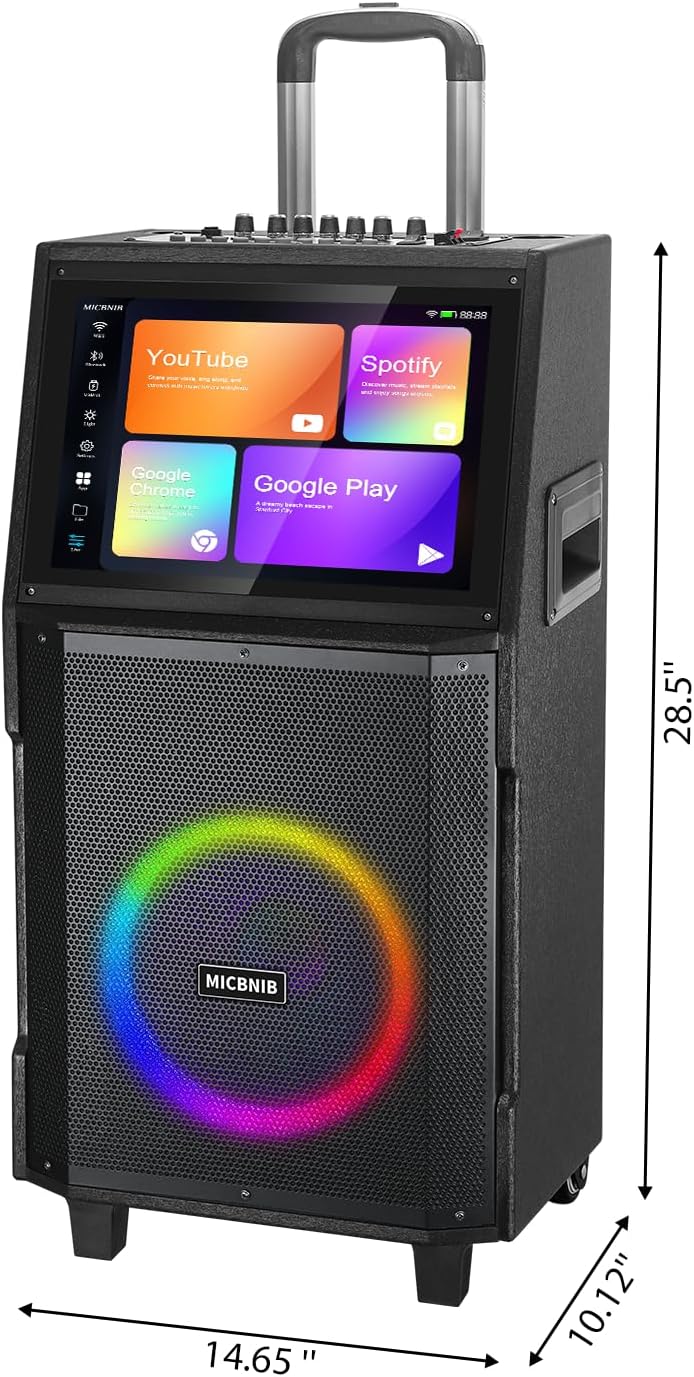
Image: The karaoke machine being transported using its retractable handle and wheels.
Maintenance
- Cleaning: Use a soft, dry cloth to clean the exterior of the unit and the touchscreen. Do not use abrasive cleaners or solvents.
- Storage: Store the karaoke machine in a cool, dry place away from direct sunlight and extreme temperatures.
- Battery Care: To prolong battery life, avoid fully discharging the unit frequently. Charge the unit regularly, even if not in use for extended periods.
- Microphone Care: Keep microphones dry and clean. Store them in a protective case when not in use.
Troubleshooting
| Problem | Possible Cause | Solution |
|---|---|---|
| No power | Power switch off, battery drained, power adapter not connected. | Ensure power switch is ON. Connect power adapter and charge. Check power outlet. |
| No sound from speaker | Volume too low, incorrect input source, muted. | Increase master VOLUME. Check selected input source on screen. Ensure system is not muted. |
| Microphones not working | Microphones off, batteries low, MIC VOL too low, not paired. | Turn on microphones. Charge microphone batteries. Increase MIC VOL. Re-pair microphones if necessary (refer to microphone instructions). |
| Wi-Fi connection issues | Incorrect password, out of range, router issues. | Verify Wi-Fi password. Move closer to router. Restart router. |
| Bluetooth pairing failure | Bluetooth off on device/karaoke machine, device too far. | Ensure Bluetooth is enabled on both devices. Keep devices within range (approx. 10 meters). |
Specifications
| Feature | Detail |
|---|---|
| Brand | MICBNIB |
| Model Number | M8 Pro |
| Display | 14.1-inch HD Touchscreen |
| Operating System | Android 12 |
| Storage | 32GB Internal |
| Speaker Configuration | 10" Woofer, 3" Midrange, 3" Tweeter |
| Connectivity | Bluetooth, HDMI, USB, Wi-Fi |
| Microphones | 2 UHF Wireless Microphones |
| Item Weight | 15 Kilograms |
| Manufacturer | BNIB |
Warranty & Support
The MICBNIB M8 Pro Karaoke Machine comes with a 1 Year Warranty from the date of purchase. This warranty covers manufacturing defects and malfunctions under normal use. It does not cover damage caused by misuse, accidents, unauthorized modifications, or normal wear and tear.
For technical support, warranty claims, or further assistance, please contact MICBNIB customer service through the retailer where the product was purchased or visit the official MICBNIB website for contact information.

