
1. Introduction
This manual provides detailed instructions for the installation, operation, and maintenance of your CAMECHO 9-inch Android 15 Car Stereo. Please read this manual thoroughly before using the product to ensure proper function and safety. Keep this manual for future reference.
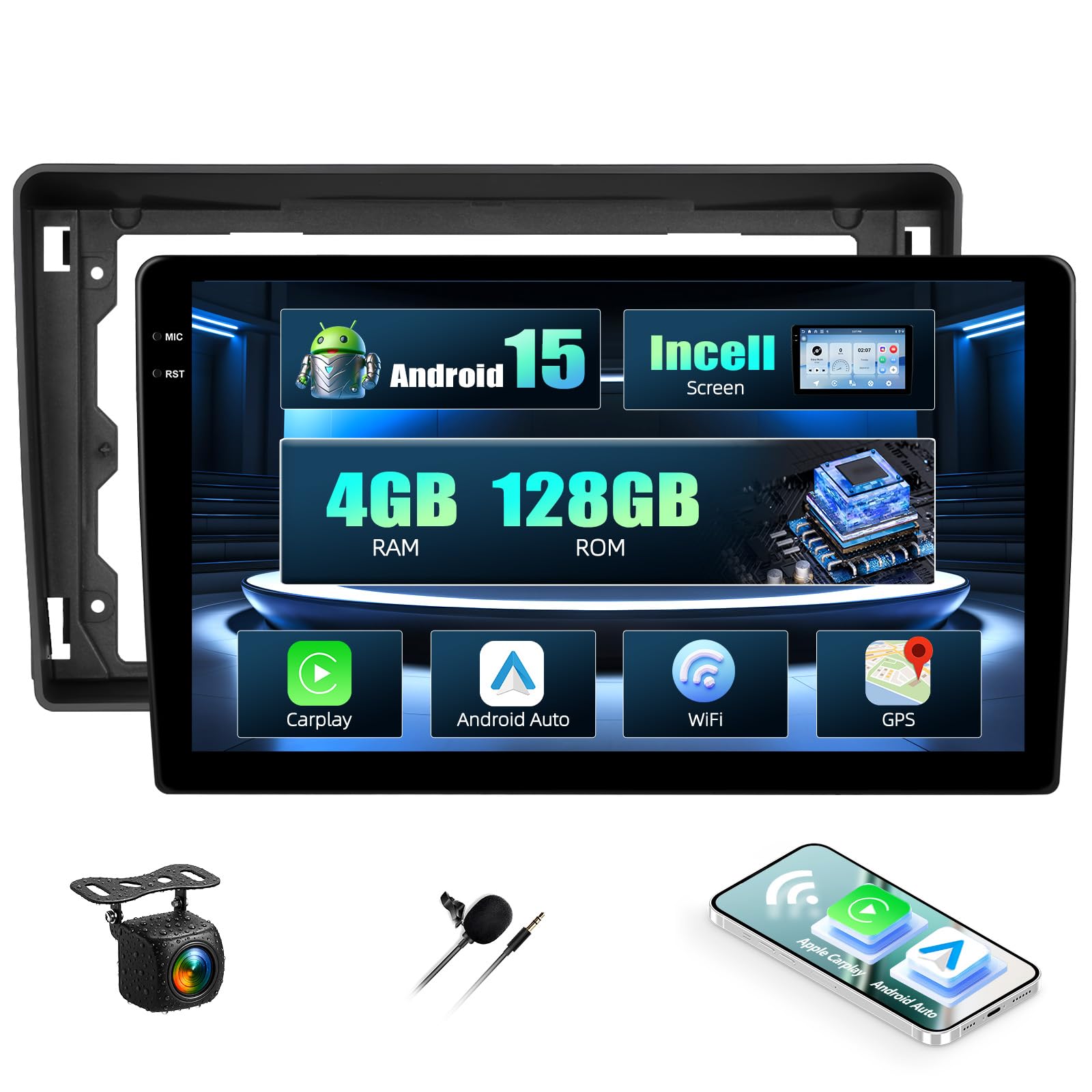
Front view of the CAMECHO 9-inch Android 15 car stereo unit.
2. Safety Information
Always prioritize safety while operating your vehicle. Distracted driving can lead to accidents. Ensure the unit is securely installed to prevent it from becoming a projectile during sudden stops or collisions. For detailed safety guidelines, please refer to the provided safety information PDF document: Safety Information (PDF).
3. Package Contents
Verify that all items are present in the package before installation:
- CAMECHO 9-inch Android 15 Car Stereo Unit
- Power Cable
- RCA Cable
- USB Cables (4-pin and 6-pin)
- Camera Input Cable
- Radio Antenna
- GPS Antenna
- AHD Rear Camera
- Antenna Adapter
- Installation Tool
- Microphone
- Canbus Decoder
- User Manual (this document)

Diagram showing the dimensions of the 9-inch car stereo unit and a list of included accessories such as cables, antennas, and the user manual.
4. Product Overview
The CAMECHO 9-inch Android 15 Car Stereo is designed for select Ford models, offering advanced features for an enhanced in-car experience. It includes a powerful Android 15 system, ample memory, and various connectivity options.
Key Features:
- Operating System: Android 15
- Memory: 4GB RAM + 128GB ROM
- Display: 9-inch HD Incell Touchscreen (1280x720 resolution)
- Connectivity: Wireless Carplay, Android Auto, Bluetooth 5.0, Wi-Fi
- Navigation: Built-in GPS with support for online and offline maps
- Radio: FM/RDS Tuner
- Audio Output: Stereo, 4.0 Surround Sound, 4 Channels, 45W x 4 Output
- Additional Features: Steering Wheel Control support, Split-Screen function, Rear Camera input (camera included), Microphone (included).

Visual representation of the car stereo's core features: Android 15 operating system, 4GB RAM + 128GB ROM storage, and a high-definition Incell touchscreen with 1280x720 resolution and 68% light transmittance.
5. Setup & Installation
Professional installation is recommended. Ensure the vehicle's power is disconnected before beginning installation.
5.1 Vehicle Compatibility
This unit is compatible with the following Ford models: Fiesta, Focus, Transit Connect, Kuga, Mondeo, Smax.

Image showing the CAMECHO car stereo integrated into a Ford vehicle dashboard, highlighting compatibility with Ford Fiesta, Focus, Transit Connect, Kuga, Mondeo, and Smax models.
5.2 Wiring Diagram
Refer to the wiring diagram provided with your unit for specific connections. Key connections include:
- Power Cable: Connect to vehicle's power supply (ACC, B+, GND).
- RCA Cables: For audio output to external amplifiers or video input/output.
- USB Cables: For connecting USB devices or charging.
- Camera Input: Connect the included AHD rear camera.
- Radio Antenna: Connect the vehicle's radio antenna.
- GPS Antenna: Mount in a location with a clear view of the sky for optimal signal reception.
- Canbus Decoder: Connect as per vehicle-specific instructions for steering wheel controls and other vehicle data integration.
5.3 Physical Installation
- Carefully remove the original car stereo and trim panels.
- Connect all necessary cables (power, speakers, antennas, camera, USB, Canbus).
- Secure the new CAMECHO unit into the dashboard opening.
- Reinstall trim panels.
- Reconnect the vehicle's power.
5.4 Initial Power-On
After installation, turn on the vehicle's ignition. The stereo should power on automatically. Follow any on-screen prompts for initial setup, such as language selection and time zone.
6. Operating Instructions
6.1 Basic Operations
- Power On/Off: The unit typically powers on with the vehicle's ignition. A long press on the power button (if available) may turn the screen off or put the unit into standby.
- Volume Control: Adjust volume using the on-screen controls or steering wheel buttons.
6.2 Android 15 System Navigation
The unit runs on Android 15, providing a familiar smartphone-like interface. Swipe to navigate between home screens, tap icons to open applications, and use the back/home/recent apps buttons for system navigation.
6.3 Wireless Carplay & Android Auto
Connect your smartphone wirelessly to access Carplay or Android Auto. This allows for seamless integration of navigation, music, calls, and messaging directly on the car stereo display.
- Ensure Bluetooth and Wi-Fi are enabled on your smartphone and the car stereo.
- On the car stereo, open the Carplay or Android Auto application.
- Follow the on-screen instructions to pair your phone. Once paired, the connection will be automatic for future use.

Demonstrates the wireless Carplay, Android Auto, and Mirror Link functionalities, showing smartphone integration for navigation, music, and calls.
6.4 Mirror Link
Mirror Link allows you to display your smartphone's screen directly on the car stereo. Android devices support two-way operation (control from stereo), while iOS devices typically support one-way display.
- Open the 'Mirror Link' application on the car stereo.
- Follow the specific instructions for connecting your iOS or Android device.
6.5 GPS Navigation
The unit supports both online and offline navigation. For offline maps, download them via a Wi-Fi connection.
- Online Maps: Requires an active internet connection (via Wi-Fi hotspot).
- Offline Maps: Download map data to the unit's internal storage for navigation without an internet connection.

Illustrates the GPS navigation capabilities with online and offline maps, along with WiFi hotspot connection for app downloads and web browsing.
6.6 WiFi Hotspot Connection
Connect the car stereo to a Wi-Fi hotspot (e.g., from your smartphone) to access online features, download apps, and browse the internet.
- Go to 'Settings' on the car stereo and select 'Wi-Fi'.
- Turn on Wi-Fi and select your desired network.
- Enter the password if prompted.
6.7 FM/RDS Radio
Access the FM/RDS radio application to listen to local radio stations. RDS (Radio Data System) provides additional information like station name and traffic updates.

Shows the FM/RDS radio interface and the graphic equalizer for sound customization.
6.8 Bluetooth Connectivity
Pair your smartphone via Bluetooth 5.0 for hands-free calling and wireless audio streaming.
- On the car stereo, open the 'Bluetooth' application.
- Enable Bluetooth on your smartphone and search for available devices.
- Select the car stereo's Bluetooth name (e.g., "CAMECHO") and pair.

Highlights the upgraded Bluetooth 5.0 feature for stable, fast connections, hands-free calling, and wireless audio streaming.
6.9 Split-Screen Function
The split-screen feature allows you to run two applications simultaneously, such as navigation and music playback.
- Open the first application you wish to use.
- Press and hold the 'Recent Apps' button or swipe up from the bottom (depending on Android gesture settings) to enter split-screen mode.
- Select the second application from the recent apps list or app drawer.

Demonstrates the split-screen feature, allowing two applications (e.g., navigation and music) to run simultaneously for enhanced multitasking.
6.10 Steering Wheel Controls
The unit supports integration with your vehicle's original steering wheel controls via the Canbus decoder. This allows for safe operation of basic functions without diverting attention from the road.
- Access the 'Steering Wheel Control' settings in the unit's menu.
- Follow the on-screen instructions to program each button on your steering wheel to the desired function (e.g., volume up/down, track skip, mode).

Illustrates how the car stereo integrates with existing steering wheel controls for safe and convenient operation.
6.11 Rear Camera Function
When the vehicle is shifted into reverse gear, the unit will automatically display the feed from the connected rear camera.
7. Maintenance
- Cleaning: Use a soft, dry cloth to clean the screen and unit. Avoid abrasive cleaners or solvents.
- Software Updates: Periodically check for software updates to ensure optimal performance and access to new features. Updates can usually be found on the manufacturer's website or through the unit's system settings if connected to Wi-Fi.
- Temperature: Avoid exposing the unit to extreme temperatures.
8. Troubleshooting
| Problem | Possible Cause | Solution |
|---|---|---|
| Unit does not power on. | Loose power connection, blown fuse, vehicle ignition off. | Check power cables, inspect vehicle fuses, ensure ignition is on. |
| No sound. | Volume too low, speaker wires disconnected, incorrect audio source. | Increase volume, check speaker connections, select correct audio source. |
| GPS signal lost or inaccurate. | GPS antenna obstructed or improperly installed. | Ensure GPS antenna has a clear view of the sky, check connection. |
| Bluetooth connection issues. | Bluetooth off, pairing failed, interference. | Ensure Bluetooth is on for both devices, re-pair, move away from interference sources. |
| Touchscreen unresponsive. | System freeze, dirty screen. | Restart the unit (if possible), clean the screen, perform a factory reset if necessary (data will be lost). |
9. Specifications
| Feature | Detail |
|---|---|
| Brand | CAMECHO |
| Model Number | 4+128G Incell touchscreen |
| Operating System | Android 15 |
| RAM + ROM | 4GB RAM + 128GB ROM |
| Screen Size | 9 inches |
| Screen Resolution | 1280*720 HD Incell Touchscreen |
| Connectivity Technology | Bluetooth, Wi-Fi |
| Special Features | 8 Core, Wireless Carplay, Android Auto, FM, RDS, Bluetooth, GPS, WIFI |
| Compatible Devices | Smartphone |
| Total HDMI Ports | 2 |
| Connector Type | RCA, USB |
| Audio Output Mode | Stereo |
| Surround Sound Channels | 4.0 |
| Video Encoding | MKV, AVI, MP4 |
| Output Power | 45 Watts (per channel) |
| Number of Channels | 4 |
| Total Wattage Output | 180 Watts |
| Internet Applications | Carplay, Android Auto |
| Control Method | Touch |
| Digital Media Format | AVI, Dolby, MP3 audio, MPEG, MPEG-2.5, WAV |
| Country of Origin | China |
10. Warranty Information
CAMECHO products typically come with a standard manufacturer's warranty. Please refer to the warranty card included in your package or contact CAMECHO customer support for specific warranty terms and conditions.
11. Support & Contact
For technical assistance, troubleshooting, or any questions regarding your CAMECHO car stereo, please contact our customer support team:
- Email: bs_support21@126.com

Image displaying the customer support email address for professional online assistance and manual instructions.