
VDCYAOFZ VDCYAOFZ 4585-22240
VDCYAOFZ MOES Tuya ZigBee Smart Door Lock User Manual
Model: 4585-22240
1. Introduction
This manual provides detailed instructions for the installation, operation, and maintenance of your VDCYAOFZ MOES Tuya ZigBee Smart Door Lock. This smart lock offers multiple unlocking methods including fingerprint, password, IC card, remote app control, and traditional key access, enhancing the security and convenience of your home. Please read this manual thoroughly before installation and use to ensure proper function and safety.

Image 1.1: VDCYAOFZ MOES Tuya ZigBee Smart Door Lock installed on a door, showcasing its sleek design and digital keypad.
2. Safety Information
- Ensure all components are present and undamaged before installation.
- Do not attempt to disassemble or repair the lock yourself. Contact qualified personnel for assistance.
- Keep physical keys in a safe location outside the property.
- Avoid exposing the lock to direct water or extreme temperatures.
- Regularly check battery levels and replace batteries promptly when indicated.
- A ZigBee gateway is required for remote functions and smart scene linkage. This is sold separately.
3. Package Contents
Please verify that all the following items are included in your package:
- Front Handle Assembly (with keypad and fingerprint sensor)
- Rear Handle Assembly (with battery compartment)
- Mortise Lock Body (Model 4585)
- Mounting Hardware (screws, spindles)
- IC Cards (typically 2)
- Physical Keys (typically 2)
- User Manual

Image 3.1: Overview of the smart door lock components, including the front and rear panels, mortise lock, IC cards, and physical keys.
4. Product Overview
The VDCYAOFZ MOES Tuya ZigBee Smart Door Lock is designed for indoor use, offering multiple access methods and smart features for enhanced security and convenience.
4.1 Key Features
- Multiple Unlocking Methods: Fingerprint, Password, IC Card, Remote App, Physical Key.
- ZigBee Connectivity: Requires a ZigBee gateway for smart home integration (e.g., Tuya, MOES App, Alexa).
- Advanced Security: Tamper alarm, anti-hijacking alarm, virtual password support, double lock mechanism.
- Battery Powered: Operates on 4 AA batteries with ultra-long life (up to 12 months) and low battery warning.
- Emergency Power: USB-C port for temporary emergency power supply.
- History Records: Track unlock events and alarm notifications via the app.
4.2 Components

Image 4.1: Front (right) and rear (left) views of the smart door lock. The front panel features the keypad and fingerprint sensor, while the rear panel houses the battery compartment and internal locking mechanism.
5. Specifications
| Feature | Specification |
|---|---|
| Brand | VDCYAOFZ |
| Model | 4585-22240 |
| Connectivity | ZigBee (requires gateway) |
| Unlocking Methods | Fingerprint, Password, IC Card, App, Key |
| Fingerprint Capacity | Up to 100 sets |
| Password Capacity | Up to 50 sets |
| IC Card Capacity | Up to 20 cards |
| Power Supply | 4 x AA Batteries (not included) |
| Battery Life | Up to 12 months |
| Emergency Power | USB-C Port |
| Operating Temperature | Refer to product packaging for specific range |
| Dimensions (Front/Rear Panel) | 268mm (H) x 68mm (W) x 26mm (D) |
| Mortise Type | 4585 (22mm x 240mm) |
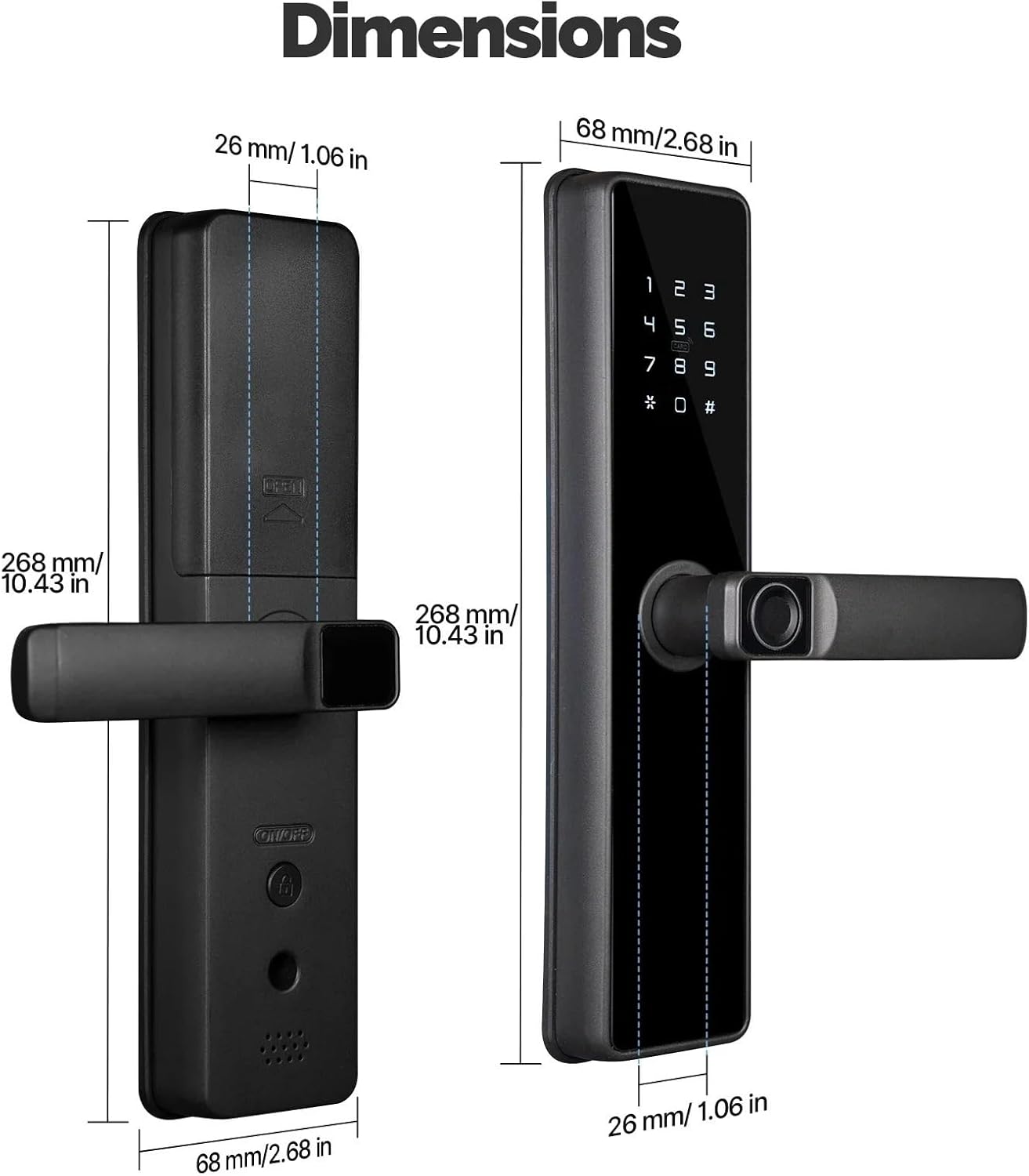
Image 5.1: Detailed dimensions of the front and rear handle assemblies, showing height, width, and depth.
6. Setup and Installation
6.1 Battery Installation
- Remove the battery cover from the rear handle assembly.
- Insert 4 AA batteries (not included) according to the polarity indicators (+/-).
- Replace the battery cover.
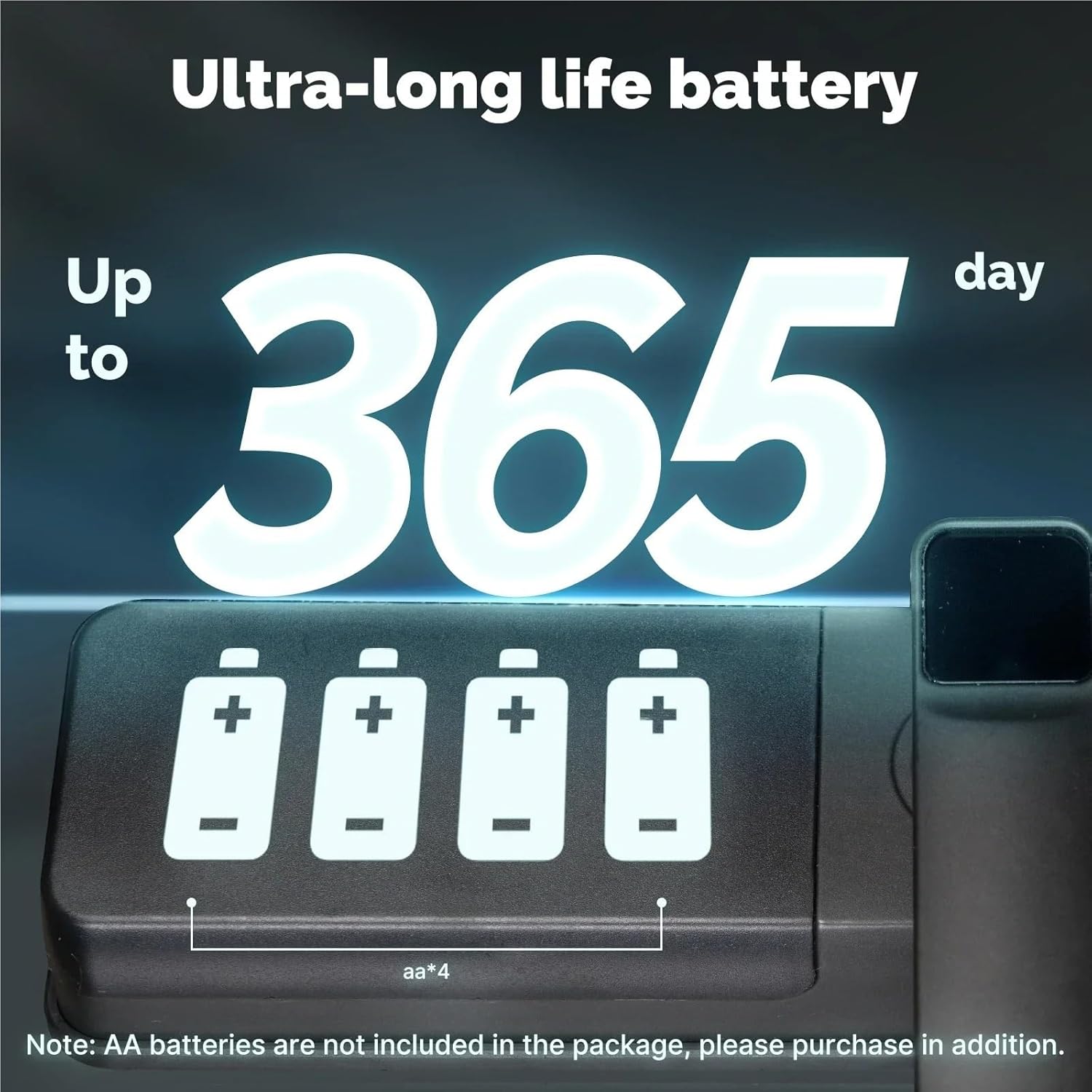
Image 6.1: Illustration of the battery compartment, indicating where to insert the 4 AA batteries.
6.2 Physical Installation
Refer to the provided installation template and hardware for precise fitting. Professional installation is recommended.
- Prepare the door according to the mortise lock dimensions (Model 4585: 22mm x 240mm).
- Install the mortise lock body into the door edge.
- Connect the cable from the front handle to the rear handle.
- Mount the front and rear handle assemblies, securing them with the provided screws.
- Test the mechanical operation of the handles and latch.
6.3 App and ZigBee Gateway Setup
- Download the MOES App or Tuya Smart Life App from your device's app store.
- Register or log in to your account.
- Ensure your ZigBee gateway is powered on and connected to your home network.
- In the app, add a new device and select 'Smart Door Lock (ZigBee)'.
- Follow the on-screen instructions to pair the lock with your ZigBee gateway.
7. Operating Instructions
7.1 Unlocking Methods
7.1.1 Fingerprint Unlock
- Place your registered finger on the fingerprint sensor.
- The lock will unlock if the fingerprint is recognized.

Image 7.1: Visual representation of the fingerprint unlocking process, highlighting the sensor on the handle.
7.1.2 Password Unlock
- Enter your registered password on the keypad.
- Press '#' to confirm. The lock will unlock.
- Virtual Password: To prevent peeping, you can enter random digits before and after your actual password. For example, if your password is '123456', you can enter '8812345699'.
7.1.3 IC Card Unlock
- Place a registered IC card near the card reader area on the lock.
- The lock will unlock upon successful recognition.
7.1.4 Remote App Unlock
- Open the MOES App or Tuya Smart Life App on your smartphone.
- Select your smart door lock.
- Tap the 'Unlock' button or icon within the app.

Image 7.2: A user remotely unlocking the door using the smartphone application, demonstrating convenience and control from anywhere.
7.1.5 Physical Key Unlock
- Insert the physical key into the keyhole (usually located discreetly on the front panel).
- Turn the key to unlock the door. This method is for emergency use or when batteries are depleted.
7.1.6 Temporary Password
The app allows you to generate temporary or dynamic passwords for visitors. These passwords can be set to expire after a certain period or a single use.

Image 7.3: A user receiving a temporary password on their phone, which can be used for limited access.
7.1.7 Voice Command (Alexa)
This ZigBee door lock supports integration with Alexa for voice commands. A voice PIN may be required for security.
- Ensure your lock is linked to Alexa via the Tuya/MOES skill.
- Say, "Alexa, unlock the door."
- If prompted, provide your voice PIN.

Image 7.4: Examples of unlocking the door using Alexa voice commands, illustrating the option for a voice PIN for added security.
7.2 Locking Methods
- Automatic Locking: The lock will automatically engage after a set period (configurable in the app) once the door is closed.
- Manual Locking: Lift the handle from the outside or inside to engage the deadbolt.
- Double Lock: From the inside, activate the double lock button for enhanced security. This prevents unlocking from the outside by most methods.
7.3 Advanced Security Features
- Tamper Alarm: If an illegal attempt to break the lock is detected, the lock will sound a 105-decibel alarm and send a notification to your app.
- Anti-Hijacking Alarm: In a threatening situation, entering a specific anti-hijacking password or fingerprint will silently send an alarm notification to your app and designated contacts without alerting the intruder.
- History Records: The MOES App displays a log of all unlock events, failed attempts, and low-power alerts, allowing real-time monitoring of your home's security.
8. Maintenance
8.1 Battery Replacement
When the low battery warning is activated, replace all 4 AA batteries promptly to ensure continuous operation. Refer to Section 6.1 for battery installation steps.
8.2 Emergency Power Supply
If the batteries completely deplete before replacement, you can temporarily power the lock using a USB-C power bank connected to the emergency power port on the front panel. This will allow you to unlock the door using a registered method or the physical key.
8.3 Cleaning
Wipe the lock's surface with a soft, dry cloth. Avoid using abrasive cleaners or solvents that could damage the finish or electronic components.
9. Troubleshooting
| Problem | Possible Cause | Solution |
|---|---|---|
| Lock does not respond. | Dead batteries. | Replace batteries or use USB-C emergency power. |
| Fingerprint not recognized. | Finger is wet/dirty; sensor is dirty; unregistered fingerprint. | Clean finger/sensor; re-register fingerprint if needed. |
| Password not working. | Incorrect password entered; password not registered. | Verify password; ensure it is registered in the app. |
| Remote unlock fails. | No ZigBee gateway connection; poor Wi-Fi signal; app issue. | Check gateway status; ensure strong Wi-Fi; restart app/phone. |
| Tamper alarm sounds frequently. | Sensitive settings; actual tampering attempts. | Adjust alarm sensitivity in app; investigate potential security breaches. |
10. Warranty and Support
For warranty information and technical support, please refer to the documentation provided with your purchase or contact VDCYAOFZ customer service through the retailer where the product was purchased. Keep your purchase receipt as proof of purchase.