
Introduction
This manual provides essential information for the installation, operation, and maintenance of your ReSpec.io XFX Radeon RX 480 8GB GDDR5 Reference Graphics Card. Please read this manual thoroughly before installation and keep it for future reference.
Safety Information
- Ensure your computer is powered off and unplugged from the wall outlet before installing or removing the graphics card.
- Always ground yourself to prevent electrostatic discharge (ESD) when handling computer components. Use an anti-static wrist strap or touch a grounded metal object.
- Handle the graphics card by its edges to avoid touching sensitive components.
- Do not expose the graphics card to moisture or extreme temperatures.
- If you are unsure about any installation step, consult a qualified technician.
Package Contents
Verify that all items are present in your package:
- ReSpec.io XFX Radeon RX 480 8GB GDDR5 Graphics Card
- Driver CD (or instructions for online download)
- Quick Installation Guide
Setup and Installation
1. Pre-Installation Checks
- Power Supply: Ensure your power supply unit (PSU) meets the minimum wattage requirements for the RX 480 (typically 500W or higher, with at least one 6-pin or 8-pin PCIe power connector).
- Motherboard: Confirm your motherboard has an available PCI Express x16 slot.
- Case Clearance: Check that your computer case has sufficient space for the graphics card.
2. Physical Installation
- Prepare Your System: Power off your computer, unplug the power cord, and open the computer case.
- Locate PCIe Slot: Identify an available PCI Express x16 slot on your motherboard. Remove any expansion slot covers from the back of the case that correspond to the slot.
- Insert Graphics Card: Carefully align the graphics card with the PCIe x16 slot. Press down firmly and evenly until the card is fully seated in the slot. You should hear a click as the retention clip engages.
- Secure the Card: Secure the graphics card to the computer case with screws or the case's retention mechanism.
- Connect Power: Connect the appropriate PCIe power connector(s) from your power supply to the graphics card. The RX 480 typically requires one 6-pin or 8-pin connector.
- Close Case: Once the card is securely installed and powered, close your computer case.
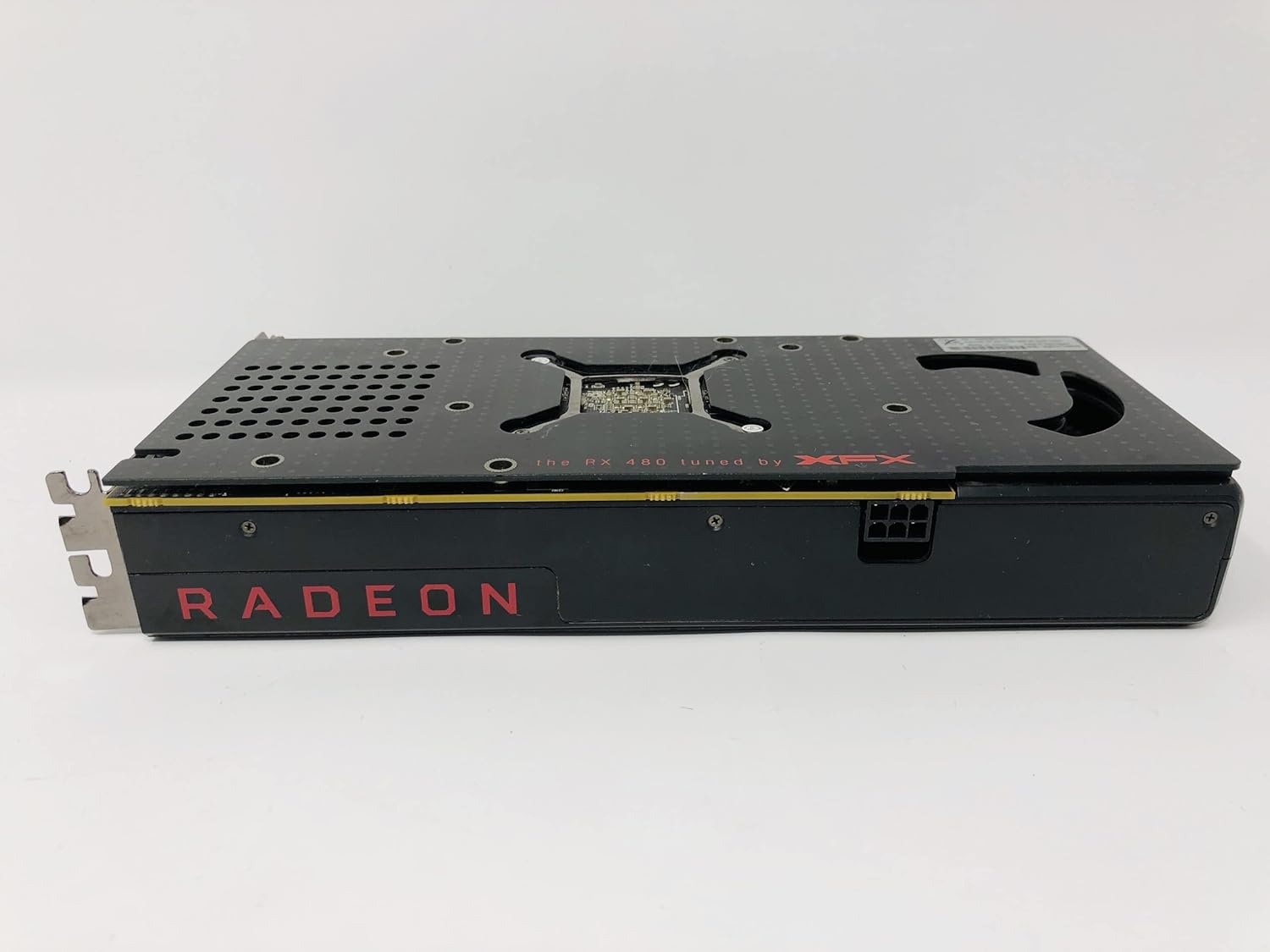
Image: Top view of the XFX Radeon RX 480 graphics card, illustrating its physical form factor.
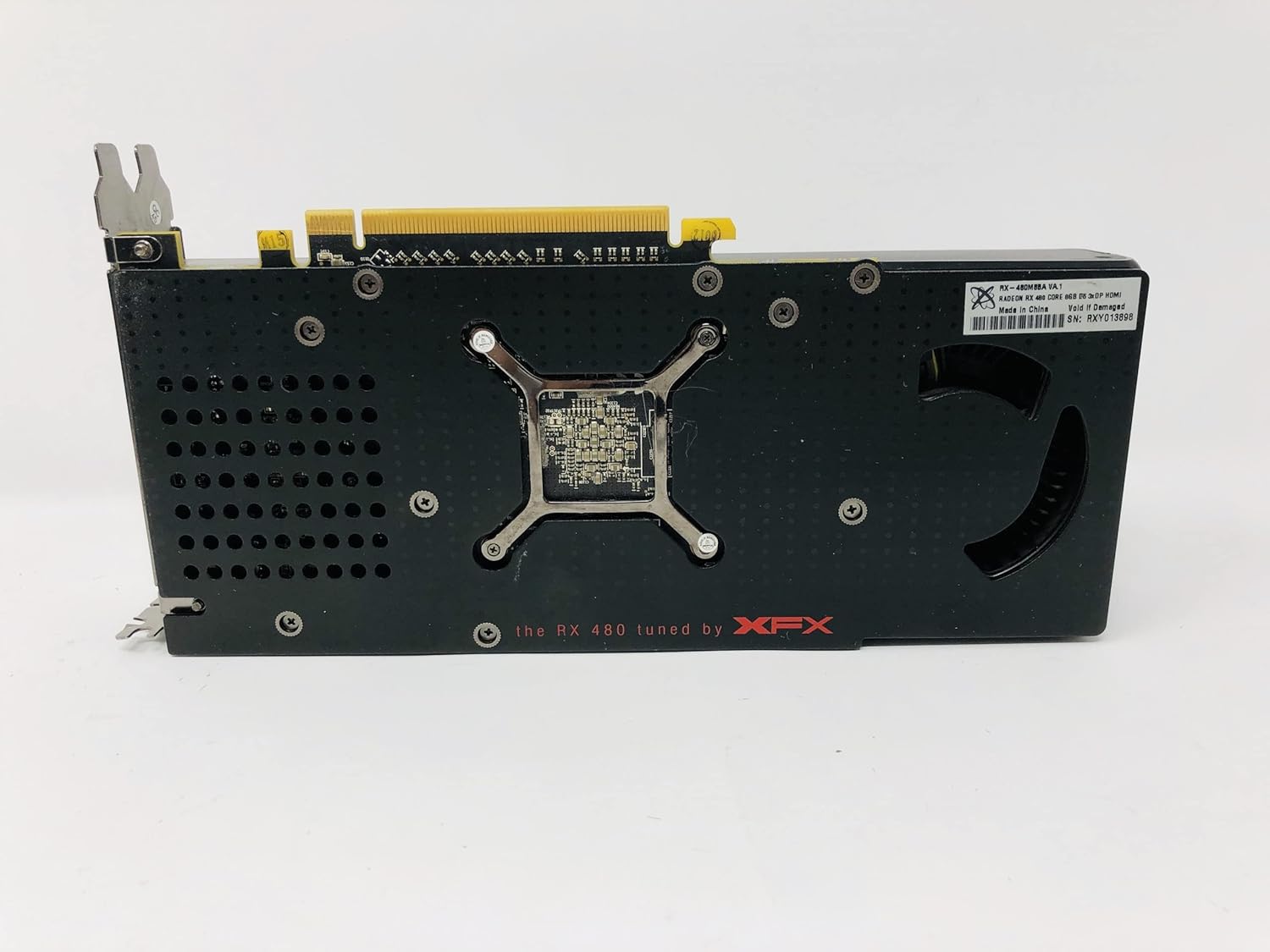
Image: Bottom view of the XFX Radeon RX 480 graphics card, showing the PCB and backplate.
3. Driver Installation
- Power On: Reconnect the power cord and turn on your computer. Connect your monitor to one of the display outputs on the graphics card.
- Install Drivers:
- From CD: If a driver CD is included, insert it and follow the on-screen instructions.
- Online Download (Recommended): Visit the official AMD website (www.amd.com/support) to download the latest drivers for the Radeon RX 480. Follow the installation wizard.
- Restart System: After driver installation, restart your computer to apply all changes.
Operating the Graphics Card
Connecting Displays
The XFX Radeon RX 480 supports multiple display outputs. Connect your monitor(s) to the available ports on the graphics card. This model typically features HDMI and DisplayPort outputs.

Image: Rear view of the XFX Radeon RX 480 graphics card, highlighting the display output ports.
AMD Radeon Software
Once drivers are installed, you can access the AMD Radeon Software. This utility allows you to:
- Adjust display settings and resolutions.
- Optimize game performance.
- Monitor GPU temperature and usage.
- Update drivers.
Maintenance
- Cleaning: Periodically clean dust from the graphics card's heatsink and fans using compressed air. Ensure the computer is powered off and unplugged before cleaning.
- Driver Updates: Regularly check the AMD website for the latest driver updates to ensure optimal performance and compatibility.
- System Airflow: Maintain good airflow within your computer case to prevent overheating.
Troubleshooting
No Display Output
- Ensure the monitor cable is securely connected to both the graphics card and the monitor.
- Verify that the graphics card is fully seated in the PCIe slot.
- Confirm that all necessary PCIe power connectors are attached to the graphics card.
- Test with a different monitor or cable if possible.
Driver Issues
- If you experience display artifacts or crashes, try reinstalling the latest drivers from the AMD website.
- Use AMD's clean uninstall utility (DDU - Display Driver Uninstaller) to remove old drivers before installing new ones.
Overheating
- Ensure your computer case has adequate ventilation.
- Clean any dust buildup from the graphics card's heatsink and fans.
- Monitor temperatures using AMD Radeon Software or third-party utilities.
Specifications
| Feature | Detail |
|---|---|
| Graphics Coprocessor | AMD Radeon RX 480 |
| Brand | ReSpec.io |
| Graphics RAM Size | 8 GB |
| GPU Clock Speed | 2 GHz |
| Video Output Interface | HDMI, DisplayPort |
| Graphics RAM Type | GDDR5 |
| Compatible Devices | Desktop |
| Graphics Card Interface | PCI Express |
| Display Maximum Resolution | 3840x2160 |
| Model Name | RX 480 |
| Manufacturer | Xfx |
| UPC | 786468655432 |
| ASIN | B0FK2XDB39 |
Warranty and Support
This product is covered by the manufacturer's standard warranty. Please refer to the warranty information provided with your purchase or visit the ReSpec.io website for details regarding warranty terms and conditions.
For technical support or further assistance, please contact ReSpec.io customer service through their official website or the contact information provided in your product packaging.