
1. Introduction
Welcome to the user manual for your new Etonesonic 55-inch Smart Android TV. This manual provides essential information for setting up, operating, and maintaining your television. Please read this manual thoroughly before using your TV to ensure proper operation and to maximize your viewing experience. This television features a 55-inch frameless display, an Android operating system for smart functionality, and multiple connectivity options.
2. Safety Information
To reduce the risk of electric shock, fire, or damage, please observe the following safety precautions:
- Power Source: Connect the TV only to an AC power outlet of the specified voltage. Ensure the power cord is not damaged or pinched.
- Ventilation: Do not block ventilation openings. Allow adequate space around the TV for proper airflow. Avoid placing the TV on a bed, sofa, rug, or similar surface that may block ventilation.
- Placement: Place the TV on a stable, level surface or mount it securely to a wall. Avoid placing it in direct sunlight, near heat sources, or in areas with high humidity or dust.
- Liquid and Moisture: Do not expose the TV to rain or moisture. Do not place objects filled with liquids, such as vases, on the TV.
- Cleaning: Unplug the TV before cleaning. Use a soft, dry cloth. Do not use liquid cleaners or aerosol cleaners.
- Servicing: Do not attempt to service this product yourself. Refer all servicing to qualified service personnel.
3. Package Contents
Please check that all the following items are included in your package:
- Etonesonic 55-inch Smart Android TV
- Remote Control
- TV Stand (2 pieces)
- User Manual (this document)
- Power Cord

Image 3.1: Front view of the Etonesonic 55-inch Smart Android TV packaging box. The box displays the brand 'Etonesonic', 'Android 9.0', 'Smart TV', and '55" 140cm' along with various feature icons.

Image 3.2: Angled view of the Etonesonic 55-inch Smart Android TV packaging box, showing the side and front. Similar branding and feature information are visible.
4. Setup
4.1 Unpacking
Carefully remove the TV from its packaging. It is recommended to retain the packaging materials for future transport or servicing. Handle the TV by its edges, avoiding pressure on the screen.
4.2 Stand Installation
To install the TV stand:
- Place the TV screen-down on a soft, flat surface (e.g., a blanket or foam) to prevent scratches.
- Align each stand piece with the corresponding slots on the bottom of the TV.
- Secure the stands using the provided screws. Ensure they are tightened firmly.
4.3 Wall Mounting (Optional)
If you choose to wall-mount your TV, please consult a professional installer and refer to the specific instructions provided with your wall-mount bracket. Ensure the wall mount is compatible with the TV's VESA mounting pattern.
4.4 Connecting Power
Connect the power cord to the TV's power input, then plug the other end into a suitable AC power outlet.
4.5 Initial Power On & First-Time Setup
After connecting power, press the power button on the remote control or on the TV itself. The TV will guide you through the initial setup process, which typically includes:
- Language selection
- Region/Country selection
- Network connection (Wi-Fi setup)
- Google account sign-in (optional, for full Android TV features)
- Channel scanning (for antenna/cable connections)
4.6 Connecting External Devices
Your TV offers various ports for connecting external devices:
- HDMI Ports: Connect gaming consoles, Blu-ray players, streaming devices, or set-top boxes. Use high-quality HDMI cables for optimal performance.
- USB Ports: Insert USB drives for media playback (photos, videos, music).
- Bluetooth: Pair compatible Bluetooth devices such as headphones or game controllers. Navigate to the TV's settings menu to manage Bluetooth connections.
- Wi-Fi: Connect to your home network for internet access and smart TV features.
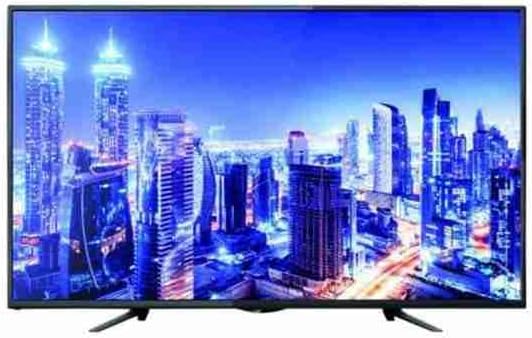
Image 4.1: The Etonesonic 55-inch Smart Android TV, showcasing its frameless design and a high-definition image of a cityscape with prominent blue hues and sharp contrasts.
5. Operating
5.1 Remote Control Overview
The remote control allows you to access all TV functions. Familiarize yourself with the buttons for power, volume, channel selection, input source, navigation, and smart TV features.
5.2 Basic TV Functions
- Power On/Off: Press the power button on the remote.
- Volume Adjustment: Use the Volume Up/Down buttons.
- Channel Selection: Use the Channel Up/Down buttons or number pad.
- Input Source: Press the 'Input' or 'Source' button to switch between HDMI, USB, and other connected devices.
5.3 Android TV Features
Your Etonesonic TV runs on the Android operating system, providing access to a wide range of smart features:
- Home Screen: Navigate the customizable home screen to access apps, live TV, and recommended content.
- Apps: Download and install apps from the Google Play Store, including popular streaming services.
- Google Assistant: Use voice commands via the remote control (if equipped) to search for content, control smart home devices, and get information.
- Casting: Cast content from your smartphone or tablet to the TV using built-in Chromecast functionality.
5.4 Picture and Sound Settings
Access the TV's settings menu to adjust picture modes (e.g., Standard, Vivid, Movie), brightness, contrast, color, and sound modes (e.g., Standard, Music, Movie).
6. Maintenance
- Cleaning the Screen: Gently wipe the screen with a soft, lint-free cloth. For stubborn marks, slightly dampen the cloth with water or a specialized screen cleaner (do not spray directly onto the screen).
- Cleaning the TV Body: Use a soft, dry cloth to wipe the TV's frame and back panel.
- Software Updates: Periodically check for and install software updates via the TV's settings menu to ensure optimal performance and access to the latest features.
- Storage: If storing the TV for an extended period, unplug it and cover it to protect against dust. Store in a cool, dry place.
7. Troubleshooting
If you encounter issues with your TV, refer to the following common problems and solutions:
| Problem | Possible Solution |
|---|---|
| No power | Check if the power cord is securely connected to the TV and the power outlet. Ensure the outlet is functional. |
| No picture, but sound is present | Check the input source. Ensure external devices are powered on and connected correctly. |
| No sound, but picture is present | Check the volume level and mute status. Ensure audio cables are connected correctly for external devices. |
| Remote control not working | Replace the batteries. Ensure there are no obstructions between the remote and the TV's IR sensor. |
| Wi-Fi connection issues | Restart your router and modem. Re-enter the Wi-Fi password in the TV's network settings. Ensure the TV is within range of your Wi-Fi signal. |
| Apps are slow or crashing | Close unused apps. Clear the cache of the problematic app in the TV's settings. Restart the TV. |
| Factory Reset | As a last resort, you can perform a factory reset through the TV's settings menu. This will erase all personal data and settings. |
8. Specifications
| Feature | Specification |
|---|---|
| Brand | Generic |
| Model Number | Et55sa |
| Display Size | 139.7 cm (55-inch) |
| Display Technology | LED |
| Resolution | 3840 x 2160 |
| Refresh Rate | 60 Hz |
| Operating System | Android TV |
| Connectivity | Wi-Fi, Bluetooth, HDMI, USB |
| Total USB Ports | 2 |
| Aspect Ratio | 16:9 |
| Product Dimensions (D x W x H) | 8.5D x 123W x 71H centimetres |
| Color | Black |
9. Warranty and Support
This Etonesonic TV comes with a 1-Year Manufacturer's Warranty. Please retain your proof of purchase for warranty claims.
For technical support or warranty inquiries, please refer to the contact information provided with your purchase documentation or contact your retailer. Do not attempt to repair the TV yourself, as this may void your warranty.