
1. Introduction
Thank you for choosing the Hawkray WiFi Light Bulb Security Camera. This device combines a security camera with a light source, offering 2K resolution, full-color night vision, 360° pan-tilt functionality, motion detection, and two-way audio. It supports both 2.4GHz and 5GHz WiFi bands for stable connectivity. This manual provides detailed instructions for installation, operation, and maintenance to ensure optimal performance.
2. Safety Information
- Ensure the power is off before installation or maintenance.
- Install the camera in a location where it is protected from extreme weather conditions, even though it has an IP66 waterproof rating.
- Do not attempt to disassemble or repair the camera yourself. Contact customer support for assistance.
- Keep the camera away from strong magnetic fields or corrosive substances.
- Use only the recommended power source and accessories.
3. Package Contents
Verify that all items are present in the package:
- Hawkray WiFi Light Bulb Security Camera (Model PW1)
- Instruction Manual
- Mounting accessories (if applicable, e.g., E27 socket adapter for wall mounting)
4. Product Overview
The Hawkray WiFi Light Bulb Security Camera integrates a high-definition camera with a standard light bulb form factor. Key components include:
- Camera Lens: Captures video footage.
- Infrared LEDs/White Lights: For night vision and illumination.
- Microphone: For audio input and two-way communication.
- Speaker: For audio output and two-way communication.
- Light Bulb Base: Standard E27 screw base for power and mounting.
- Reset Button: Used to reset the device to factory settings.
- Micro SD Card Slot: For local video storage (supports up to 128GB, card not included).

Image: Front view of the Hawkray WiFi Light Bulb Security Camera alongside a smartphone displaying its app interface. The camera features a white and black dome design with visible lenses and lights, and a standard light bulb screw base.
5. Setup and Installation
5.1 App Download and Account Registration
The camera operates with the instaVision APP. Download the app from your smartphone's app store (iOS App Store or Google Play Store). Follow the on-screen instructions to register a new account or log in if you already have one.
5.2 Camera Installation
The camera is designed for easy installation, similar to replacing a standard light bulb.
- Choose a Location: Select an indoor or outdoor location with a standard E27 light bulb socket or a compatible power outlet. Ensure the location has good WiFi signal coverage.
- Power Off: Before installation, ensure the power to the light socket is turned off to prevent electrical hazards.
- Screw In: Carefully screw the Hawkray camera into the light bulb socket until it is secure.
- Power On: Restore power to the light socket. The camera will power on and initiate its startup sequence.
- Initial Setup: Follow the instructions in the instaVision APP to add your new camera. This typically involves scanning a QR code on the camera or following an in-app pairing process.
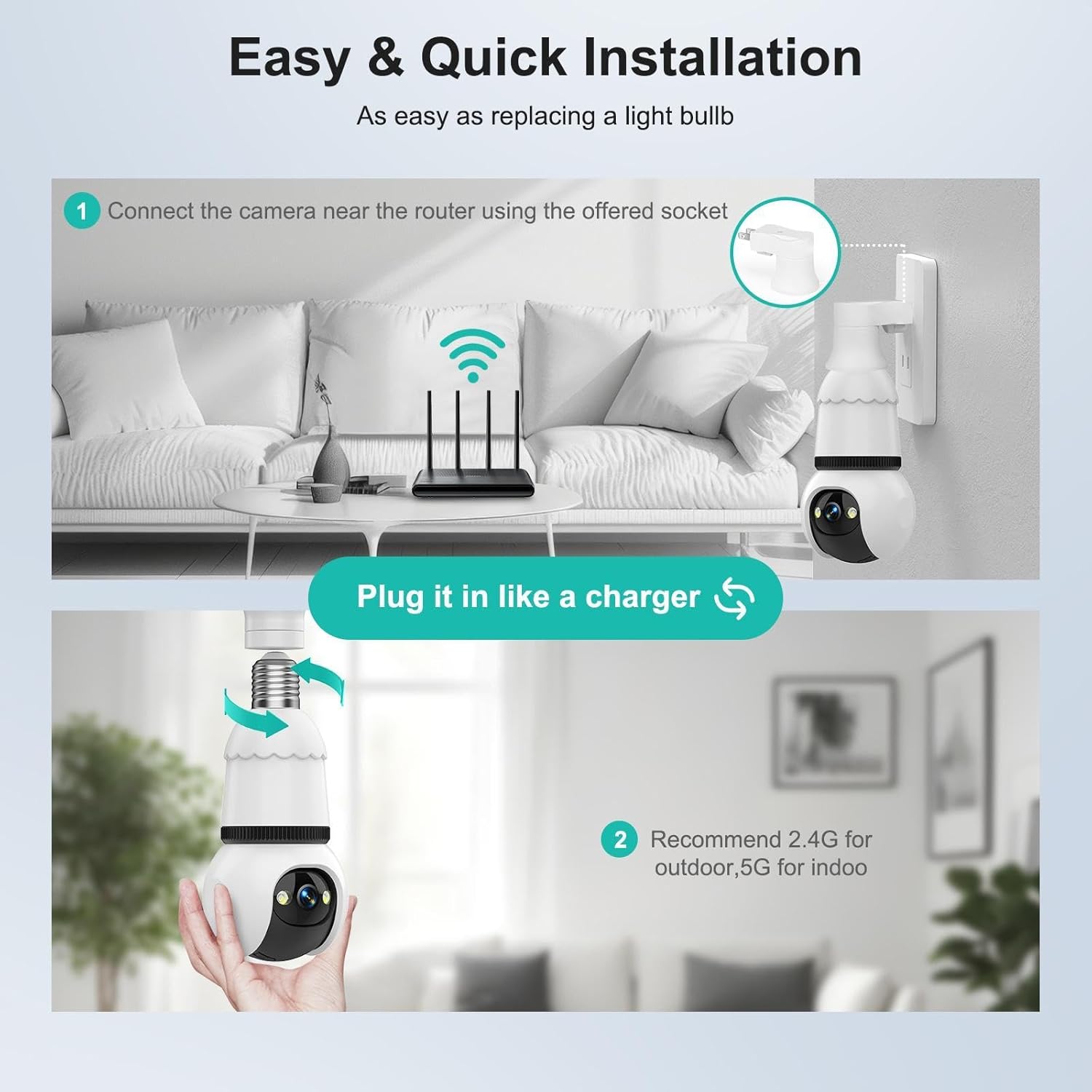
Image: Diagram illustrating the easy installation process. Step 1 shows connecting the camera near a router using an offered socket. Step 2 shows screwing the camera into a light socket, emphasizing its simple plug-and-play nature.

Image: The Hawkray light bulb camera installed in an outdoor wall-mounted light fixture, demonstrating its dual function as a light source and security camera.
5.3 WiFi Connection (Dual-Band 2.4GHz & 5GHz)
The camera supports both 2.4GHz and 5GHz WiFi networks. During the app setup, you will be prompted to connect to your home WiFi network.
- 2.4GHz: Offers longer range and better penetration through walls, suitable for outdoor use or areas further from the router.
- 5GHz: Provides faster data transfer speeds, ideal for indoor use where the camera is closer to the router and requires higher bandwidth for streaming.
Ensure your router is broadcasting both bands or select the appropriate network during setup. For optimal performance, consider the camera's location relative to your router when choosing the band.

Image: An illustration showing a house with WiFi signals, indicating that 2.4GHz offers longer coverage and better penetrating power, while 5GHz provides faster transfer speeds, supporting the camera's dual-band capability.
6. Operating Instructions
Once the camera is successfully connected to the instaVision APP, you can access its features.
6.1 Live View and Pan-Tilt Control
- Open the instaVision APP and select your camera from the device list.
- The live video feed will appear.
- Use the on-screen controls to pan (horizontal 360°) and tilt (vertical 90°) the camera lens to adjust the viewing angle.
6.2 Motion Detection and Human Detection Alarm
The camera features smart motion detection and human detection capabilities.
- Navigate to the camera settings in the instaVision APP.
- Enable "Motion Detection" and "Human Detection" features.
- When human motion is detected, the camera will automatically track the movement (360° horizontal, 90° vertical) and send an instant alert to your smartphone. This helps reduce false alarms from pets or shadows.
- You can adjust sensitivity levels and set detection zones within the app.
6.3 Two-Way Audio Communication
The built-in microphone and speaker allow for real-time two-way communication.
- From the live view screen in the app, tap the microphone icon to speak through the camera's speaker.
- The camera's microphone will capture audio from its surroundings.
- This feature is useful for interacting with visitors or deterring intruders.
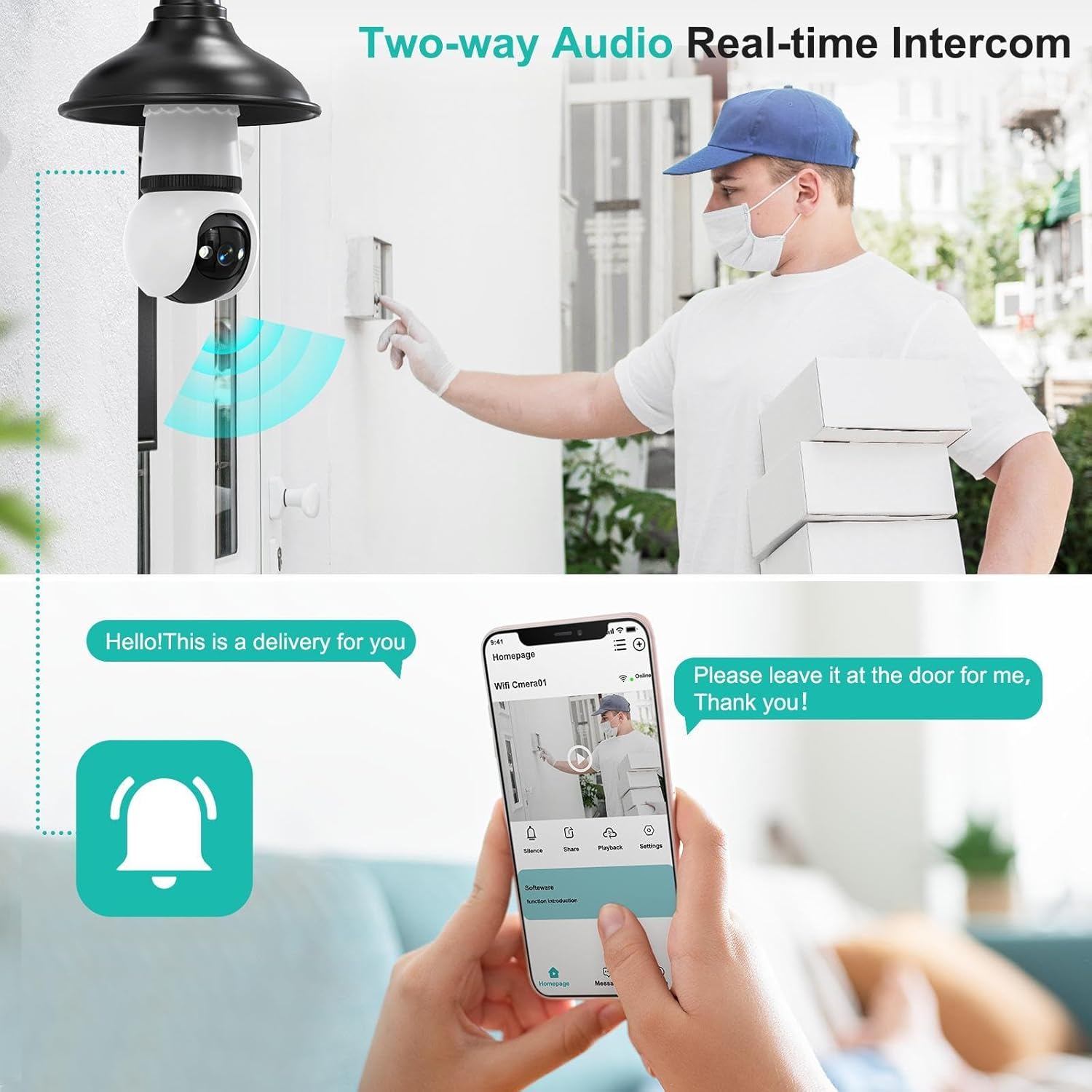
Image: A delivery person at a door, with the Hawkray camera installed above. A smartphone screen shows a message "Hello! This is a delivery for you" and a reply "Please leave it at the door for me, Thank you!", demonstrating the two-way audio feature.
6.4 Full-Color Night Vision
The camera provides clear and detailed video footage even in low-light or dark conditions, utilizing advanced full-color night vision technology.
- The camera automatically switches to night vision mode when ambient light is insufficient.
- The integrated light source can provide illumination for full-color night vision.
6.5 Siren Alarm
In case of suspicious activity, you can manually activate a siren alarm through the instaVision APP to deter intruders.
6.6 Multi-User Access
The camera supports up to four simultaneous users, allowing family members or authorized personnel to monitor the camera feed. Share access through the instaVision APP settings.
7. Video Recording and Storage
The Hawkray camera offers flexible video storage options:
- Micro SD Card Storage: Insert a Micro SD card (up to 128GB, not included) into the designated slot on the camera for local storage of recorded footage. The camera supports continuous recording or event-triggered recording.
- Cloud Storage: Secure cloud storage options are available through the instaVision APP (subscription may be required). This provides off-site backup for your video footage.
Recorded videos can be reviewed and downloaded via the instaVision APP.

Image: An illustration showing continuous recording capabilities with options for Micro SD card storage (up to 128GB, not included) and Cloud Storage, emphasizing secure video retention.
8. Maintenance
- Cleaning: Gently wipe the camera lens and body with a soft, dry cloth. Do not use harsh chemicals or abrasive cleaners.
- Firmware Updates: Regularly check the instaVision APP for available firmware updates. Keeping your camera's firmware updated ensures optimal performance and access to new features.
- Network Stability: Ensure your WiFi network is stable and strong for uninterrupted camera operation.
9. Troubleshooting
| Problem | Possible Cause | Solution |
|---|---|---|
| Camera not connecting to WiFi | Incorrect WiFi password; camera too far from router; incorrect WiFi band selected. | Verify WiFi password. Move camera closer to router. Ensure you are connecting to the correct 2.4GHz or 5GHz network. Reset the camera and try again. |
| No live video feed | Camera offline; poor network connection; app issue. | Check camera's power supply and WiFi connection. Restart the app. Restart the camera. |
| Motion detection not working | Feature disabled; incorrect sensitivity settings; detection zone not configured. | Enable motion detection and human detection in the app. Adjust sensitivity. Configure detection zones. |
| Two-way audio not functioning | Microphone/speaker muted in app; volume too low; network latency. | Check app settings for audio mute. Increase volume. Ensure stable network connection. |
| SD card not recording | SD card full or faulty; not formatted; recording settings incorrect. | Check SD card status in app. Format the SD card via the app. Ensure recording settings are enabled. Replace SD card if faulty. |
10. Specifications
| Feature | Detail |
|---|---|
| Model Name | PW1 |
| Video Capture Resolution | 2K |
| Connectivity Technology | Wireless (Wi-Fi) |
| Wireless Communication Technology | Wi-Fi (2.4GHz & 5GHz Dual-Band) |
| Indoor/Outdoor Usage | Indoor, Outdoor (IP66 Waterproof) |
| Power Source | Corded Electric (Light Socket) |
| Mounting Type | Light Socket |
| Controller Type | APP (instaVision) |
| Special Features | 2-Way Audio, Full-Color Night Vision, Motion Detection, Human Detection, Siren Alarm, 360° Pan-Tilt |
| Viewing Angle | 355 Degrees (Pan), 90 Degrees (Tilt) |
| Night Vision Range | 15 Meters |
| Storage Options | Micro SD Card (up to 128GB, not included), Cloud Storage |
| Product Dimensions (L x W x H) | 2.95 x 2.95 x 6.65 inches |
| Item Weight | 13.7 ounces |
| UPC | 708707852556 |
11. Warranty and Support
For warranty information, technical support, or customer service inquiries, please refer to the contact information provided with your purchase or visit the official Hawkray website. Keep your purchase receipt as proof of purchase.