1. Introduction
This manual provides detailed instructions for the installation, operation, and maintenance of your Ossuret Android 13 Car Stereo. This device is specifically designed for Citroen C3 and DS3 models manufactured between 2010 and 2016. It features a 9-inch capacitive touchscreen, Android 13 operating system, integrated GPS navigation, wireless CarPlay and Android Auto, Bluetooth connectivity, and steering wheel control compatibility.
Please read this manual thoroughly before installation and use to ensure proper functionality and to maximize your user experience.

Image 1.1: The Ossuret Android 13 Car Stereo with its 9-inch display, integrated into a vehicle dashboard.
2. Package Contents
Verify that all components listed below are included in your package. If any items are missing or damaged, please contact customer support.
- Main Head Unit (Car Stereo)
- Power Cable
- External Microphone
- RCA Harness (for WiFi version only)
- Rear Camera Input RCA Cable
- GPS Antenna (High-speed antenna)
- USB Cable
- Factory USB Adapter
- Canbus Decoder
- Radio Antenna Adapter Cable

Image 2.1: Overview of the accessories included with the Ossuret Car Stereo.
3. Installation Guide
This section provides general guidance for installing the Ossuret Car Stereo. Due to the complexity of automotive electrical systems, professional installation is highly recommended.
3.1. Vehicle Compatibility
This car stereo is compatible with Citroen C3 and DS3 models from 2010 to 2016. Please confirm your vehicle's center console matches the installation requirements before proceeding.

Image 3.1: Vehicle compatibility information and important installation notes.
3.2. Pre-Installation Notes
- Note 1: The original car's dashboard may have a patch that needs to be carefully removed with a blade to properly install the new stereo's frame. Refer to the provided image for clarification.
- Note 2: If your original car has a specific button (as shown in the image), remove its cover and install the original car button into the new unit. If your car does not have this button, no modification to the plastic cover is necessary.
3.3. Wiring Connections
Connect the provided power cable, RCA harness, GPS antenna, USB cables, and radio antenna adapter cable to their respective ports on the head unit and the vehicle's wiring harness. Ensure all connections are secure to prevent signal loss or malfunction.
- Power Cable: Connects the head unit to the vehicle's power supply.
- RCA Harness: Used for audio output, subwoofer, and auxiliary input connections.
- GPS Antenna: Mount in a location with a clear view of the sky for optimal signal reception.
- USB Cables: For connecting external USB devices or for Android Auto (wired connection).
- Canbus Decoder: Integrates the stereo with the vehicle's CAN bus system for features like steering wheel controls.
- Radio Antenna Adapter: Connects the vehicle's radio antenna to the head unit.
4. Initial Setup and Operation
4.1. Power On and Basic Settings
After installation, turn on your vehicle's ignition. The car stereo should power on automatically. Follow the on-screen prompts for initial setup, including language selection, time zone, and Wi-Fi connection.
4.2. Wireless CarPlay / Android Auto
The Ossuret Car Stereo supports wireless Apple CarPlay and Android Auto via the pre-installed Zlink application. This allows seamless integration of your smartphone for navigation, music, calls, and messaging.
- Ensure your phone's Wi-Fi and Bluetooth are enabled.
- On the car stereo, open the 'Zlink' application.
- Follow the on-screen instructions to pair your smartphone via Bluetooth. Once paired, the system will establish a Wi-Fi connection for CarPlay or Android Auto.
- You can now access compatible phone applications directly from the car stereo's display.

Image 4.1: The CarPlay/Android Auto interface on the car stereo, demonstrating smartphone integration.
4.3. GPS Navigation
The unit comes with preloaded European maps and supports both online and offline navigation. For online navigation, connect the stereo to Wi-Fi or use a 4G LTE connection (if supported by an external modem, not included). You can also download map APKs for offline use.

Image 4.2: GPS navigation interface showing a route on the car stereo display.
4.4. Bluetooth Functionality
Connect your smartphone via Bluetooth for hands-free calling and audio streaming.
- Hands-Free Calling: Make and receive calls directly from the stereo. The built-in microphone captures your voice, and car speakers provide clear audio.
- Phonebook Download: Sync your phone's contacts to the stereo for easy access.
- Bluetooth Music: Stream audio from your phone to the car stereo wirelessly.
4.5. Radio Function (RDS Support)
The car stereo includes an FM radio tuner with RDS (Radio Data System) support. The FM tuning range is 87.5-108MHz, with increments of 0.05MHz (EU) or 0.1MHz (US).

Image 4.3: Radio interface showing FM tuning and station information.
4.6. Steering Wheel Control
The unit supports your vehicle's factory steering wheel controls, allowing you to manage volume, change tracks, and answer calls without taking your hands off the wheel. This enhances driving safety.
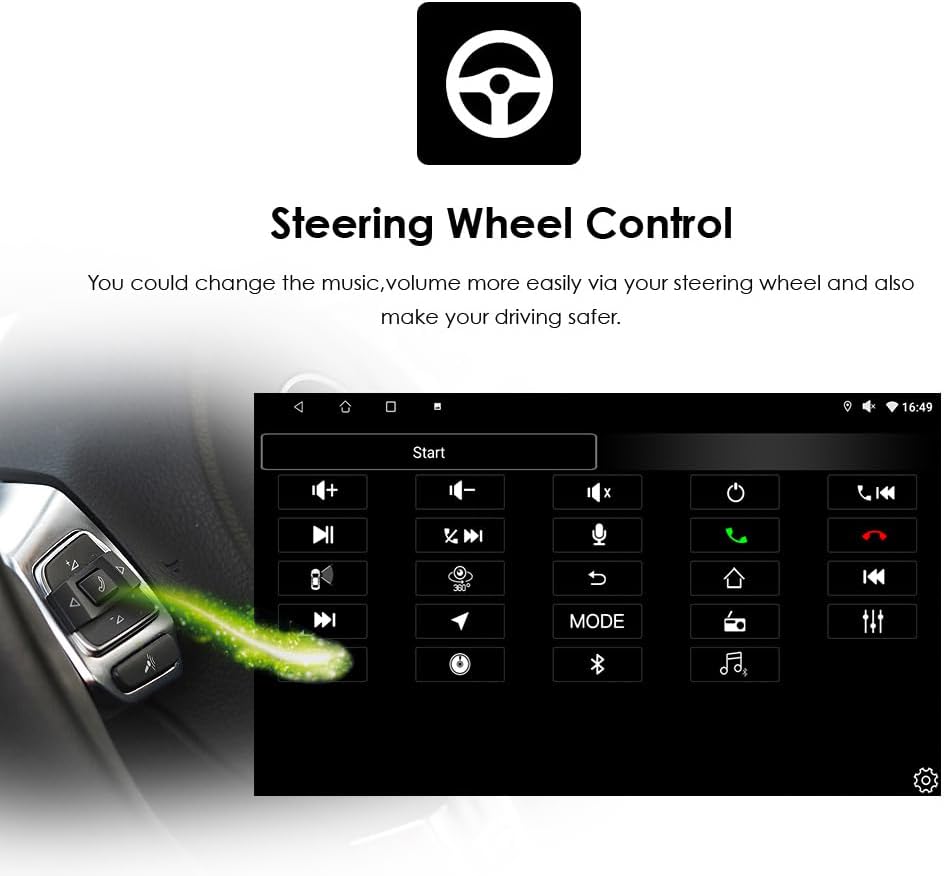
Image 4.4: Steering wheel control interface for custom button mapping.
4.7. Rear View System
When a compatible rear view camera is connected and correctly installed, the car stereo will automatically display the camera feed when the vehicle is shifted into reverse gear. This feature helps in identifying obstacles and reducing blind spots during parking maneuvers.

Image 4.5: Rear view camera display with parking assistance lines.
4.8. Mirror Link
The stereo supports Mirror Link functionality. For iPhones, use the AirPin application to connect via Wi-Fi. For Android devices, use the Easy-Connect application, which supports connection via USB.
5. Specifications
| Feature | Specification |
|---|---|
| Operating System | Android 13 |
| CPU | 4-Core A53 1.5Ghz |
| RAM | 2 GB |
| ROM | 32 GB |
| Screen Size | 9 Inches |
| Screen Resolution | 1280 x 720 (Capacitive Touch Screen) |
| Connectivity | Bluetooth, USB, WiFi (802.11b/g/n) |
| Compatible Devices | Smartphone |
| Special Functions | Android Auto, Apple CarPlay, GPS Navigation, Rear View Camera Input, Steering Wheel Control, Mirror Link, DAB+ (with extra box) |
| Audio Output Mode | Stereo (6 channels) |
| Amplifier Settings | Rock/Pop/Jazz/Classic/Flat/Voice/Custom |
| FM Tuning Range | 87.5-108MHz |
| Languages | Over 70 languages supported (e.g., English, German, French, Italian, Spanish, Dutch) |
| Model Number | B0FJXS65SL |
6. Troubleshooting
If you encounter issues with your Ossuret Car Stereo, refer to the following common troubleshooting steps:
- No Power: Check all power connections and fuses. Ensure the ignition is on.
- No Sound: Verify speaker connections, check volume levels, and ensure the correct audio source is selected.
- GPS Signal Loss: Ensure the GPS antenna is mounted in a clear location with an unobstructed view of the sky. Check antenna connection.
- Bluetooth Connection Issues: Ensure Bluetooth is enabled on both the stereo and your phone. Try unpairing and re-pairing the devices.
- CarPlay/Android Auto Not Connecting: Verify Wi-Fi and Bluetooth are active. Ensure the Zlink app is running. Try restarting both the stereo and your phone.
- Steering Wheel Controls Not Working: Check the Canbus decoder connection. Ensure the steering wheel control settings in the stereo's menu are correctly configured.
- Screen Unresponsive: Try restarting the unit. If the issue persists, a factory reset might be necessary (note: this will erase all user data).
For persistent issues, please contact Ossuret customer support.
7. Maintenance
To ensure the longevity and optimal performance of your car stereo, follow these maintenance guidelines:
- Screen Cleaning: Use a soft, lint-free cloth to gently wipe the touchscreen. For stubborn smudges, slightly dampen the cloth with water or a screen-safe cleaner. Avoid harsh chemicals or abrasive materials.
- Temperature: Avoid exposing the unit to extreme temperatures, both hot and cold, for extended periods.
- Software Updates: Periodically check for available software updates through the system settings or Ossuret's official website to ensure you have the latest features and bug fixes.
- General Care: Keep the unit free from dust and debris. Ensure all cables are securely connected and not pinched.
8. Warranty and Support
Warranty information for your Ossuret Car Stereo is typically provided with your purchase documentation or can be found on the manufacturer's official website. Please retain your proof of purchase for warranty claims.
For technical support, service, or further inquiries, please refer to the contact information provided by your retailer or Ossuret's customer service channels.