
1. Introduction
Welcome to the user manual for your Hodozzy 7055A 8 Core 4+64G 7-inch Android Car Radio. This manual provides detailed instructions for installation, operation, and troubleshooting to ensure you get the most out of your device. Please read this manual thoroughly before using the product.
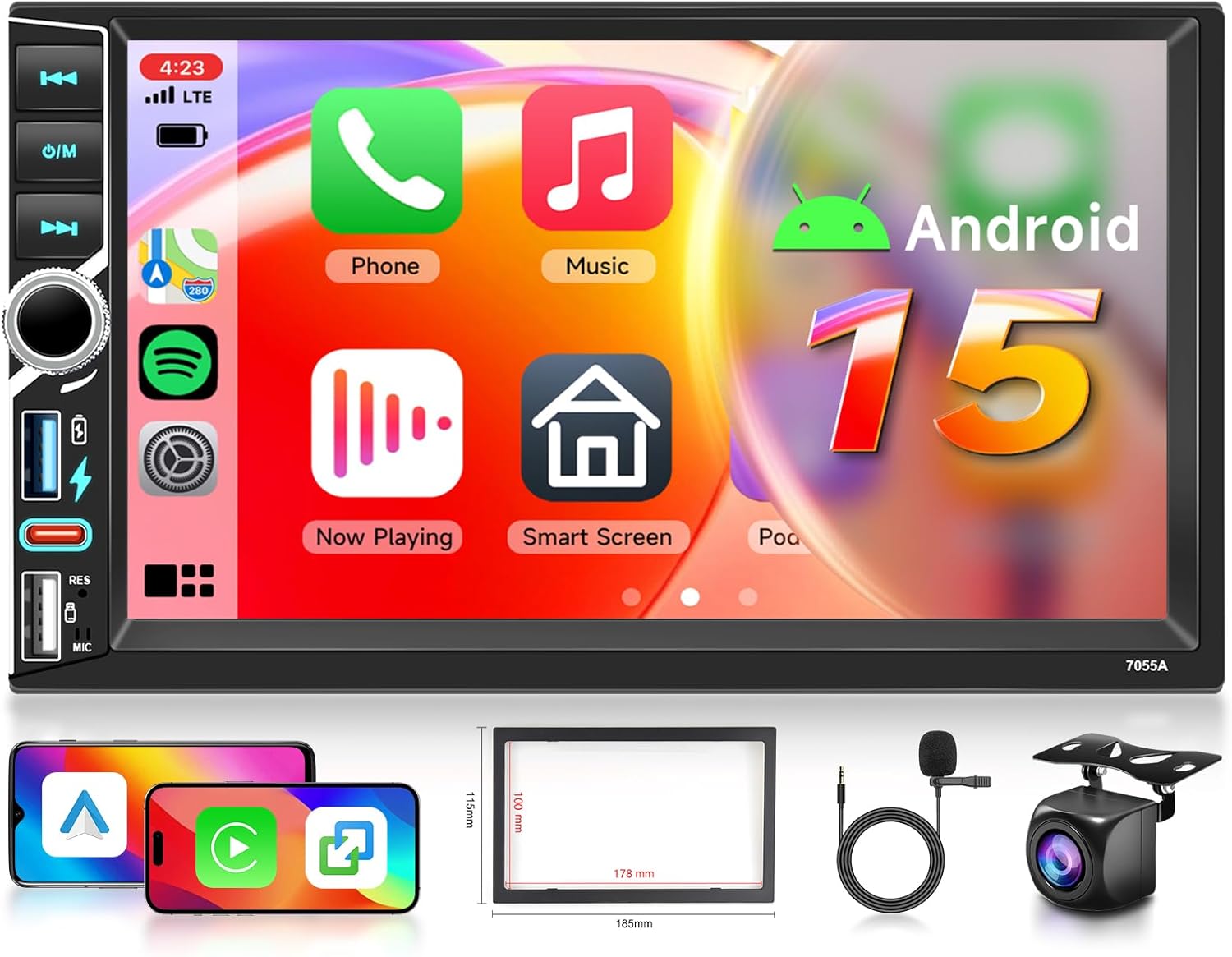
Figure 1.1: Hodozzy 7055A Android Car Radio and included accessories.
2. Product Features
The Hodozzy 7055A is a versatile 2-DIN car radio designed to enhance your in-car entertainment and navigation experience. Key features include:
- 7-inch IPS Capacitive Touch Screen: Provides clear and responsive interaction.
- Android Operating System: Built-in 8-core processor with 4GB RAM and 64GB ROM for stable performance.
- Wireless CarPlay & Android Auto: Seamless integration with Apple and Android smartphones for navigation, music, and calls.
- GPS Navigation: Supports offline maps (via "Here We Go") and online navigation.
- Built-in WiFi: For internet access and app downloads.
- Bluetooth 5.0: Hands-free calling, contact synchronization, and music streaming.
- FM/RDS Radio: Automatic station search and preset functions.
- Digital Signal Processing (DSP): Enhances audio quality by reducing noise and distortion.
- Split Screen Function: Allows simultaneous use of two applications.
- Mirror Link: Synchronize your smartphone screen with the car radio display.
- Steering Wheel Control (SWC): Compatible with existing steering wheel buttons for convenient control.
- AHD Reversing Camera Support: Automatic display of rear view for safer parking.
- Dual USB Ports & USB-C: For charging and data transfer.
3. Package Contents
Verify that all items listed below are included in your package:
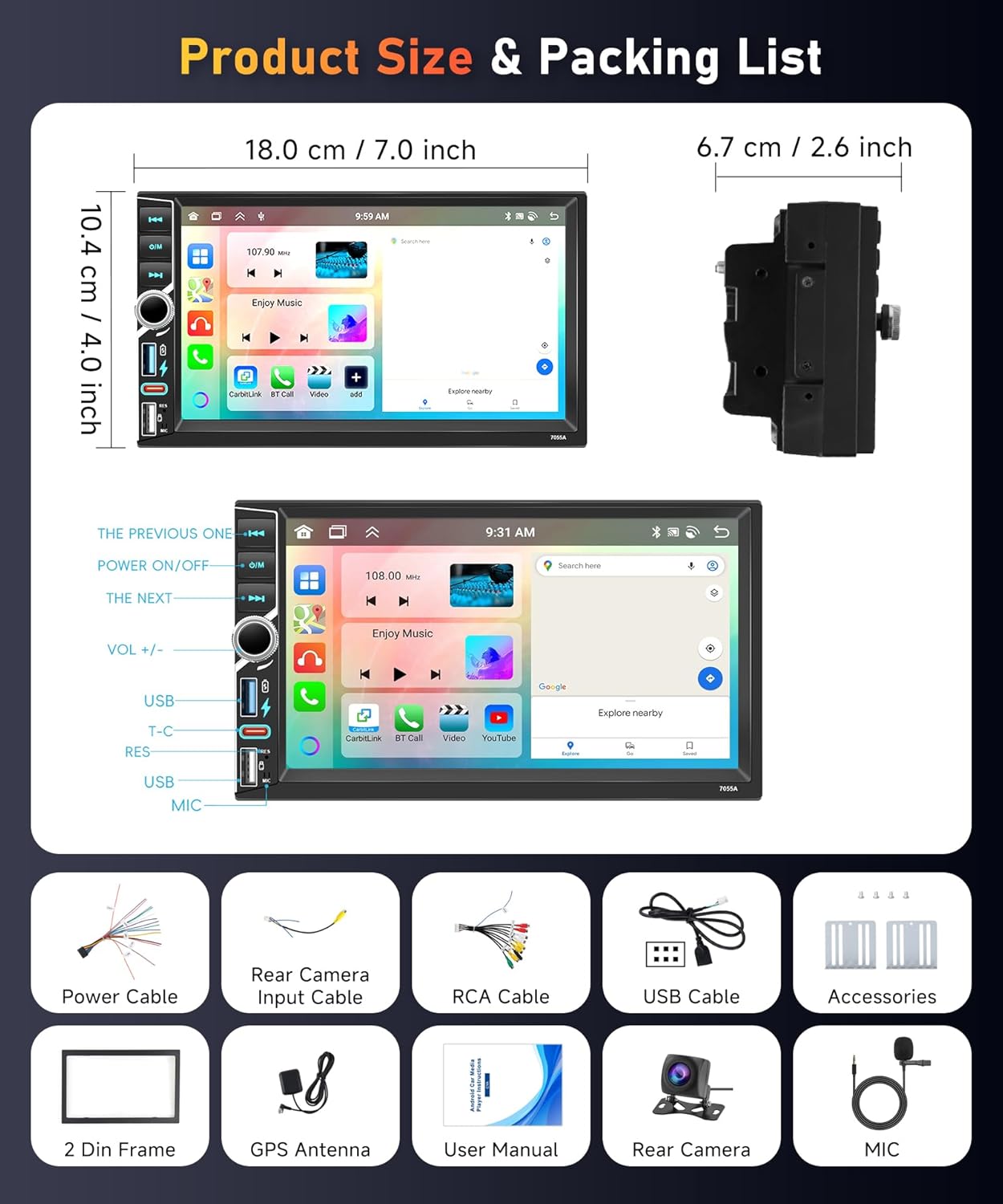
Figure 3.1: Product dimensions and packing list.
- Hodozzy 7055A Main Unit
- Power Cable
- Rear Camera Input Cable
- RCA Cable
- USB Cable (x2)
- GPS Antenna
- External Microphone
- Reversing Camera
- 2 DIN Frame
- Mounting Accessories
- User Manual (this document)
4. Installation Guide
Installation of the Hodozzy 7055A requires basic automotive electrical knowledge. If you are unsure about any steps, it is recommended to seek professional installation.
4.1 Safety Precautions
- Disconnect the vehicle's negative battery terminal before starting installation to prevent electrical shorts.
- Ensure all wiring is correctly connected to avoid damage to the unit or vehicle.
- Do not block airbags or other safety features during installation.
4.2 Wiring Connections
Refer to the wiring diagram provided with your unit for specific connections. General connections include:
- Power: Connect the yellow wire to constant 12V, red wire to accessory 12V, and black wire to ground.
- Speakers: Connect speaker wires to the corresponding vehicle speaker wires (e.g., front left +, front left -).
- Reversing Camera: Connect the camera's video output to the "CAM IN" port and the camera's power to the reverse light circuit.
- GPS Antenna: Connect the GPS antenna to the dedicated port on the back of the unit and mount it in a location with a clear view of the sky.
- External Microphone: Connect the external microphone to the MIC input for improved call quality.
- USB Ports: Connect the USB cables to the rear USB ports and route them to a convenient location in your vehicle.

Figure 4.1: Reversing camera connection and steering wheel control setup.
4.3 Steering Wheel Control (SWC) Setup
After installation, you may need to configure the steering wheel controls:
- Go to the "Steering Wheel Control" settings menu on the unit.
- Press and hold a button on your steering wheel (e.g., Volume Up).
- Select the corresponding function on the screen (e.g., "Volume+").
- Repeat for all desired steering wheel buttons.
- Save the settings.
5. Operating Instructions
5.1 Basic Operation
- Power On/Off: Press the power button (usually labeled O/M) on the front panel.
- Volume Control: Use the rotary knob or on-screen controls to adjust volume.
- Screen Brightness: Adjust in the system settings.
- Home Screen: Navigate between applications using the touch screen. You can customize desktop themes.

Figure 5.1: Front panel controls and input ports.
5.2 Wireless CarPlay & Android Auto
Connect your smartphone wirelessly or via USB for integrated car functions.
- Ensure Bluetooth and Wi-Fi are enabled on your smartphone.
- On the car radio, open the "CarPlay" or "Android Auto" application.
- Follow the on-screen prompts to pair your phone. For wireless connection, search for the car radio's Bluetooth name on your phone and pair.
- Alternatively, connect your phone via a USB data cable to one of the USB ports.
This allows access to navigation, contacts, music, and other compatible apps directly from the car radio screen.
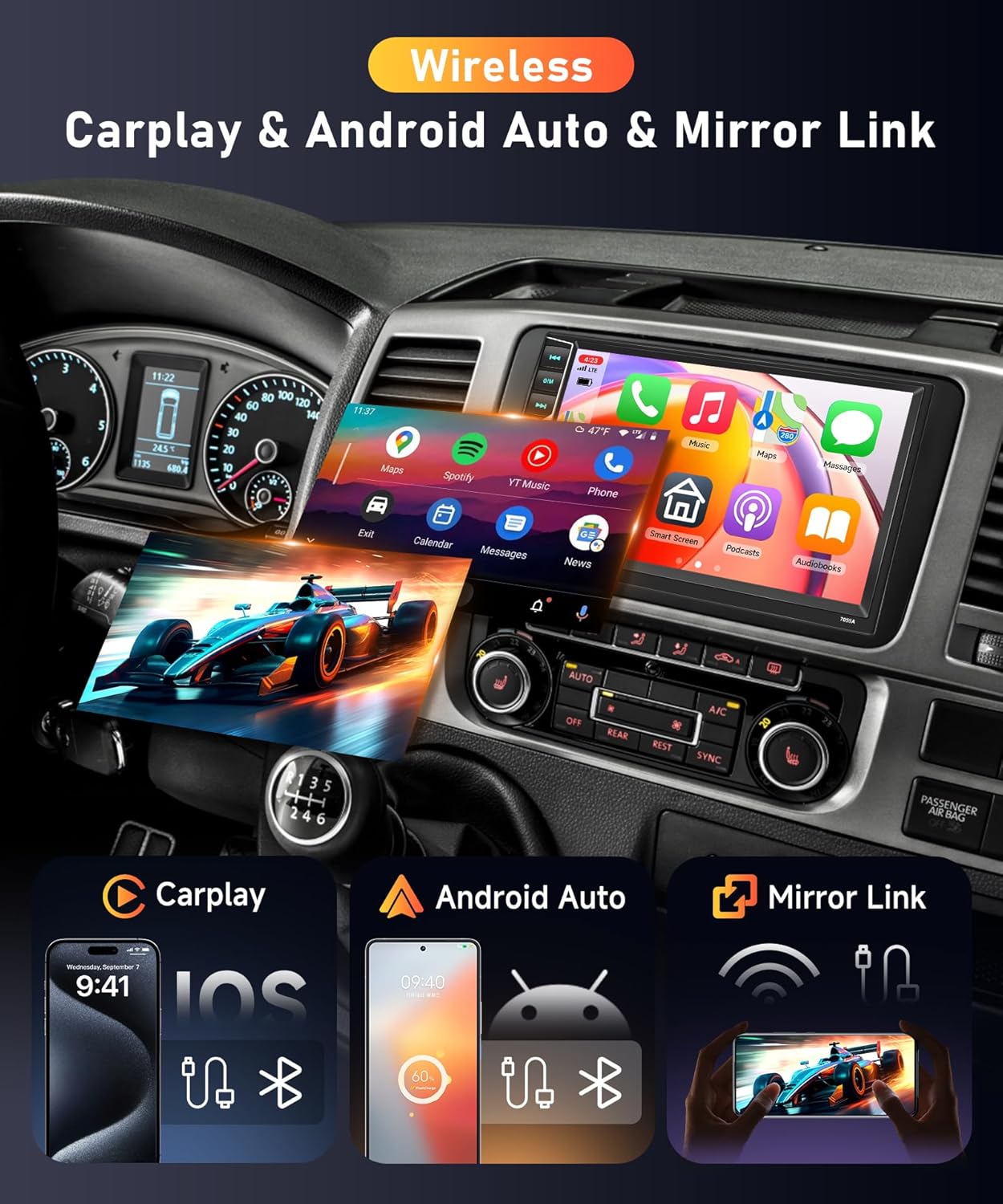
Figure 5.2: Wireless CarPlay, Android Auto, and Mirror Link features.
5.3 GPS Navigation & WiFi
The unit supports both offline and online navigation.
- Offline Maps: The unit comes with built-in offline maps. To download map data, connect to the internet via WiFi and use the "Here We Go" app's "Download Map" menu.
- Online Navigation: Connect the unit to a WiFi hotspot (e.g., from your smartphone) to use online map applications.
- WiFi Connection: Go to Settings > Network & Internet > Wi-Fi, then select your desired network and enter the password.

Figure 5.3: GPS navigation and Android interface.
5.4 Bluetooth Functions
Use Bluetooth for hands-free communication and audio streaming.
- On the car radio, open the "Bluetooth" application.
- Enable Bluetooth on your smartphone and search for the car radio's device name.
- Pair the devices. Once paired, you can make/receive calls and play music.
- The built-in microphone supports clear hands-free calls.
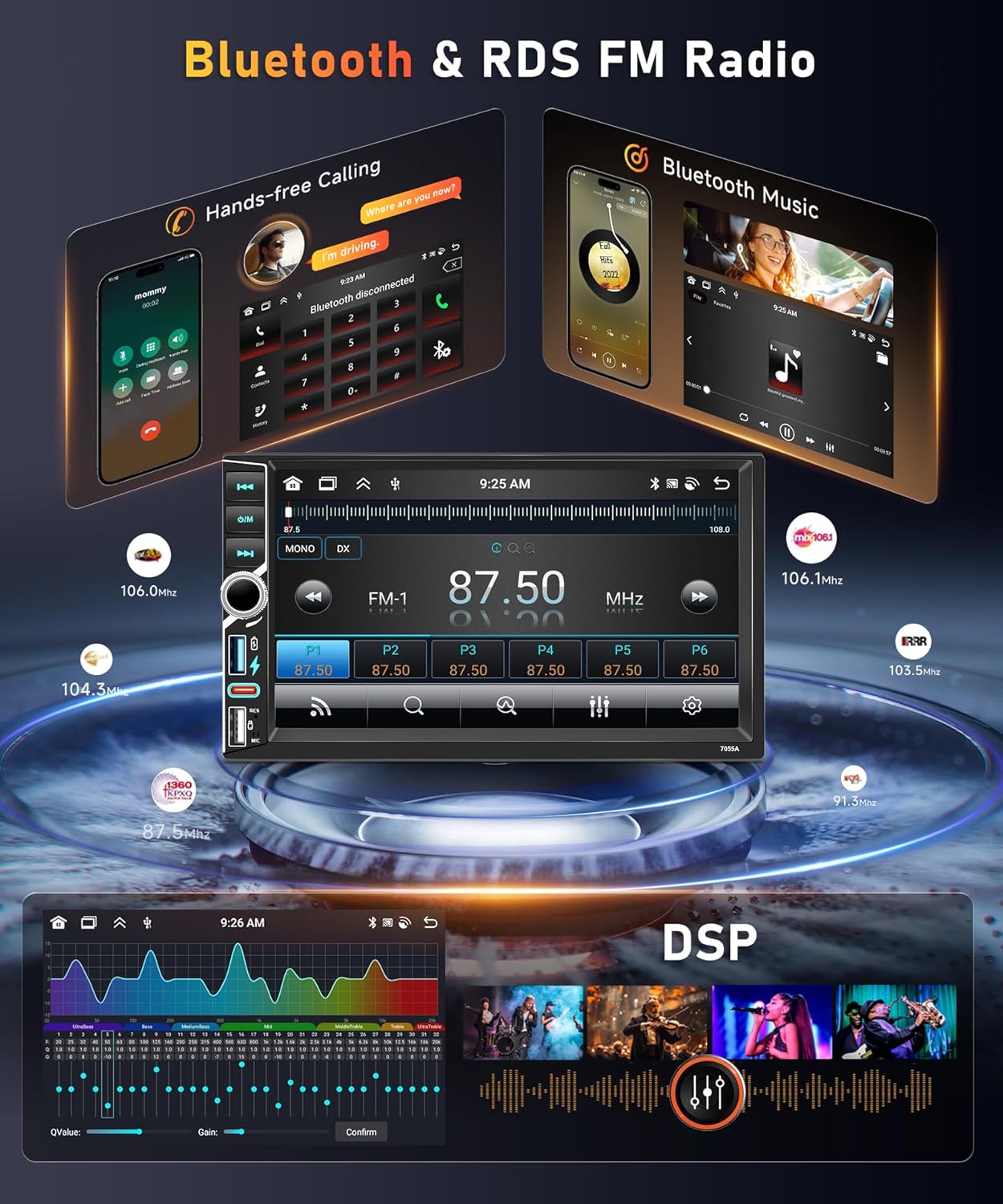
Figure 5.4: Bluetooth, FM Radio, and DSP interfaces.
5.5 FM/RDS Radio
Access your favorite radio stations.
- Open the "Radio" application.
- Use the scan function to automatically search for available stations (87.5 MHz-107.5 MHz).
- Manually tune to a frequency or save preferred stations as presets.
- RDS (Radio Data System) displays station information where available.
5.6 Digital Signal Processing (DSP)
Customize your audio experience.
- Access the "DSP" or "Equalizer" settings from the main menu.
- Adjust various audio parameters such as bass, treble, balance, fader, and preset equalizer modes.
5.7 Split Screen Function
Run two applications simultaneously.
- While an app is open, press and hold the recent apps button (or swipe up from the bottom and hold, depending on Android version).
- Drag the app to one side of the screen.
- Select another app to open on the other side.
5.8 Mirror Link
Display your phone's screen on the car radio.
- Open the "Mirror Link" application on the car radio.
- Connect your smartphone via USB cable or WiFi.
- Follow the on-screen instructions to establish the connection. Android phones support two-way control, while iOS phones support one-way control.
5.9 Reversing Camera Display
When the vehicle is shifted into reverse gear, the car radio will automatically display the feed from the connected reversing camera.
6. Specifications
Technical specifications for the Hodozzy 7055A Android Car Radio:
| Feature | Specification |
|---|---|
| Chipset | 8257 |
| Screen Size | 7 inches IPS Capacitive Touch Screen |
| Memory (RAM + ROM) | 4 GB (RAM) + 64 GB (ROM) |
| Screen Resolution | 1024 x 600 |
| Radio Chip | 8035 |
| Power Output | 4 x 45 W |
| Bluetooth Version | 5.0 |
| Working Temperature | -20℃ to 75℃ |
| Power Amplifier Chip | YD7388 |
| Radio Band | FM/RDS (87.5 MHz-107.5 MHz) |
| Video Output | Supported |
| Reverse Input | AHD/CVBS |
| External Microphone | Supported |
| Split Screen | Supported |
| Maps | Built-in offline maps (requires internet for data download) |
| WiFi | Supported |
| USB Ports | Double USB port, USB-C |
| Audio Format Support | APE/FLAC/WAV/MP3/WMA etc. |
| Video Format Support | MKV/RMVB/AVI/MP4/MDV etc. |
| Image Format Support | PNG/JPEG/JPG/GIF/WBMP/BNP etc. |
| Factory Setting Keyword | 1234 |
| Supported Languages | Chinese/English/French/Italian/Korean/Japanese/Arabic/Spanish/Portuguese/Russian/Turkish/Vietnamese/Hebrew/Polish/German |
7. Troubleshooting
If you encounter issues with your Hodozzy 7055A, refer to the following common problems and solutions:
| Problem | Possible Cause / Solution |
|---|---|
| Unit does not power on. | Check power connections (yellow, red, black wires). Ensure the vehicle's ignition is on if connected to accessory power. Check vehicle fuses. |
| No sound from speakers. | Verify speaker wiring connections. Check volume level and mute settings. Ensure correct audio source is selected. |
| GPS signal is weak or inaccurate. | Ensure the GPS antenna is properly connected and mounted in a location with a clear view of the sky (e.g., dashboard). Avoid obstructions. |
| Bluetooth connection issues. | Ensure Bluetooth is enabled on both the unit and your phone. Delete previous pairings and try re-pairing. Restart both devices. |
| CarPlay/Android Auto not connecting. | For wireless, check Bluetooth and WiFi connections. For wired, ensure a high-quality USB data cable is used. Restart phone and unit. (Note: Samsung phones may not be compatible with wireless Android Auto). |
| Reversing camera not displaying. | Check camera video input connection and power supply. Ensure the reverse trigger wire is correctly connected to the vehicle's reverse light circuit. |
| Unit is slow or unresponsive. | Close unnecessary background applications. Perform a system restart. If issues persist, a factory reset may be necessary (Factory Setting Keyword: 1234). |
8. Maintenance
Proper maintenance ensures the longevity and optimal performance of your car radio.
- Screen Cleaning: Use a soft, lint-free cloth slightly dampened with water or a screen cleaner. Avoid harsh chemicals or abrasive materials.
- Software Updates: Periodically check the manufacturer's website or the unit's system settings for available software updates to ensure optimal performance and access to new features.
- Environmental Conditions: Avoid exposing the unit to extreme temperatures, direct sunlight for prolonged periods, or excessive moisture.
9. Warranty and Support
For warranty information, technical support, or service inquiries, please refer to the warranty card included with your product or contact Hodozzy customer support through their official website or the retailer where the product was purchased. Please have your model number (7055A) and purchase details ready when contacting support.


