
Product Overview
The KPMARE Air Tracker Tags are smart Bluetooth item finders designed to help you locate your belongings. These tags seamlessly integrate with Apple's Find My network, offering global tracking capabilities and instant alerts. They are built for durability with IP68 waterproof and dustproof protection, feature a long-lasting replaceable battery, and prioritize user privacy with encrypted communication.

Image: Four KPMARE Air Tracker Tags (two black, two white) highlighting key features like IP68 waterproofing, 90dB buzzer, replaceable battery, and compatibility with Apple Find My and Hey Siri. A note confirms iOS-only support.
Setup Guide
- Power On: Press and hold the button on the Air Tracker Tag for 2 seconds until you hear a single beep. This indicates the device is powered on and ready for pairing.
- Enable Bluetooth: Ensure Bluetooth is enabled on your iOS device (iPhone, iPad, or Mac).
- Open Find My App: Launch the "Find My" application on your iOS device.
- Add New Item: In the Find My app, navigate to the "Items" tab. Tap the '+' icon and select "Add Other Item" or "Other Supported Item".
- Connect: Your iOS device will search for nearby compatible items. When "Shell Tag" or "Huthur tag" or "TS00" appears, tap "Connect".
- Name Your Tag: Follow the on-screen prompts to name your Air Tracker Tag (e.g., "Keys", "Wallet", "Luggage"). You can also choose an emoji to easily identify it on the map.
- Agree to Link: Review and agree to link the device with your Apple ID.
- Finish Setup: Complete the setup process. Your Air Tracker Tag is now linked and ready to use.

Image: Visual guide demonstrating the simple pairing process of the Air Tracker Tag with an iPhone via the Find My app, including powering on the tag, adding it as a new item, and assigning a name.
Video: This video provides a quick overview of the KINDEEP Air Tags, demonstrating their features and how they can be used to track items. It shows the physical tags and their application in daily life.
Operating Your Air Tracker Tag
- Locating Nearby Items (Play Sound): If your item is within Bluetooth range (up to 60m/200ft), open the Find My app, select your tag, and tap "Play Sound". The tag will emit a loud 90dB ring, helping you pinpoint its exact location.
- Global Tracking (Out of Range): If your item is out of Bluetooth range, the Find My network, composed of millions of Apple devices worldwide, will anonymously and securely update your tag's last known location on the map.
- Directions: In the Find My app, select your tag and tap "Directions" to get navigation to its last known location.
- Smart Anti-Loss Alerts: Receive immediate push notifications on your iPhone if you leave your tagged belongings behind. This feature helps prevent loss or theft.
- Location Sharing: You can enable Location Sharing with family members or trusted contacts through the Find My app, allowing them to view the tracker's location and travel route. Both parties must be using iOS or macOS version 14.5 or later.
- Lost Mode: If an item is lost, activate "Lost Mode" in the Find My app. This allows anyone who finds your tag to scan it with their iPhone and view your contact information, helping facilitate its return. Even if the tag is powered off, scanning it will automatically turn it on and alert you to its location.

Image: An illustration of the "Play Sound" feature, showing a user happily locating their keys with the Air Tracker Tag, which emits a 90dB sound for easy finding.

Image: A notification on an iPhone indicating that a tagged camera has been left behind, showing the last known location, demonstrating the anti-loss alert feature.
Maintenance
- Battery Replacement: The Air Tracker Tag uses a user-replaceable CR2032 battery (240mAh) with a standby life of up to 12 months. To replace the battery:
- Open the tag by gently twisting the two halves apart.
- Remove the old CR2032 battery.
- Insert a new CR2032 battery with the positive (+) side facing up.
- Align the two halves and press them firmly together until they click into place.
- Waterproof and Dustproof: The Air Tracker Tags are IP68 rated, making them resistant to water and dust. This allows for worry-free use in various outdoor conditions and environments.

Image: A visual guide detailing the three steps for replacing the CR2032 battery in the Air Tracker Tag: opening the device, inserting a new battery, and reassembling.

Image: The Air Tracker Tag shown in water, emphasizing its IP68 waterproof and dustproof rating, assuring users of its durability against environmental elements.
Troubleshooting
- Tag Not Connecting:
- Ensure Bluetooth is enabled on your iOS device.
- Make sure the tag is powered on (press and hold the button until it beeps).
- Bring the tag closer to your iOS device during the pairing process.
- Check the battery level of the tag; replace if necessary.
- If previously connected to another device, remove it from that device's Find My app before attempting to pair again.
- Inaccurate Location:
- Location accuracy relies on the density of Apple devices in the Find My network. In areas with fewer Apple devices, location updates may be less frequent or precise.
- Ensure your iOS device has a stable internet connection for the Find My app to function optimally.
- Sound Not Playing:
- Confirm the tag is within Bluetooth range of your iOS device.
- Check the tag's battery.
- Powering Off the Device: To power off the Air Tracker Tag, press and hold the button for 3 seconds. You will hear two high-pitched beeps after 2 seconds, confirming it is off.
Video: This video demonstrates how to reconnect the locator, which can be helpful for troubleshooting connectivity issues or re-pairing the device.
Specifications
| Brand | KPMARE |
| Model | Air Tracker Tags |
| Compatibility | Apple Find My (iOS 14.5+ only) |
| Connectivity | Bluetooth 5.2 |
| Waterproof Rating | IP68 |
| Battery Type | CR2032 (replaceable) |
| Battery Life | Up to 12 months (standby) |
| Sound Level | 90dB |
| Bluetooth Range | Up to 60m / 200ft |
| Item Weight | 8g (per tag) / 1.76 ounces (total package) |
| Material | ABS Environmentally Material |
| Color | Black/White |
| Package Dimensions | 3.9 x 2.76 x 0.75 inches |
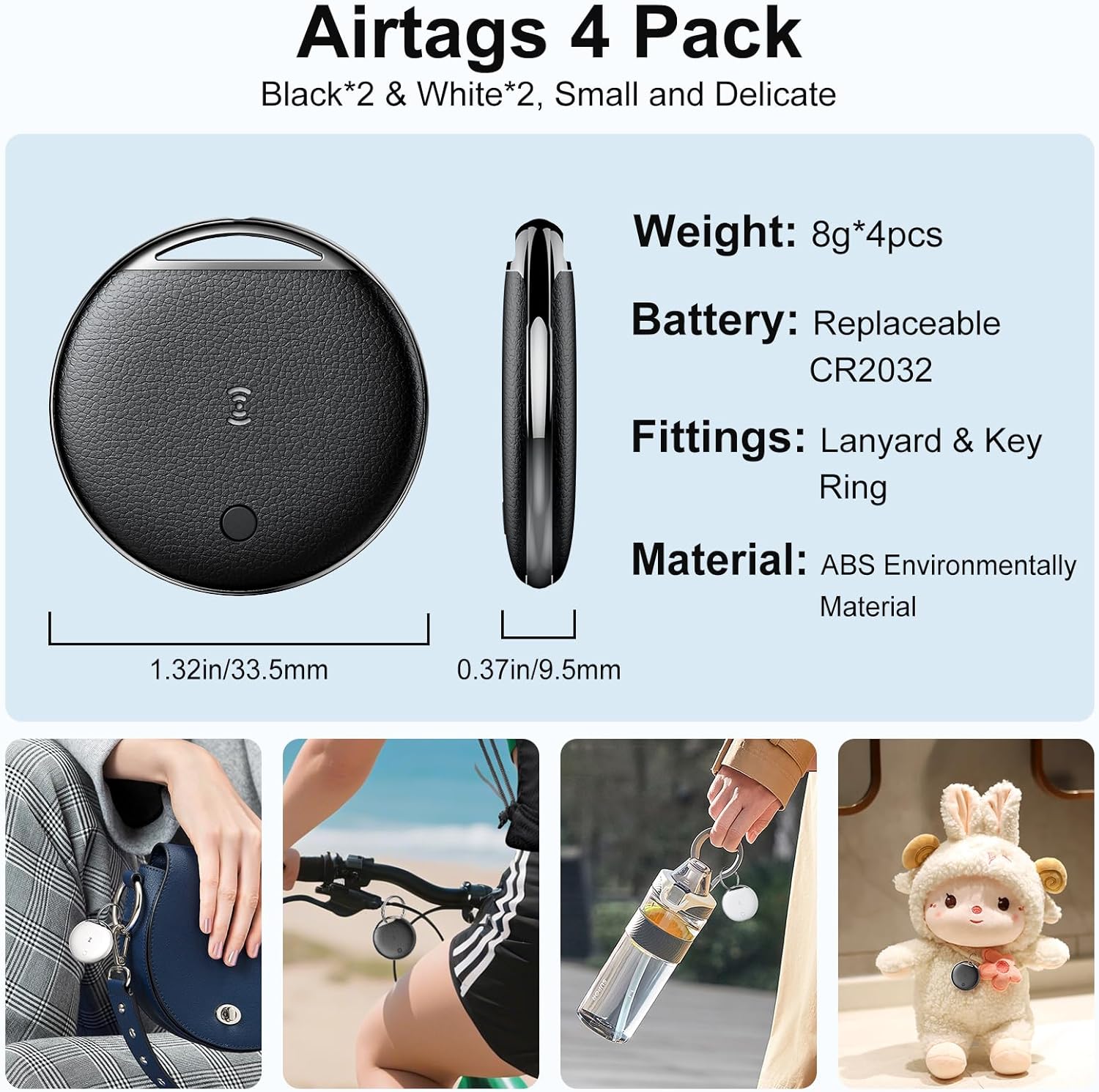
Image: Detailed specifications of the Air Tracker Tag, including physical dimensions, weight, battery type, material, and examples of how it can be attached to various items.
Warranty and Support
The KPMARE Air Tracker Tags typically come with a manufacturer's warranty. Please refer to the product packaging or the seller's information for specific warranty details and duration. For any support inquiries, technical assistance, or warranty claims, please contact KPMARE customer service directly through the platform where the product was purchased.
Note: Some customer reviews mention a 2-year warranty. Please verify with the seller for the most accurate and up-to-date warranty information.