1. Product Overview
The HP OmniDesk M02 Tower Desktop is a powerful and efficient business PC designed for productivity and AI workloads. Featuring an AMD Ryzen 7 8700G processor, 32GB DDR5 RAM, and a 1TB PCIe M.2 SSD, it offers robust performance for multitasking and demanding applications. This system comes pre-loaded with Windows 11 Home and includes a wired keyboard and mouse, along with Wi-Fi 6 and Bluetooth connectivity. A 512GB ADATA external SSD is bundled for enhanced storage and data management.
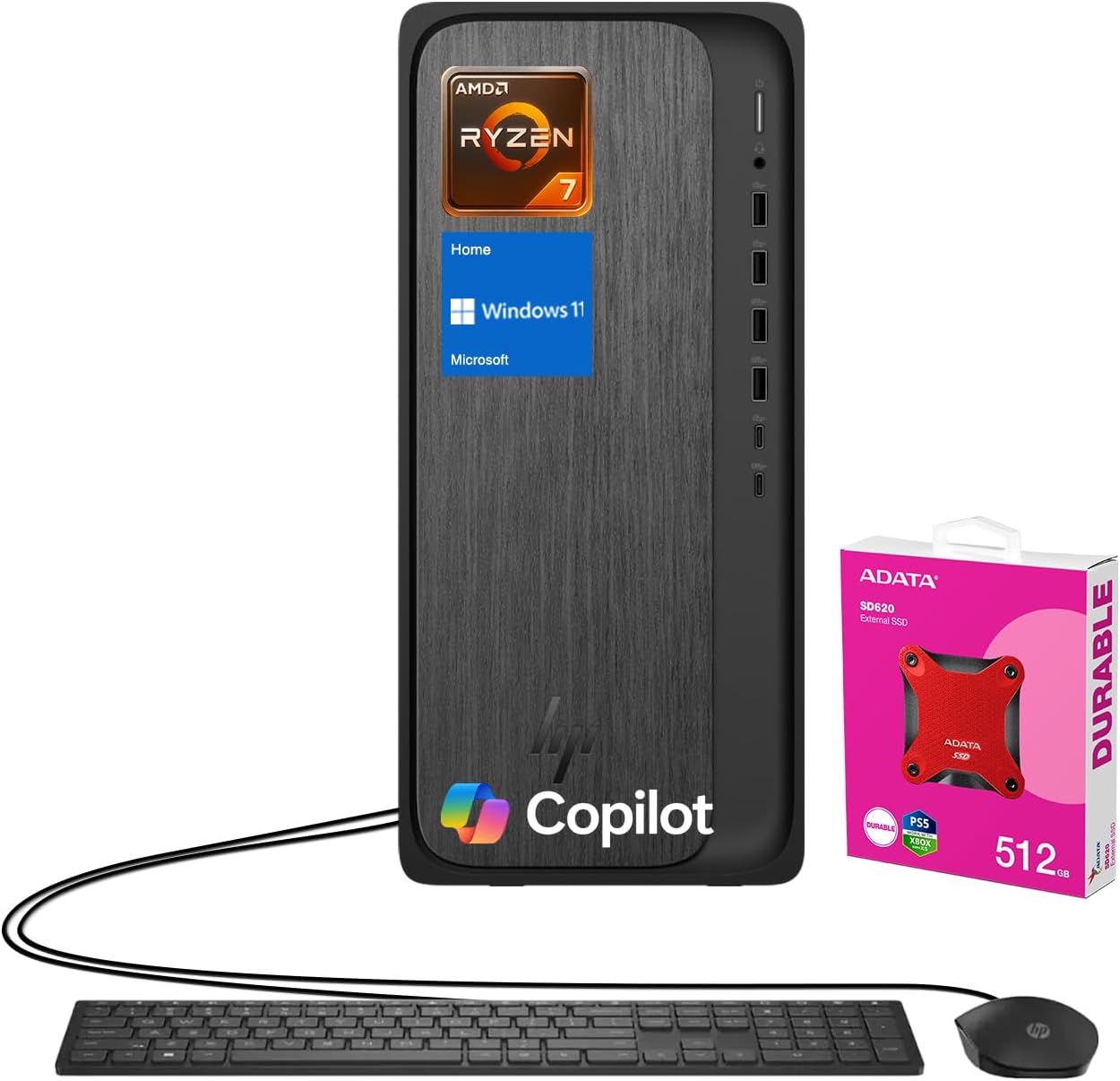
Figure 1.1: HP OmniDesk M02 Tower Desktop with included peripherals and external SSD.
The desktop's sleek grey chassis is engineered for optimal aesthetics and airflow, making it suitable for various work environments. Its comprehensive connectivity options, including multiple USB Type-C and Type-A ports, HDMI, and DisplayPort, ensure versatility for all your peripheral needs.
2. Setup Guide
2.1 Unpacking and Initial Inspection
Carefully remove all components from the packaging. Verify that all items listed in the "What's in the Box" section are present and undamaged. Retain the packaging for future transport or service needs.
- HP OmniDesk M02 Tower Desktop
- Wired Keyboard
- Wired Mouse
- Power Cable
- ADATA 512GB External SSD
2.2 Connecting Peripherals
Before powering on, connect your monitor, keyboard, and mouse to the appropriate ports on the desktop. Refer to the port diagram below for assistance.

Figure 2.1: Front and Rear Port Layout of the HP OmniDesk M02.
- Monitor: Connect your monitor using the HDMI or DisplayPort on the rear of the desktop.
- Keyboard & Mouse: Connect the wired keyboard and mouse to any available USB Type-A ports (front or rear).
- Power: Connect the power cable to the desktop's power input and then to a grounded electrical outlet.
- External SSD: Connect the ADATA 512GB External SSD to any available USB port. For optimal performance, use a USB 3.0 or higher port.
2.3 First Power On
Press the power button located on the front of the desktop. The system will boot into Windows 11 Home. Follow the on-screen instructions to complete the initial Windows setup, including language selection, network connection, and user account creation.
3. Operating Instructions
3.1 Basic Operation
Once Windows 11 Home is set up, you can begin using your HP OmniDesk M02. Navigate the operating system using the connected keyboard and mouse. The powerful AMD Ryzen 7 8700G processor ensures smooth performance for everyday tasks and demanding applications.

Figure 3.1: The HP OmniDesk M02 is designed for comfortable and efficient work environments.
3.2 Network Connectivity
- Wi-Fi 6: To connect to a wireless network, click the Wi-Fi icon in the system tray, select your desired network, and enter the password.
- Ethernet: For a wired connection, connect an Ethernet cable from your router or modem to the RJ-45 port on the rear of the desktop.
- Bluetooth: Enable Bluetooth in Windows settings to pair with wireless devices such as headphones, speakers, or other peripherals.
3.3 Utilizing the External SSD
The bundled ADATA 512GB External SSD provides additional high-speed storage. It can be used for backing up important files, transferring large datasets, or expanding your storage capacity for applications and media. Simply connect it to an available USB port, and it will appear as a removable drive in File Explorer.
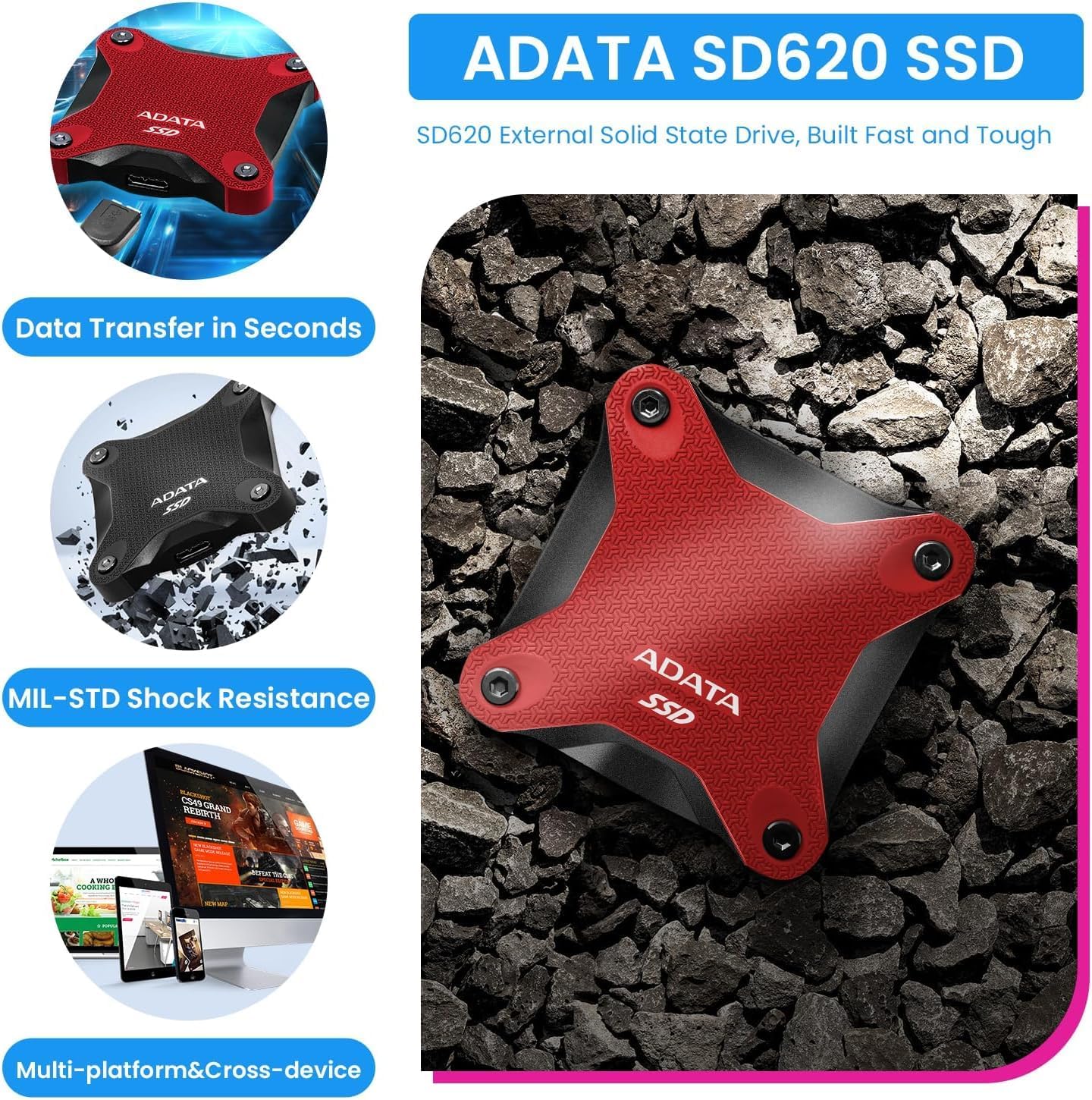
Figure 3.2: The ADATA SD620 External SSD offers fast data transfer and durability.
3.4 AI Capabilities with Copilot
Leverage the integrated AI capabilities, including Copilot support and the Ryzen AI Engine, for smarter workflows. This feature enhances productivity by assisting with various tasks, making it ideal for multitasking, video meetings, and creative projects.
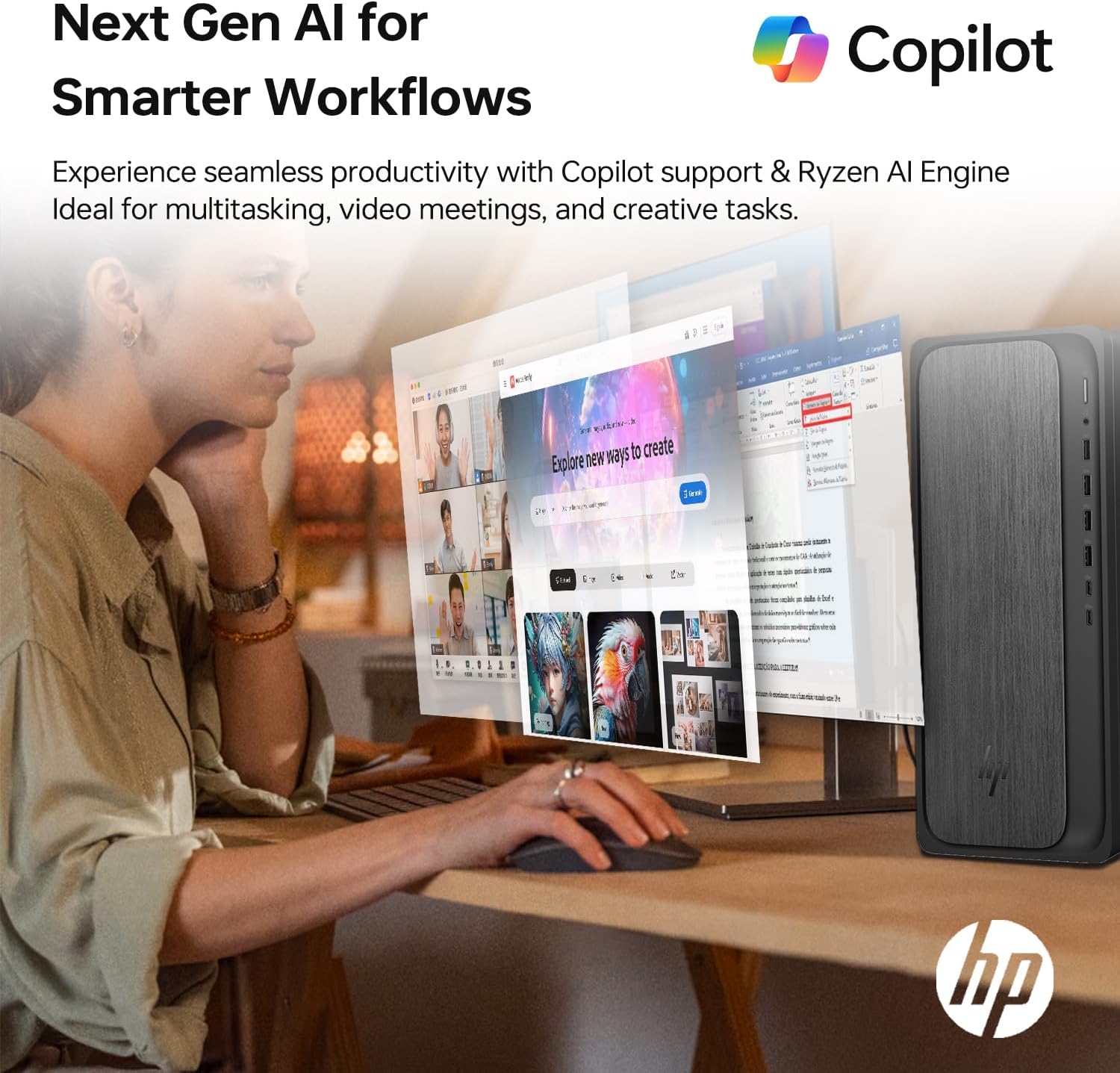
Figure 3.3: Experience enhanced productivity with Copilot and Ryzen AI Engine.
4. Maintenance and Care
Proper maintenance ensures the longevity and optimal performance of your HP OmniDesk M02.
- Cleaning: Use a soft, dry cloth to clean the exterior of the desktop. Avoid liquid cleaners directly on the components. Use compressed air to clear dust from vents periodically.
- Ventilation: Ensure the desktop's vents are unobstructed to allow for proper airflow and prevent overheating. Do not place the desktop in an enclosed space without adequate ventilation.
- Software Updates: Regularly update Windows 11 and device drivers to ensure system stability, security, and performance.
- Data Backup: Periodically back up important data to the external SSD or cloud storage to prevent data loss.
5. Troubleshooting
This section provides solutions to common issues you might encounter.
| Problem | Possible Cause | Solution |
|---|---|---|
| No Power | Power cable loose; Power outlet issue; Power supply failure. | Check power cable connections. Try a different power outlet. Contact support if issue persists. |
| No Display | Monitor cable loose; Incorrect input source on monitor; Graphics driver issue. | Ensure monitor cable is securely connected to desktop and monitor. Check monitor's input source. Restart desktop. |
| No Internet Connection (Wi-Fi) | Incorrect Wi-Fi password; Router issue; Wi-Fi adapter disabled. | Verify Wi-Fi password. Restart router. Check Wi-Fi settings in Windows. |
| Keyboard/Mouse Not Responding | Loose USB connection; Driver issue. | Reconnect keyboard/mouse to a different USB port. Restart desktop. |
If you encounter issues not covered here or if the suggested solutions do not resolve the problem, please refer to the Warranty and Support section for further assistance.
6. Specifications
Detailed technical specifications for the HP OmniDesk M02 Tower Desktop.
| Feature | Description |
|---|---|
| Processor | AMD Ryzen 7 8700G (8 Cores, 16 Threads, 16MB L3 Cache, 4.2GHz base, up to 5.1GHz max turbo) |
| Graphics | AMD Radeon Graphics (Integrated) |
| RAM | 32GB DDR5 UDIMM (4800 MHz) |
| Internal Storage | 1TB PCIe M.2 SSD |
| External Storage | ADATA 512GB External SSD (Bundled) |
| Operating System | Windows 11 Home |
| Wireless Connectivity | Wi-Fi 6 (802.11ax) and Bluetooth |
| Front Ports | 1x USB Type-C 10Gbps, 1x USB Type-C 5Gbps, 2x USB Type-A 10Gbps, 2x USB Type-A 5Gbps, 1x headphone/microphone combo |
| Rear Ports | 4x USB 2.0 Type-A, 1x RJ-45, 3x 3.5 mm audio jack, 1x HDMI, 1x DisplayPort |
| Dimensions (LxWxH) | 6.10" x 13.27" x 12.40" |
| Weight | 12.72 lbs (Desktop only) |
| Color | Grey |
| Model Number | TPC-F134-MT |
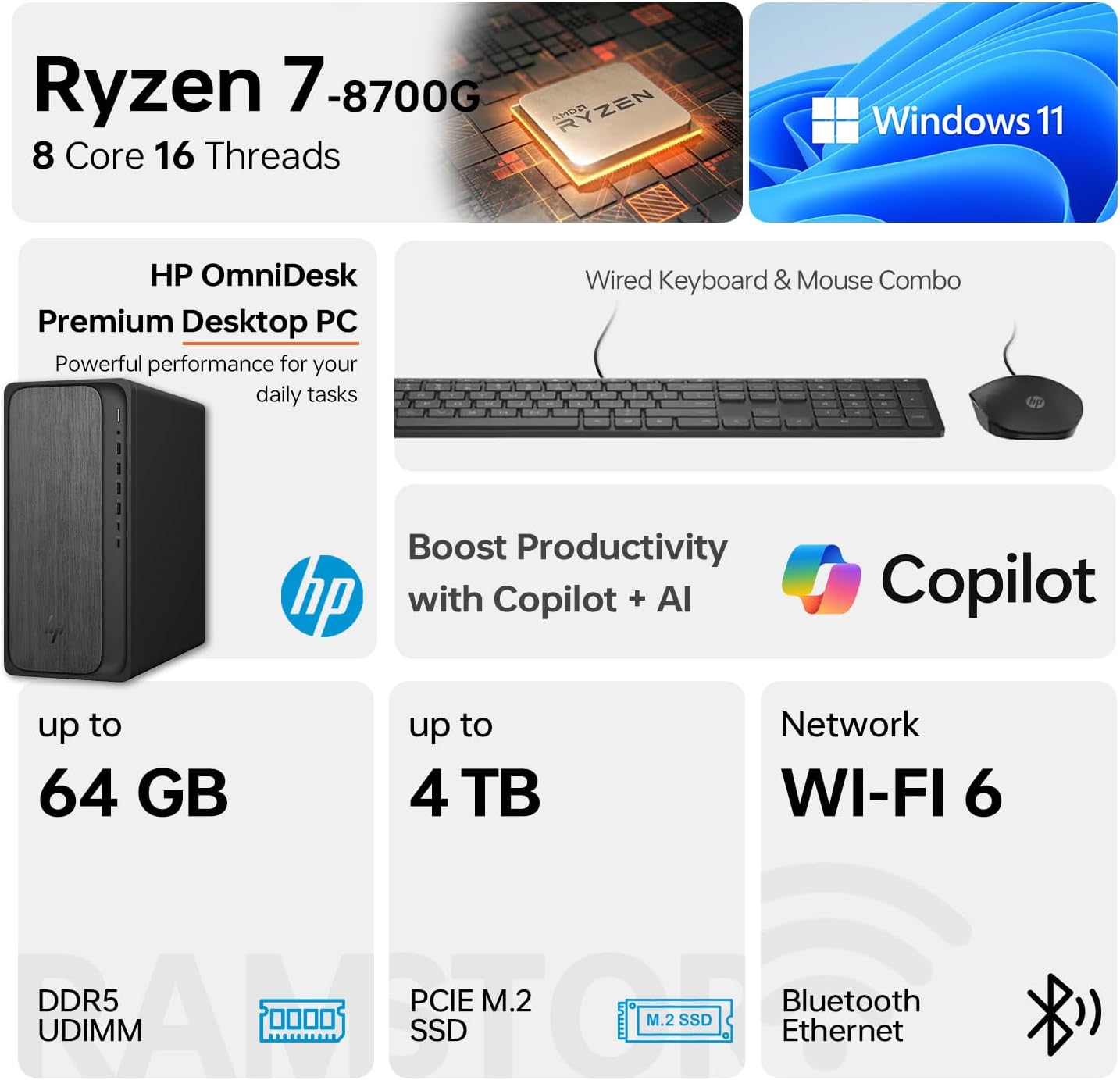
Figure 6.1: Key features and specifications of the HP OmniDesk M02.
7. Warranty and Support
7.1 Warranty Information
The HP OmniDesk M02 Tower Desktop comes with a manufacturer's warranty. Please note the following specific warranty details:
- A 1-year warranty on the upgraded RAM and SSD is provided by PCOnline US.
- The remaining components of the desktop retain the original 1-year manufacturer's warranty from HP.
For warranty claims or detailed terms and conditions, please refer to the documentation provided with your purchase or contact the respective warranty provider.
7.2 Customer Support
For technical assistance, troubleshooting, or service inquiries, please visit the official HP support website or contact HP customer service. Have your product model number (TPC-F134-MT) and serial number ready when contacting support.
HP Support Website: www.hp.com/support