
1. Introduction
This manual provides detailed instructions for the installation, operation, and maintenance of your Haudio 10.1 Inch Android Car Stereo, Model CA10. Please read this manual thoroughly before using the product to ensure proper function and safety. For smooth installation and safe use, if you lack relevant experience, it is recommended to have a professional technician complete the installation.
2. Product Overview
Key Features:
- Latest Android 13 & Powerful Configuration: Equipped with a Quad-Core 1.3GHz processor, 2GB RAM, and 64GB ROM for smooth operation.
- 10.1" IPS HD Touchscreen: Features a 720*1280 resolution display with wide viewing angles.
- 25W Output: Built-in YD7388 amplifier delivers powerful, high-fidelity sound.
- Wireless CarPlay & Android Auto: Seamless smartphone integration for navigation, music, and messages.
- Multi-Functional Support: Includes GPS navigation, FM/AM/RDS radio, Bluetooth music/calls, Wi-Fi connectivity.
- Customization: Offers 25 interchangeable UI themes and supports APK downloads.
- Backup Camera: Includes a 140° wide-angle 720P AHD backup camera for safer reversing.
- Wide Compatibility: 2Din stereo designed for universal fitment in most 12V-24V vehicles.
What's in the Box:
The package includes all necessary installation parts for a hassle-free setup.

Image: Contents of the Haudio car stereo package, including the main unit, power cables, GPS antenna, rear view camera, USB cables, brackets, and user manual.
- Main equipment (10.1 Inch Android Car Stereo)
- Power Cable
- 4P-USB Wire
- 6P-USB Wire
- Rear View Interface Wire
- GPS Antenna
- 20P-RCA Wire
- Installation Screws
- User Manual
- Rear View Camera
- Brackets (x2)
3. Installation Instructions
Before beginning installation, ensure your vehicle's power is off. It is recommended to disconnect the car battery's negative terminal to prevent electrical shorts.
Installation Video Guide:
Video: A step-by-step demonstration of the Haudio car stereo installation process, including wiring and mounting.
Step 1: Fixing the Car Stereo Unit
Carefully fix the four corners of the car infotainment system onto the outer frame using the provided screws. Ensure the unit is securely mounted within the dashboard opening.

Image: A person wearing white gloves is shown securing the Haudio car stereo unit into the vehicle's dashboard frame with screws.
Step 2: Connecting Vehicle Wiring
Connect the power cable and other necessary wires to your vehicle's existing wiring harness. There are two types of power cables: universal and dedicated. Choose the appropriate cable for your vehicle.
Universal Power Cable Connection:
If using a universal power cable, you will need to identify the corresponding power supply definition diagram for your vehicle model. Connect the gifted power cord to the wires corresponding to the original car definition one by one, and wrap them with electrical tape for insulation and security.

Image: A detailed wiring diagram illustrating the connections for a universal power cable, showing various colored wires and their functions (e.g., FL+, RR-, ACC, GND).
Dedicated Power Cable Connection:
If your vehicle requires a dedicated power cable, connect the RCA Input/Output and the dedicated power cable adapter to the original vehicle's corresponding ports. Dedicated power cables are typically plug-and-play, simplifying the connection process.

Image: A close-up view of two white multi-pin connectors being plugged into a vehicle's wiring harness, with an inset showing the RCA input/output cable bundle.
Step 3: Connecting Back Interface Peripherals
Connect the following cables to the designated ports on the back of the car stereo unit:
- GPS Antenna: Connect the GPS antenna for navigation functionality.
- Radio Antenna: Connect the radio antenna for FM/AM reception.
- 8-pin BREAK1.BACK CVBSIFI/BT/CanBus: Connect this cable for reverse camera trigger, Bluetooth, and CanBus integration (if applicable).
- 2 USB Cables: Connect the two USB cables for external device connectivity and charging.
- RCA Input/Output: Connect the RCA cables for audio/video input and output, including connections to a newly added audio system (optional).

Image: A diagram showing the wiring for the rear view camera, including connections for the reversing trigger line, video output, and camera power cable.
Step 4: Final Installation and Testing
Once all connections are secure, carefully slide the car stereo unit into the dashboard opening. Reconnect the car battery, start the vehicle, and power on the car stereo to test all functions, including radio, navigation, and touchscreen responsiveness.
4. Setup and Initial Configuration
Wireless CarPlay & Android Auto:
To connect your smartphone wirelessly:
- Open Bluetooth settings on your phone.
- Search for and connect to the car stereo's Bluetooth name (e.g., "Haudio").
- Confirm the pairing request on both devices.
- For Apple CarPlay, ensure CarPlay is enabled on your iPhone. For Android Auto, ensure the Android Auto app is installed and running on your Android device.

Image: A visual guide showing the steps to connect both Apple CarPlay and Android Auto wirelessly via Bluetooth, displaying phone and stereo screens during the pairing process.
GPS Navigation:
The unit comes with built-in GPS. Ensure the GPS antenna is properly installed for optimal signal reception. You can use pre-installed navigation apps or download others from the app store.
Radio (FM/AM/RDS):
Access the radio application from the main menu. Use the touchscreen to scan for stations, save presets, and utilize RDS features for station information.
Bluetooth Connectivity:
Pair your phone via Bluetooth for hands-free calling and audio streaming. Access the Bluetooth menu to manage paired devices and make calls.
Wi-Fi Connectivity:
Connect to a Wi-Fi hotspot (e.g., from your smartphone) to access online features, download apps, and receive software updates.
5. Operating Instructions
Touchscreen Interface:
Navigate the system using the responsive 10.1-inch IPS touchscreen. Swipe, tap, and pinch-to-zoom gestures are supported for intuitive control.

Image: A close-up of the Haudio car stereo's high-definition IPS screen, highlighting its clarity and custom lighting effects.
Voice Control (Siri/Google Assistant):
Utilize voice commands for safer driving. Say "Hey Siri" or "Hey Google" to activate your smartphone's voice assistant through the car stereo. This allows you to navigate, play music, make calls, and send messages without taking your hands off the wheel.
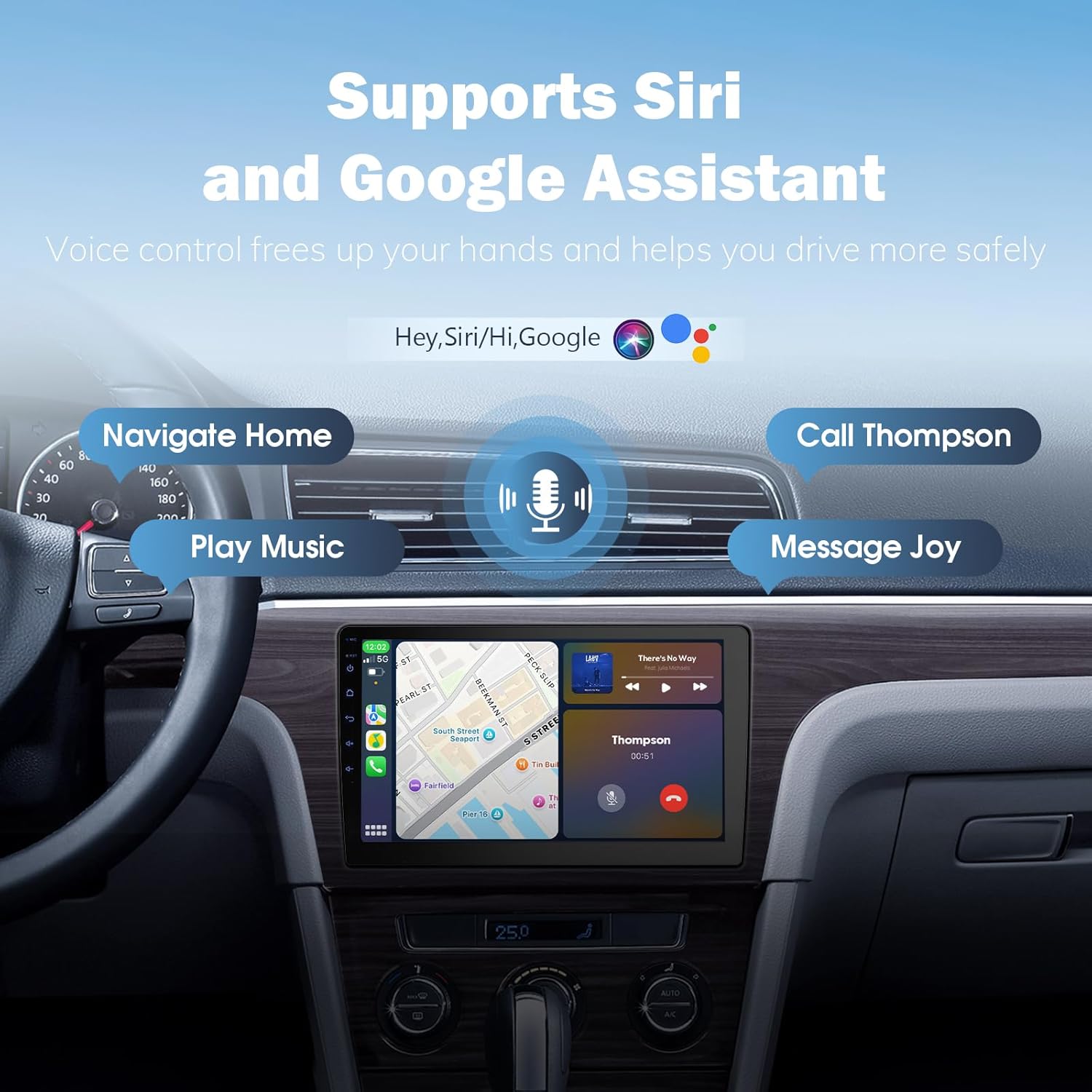
Image: An in-car view of the Haudio stereo displaying voice command prompts for Siri and Google Assistant, with examples like "Navigate Home," "Call Thompson," and "Play Music."
Media Playback:
The system supports various audio and video formats for a premium multimedia experience. Play music from USB drives, Bluetooth, or streaming apps. Watch videos on the HD display.

Image: Displays various multimedia functions of the car stereo, including Bluetooth & Wi-Fi, 4.1 Channel Output, FM Transmission, and Built-in Preset EQ, illustrating HD media playback capabilities.
Split Screen Functionality:
The split-screen feature allows you to run two applications simultaneously, such as navigation and music playback, enhancing multitasking capabilities.
APK Installation:
The Android operating system allows for the installation of additional applications (APKs) to expand functionality. Ensure applications are from trusted sources.
Rear View Camera Display:
When reversing, the display automatically switches to the rear view camera feed, providing a 140° wide-angle view with 720P AHD resolution for enhanced safety. The camera is waterproof and offers night vision capabilities.
Mirror Link:
The Mirror Link function allows you to mirror your smartphone's screen onto the car stereo display. This can be done wirelessly via Wi-Fi or Bluetooth. Refer to the specific steps in the user interface for connecting iPhone or Android devices.

Image: A step-by-step visual guide demonstrating how to establish a Mirror Link connection for both iPhone and Android devices, showing the necessary settings and app interactions.
6. Maintenance
To ensure the longevity and optimal performance of your Haudio car stereo, follow these maintenance guidelines:
- Cleaning: Use a soft, dry cloth to clean the touchscreen and exterior. Avoid abrasive cleaners or solvents.
- Software Updates: Periodically check for and install software updates to ensure the system has the latest features and security patches. Connect to Wi-Fi to perform updates.
- Temperature: Avoid exposing the unit to extreme temperatures.
7. Troubleshooting
If you encounter issues with your Haudio car stereo, refer to the following common troubleshooting tips:
- No Power: Check all power connections and ensure the car battery is properly connected. Verify the fuse is not blown.
- No Sound: Check speaker connections, volume settings, and ensure the audio source is correctly selected.
- Bluetooth/CarPlay/Android Auto Connectivity Issues: Ensure Bluetooth is enabled on both devices. Try unpairing and re-pairing the devices. Restart both the car stereo and your smartphone.
- GPS Signal Loss: Ensure the GPS antenna is securely connected and has a clear view of the sky.
- Touchscreen Unresponsive: Try restarting the unit. If the issue persists, a factory reset might be necessary (refer to system settings).
- Backup Camera Not Displaying: Check the camera's power and video connections. Ensure the reverse trigger wire is correctly connected.
For persistent issues or problems not covered here, please contact Haudio customer support.
8. Specifications
| Feature | Specification |
|---|---|
| Model Number | CA10 |
| Operating System | Android 13 |
| Processor | Quad-Core 1.3GHz |
| RAM | 2GB |
| ROM (Internal Storage) | 64GB |
| Display Size | 10.1 Inches |
| Display Type | IPS Touchscreen |
| Display Resolution | 720*1280 |
| Amplifier | YD7388, 25W x 4 Output |
| Connectivity | Bluetooth 4.1, Wi-Fi, GPS |
| Special Features | Wireless CarPlay, Android Auto, 720P AHD 140° Camera, RDS Radio, EQ Settings, 25 UI Themes, Split Screen, APK Install |
| Product Dimensions | 1.6 x 9.9 x 5.76 inches |
| Item Weight | 3.32 pounds |
9. Warranty and Support
Haudio offers various protection plans to safeguard your investment. You may find options such as 2-Year or 3-Year Protection Plans, or a Complete Protect plan covering multiple purchases.
For any product inquiries, technical assistance, or warranty claims, please contact Haudio customer support through the retailer where you purchased the product or visit the official Haudio website for contact information.