
1. Introduction
Thank you for choosing the PHANSATIM Light Bulb Security Camera. This device integrates a 1080p security camera into a standard E26 light bulb form factor, offering convenient surveillance for both indoor and outdoor environments. It features 2.4GHz WiFi connectivity, motion detection, two-way audio, and color night vision to enhance your property's security. This manual provides essential information for proper installation, operation, and maintenance of your camera.

Image 1.1: The PHANSATIM Light Bulb Security Camera and its mobile application interface, highlighting 2.4GHz WiFi connectivity.
2. Product Overview
2.1 Key Features
- 2.4GHz WiFi Connectivity: Ensures stable and reliable wireless connection.
- 1080P Full HD Video: Provides clear and detailed video footage.
- Color Night Vision: Offers enhanced visibility in low-light conditions.
- Two-Way Audio: Built-in microphone and speaker for real-time communication.
- Motion Detection & Alerts: Sends instant notifications upon detecting movement.
- 355° Pan & 90° Tilt: Wide-range monitoring with adjustable viewing angles.
- E26 Light Bulb Base: Easy installation into standard light sockets (AC110/240V).
- Multi-User Sharing: Allows multiple users to view and control the camera simultaneously.
- Smart Storage: Supports cloud storage (subscription required) and local SD card storage.
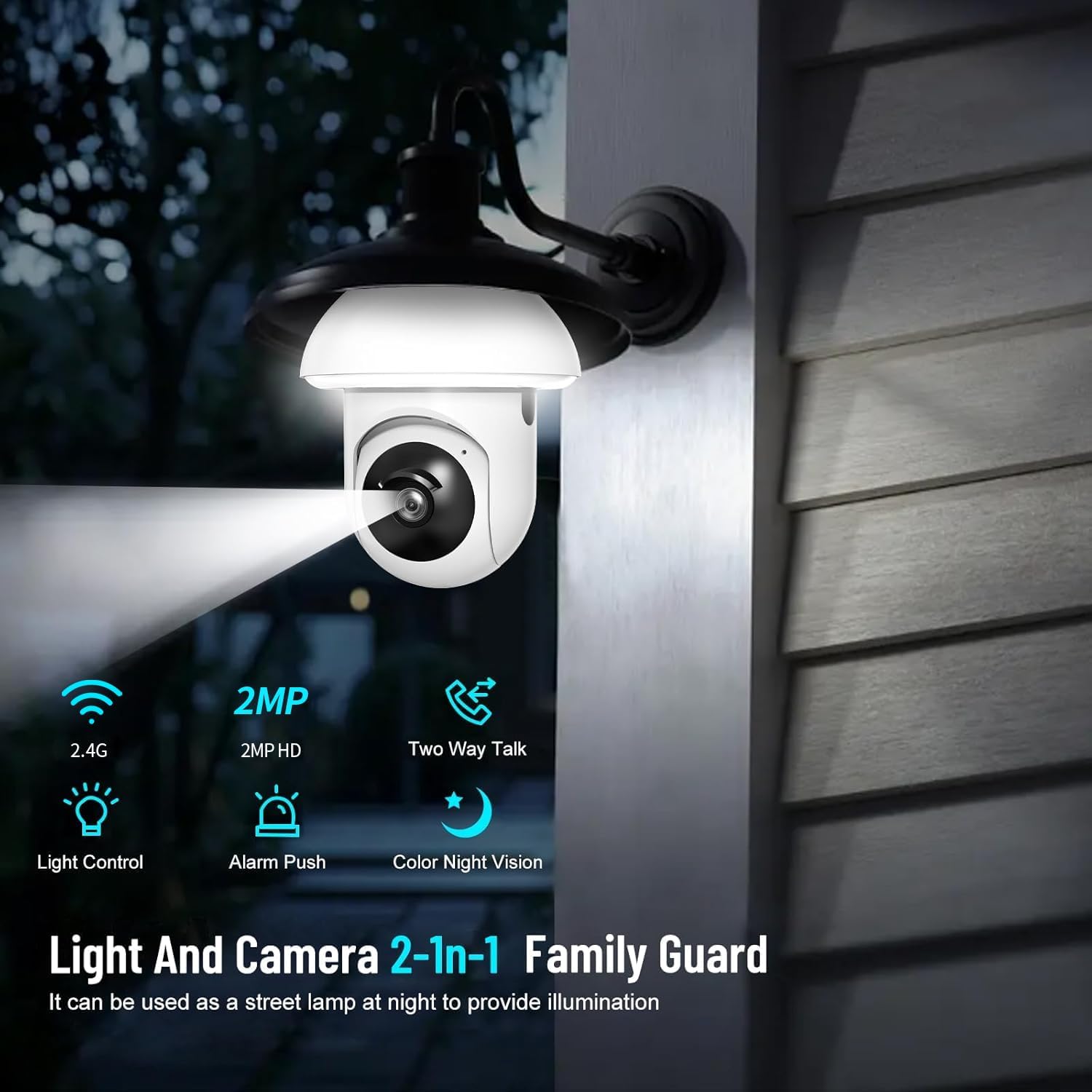
Image 2.1: Visual representation of the camera's integrated features, including light control and advanced night vision.

Image 2.2: Detailed feature set of the camera, emphasizing its comprehensive surveillance capabilities.
2.2 Package Contents
- PHANSATIM Light Bulb Security Camera (Model DPSXJ1)
- Instruction Manual (This document)
3. Safety Information
- Ensure the power supply is disconnected before installing or removing the camera.
- Use only with an E26 light bulb base (AC110/240V).
- Do not expose the camera to extreme temperatures, humidity, or direct water immersion.
- Keep out of reach of children and pets.
- Avoid placing the camera in direct sunlight for extended periods to prevent overheating.
- This device is designed for surveillance and should be used in compliance with local laws and regulations.
4. Setup Guide
4.1 Physical Installation
- Power Off: Ensure the power to the light socket is turned off at the circuit breaker before installation.
- Screw In: Carefully screw the PHANSATIM Light Bulb Security Camera into a standard E26 light bulb socket. Ensure it is securely fastened.
- Power On: Restore power to the light socket. The camera will power on and initiate its startup sequence.

Image 4.1: The camera seamlessly integrated into an outdoor light fixture, providing both illumination and security.
4.2 App Download & Account Creation
- Download App: Scan the QR code provided in the camera's packaging or search for the designated companion app (e.g., 'AJCloud' or similar, refer to packaging for exact name) in your smartphone's app store (Apple App Store for iOS or Google Play Store for Android).
- Install & Register: Install the app and follow the on-screen instructions to create a new user account.
4.3 Wi-Fi Connection
- Add Device: Open the app, tap 'Add Device' or the '+' icon. Select the appropriate device type (e.g., 'Smart Camera' or 'Light Bulb Camera').
- Power On Confirmation: Confirm that the camera is powered on and its indicator light is flashing, indicating it's ready for pairing.
- Connect to 2.4GHz WiFi: Enter your 2.4GHz WiFi network name (SSID) and password. Note: This camera only supports 2.4GHz WiFi. Ensure your phone is connected to a 2.4GHz network during setup.
- Scan QR Code: The app will generate a QR code. Hold your phone's screen approximately 4-8 inches (10-20 cm) in front of the camera lens until you hear a confirmation sound from the camera.
- Connection Complete: Once connected, the camera's indicator light will change, and the app will confirm successful pairing. You can then name your camera and begin using it.
5. Operating Instructions
5.1 Live View
From the app's main screen, tap on your camera's name to access the live video feed. You can pan (355°) and tilt (90°) the camera remotely using the directional controls within the app to adjust the viewing angle.

Image 5.1: The mobile application interface showing various control options for the camera, including pan/tilt and motion detection settings.
5.2 Two-Way Audio
To use the two-way audio feature, tap the microphone icon in the live view interface. Hold the button to speak, and release it to listen. This allows for real-time communication with individuals near the camera.

Image 5.2: An example of using the two-way audio feature to communicate with a visitor at your door.
5.3 Motion Detection & Alerts
The camera is equipped with a sensitive motion sensor. You can enable and configure motion detection settings in the app. When motion is detected, the camera can:
- Send real-time push notifications to your smartphone.
- Trigger an audible alarm and activate the built-in white light (spotlight function) to deter intruders.
- Record the event for later review.
Adjust sensitivity levels and set detection zones within the app to minimize false alarms.

Image 5.3: The camera's motion detection and alert system in action, deterring potential threats.
5.4 Night Vision Modes
The camera offers two night vision modes:
- Infrared Night Vision: Provides clear black and white video in complete darkness.
- Color Night Vision: Utilizes the built-in spotlight to capture full-color video even in low-light conditions.
You can switch between these modes or set it to automatic in the app settings.

Image 5.4: A visual comparison demonstrating the clarity of both infrared and full-color night vision capabilities.
5.5 Recording & Storage
The camera supports two storage options for recorded footage:
- Cloud Storage: Access recorded videos securely via a cloud subscription service (paid access required).
- Local SD Card Storage: Insert a microSD card (not included) into the designated slot on the camera for local storage. The camera will automatically overwrite the oldest footage when the card is full.
5.6 Multi-User Sharing
You can share access to your camera with family members or trusted individuals through the app. This allows multiple users to view live feeds and receive alerts simultaneously. Follow the app's instructions to invite and manage shared users.

Image 5.5: The mobile app interface showing live monitoring and the option for cloud storage, suitable for multi-user access.
6. Maintenance
- Cleaning: Gently wipe the camera lens and body with a soft, dry cloth. Do not use harsh chemicals or abrasive cleaners.
- Firmware Updates: Regularly check the app for available firmware updates. Keeping your camera's firmware up-to-date ensures optimal performance and security.
- Power Cycle: If the camera becomes unresponsive, try turning off the power to the light socket for a few seconds, then turning it back on.
7. Troubleshooting
- Camera not connecting to Wi-Fi:
- Ensure your Wi-Fi network is 2.4GHz. The camera does not support 5GHz Wi-Fi.
- Verify the Wi-Fi password is entered correctly in the app.
- Make sure the camera is within range of your Wi-Fi router.
- Restart your router and the camera, then try the connection process again.
- Poor video quality:
- Check your Wi-Fi signal strength. A weak signal can affect video streaming quality.
- Ensure the camera lens is clean and free from dust or smudges.
- Motion alerts are too frequent or not triggering:
- Adjust the motion detection sensitivity settings in the app.
- Configure specific detection zones to focus on critical areas and ignore irrelevant movements.
- Two-way audio not working:
- Ensure your phone's microphone is enabled for the camera app.
- Check the volume settings on your phone and within the app.
- Camera is unresponsive:
- Perform a power cycle by turning off and on the light socket power.
- If the issue persists, consider resetting the camera to factory defaults (refer to app for reset procedure, usually involves a small button or specific power sequence).
8. Specifications
| Model Name | DPSXJ1 |
| Brand | PHANSATIM |
| Video Capture Resolution | 1080p |
| Connectivity Protocol | Wi-Fi (2.4GHz only) |
| Power Source | Corded Electric (AC110/240V) |
| Mounting Type | Light Socket (E26) |
| Indoor/Outdoor Usage | Indoor, Outdoor |
| Special Features | 2-Way Audio, Motion Detection, Color Night Vision, Spotlight Function, 355° Pan & 90° Tilt |
| Item Dimensions (L x W x H) | 6.96 x 4.4 x 3.74 inches |
| Item Weight | 10.2 ounces |
9. Warranty and Support
For warranty information and technical support, please refer to the documentation included with your purchase or visit the official PHANSATIM website. Keep your purchase receipt as proof of purchase for warranty claims.