1. Introduction
This manual provides essential information for the proper setup, operation, and maintenance of your BENYAR SMART FV21-D Smartwatch. Please read this guide thoroughly to ensure optimal performance and longevity of your device.

Image: BENYAR SMART FV21-D Smartwatch with a rose mesh strap and a floral watch face.
2. Package Contents
Upon unboxing your BENYAR SMART FV21-D Smartwatch, please verify that all the following items are included:
- Smartwatch (1 unit)
- Charging Cable (1 unit)
- User Manual (1 unit)
- Watch Bands (2 units - Rose Mesh Strap and Soft Silicone Strap)
Video: Unboxing and package contents demonstration for the smartwatch.

Image: The smartwatch comes with two interchangeable straps for versatile styling.
3. Device Overview
The BENYAR SMART FV21-D Smartwatch features an ultra-thin design with a 1.43-inch HD AMOLED touchscreen, offering clear visuals and comfortable wear.

Image: The smartwatch features a 1.43-inch AMOLED screen and a slim 7.9mm profile, with options for comfortable silicone or business fashion stainless steel mesh straps.
Video: Demonstration of the ultra-thin 1.43-inch AMOLED display and its visual clarity.
4. Setup
4.1. Charging the Smartwatch
Before initial use, fully charge your smartwatch. Connect the magnetic charging cable to the charging points on the back of the watch and to a USB power source. The watch features a 400mAh battery.

Image: Magnetic charging mechanism for the smartwatch.
4.2. App Installation and Device Pairing
To unlock the full potential of your smartwatch, download and install the 'FitCloudPro' app on your smartphone. The app is compatible with Android 8.0+ and iOS 12.0+ devices.
- Enable Bluetooth on your smartphone.
- Download the 'FitCloudPro' app from your phone's App Store (iOS) or Google Play Store (Android).
- Open the 'FitCloudPro' app and follow the on-screen instructions to create an account or log in as a guest.
- Allow all requested permissions for the app to function correctly.
- In the app, navigate to the device section and select 'Search Now' to find your smartwatch (identified as 'I50').
- Confirm the pairing request on both your phone and the smartwatch.
- Once paired, enable 'Push Notifications' within the app to receive alerts on your watch.
Video: Step-by-step guide for Bluetooth connection and app pairing.
4.3. Band Replacement
The smartwatch comes with two interchangeable bands. To replace a band:
- Locate the small spring bar on the underside of the watch band where it connects to the watch body.
- Gently push the spring bar inwards to release one side of the band.
- Carefully remove the band from the watch.
- To attach a new band, align one end of the spring bar with the corresponding hole on the watch lug.
- Push the spring bar inwards and guide the other end into the opposite lug hole. Release the spring bar to secure the band.
- Ensure both ends of the band are securely fastened before wearing the watch.
5. Operating Instructions
5.1. Basic Navigation
- Swipe Up/Down: Scroll through menus and notifications.
- Swipe Left/Right: Access quick functions or different watch faces.
- Press Side Button: Wake up the screen, return to the home screen, or access the app menu.
5.2. Bluetooth Calling & Smart Notifications
With its built-in microphone and speaker, the smartwatch allows you to make and receive calls directly from your wrist when connected to your phone via Bluetooth. You will also receive vibration alerts for incoming messages and app notifications (e.g., Facebook, WhatsApp, Twitter).

Image: Bluetooth calling, voice assistant, and message reminder features.
Video: Demonstration of Bluetooth calling and app notifications on the smartwatch.
5.3. Health Monitoring
The smartwatch offers comprehensive 24/7 health monitoring features:
- Heart Rate Monitoring: Tracks your heart rate continuously. Set alerts via the 'JRing' app.
- Sleep Analysis: Provides detailed data on deep sleep, light sleep, and wake phases.
- Blood Oxygen Monitoring: Measures your blood oxygen levels.
- Stress Monitoring: Helps track your stress levels.
- Menstrual Cycle Tracking: Specifically designed for women, it monitors safe phases, ovulation, and provides personalized health alerts.

Image: Heart rate monitoring feature on the smartwatch.

Image: Sleep monitoring feature on the smartwatch.

Image: Menstrual cycle tracking feature for women's wellness.
5.4. Sports Modes
The smartwatch supports over 121 sports modes, including running, cycling, hiking, and swimming. It accurately tracks your steps, calories burned, and distances covered during workouts.
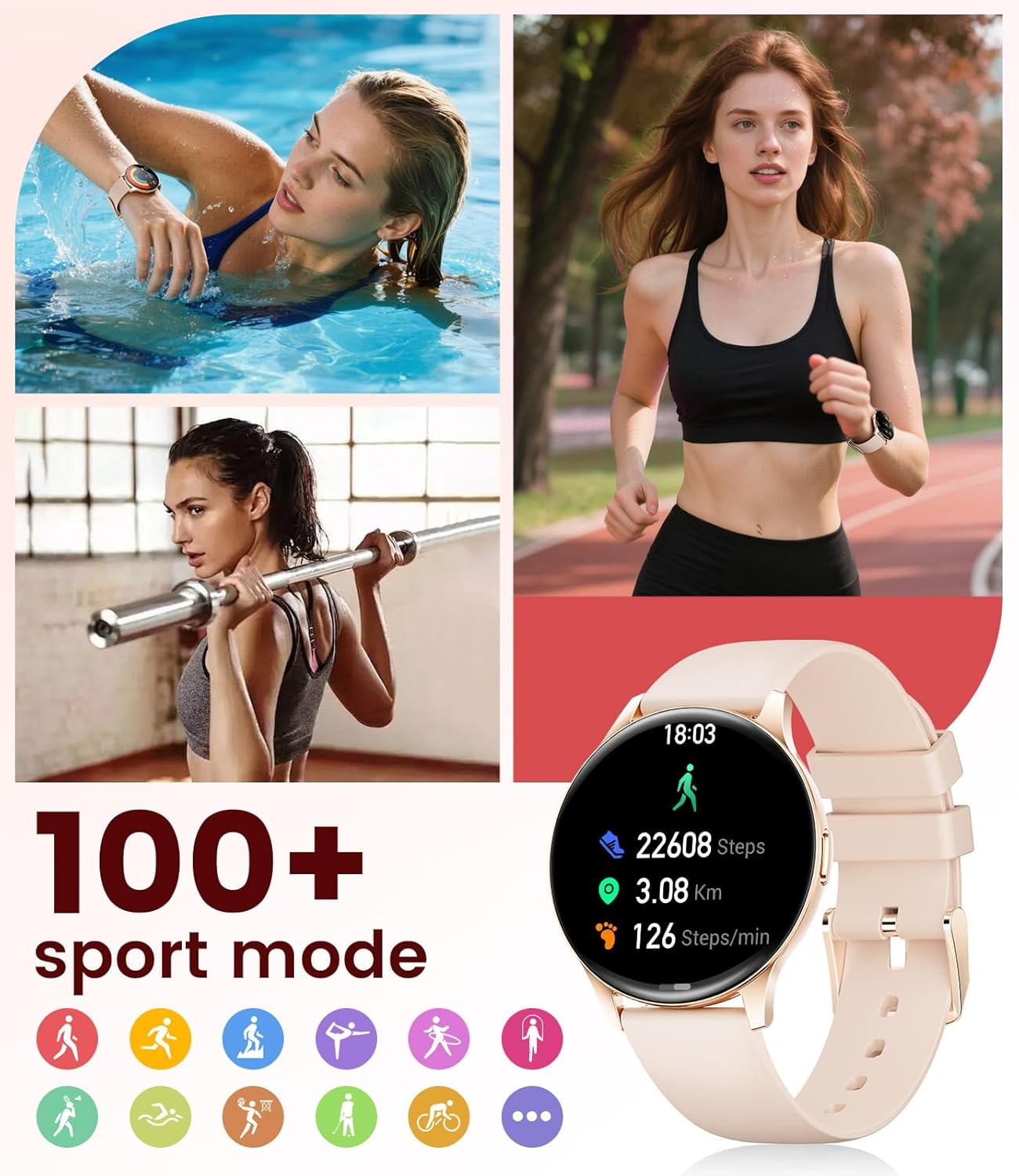
Image: The smartwatch supports over 100 sports modes for comprehensive activity tracking.

Image: The smartwatch offers over 100 sports modes to track daily activity plans.
5.5. Other Features
The smartwatch includes a variety of useful functions:
- Music Control: Play, pause, skip tracks on your phone.
- Camera Control: Remotely trigger your phone's camera.
- Weather Forecast: Get real-time weather updates.
- Alarm Clock: Set alarms directly from your wrist.
- Stopwatch & Timer: Essential tools for workouts and daily tasks.
- Calculator: Perform basic calculations.
- Find Phone: Locate your misplaced smartphone.
- Sedentary Reminder: Prompts you to move after periods of inactivity.
- Hydration Reminder: Reminds you to drink water.
5.6. Customizing Watch Faces
Personalize your smartwatch with over 200 watch faces available through the 'FitCloudPro' app. You can also upload your own photos to create custom watch faces.
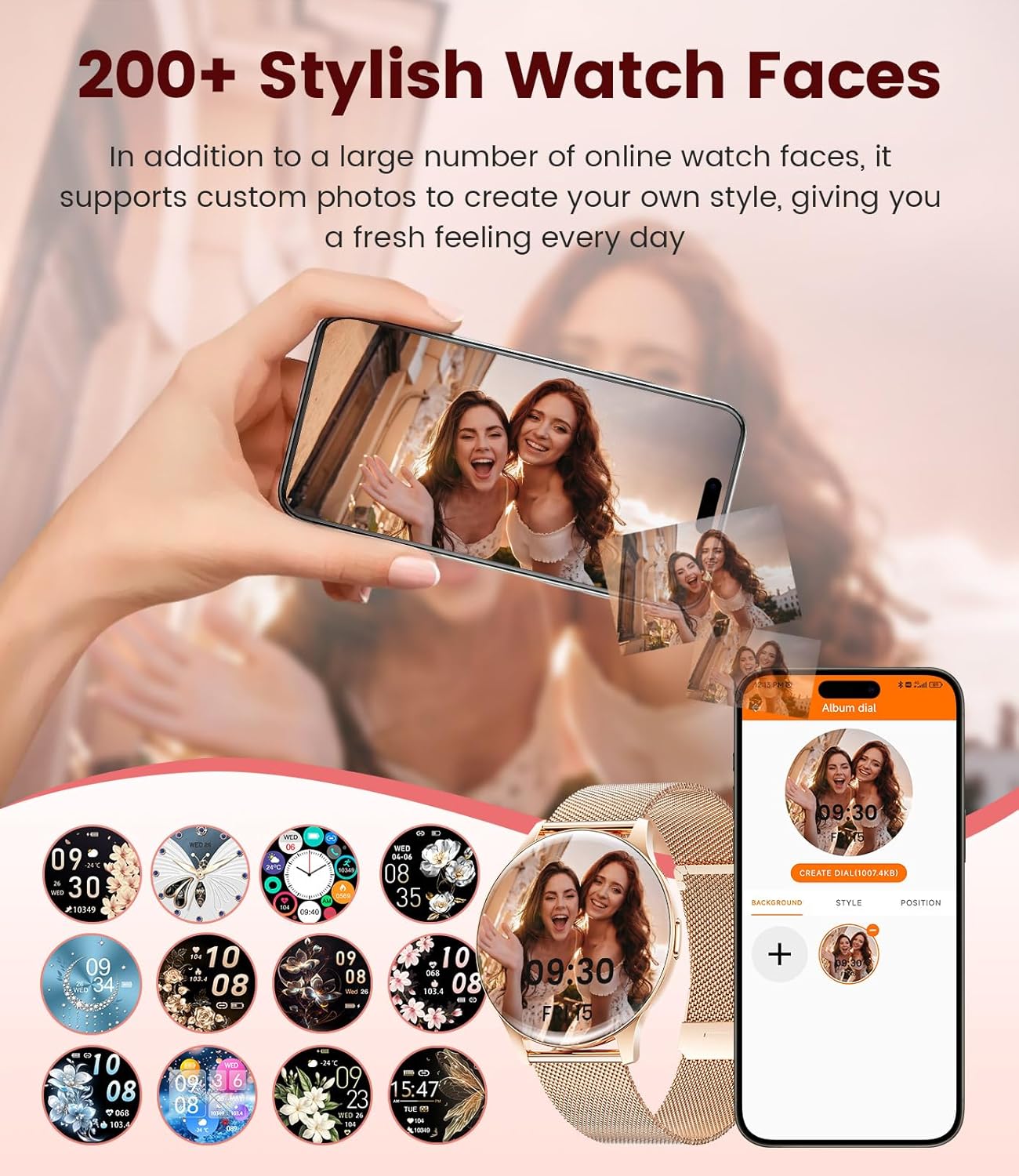
Image: Over 200 stylish watch faces and custom photo options available.

Image: Customized watch face options, including personal photos and a diverse dial library.
6. Maintenance
6.1. Cleaning
Regularly clean your smartwatch and bands to prevent skin irritation and maintain device hygiene. Use a soft, damp cloth to wipe the screen and watch body. For the bands, follow specific cleaning instructions based on the material (mesh or silicone).
6.2. Water Resistance
The BENYAR SMART FV21-D Smartwatch has an IP68 waterproof rating, making it resistant to water, dust, and sweat. It is suitable for activities like swimming and intense workouts. However, it is not recommended for diving or prolonged submersion in water.
7. Troubleshooting
If you encounter any issues with your smartwatch, consider the following common solutions:
- Device Not Turning On: Ensure the watch is fully charged. Connect it to the charger and wait a few minutes before attempting to power it on.
- Bluetooth Connection Issues: Verify that Bluetooth is enabled on your phone and the smartwatch. Ensure the watch is within range of your phone. Try unpairing and re-pairing the device through the 'FitCloudPro' app.
- Notifications Not Received: Check that 'Push Notifications' are enabled in the 'FitCloudPro' app for all desired applications. Ensure the app has all necessary permissions on your phone.
- Inaccurate Health Data: Ensure the watch is worn snugly on your wrist, not too tight or too loose. Keep the sensor clean and free from debris.
- Screen Unresponsive: Restart the smartwatch. If the issue persists, ensure the screen is clean and dry.
For persistent problems, refer to the 'FitCloudPro' app's help section or contact BENYAR SMART customer support.
8. Specifications
| Feature | Detail |
|---|---|
| Model Number | FV21-D |
| Display | 1.43" HD AMOLED Touch Screen |
| Connectivity | Bluetooth 5.1 |
| Battery Capacity | 400mAh Lithium Polymer (included) |
| Battery Life | 4-7 days (typical usage) |
| Waterproof Rating | IP68 |
| Compatibility | Android 8.0+ / iOS 12.0+ |
| Special Features | Answer/dial calls, Message alerts, Voice assistant, 100+ sports modes, Health monitoring (Heart Rate, Sleep, Blood Oxygen, Stress, Menstrual Cycle), Exercise data tracking, Music control, Alarm clock, Stopwatch, Calculator, Find phone, Weather forecast, Motion detector |
| Item Weight | 190 g |
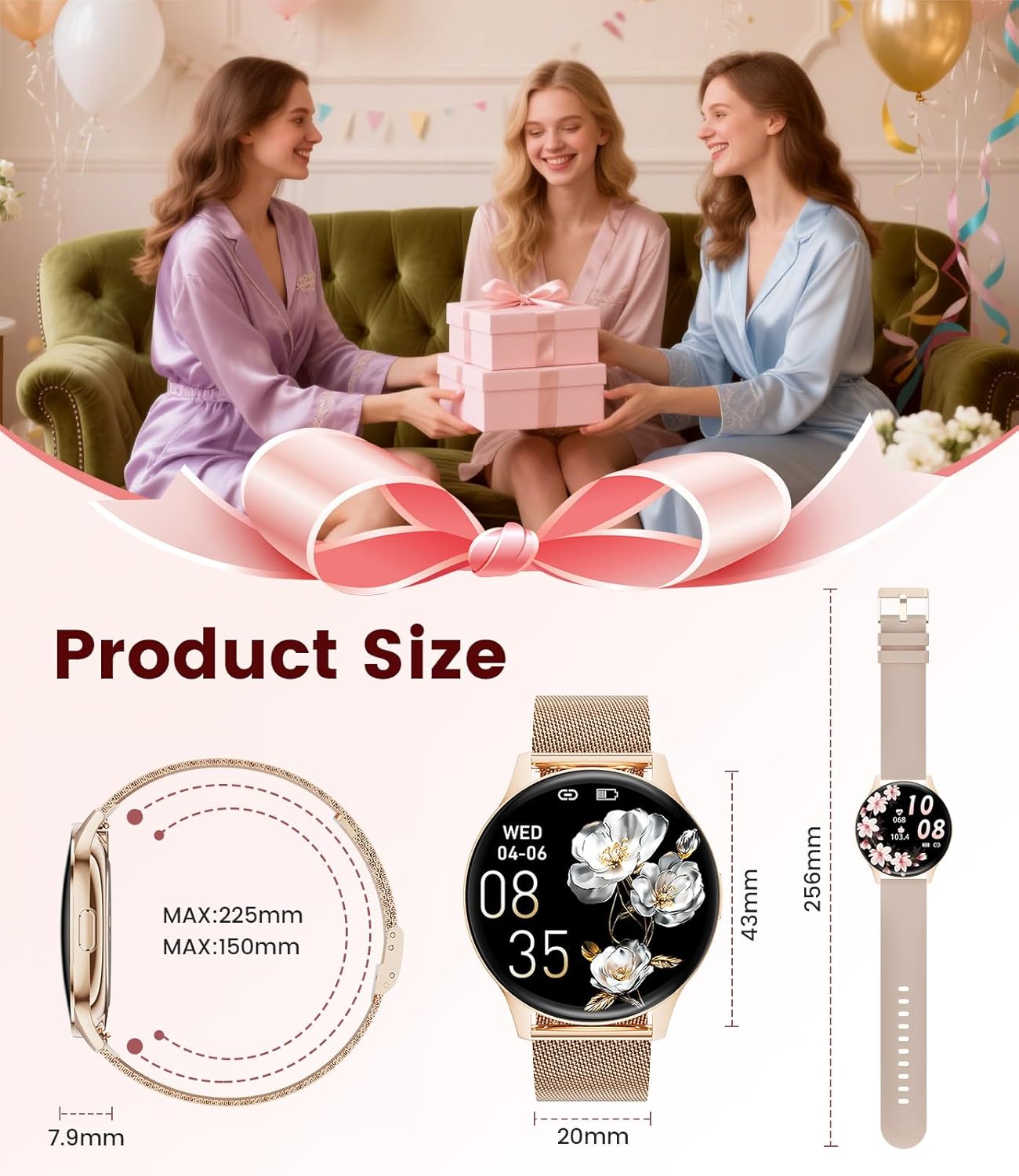
Image: Product dimensions and size details.
9. Warranty and Support
Warranty information for the BENYAR SMART FV21-D Smartwatch is not explicitly provided in the available product data. For detailed warranty terms and conditions, please refer to the product packaging or contact BENYAR SMART customer support directly. For support, please visit the manufacturer's official website or contact their customer service department.