
1. Introduction
This manual provides detailed instructions for the installation, operation, and maintenance of your Inefala Android 15 Car Radio. This unit is designed for Buick Regal (2009-2013) and Opel Insignia (2008-2013) models, featuring a 9-inch In-Cell display, 4GB RAM, 64GB storage, Wireless Carplay, Android Auto, Mirror Link, FM/RDS radio, GPS navigation, WiFi, Bluetooth, and Steering Wheel Control (SWC) compatibility. Please read this manual thoroughly before use to ensure proper functionality and safety.
2. Package Contents
Verify that all items listed below are included in your package:
- Inefala Radio Unit for Buick Regal/Opel Insignia
- Power Cable
- Canbus Box
- RCA Cable
- GPS Antenna
- Rear Camera Input Cable
- AHD Rear Camera
- External Microphone
- 2 USB Cables
- Original Car USB Cable
- Radio Antenna
- Accessories (various connectors)
- Support Brackets
- Installation Tools

Figure 2.1: Illustration of included components and accessories.
3. Setup and Installation
3.1. Pre-Installation Check
Before beginning installation, ensure the vehicle's ignition is off and the battery is disconnected. This prevents electrical shorts and damage to the unit or vehicle.
3.2. Installation Steps
- Carefully remove the original car radio unit from your vehicle's dashboard. Refer to your vehicle's service manual for specific instructions on removing trim panels and the existing radio.
- Connect the provided power cable, Canbus box, and other necessary cables to the corresponding ports on the new Inefala unit.
- Connect the other end of the cables to your vehicle's wiring harness. Ensure all connections are secure.
- Install the GPS antenna in a location with a clear view of the sky, typically on the dashboard or under the windshield.
- If installing the rear camera, route the camera cable from the rear of the vehicle to the radio unit.
- Mount the Inefala unit into the dashboard opening. Secure it using the provided support brackets and screws.
- Reconnect the vehicle's battery and turn on the ignition to test the unit.

Figure 3.1: Visual representation of the car radio installation effect.
3.3. Port Details and Wiring
Familiarize yourself with the ports on the back of the unit and the wiring diagram for correct connections.

Figure 3.2: Rear port layout and RCA cable connections.
Rear Camera Wiring:
- Cable 1 and Cable 5: Connect the positive pole of the car reversing light cable.
- Cable 2: Connect the negative pole of the car reversing light cable.
- Cable 3 and Cable 4: Connect to the reverse trigger wire of the power cable (labeled "Reverse/Back").
Important: The reversing input must be plugged in even if the reversing camera is not used. Otherwise, your WiFi and Bluetooth signals may be affected.

Figure 3.3: Reversing camera wiring diagram.
4. Operating Instructions
4.1. Android System Overview
The unit operates on an Android 15 system, providing a fast and fluid interface with access to various applications. The 4GB RAM and 64GB internal storage ensure stable performance without delays.
4.2. In-Cell Touch Screen
The 9-inch In-Cell display integrates touch sensors directly into the screen, resulting in a thinner, sharper, and more responsive display. This technology offers better color accuracy, higher contrast, and improved brightness with 178° viewing angles.

Figure 4.1: In-Cell Touch Screen features.
4.3. Wireless Carplay and Android Auto
Connect your smartphone wirelessly via Bluetooth to access Carplay or Android Auto. This allows you to make calls, send messages, listen to music, and navigate using voice commands or touch controls directly from the car radio screen.

Figure 4.2: Wireless Carplay and Android Auto interface.
Note: For Huawei and some Samsung phones, these features may not be supported. Your phone needs to support Google Services and have the "Android Auto" app installed.
4.4. Mirror Link
Mirror Link allows you to display your smartphone's screen directly onto the car radio. Connect your smartphone via WiFi to mirror its content, supporting both iOS and Android devices.

Figure 4.3: Mirror Link in action.
4.5. GPS Navigation
The unit includes GPS navigation with support for both online and offline maps. Real-time road conditions can be displayed to help avoid traffic. You can also download online navigation applications via WiFi.

Figure 4.4: GPS Navigation interface.
4.6. WiFi Functionality
Utilize the built-in WiFi for high-speed internet access. This allows you to download apps, browse online, and stream music directly from the unit.
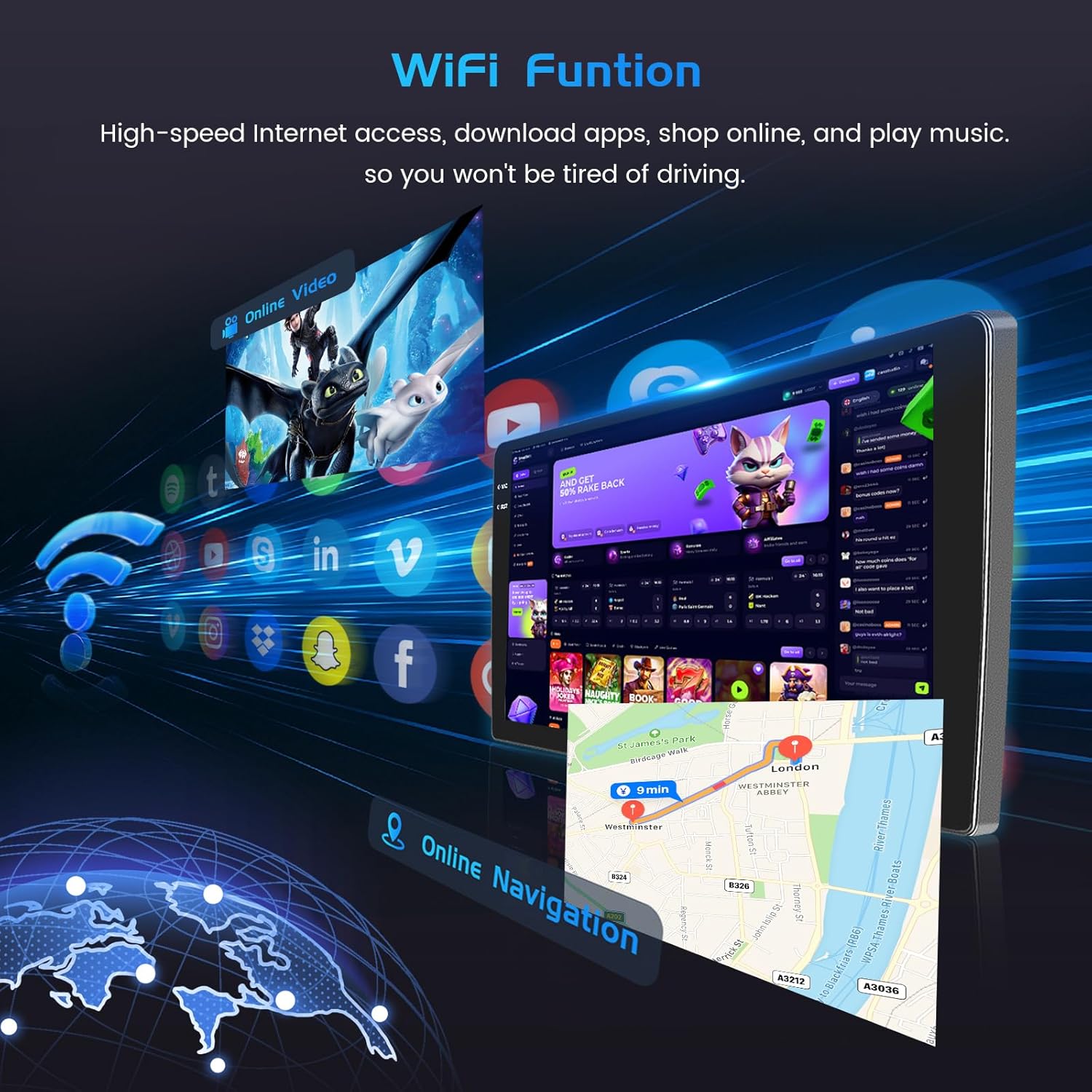
Figure 4.5: WiFi connectivity for online services.
4.7. Bluetooth 5.0
The integrated Bluetooth 5.0 module enables wireless pairing with your devices. You can stream music, make hands-free calls, and transfer files, enhancing safety while driving.

Figure 4.6: Bluetooth 5.0 and FM/RDS Radio interfaces.
4.8. FM/RDS Radio and Equalizer
The unit features an FM/RDS radio with support for 54 preset stations. A built-in equalizer allows you to customize audio settings for an optimal listening experience.
4.9. Steering Wheel Control (SWC)
The steering wheel control function allows you to safely manage calls, adjust volume, and change tracks without taking your hands off the wheel.
- Without CANBUS box: Activation of steering wheel controls requires key learning in settings.
- With CANBUS box:
- Connect the 20-pin white port in the power cable to the Canbus itself, and the remaining 8-pin white port to the corresponding port on the back of the radio.
- Match the car model. CANBUS Matching Path: Settings -> Factory Setup (Password 1234) -> Can Settings.

Figure 4.7: Steering Wheel Control setup.
5. Maintenance
To ensure the longevity and optimal performance of your Inefala car radio, follow these maintenance guidelines:
- Cleaning: Use a soft, dry cloth to clean the screen and exterior. Avoid abrasive cleaners or solvents, which can damage the surface.
- Temperature: Avoid exposing the unit to extreme temperatures, both hot and cold, for extended periods.
- Software Updates: Periodically check for available software updates to ensure the system runs efficiently and has the latest features and security patches.
- Cable Connections: Ensure all cables remain securely connected. Loose connections can lead to intermittent functionality.
6. Troubleshooting
| Problem | Possible Cause | Solution |
|---|---|---|
| Unit does not power on. | Loose power connection, blown fuse, vehicle battery issue. | Check power cable connections. Inspect vehicle fuses. Ensure vehicle battery is charged. |
| Slow performance or lag. | Too many applications running in the background, low storage, system bug. | Close unnecessary applications. Clear cache. Perform a system restart. Check for software updates. |
| Backup camera not functioning. | Incorrect wiring, faulty camera, software setting. | Verify all camera wiring connections (refer to Section 3.3). Ensure the reversing input is connected. Check camera settings in the unit's menu. Test with a known working camera if possible. |
| No sound or distorted audio. | Speaker wiring issues, incorrect audio settings, volume too low. | Check speaker connections. Adjust volume and equalizer settings. Ensure audio source is selected correctly. |
| WiFi or Bluetooth signal issues. | Reversing input not connected (even if camera is not used), interference, module error. | Ensure the reversing input cable is connected as specified in Section 3.3. Restart the unit. Check for other devices causing interference. |
7. Specifications
| Feature | Detail |
|---|---|
| Model | B0FJQK7VCS |
| Compatible Vehicles | Buick Regal (2009-2013), Opel Insignia (2008-2013) |
| Operating System | Android 15 |
| RAM | 4GB |
| Internal Storage | 64GB |
| Display Type | 9-inch In-Cell Touch Screen |
| Connectivity | Bluetooth 5.0, USB, WiFi |
| Special Features | Wireless Carplay, Android Auto, Mirror Link, FM/RDS Radio, GPS, SWC, EQ |
| Audio Output Mode | APE/FLAC/WAV/MP3/WMA |
| Audio Output Type | RCA |
| Speaker Surround Sound Channel Configuration | 4 |
| Electrical Power | 45 watts |
| Product Weight | 1.77 kg |
| Package Dimensions | 35.5 x 18.5 x 11 cm |
| Origin | China |
8. Warranty and Support
Warranty information for this product is not explicitly provided in the available data. Please refer to the retailer or manufacturer's website for specific warranty terms and conditions.
For technical support or further assistance, please contact Inefala customer service through the retailer where the product was purchased or visit the official Inefala website if available.