
1. Introduction
The ACCUTAG (T13) Smart Tag is a compact Bluetooth-enabled device designed to help Android users locate lost items. It connects to your smartphone via a dedicated tracking application, allowing you to find keys, wallets, bags, or even pets. This manual provides detailed instructions for setup, operation, maintenance, and troubleshooting to ensure optimal use of your Smart Tag.
2. Package Contents
- ACCUTAG (T13) Smart Tag
- CR2032 Battery (pre-installed or included)
- User Manual
3. Setup
3.1 Battery Installation
The ACCUTAG (T13) utilizes a replaceable CR2032 coin battery, which is typically pre-installed. If replacement is necessary, follow these steps:
- Locate the small groove or opening on the side of the ACCUTAG (T13).
- Gently pry open the device casing using a small tool, such as a coin or a flat-head screwdriver.
- Remove the old CR2032 battery.
- Insert a new CR2032 battery with the positive (+) side facing upwards.
- Align the two halves of the casing and press firmly until it clicks securely into place.

Image: The ACCUTAG (T13) Smart Tag, a compact black device with a circular button and a key ring hole, ready for use.
3.2 App Installation
The ACCUTAG (T13) operates with Android's "Find My Device" network and compatible tracking applications such as "iSearching".
- Download a compatible tracking application (e.g., "iSearching") from the Google Play Store, or ensure "Google Find My Device" is active on your Android smartphone.
- Enable Bluetooth on your smartphone through your device settings.

Image: A visual representation of the ACCUTAG (T13) Smart Tag alongside an Android smartphone displaying the 'Find My Device' logo, indicating compatibility.
3.3 Device Pairing
Follow the in-app instructions to pair your ACCUTAG (T13) with your smartphone:
- Open the chosen tracking application on your smartphone.
- Press and hold the button on the ACCUTAG (T13) until it emits a beep or an indicator light flashes, signaling it is in pairing mode.
- Within the app, select the "Add Device" or similar option.
- Confirm the pairing when prompted by the application.
4. Operating Instructions
4.1 Locating Items
Use the connected application to locate your items:
- Open the tracking app on your smartphone.
- Select the ACCUTAG (T13) from your list of paired devices.
- Choose the "Play Sound" option to make the tag emit an audible beep, assisting you in finding nearby items.
- Utilize the map feature within the app to view the last known location of your tag or to receive directional guidance to its current position.

Image: An illustration showing the ACCUTAG (T13) attached to keys, with a smartphone screen displaying a map and a 'Play Sound' option to locate items within a room.

Image: A smartphone screen displaying a map interface with a directional guide, illustrating how the app can lead a user to the location of the ACCUTAG (T13).

Image: A hand holding a smartphone displaying a map with a 'Play Sound' button, next to a hand holding the ACCUTAG (T13) on a keychain, illustrating the sound alert feature.
4.2 Lost Location & Alerts
If your item is out of range, the app will record its last known location. You can also configure alerts for specific scenarios:
- The application automatically saves the last detected location of your ACCUTAG (T13) before it went out of range.
- Enable "Lost Alerts" or "Separation Alerts" within the app to receive notifications if the tag is left behind or moves beyond a specified distance from your smartphone.
- Mark the device as lost within the app to potentially leverage the broader "Find My Device" network for locating it.
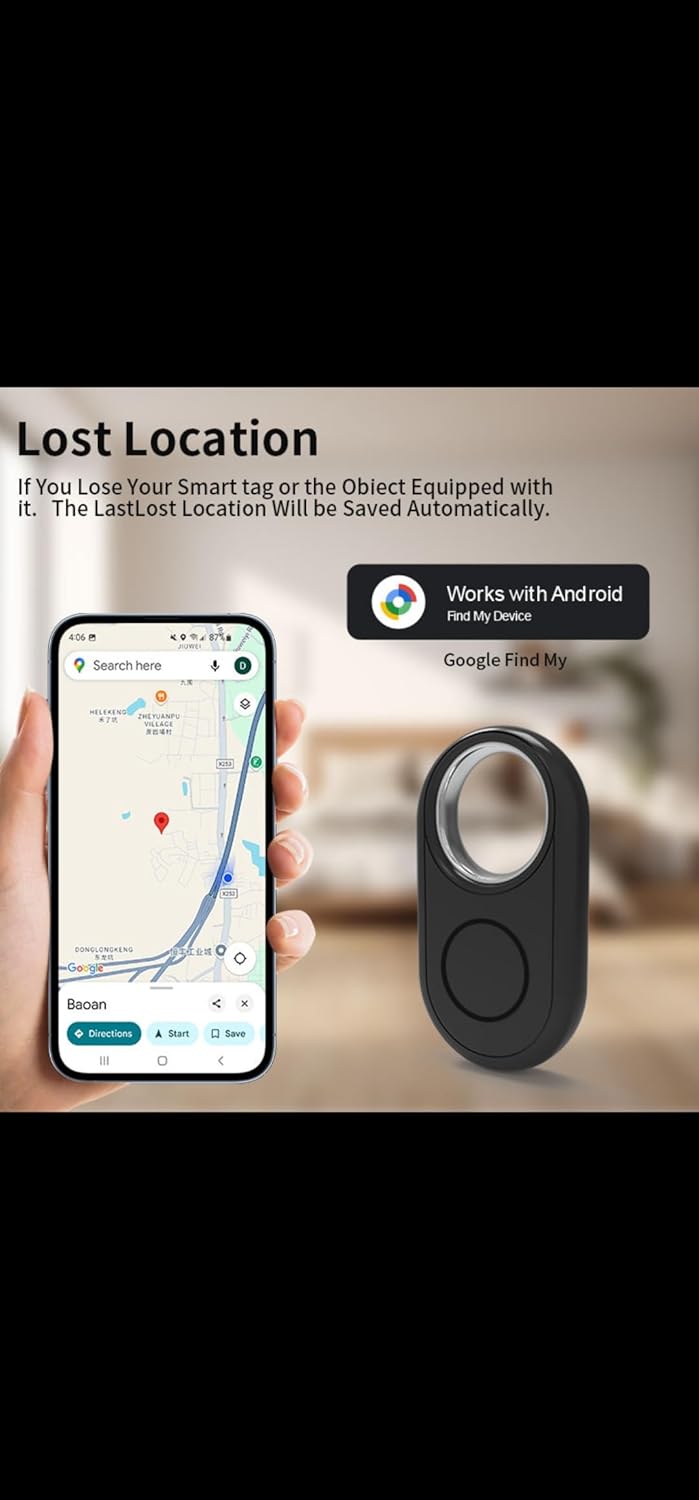
Image: A person holding an ACCUTAG (T13) and a smartphone displaying the Google Find My interface, showing the tag's location on a map within a home setting.

Image: A smartphone screen showing a map with a red pin indicating the last known location of the ACCUTAG (T13), with the tag itself shown next to the phone.
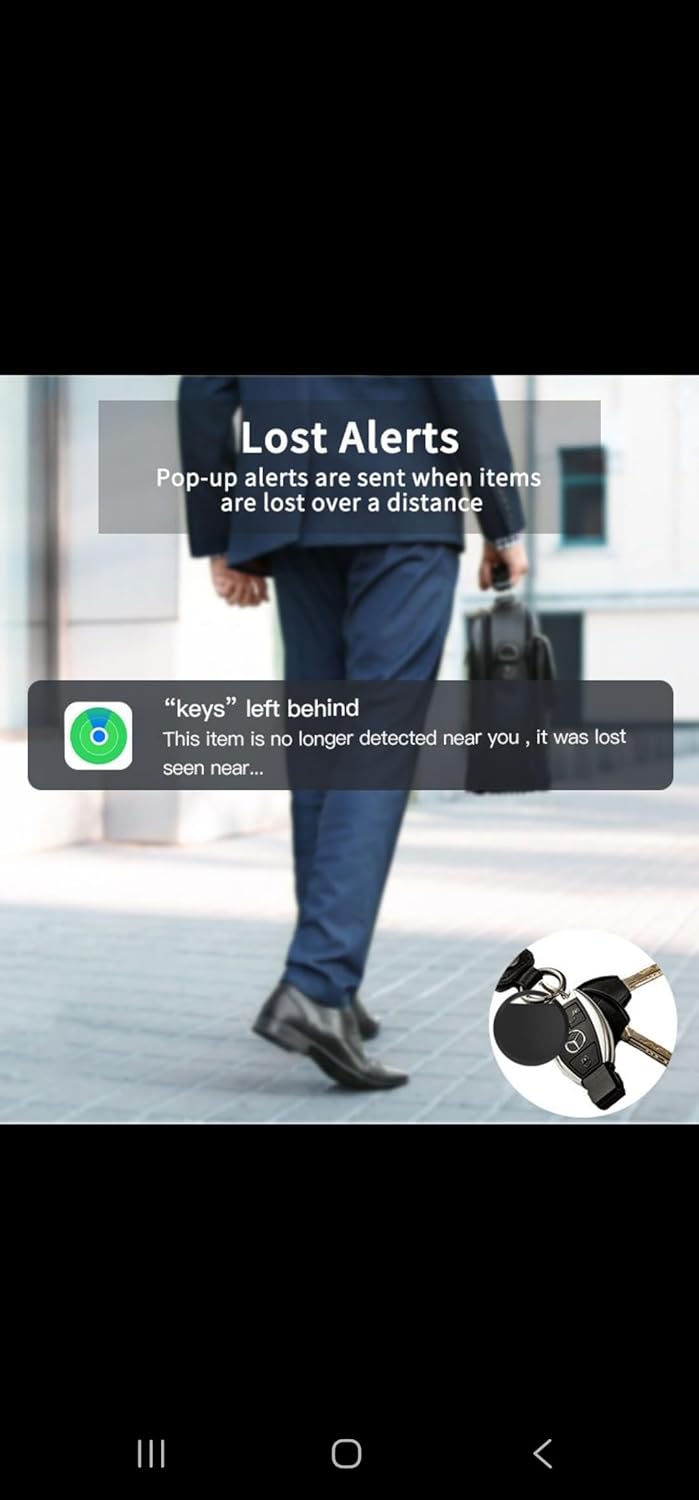
Image: A smartphone notification displaying 'keys' left behind, indicating an alert received when the ACCUTAG (T13) moves out of range, with a person walking in the background.
5. Maintenance
5.1 Battery Replacement
The ACCUTAG (T13) uses a replaceable CR2032 coin battery, offering up to 6 months of continuous use. Replace the battery when the app indicates low power or the device stops responding.
- Follow the steps outlined in Section 3.1 Battery Installation to open the device casing.
- Remove the depleted CR2032 battery.
- Insert a new CR2032 battery with the positive (+) side facing up.
- Securely close the battery compartment cover.
5.2 Cleaning
To clean your ACCUTAG (T13), wipe the device with a soft, dry cloth. Avoid using harsh chemicals, abrasive materials, or submerging the device in water.
6. Troubleshooting
- Device Not Connecting: Ensure Bluetooth is enabled on your phone. Check if the battery is charged or needs replacement. Restart the tracking app and your smartphone. Try re-pairing the device if the issue persists.
- No Sound from Tag: Verify the tag's battery level in the app. Ensure the volume on your phone and within the tracking application is turned up.
- Inaccurate Location: Location accuracy can be affected by environmental factors such as thick walls or interference. Ensure your phone's location services are enabled and the app has permission to access them. For best results, use in open areas.
- Short Battery Life: Ensure you are using a genuine CR2032 battery. Excessive or continuous use of the "Play Sound" feature can drain the battery faster.
7. Specifications
| Feature | Value |
|---|---|
| Brand | Generic |
| Model | T13 |
| Battery Type | CR2032 (included) |
| Battery Life | Up to 6 months (typical use) |
| Connectivity | Bluetooth |
| Compatibility | Android (via "Find My Device" network / iSearching app) |
| Item Weight | 9 g |
| Approximate Dimensions | 17.81 x 6.2 x 1.19 cm (Parcel Dimensions, indicative of device size) |
8. Warranty and Support
This product comes with a standard manufacturer's warranty. For detailed warranty information, specific terms and conditions, or technical support, please refer to the product packaging or contact the retailer where the product was purchased. Keep your proof of purchase for warranty claims.