1. Introduction
This document serves as a comprehensive instruction manual for the Dell U2725QE UltraSharp 27" 4K UHD 120Hz IPS Black Thunderbolt Hub Monitor. It provides essential information for proper setup, operation, maintenance, and troubleshooting to ensure optimal performance and longevity of your device. Please read this manual thoroughly before using your monitor.
2. Product Overview
The Dell U2725QE is a 27-inch 4K UHD monitor designed for enhanced visual clarity and productivity. It features IPS Black technology for superior contrast, a 120Hz refresh rate for smooth visuals, and extensive connectivity options including Thunderbolt 4. Key features include:
- 27-inch 4K UHD (3840x2160) Display: Delivers sharp, detailed images.
- IPS Black Technology: Offers a 3000:1 contrast ratio with 47% deeper blacks compared to conventional IPS panels.
- 120Hz Refresh Rate: Provides smoother visuals and reduced flicker.
- Thunderbolt 4 Hub: Enables single-cable connectivity for video, data, and up to 140W power delivery to compatible laptops.
- Extensive Connectivity: Includes DisplayPort 1.4, HDMI 2.1, multiple USB-A and USB-C ports, and RJ45 Ethernet.
- Enhanced Eye Comfort: Features ComfortView Plus and an ambient light sensor to optimize brightness and color temperature, reducing blue light emissions.
- Adjustable Stand: Allows for tilt, pivot, height, and swivel adjustments for ergonomic viewing.
3. Setup
3.1 Physical Assembly
Follow these steps to assemble your monitor stand and attach the display panel:
- Place the monitor base on a stable surface.
- Align the stand riser with the slot on the base and secure it.
- Attach the display panel to the assembled stand by aligning the mounting points and pressing firmly until it clicks into place.

Figure 3.1: Front view of the Dell U2725QE monitor on its stand.

Figure 3.2: Rear view of the Dell U2725QE monitor with the stand attached.
3.2 Connectivity
Connect your devices to the monitor using the available ports. The Thunderbolt 4 port offers a versatile single-cable solution.

Figure 3.3: Detailed view of the Dell U2725QE monitor's rear connectivity ports.
- Power Connection: Connect the power cable to the monitor and a power outlet.
- Thunderbolt 4 (Upstream): Use the Thunderbolt 4 cable to connect your laptop for video, data, and power delivery (up to 140W). This single connection can power your laptop and enable all other monitor ports.
- DisplayPort 1.4: Connect to your computer's DisplayPort output for video.
- HDMI 2.1: Connect to your computer's HDMI output for video.
- USB-C (Upstream/KVM): Connect to your computer for USB data and KVM functionality.
- USB-A (10Gbps): Connect peripherals such as keyboards, mice, and external drives. One port supports BC 1.2 for faster charging.
- RJ45 Ethernet: Connect to your network for a stable wired internet connection.
- Audio Line Out (3.5mm): Connect external speakers or headphones.
- Daisy Chaining: Connect a second 4K monitor via the Thunderbolt 4 downstream port for an expanded desktop experience on Windows or macOS.
4. Operating Instructions
4.1 Display Adjustments
The monitor's stand allows for various ergonomic adjustments:
- Height Adjustment: Raise or lower the display to your preferred viewing height.
- Tilt: Adjust the screen's vertical angle (forward or backward).
- Swivel: Rotate the screen horizontally left or right.
- Pivot: Rotate the screen 90 degrees to switch between landscape and portrait orientation.

Figure 4.1: Monitor tilt adjustment.
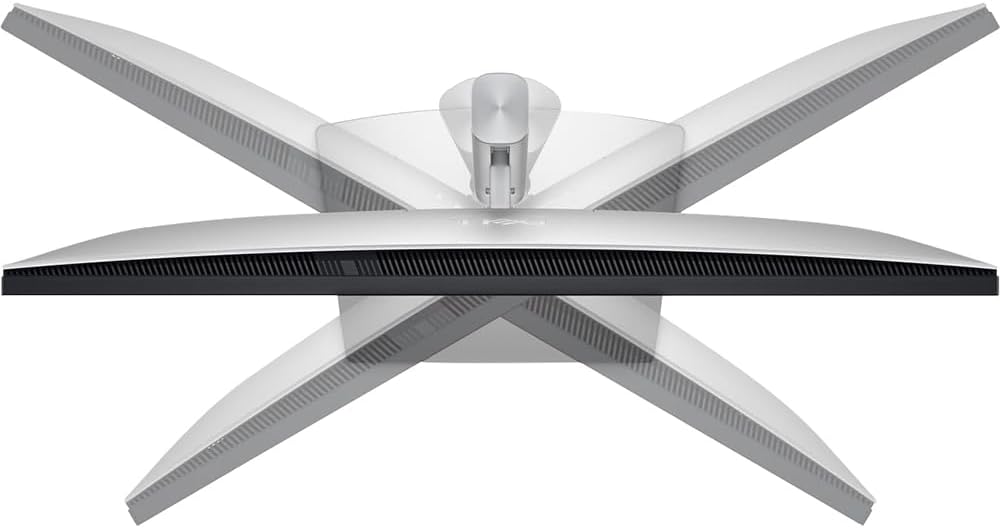
Figure 4.2: Monitor swivel adjustment.

Figure 4.3: Monitor pivot adjustment.
4.2 On-Screen Display (OSD) Menu
Access the OSD menu using the joystick control located on the back of the monitor to adjust settings such as brightness, contrast, color modes, input source, and more.
4.3 Eye Comfort Features
The Dell U2725QE incorporates features to reduce eye strain:
- ComfortView Plus: Reduces harmful blue light emissions without compromising color accuracy.
- Ambient Light Sensor: Automatically adjusts screen brightness and color temperature based on your surroundings.
5. Maintenance
To maintain the performance and appearance of your Dell U2725QE monitor:
- Cleaning the Screen: Gently wipe the screen with a soft, lint-free cloth. For stubborn marks, use a screen-cleaning solution applied to the cloth, not directly to the screen.
- Cleaning the Casing: Use a soft, dry cloth to clean the monitor casing. Avoid abrasive cleaners.
- Ventilation: Ensure the monitor's ventilation openings are clear and unobstructed to prevent overheating.
- Cable Management: Keep cables neatly organized to prevent damage and maintain a tidy workspace.
6. Troubleshooting
If you encounter issues with your monitor, refer to the following common troubleshooting steps:
- No Power: Ensure the power cable is securely connected to both the monitor and the power outlet. Check if the power indicator light is on.
- No Signal: Verify that the video cable (Thunderbolt 4, DisplayPort, or HDMI) is correctly connected to both the monitor and your computer. Ensure the correct input source is selected in the OSD menu.
- Flickering or Distorted Image: Check the video cable for damage. Try a different cable or port. Ensure your computer's graphics drivers are up to date.
- Incorrect Resolution: Adjust the display resolution in your computer's operating system settings.
- Sound Issues: If using the monitor's audio line out, ensure external speakers/headphones are connected and functional. Check audio settings on your computer and the monitor's OSD.
For more detailed troubleshooting, refer to the Dell support website or contact Dell technical support.
7. Specifications
| Feature | Description |
|---|---|
| Product Dimensions | 2.19 x 24.11 x 13.92 inches |
| Item Weight | 15.53 pounds |
| Manufacturer | Dell |
| ASIN | B0FJM9TCRV |
| Item model number | E2DELU2725QE |
| Date First Available | March 12, 2025 |
| Standing screen display size | 27" |
| Aspect Ratio | 16:9 |
| Voltage | 220 Volts |
| Resolution | 3840 x 2160 (4K UHD 2160p) |
| Total USB Ports | 8 |
| Screen Surface Description | Matte |
8. Warranty and Support
Your Dell U2725QE monitor comes with a standard manufacturer's warranty. For specific warranty terms, conditions, and duration, please refer to the documentation included with your product or visit the official Dell support website.
For technical assistance, driver downloads, and further support resources, please visit the Dell Support Page.