
1. Product Overview
This CNSTWEI 12.1" Touch Screen Stereo is designed as an advanced multimedia upgrade for Ford Explorer models manufactured between 2011 and 2019. It replaces the factory OEM screen, integrating modern features while retaining essential original vehicle functionalities.
Key features include an Android 14 operating system, an 8-core CPU, 8GB RAM, and 128GB ROM for smooth performance. The 1024x768 HD resolution touchscreen provides clear visuals. It supports built-in Wireless CarPlay and Wired Android Auto, Bluetooth for music and calls, WiFi connectivity, and GPS navigation. The unit is designed to maintain original car radio functions, amplifier control, factory joystick, and original camera compatibility.
2. Package Contents
Please verify that all the following items are included in your package:
- CarPlay Screen Unit with Dash Kit
- Power Cable
- GPS Antenna
- AUX/USB Cables
- Plastic Base
- Installation Tools/Instruction Sheet
- Canbus Box
3. Installation Guide
Installation of this unit requires careful attention to wiring and connections. Professional installation is highly recommended to ensure proper functionality and avoid damage to your vehicle or the product.
3.1. Pre-Installation Overview

Image: Comparison of the Ford Explorer dashboard before and after the 12.1" touchscreen stereo installation.
3.2. Wiring Diagram
Refer to the schematic diagram below for detailed wiring connections. Ensure all cables are securely connected to their corresponding ports.

Image: Detailed schematic diagram illustrating the various cable connections for the stereo unit.
3.3. Wiring Connection Videos
For visual guidance on connecting the wires, please refer to the following official seller videos:
Video: Demonstrates how to wire the radio for Ford Explorer 2011-2019 models.
Video: Shows the wire harness connection process for the Ford Explorer radio.
Video: Guide on how to connect the various wires for the stereo installation.
4. Operating Instructions
4.1. Touchscreen Interface and Basic Functions
The unit features a responsive touchscreen interface. Navigate through applications and settings by tapping and swiping. The home screen provides quick access to essential functions like Navigation, Radio, Bluetooth, Music, Settings, and Apps.
4.2. Radio Functionality
The stereo is equipped with an FM/RDS radio receiver. You can tune into your favorite stations and receive traffic information from surrounding broadcasting stations.
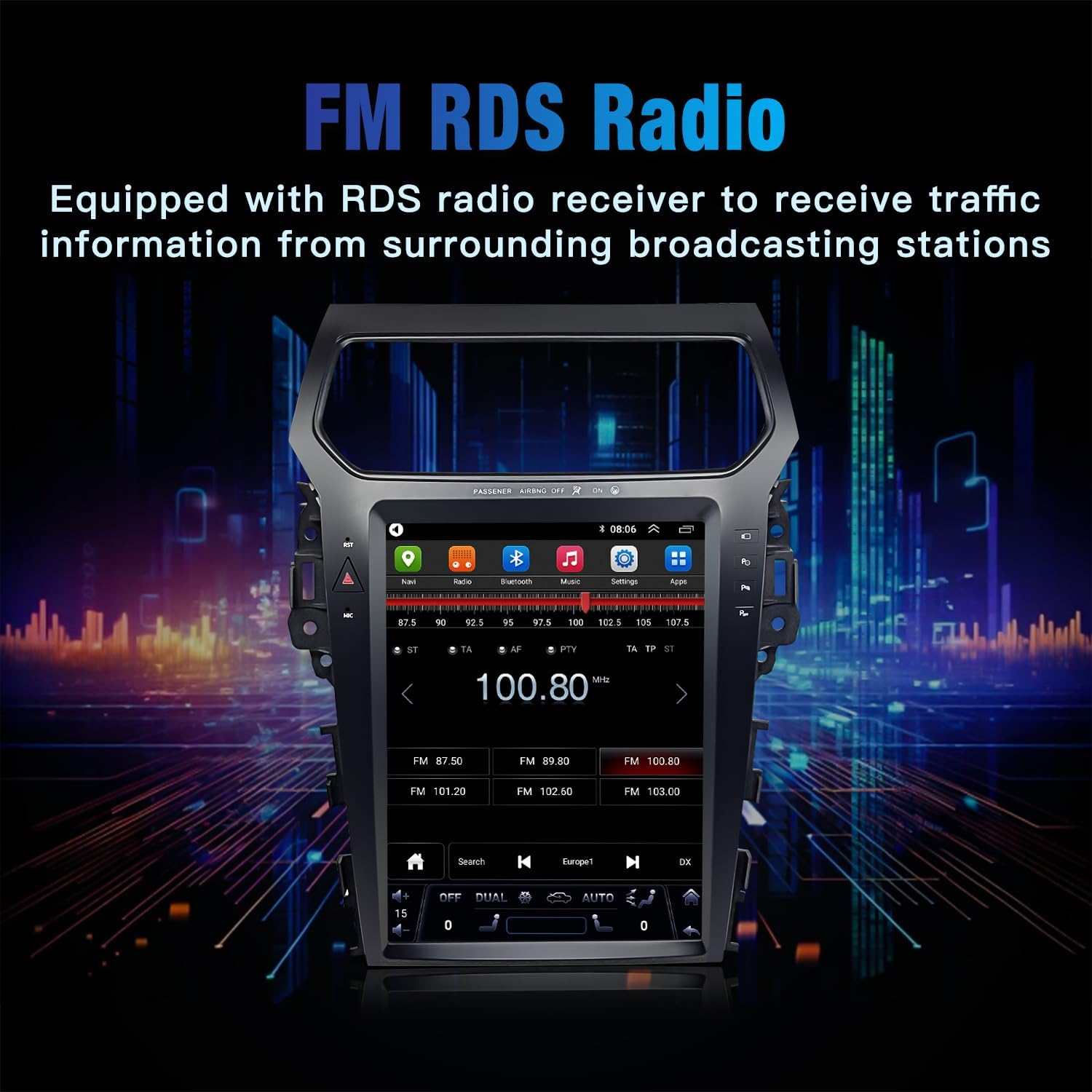
Image: The FM RDS Radio interface on the touchscreen.
4.3. Music Playback and Bluetooth
Connect your mobile device via Bluetooth for music streaming and hands-free calling. The unit supports various audio formats and allows you to play music or videos via USB.
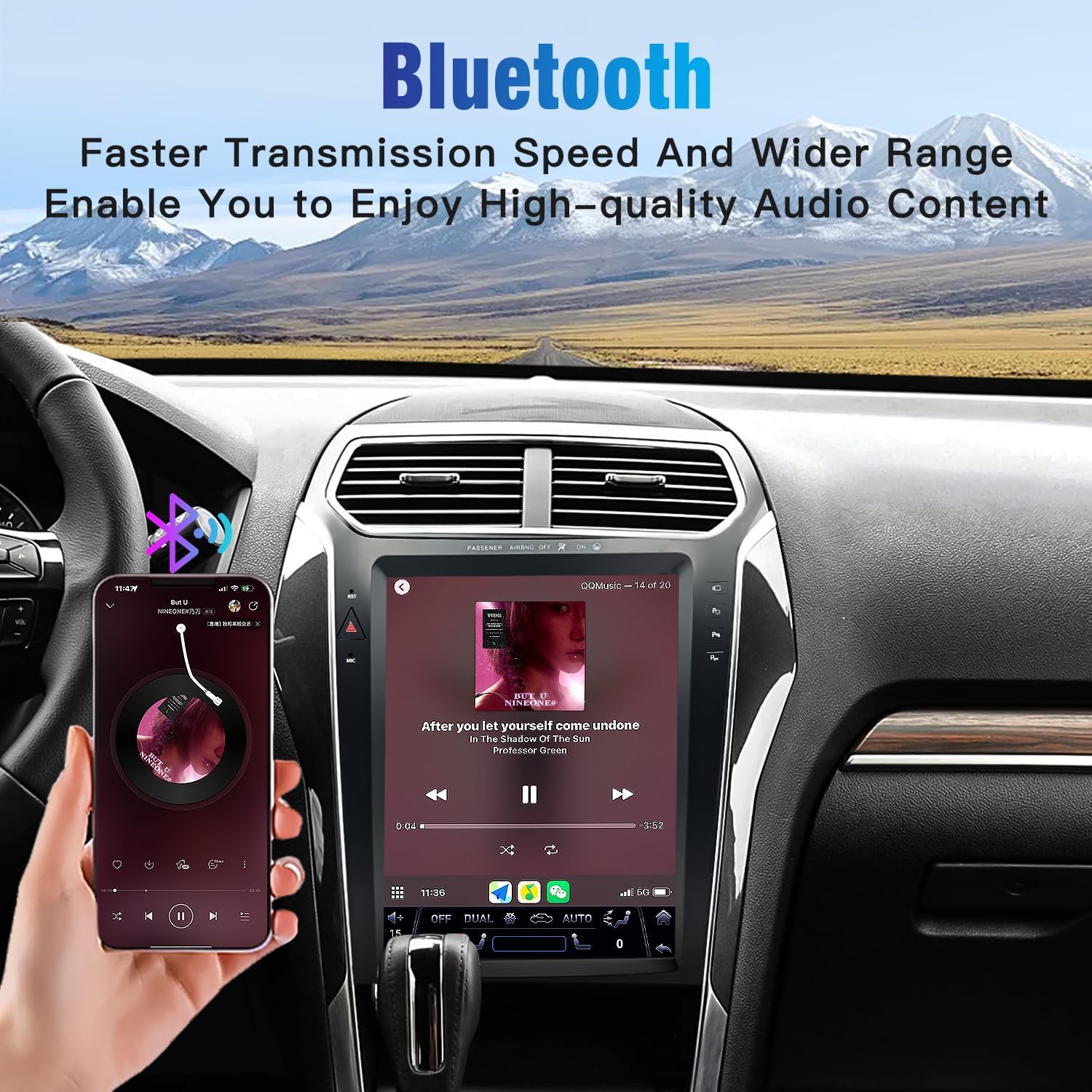
Image: Bluetooth connectivity for audio streaming and calls.
4.4. Wireless CarPlay & Android Auto
Enjoy seamless integration with your smartphone using built-in Wireless CarPlay and Wired Android Auto. Access navigation, music, messages, and more directly from the stereo's display.
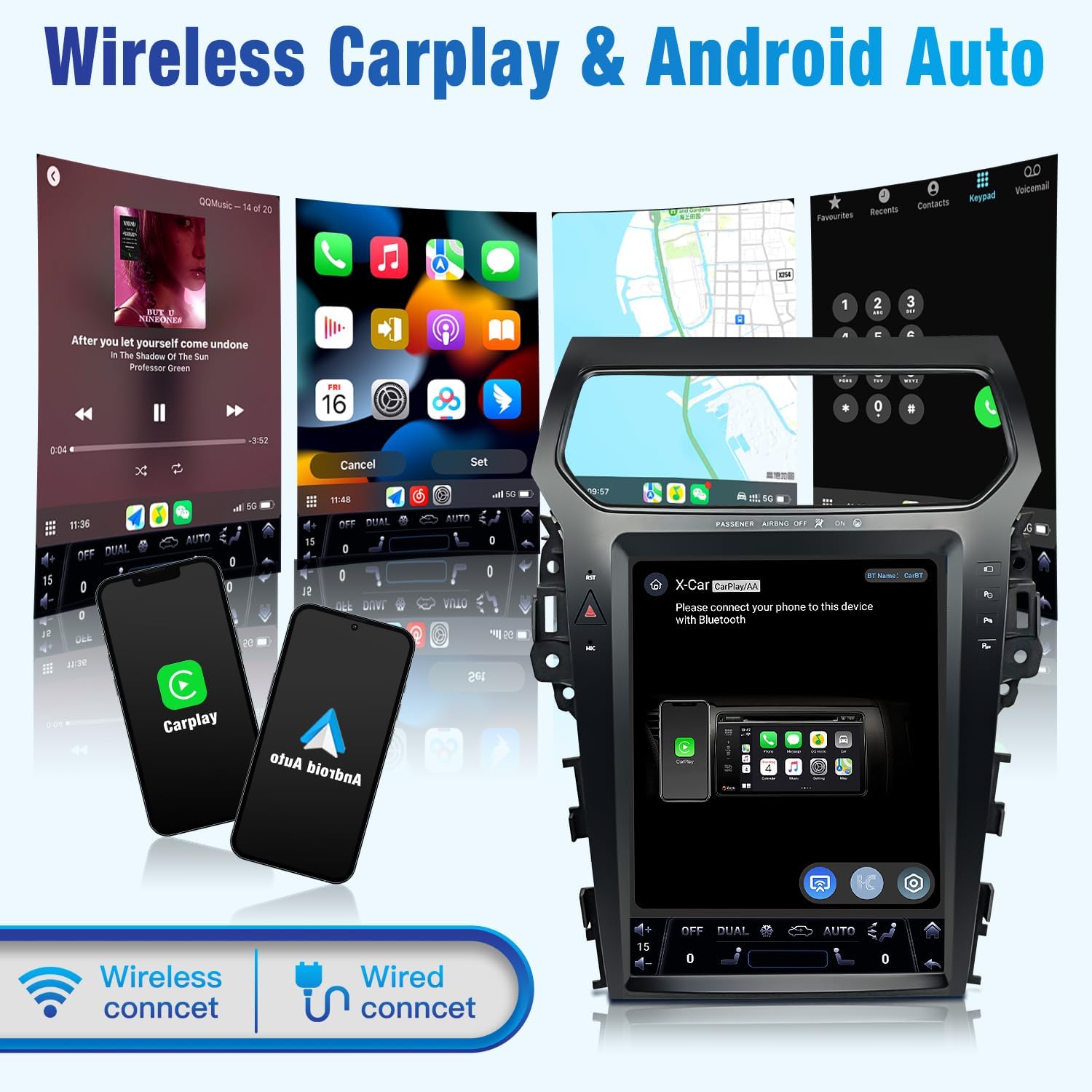
Image: Wireless CarPlay and Android Auto functionality.
4.5. CarPlay Connection Videos
For visual guidance on connecting Wireless CarPlay, please refer to the following official seller videos:
Video: Demonstrates CarPlay connection and basic functions.
Video: Shows the process of Wireless CarPlay Connection.
Video: Explains how to connect Wireless CarPlay.
4.6. Navigation
The unit includes a GPS antenna and supports various navigation applications like Google Maps, iGo, and Waze. You can link your favorite navigation apps to the homescreen for easy access.

Image: The Navigation Maps interface on the touchscreen.
4.7. Steering Wheel Control
The system is designed to retain your original steering wheel control functions, allowing you to manage audio and other features conveniently.
4.8. Reversing System
The stereo supports both original and aftermarket rearview cameras, enhancing safety and convenience during parking and reversing maneuvers. It is also compatible with DVR systems.

Image: The Reversing System display showing camera view.
4.9. DSP Audio Processor
Experience high-definition audio with the integrated DSP (Digital Signal Processor). This module allows for multi-dimensional surround lossless sound and precise sound adjustments.
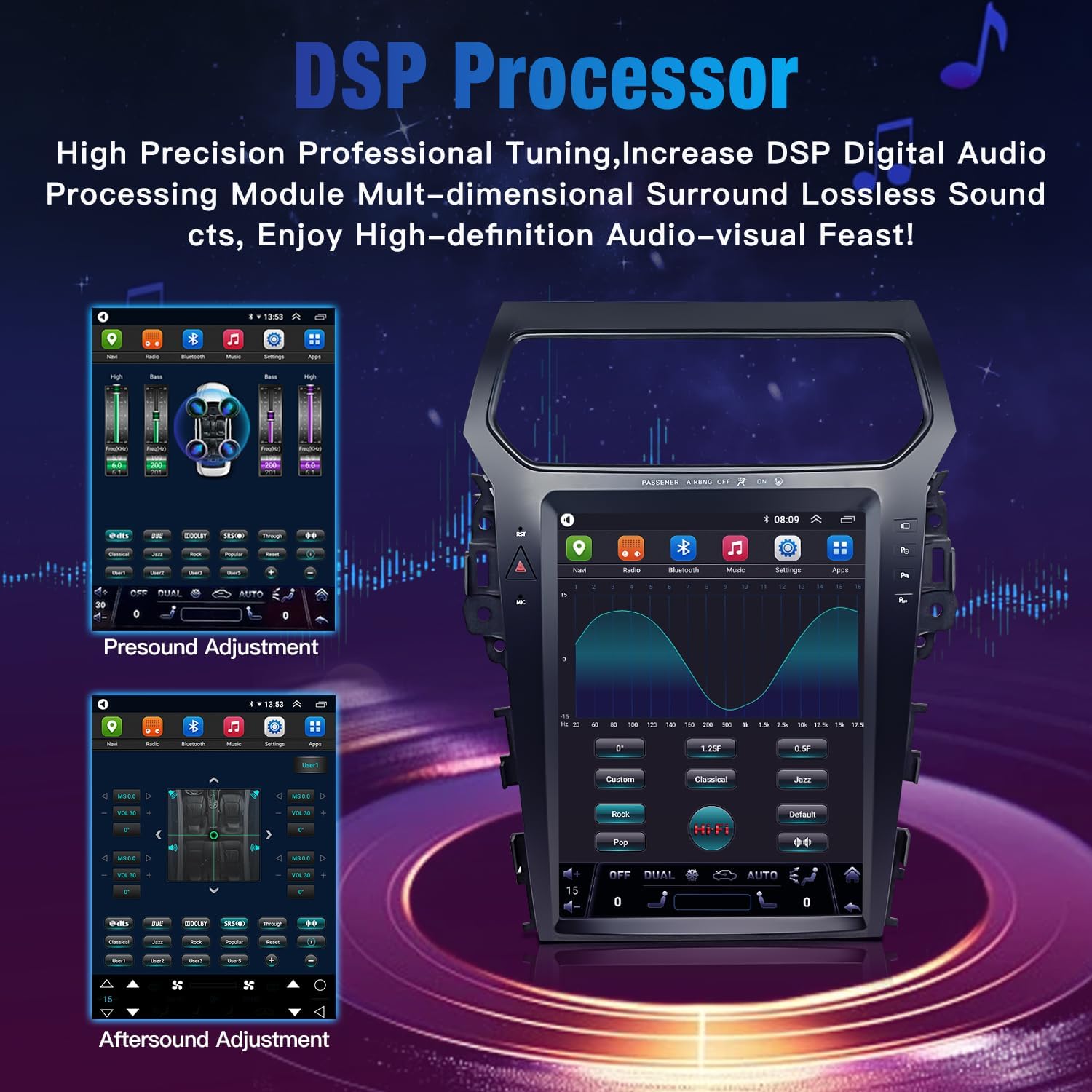
Image: DSP Audio Processor interface for sound customization.
5. Maintenance and Care
- Screen Cleaning: Use a soft, lint-free cloth to clean the touchscreen. Avoid abrasive materials or harsh chemicals.
- Software Updates: Periodically check for software updates to ensure optimal performance and access to new features. Updates can typically be found in the system settings.
- Environmental Conditions: Avoid exposing the unit to extreme temperatures or direct sunlight for prolonged periods.
6. Troubleshooting
Most problems encountered during installation or use are often due to incorrect cable connections or settings. Please ensure all functions are working properly before reinstalling any components.
- No Power: Check all power cable connections. Ensure the vehicle's ignition is on.
- No Sound: Verify speaker connections and audio output settings. Check the amplifier connection if applicable.
- Touchscreen Unresponsive: Try restarting the unit. Ensure the screen is clean and free from obstructions.
- CarPlay/Android Auto Not Connecting: Confirm Bluetooth is paired correctly. Check USB cable connection for wired Android Auto. Refer to the dedicated connection videos.
- GPS Not Working: Ensure the GPS antenna is properly installed and has a clear view of the sky. Check GPS settings in the unit.
- Steering Wheel Controls Not Working: Verify the Canbus box connection and check steering wheel learning settings in the unit's menu.
If you encounter persistent issues, please refer to the Warranty and Support section for assistance.
7. Product Specifications
| Feature | Detail |
|---|---|
| Brand | CNSTWEI |
| Model Name | for Apple carplay screen for Ford Explorer |
| Vehicle Service Type | Ford Explorer 2011-2019 Years |
| Screen Size | 12.1 Inches |
| Special Feature | Bluetooth, Touchscreen |
| Connectivity Technology | Bluetooth |
| Map Type | Worldwide |
| Audio Output Mode | Stereo |
| Mounting Type | Dashboard Mount |
8. Warranty and Support
We provide professional technical support and excellent customer service. Most problems are caused by incorrect cable connections or settings. Please ensure all functions are working properly before reinstalling. If you encounter any problems during installation or use, please feel free to contact us. We will respond within 24 hours and help you resolve the issue.