
1. Introduction
This manual provides detailed instructions for setting up and operating your GREVA Android TV Stick 4K Ultra HD Streaming Device. Please read this manual thoroughly before use to ensure proper functionality and to maximize your viewing experience. Keep this manual for future reference.
2. Package Contents
Verify that all items listed below are included in your package:
- Android TV Stick
- Remote Control
- Power Adapter
- HD Cable
- User Manual (this document)
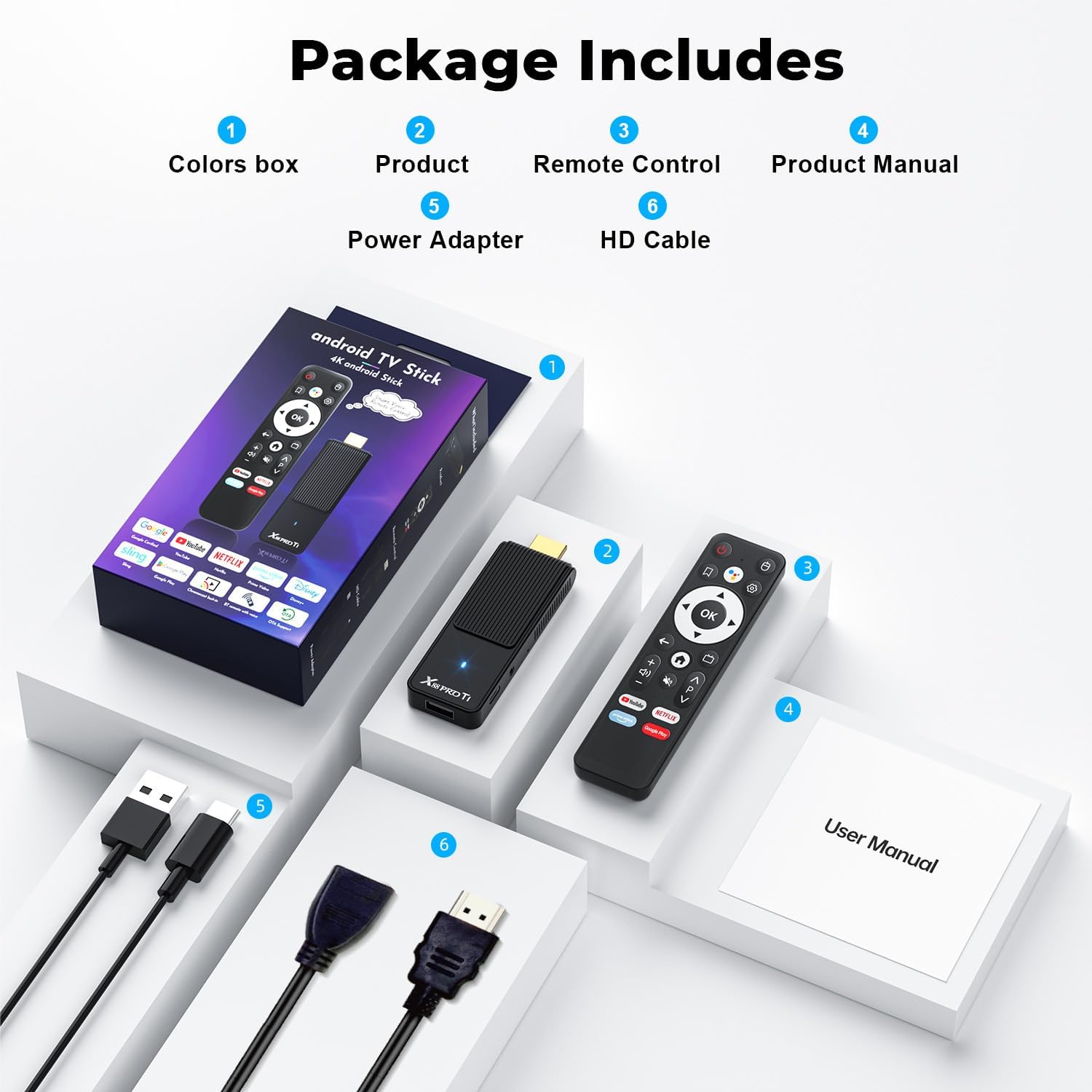
Image: Contents of the GREVA Android TV Stick package, showing the TV stick, remote control, power adapter, HD cable, and user manual.
3. Setup Guide
3.1 Connecting the Device
Follow these steps to connect your Android TV Stick to your television:
- Plug the Android TV Stick into an available HDMI port on your TV.
- Connect the power adapter to the TV Stick's Type-C port and then plug the adapter into a power outlet. Alternatively, if your TV has a powered USB port, you can use the provided USB cable to power the device.
- Turn on your TV and select the correct HDMI input source using your TV remote.

Image: Three simple steps for setting up the Android TV Stick: connecting to the TV, connecting to the internet, and starting to stream content.

Image: Detailed view of the Android TV Stick's interface and dimensions, indicating the IREX port, Type-C power input, USB 2.0 port, work light, and HDMI connector.
3.2 Remote Control Pairing
To enable voice search and full functionality, pair the remote control with the TV Stick:
- Ensure the TV Stick is powered on and connected to your TV.
- Hold the remote control near the TV Stick (within 20cm).
- Press and hold the "Home" and "Back" keys on the remote simultaneously for approximately 10 seconds until the pairing process is complete. The on-screen instructions will guide you.

Image: Instructions for pairing the smart voice remote control with the TV Stick, showing the remote and the TV Stick, with a voice assistant prompt.
3.3 Initial Setup Steps
After successful pairing, follow the on-screen prompts to complete the initial setup:
- Select your preferred language.
- Connect to your Wi-Fi network by selecting it from the list and entering the password.
- Sign in with your Google account to access the Google Play Store and other Google services.
- Review and accept the terms of service.
- Choose to install recommended applications such as YouTube and Prime Video.
- Optionally, set up Google Assistant and remote control for TV volume and power.
4. Operating Instructions
4.1 Navigation
Use the directional pad and 'OK' button on your remote control to navigate through the Android TV interface. The 'Home' button returns you to the main screen, and the 'Back' button navigates to the previous screen.
4.2 Voice Assistant
The remote control features a built-in voice assistant. Press the dedicated voice assistant button (usually a microphone icon) and speak your commands to search for content, open apps, or control playback.
4.3 Screen Mirroring
The Android TV Stick supports wireless screen projection (Chromecast built-in). You can cast content from your smartphone, tablet, or PC directly to your TV screen. Ensure your device and the TV Stick are on the same Wi-Fi network.
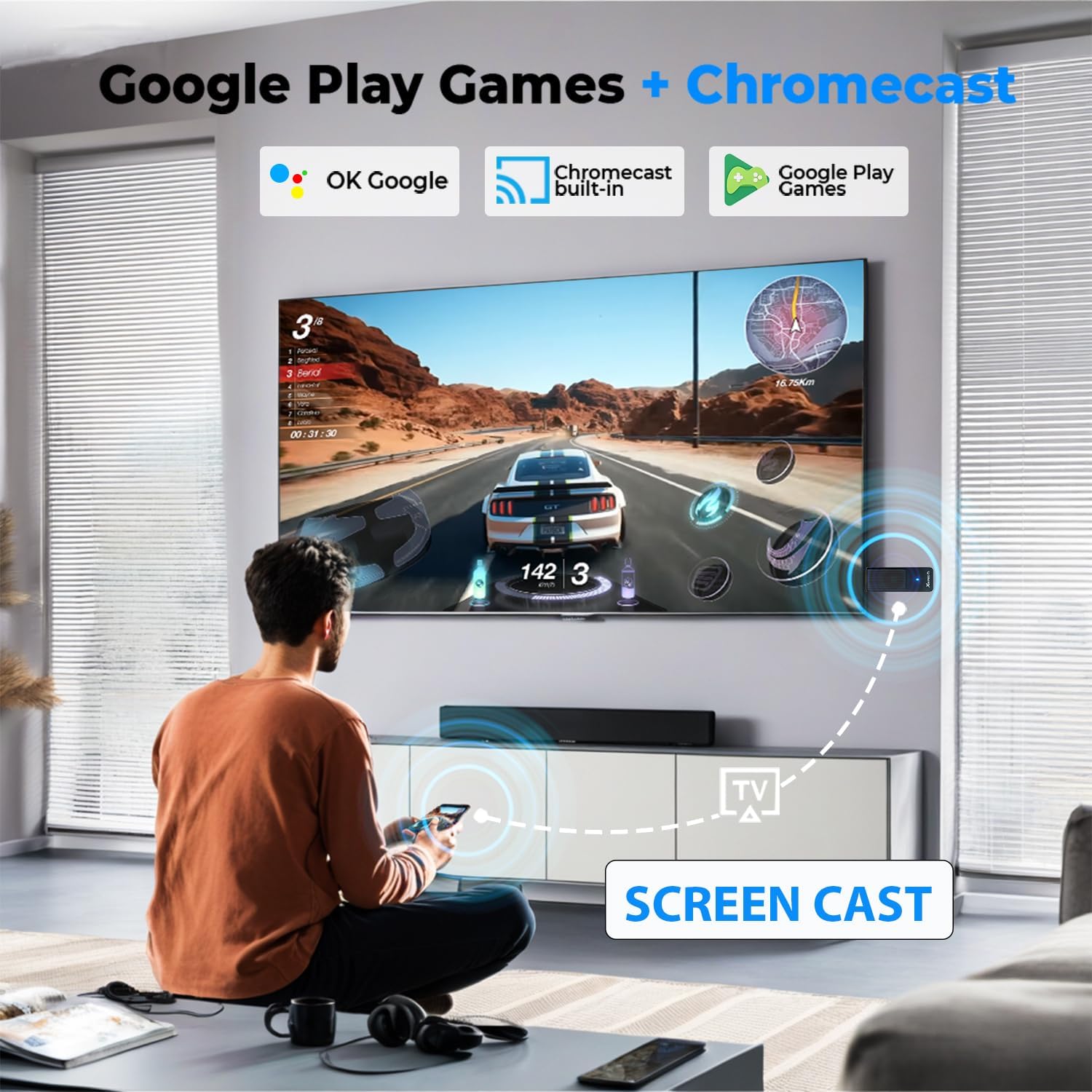
Image: Demonstrating screen casting from a smartphone to a TV using the Android TV Stick, highlighting Google Play Games and Chromecast functionality.
4.4 App Management
Access the Google Play Store from the home screen to download and install additional applications. You can also manage your installed apps, including updating or uninstalling them, through the 'Apps' section in the settings.
5. Technical Specifications
| Feature | Specification |
|---|---|
| Brand | GREVA |
| Model Number | B0FJLZNJ78 |
| Operating System | Android 14.0 |
| Processor | RK3518 Quad-Core 64bit Cortex-A53 CPU with Mali-450 GPU |
| RAM | 2 GB |
| Storage | 16 GB EMMC (expandable up to 64GB via Micro SD card) |
| Connectivity | 2.4G/5G WiFi 6, Bluetooth 5.0, Ethernet (100M RJ-45) |
| Video Output | 4K Ultra HD @ 60Hz, HDMI 2.1 |
| Video Decoding | H.264, H.265/HEVC, HDR, HDR+ |
| Supported Internet Services | Google TV, Netflix, Pluto TV, Prime Video, YouTube |
| Special Features | DLNA, Voice Assistant Remote Control, Chromecast built-in |
| Dimensions | Approximately 10cm (L) x 3.3cm (W) x 1.4cm (H) |
| Weight | 4.5 Ounces |

Image: The Android TV Stick's internal components, emphasizing the RK3518 Quad-Core CPU and the Android 14.0 operating system for stable and efficient performance.
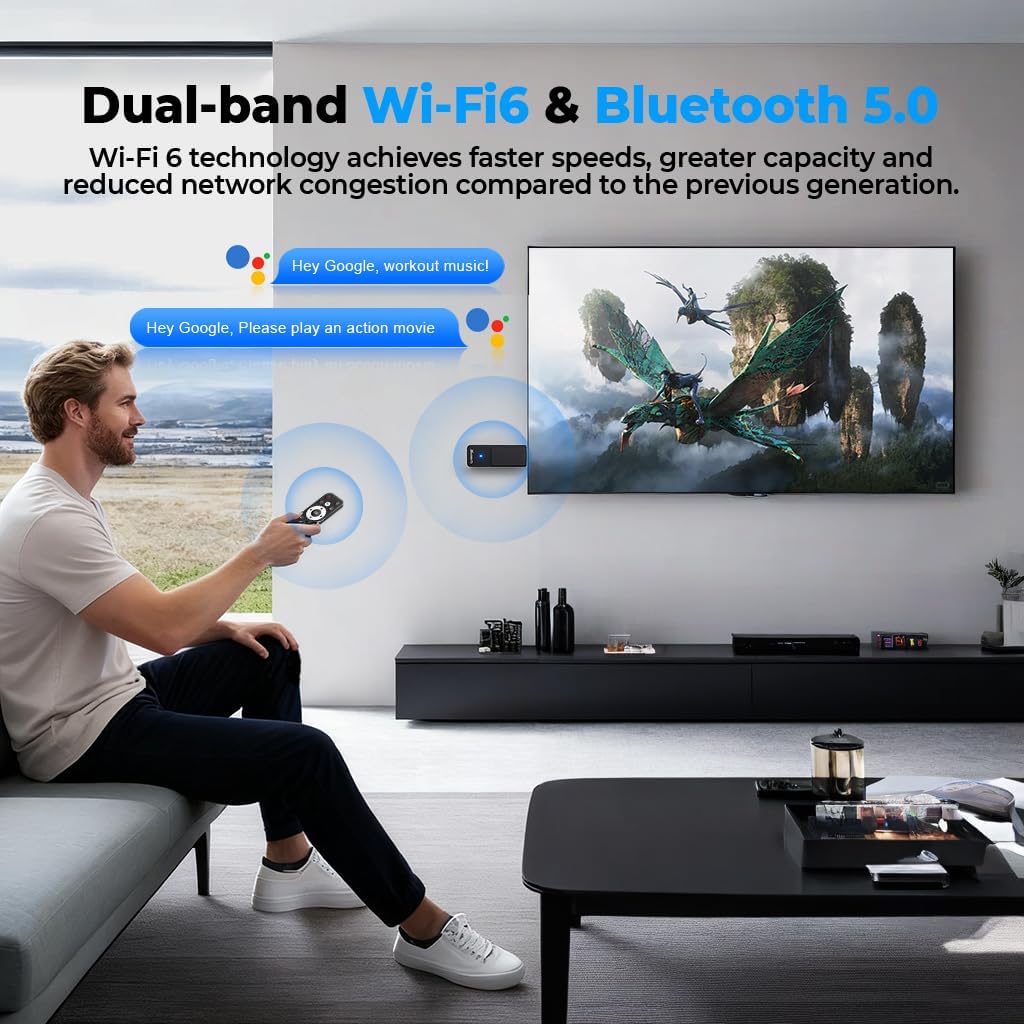
Image: The Android TV Stick's advanced connectivity features, including Dual-band Wi-Fi 6 for faster speeds and Bluetooth 5.0 for seamless peripheral connections.

Image: The Android TV Stick's support for 4K@60fps video decoding, ensuring high-resolution and smooth playback with HDR and HDR+ technologies.
6. Troubleshooting
If you encounter issues with your GREVA Android TV Stick, refer to the following common problems and solutions:
- Remote Control Connection Issues: If the remote is difficult to connect or loses connection, ensure it is within 20cm of the TV Stick during pairing. Re-attempt pairing by holding the "Home" and "Back" buttons for 10 seconds. Check battery levels in the remote.
- UI Output Not Fitting TV Screen: If the user interface (UI) is not centered or is larger than your TV screen, adjust the display settings. Go to Settings > Device Preferences > Display > HDMI > Zoom. Use the Zoom screen to adjust the image size and location until it fits your screen properly.
- No Signal on TV: Ensure the TV Stick is securely plugged into the HDMI port and the power cable is connected. Verify that your TV is set to the correct HDMI input source.
- Wi-Fi Connectivity Problems: Check if your Wi-Fi network is active and the password is correct. Try restarting your router and the TV Stick. Ensure the TV Stick is within range of your Wi-Fi router.
- Slow Performance: If the device is running slowly, try closing unused applications. Clear the cache of frequently used apps in Settings > Apps. Consider restarting the device.
7. Maintenance
To ensure the longevity and optimal performance of your GREVA Android TV Stick, follow these maintenance guidelines:
- Cleaning: Use a soft, dry cloth to clean the device. Avoid liquid cleaners or abrasive materials.
- Ventilation: Ensure the device is placed in a well-ventilated area to prevent overheating. Do not cover the device or place it in enclosed spaces.
- Software Updates: Regularly check for and install software updates to ensure you have the latest features and security patches. You can usually find this option in the device settings under "About" or "System Update."
- Storage Management: Periodically clear app caches and uninstall unused applications to free up storage space and improve performance.
8. Warranty and Support
GREVA offers a 30-day return/exchange policy on all orders if you are not satisfied with the product received. For any questions or issues, please contact customer support. We strive to respond to customer inquiries within 24 hours and provide satisfactory solutions.
For further assistance, please refer to the contact information provided with your purchase or visit the official GREVA support website.