
1. Introduction
This manual provides detailed instructions for the installation, operation, and maintenance of your Ossuret 10.1-inch Android 13 Car Stereo. Please read this manual thoroughly before using the product to ensure proper functionality and safety. This device is designed to enhance your driving experience with advanced navigation, multimedia, and connectivity features.
2. Product Compatibility
This Ossuret car stereo is specifically designed for the following vehicle models:
- Toyota Corolla Auris (2013-2016)
- Suitable for Left-Hand Drive vehicles only.
Important Note: Please verify that your vehicle's original center console matches the configuration shown in the compatibility image below. If your original car's console differs, this unit may not be suitable for direct installation, and a customized frame might be required. Contact customer support for further assistance if needed.

3. Key Features
- Operating System: Android 13
- Display: 10.1-inch Capacitive Touchscreen
- Processor: Quad-core
- Memory: 2GB RAM + 32GB Internal Storage
- Wireless Connectivity: Built-in WiFi and Bluetooth
- Smartphone Integration: Wireless Apple CarPlay and Android Auto (Zlink application pre-installed and activated)
- Navigation: Integrated GPS with support for online and offline map applications (Europe mapping included)
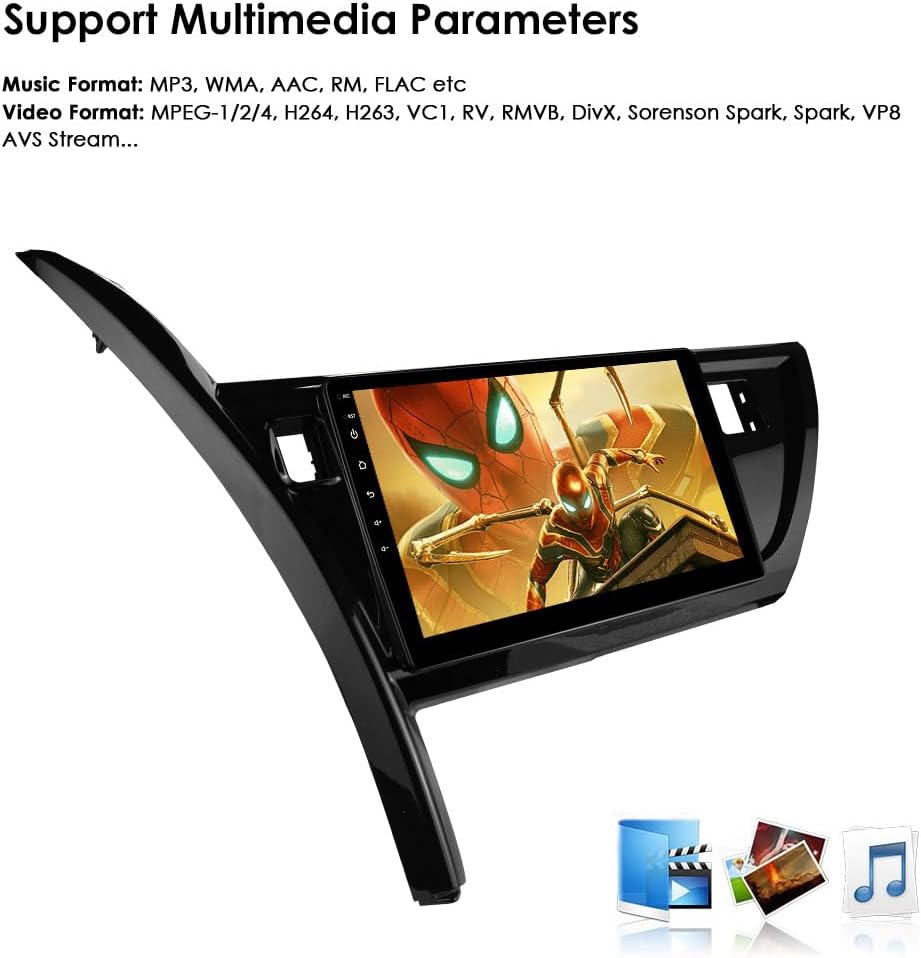
- Multimedia Support: Plays various audio (MP3, WMA, AAC, RM, FLAC) and video (MPEG-1/2/4, H264, H263, VC1, RV, RMVB, DivX, Sorenson Spark, VP8, AVS Stream) formats.
- Rear Camera Input: Supports aftermarket backup cameras for enhanced safety during reversing.
- Steering Wheel Control: Compatible with factory steering wheel controls.
- USB Connectivity: Supports external USB devices up to 2TB.
- Audio Output: Stereo with built-in DSP for sound adjustment.
4. Package Contents
Before installation, please verify that all components listed below are present in your package:
- Main Head Unit (Machine)
- Custom Frame for Toyota Corolla Auris
- GPS Antenna
- RCA Harness (for WiFi version)
- 4 Pin USB Cable
- 6 Pin USB Cable
- External Microphone
- Rear Camera Input RCA Cable
- Power Cable-1
- Power Cable-2
- Canbus Decoder
- Factory USB Adapter

5. Installation Guide
Installation of the Ossuret car stereo requires basic automotive electrical knowledge. If you are unsure about any steps, it is recommended to seek professional installation.
5.1 Pre-Installation Check
- Ensure the vehicle's ignition is off and the battery is disconnected before starting.
- Confirm compatibility with your vehicle's dashboard as described in Section 2.
- Lay out all components from the package to ensure nothing is missing.
5.2 Removal of Original Unit
- Carefully remove the trim panels surrounding your original car stereo.
- Unscrew the mounting bolts or clips securing the original stereo.
- Gently pull out the original stereo and disconnect all wiring harnesses and antenna cables.
5.3 Installing the Ossuret Unit
- Connect the provided wiring harnesses from the Ossuret unit to your vehicle's factory wiring. Ensure all connections are secure.
- Attach the GPS antenna to the designated port on the back of the Ossuret unit. Route the antenna cable to a location with a clear view of the sky (e.g., dashboard corner).
- If installing a rear camera, connect its video cable to the 'Rear Camera Input' RCA cable from the Ossuret unit. Route the camera cable to the rear of the vehicle.
- Mount the Ossuret unit into the dashboard opening using the provided custom frame and secure it with screws or clips.
- Reconnect the vehicle's battery.
- Turn on the ignition and test the unit's basic functions (power, audio, touchscreen responsiveness).
- Reinstall all trim panels.

6. Initial Setup and Basic Operation
6.1 First Boot
Upon the first power-on, the system will boot into the Android interface. You may be prompted to select a language and configure basic settings.
6.2 Touchscreen Operation
The 10.1-inch display is a capacitive touchscreen. Use gestures similar to a smartphone:
- Tap: To select an icon or option.
- Swipe: To navigate through menus or scroll lists.
- Pinch-to-zoom: For maps and images.
6.3 Main Interface
The main interface provides access to all primary functions. Icons typically include Navigation, Radio, Bluetooth, Music, Video, Settings, and App Launcher.
7. Connectivity Features
7.1 Bluetooth
The Bluetooth function allows for hands-free calling and wireless audio streaming.
- Go to the Bluetooth settings on the car stereo.
- Enable Bluetooth on your mobile phone and search for available devices.
- Select the car stereo (usually named 'Ossuret' or similar) from your phone's list and pair.
- Confirm the pairing code on both devices.
- Once paired, you can make/receive calls and play music wirelessly. The built-in microphone ensures clear communication.
7.2 Wi-Fi
Connect to a Wi-Fi network for online features, app downloads, and updates.
- Access the Wi-Fi settings from the main menu.
- Turn on Wi-Fi and select your desired network.
- Enter the password if prompted and connect.
7.3 Apple CarPlay & Android Auto
The unit supports wireless Apple CarPlay and Android Auto via the pre-installed Zlink application.
- Ensure your phone's Wi-Fi and Bluetooth are enabled.
- Open the Zlink app on the car stereo.
- For Apple CarPlay: Connect your iPhone via Bluetooth to the car stereo. Follow the prompts on both devices.
- For Android Auto: Connect your Android phone via Bluetooth. Some Android phones may require a USB connection for the initial setup or for wired Android Auto.
- Once connected, your phone's compatible apps (navigation, music, messages) will appear on the car stereo display.

7.4 USB Connection
The unit features USB ports for connecting external storage devices (up to 2TB) to play media files.
- Connect your USB drive to one of the provided USB cables.
- The system will automatically detect the device. Navigate to the 'File Manager' or 'Music/Video' app to browse and play content.

8. Navigation System
The Ossuret car stereo includes an integrated GPS module and supports various navigation applications.
- Tap the 'Navigation' icon on the main screen to launch the default navigation app.
- You can download and install other navigation apps from the Google Play Store (requires Wi-Fi connection).
- The system supports both online and offline maps. For offline use, ensure maps are downloaded beforehand.
- Voice guidance is available, and the system supports 2D/3D map views.
- The dual-zone feature allows navigation to run in the background while other media (e.g., music) plays.

9. Multimedia Playback
The unit supports a wide range of audio and video formats for playback from USB devices or internal storage.
9.1 Audio Playback
Access the 'Music' app to play audio files. Supported formats include MP3, WMA, AAC, RM, FLAC, etc. The built-in DSP (Digital Sound Processor) allows for detailed sound adjustments and equalization (48 EQ adjustment).
9.2 Video Playback
Access the 'Video' app to play video files. Supported formats include MPEG-1/2/4, H264, H263, VC1, RV, RMVB, DivX, Sorenson Spark, VP8, AVS Stream, etc.

10. Rear Camera Input
The car stereo supports an aftermarket rear view camera. When the vehicle is shifted into reverse gear, the display will automatically switch to the camera feed, providing a clear view of the area behind your vehicle.
- Connect the rear camera's video output to the dedicated RCA input on the car stereo's wiring harness.
- Ensure the camera's power is correctly wired to the vehicle's reverse light circuit so it activates automatically.
11. Steering Wheel Control
The unit is compatible with your vehicle's factory steering wheel controls. This allows you to manage audio playback (volume, track change) and answer calls without taking your hands off the steering wheel, minimizing distractions and enhancing safety.
- After installation, the steering wheel controls should function automatically via the Canbus decoder.
- If controls do not work, check the wiring connections to the Canbus decoder and consult the system settings for steering wheel control mapping.
12. Troubleshooting
If you encounter issues with your Ossuret car stereo, refer to the following common troubleshooting steps:
- No Power: Check all power connections and fuses. Ensure the vehicle's battery is properly connected.
- No Sound: Verify speaker connections. Check volume levels and audio settings. Ensure the correct audio source is selected.
- Touchscreen Unresponsive: Try restarting the unit. If the issue persists, a factory reset might be necessary (note: this will erase all user data).
- GPS Not Working: Ensure the GPS antenna is properly connected and placed in a location with a clear view of the sky. Check GPS settings in the system.
- Bluetooth/Wi-Fi Connection Issues: Ensure Bluetooth/Wi-Fi is enabled on both the stereo and your device. Try unpairing and re-pairing devices. Check for interference.
- Steering Wheel Controls Not Working: Verify Canbus decoder connections. Check the steering wheel control settings in the unit's menu for proper mapping.
- System Slow/Lagging: Close unnecessary background applications. Clear cache if possible. Consider a factory reset if performance issues are severe.
For persistent issues, please contact Ossuret customer support.
13. Specifications
| Feature | Specification |
|---|---|
| Brand | Ossuret |
| Model Name | Autoradio |
| Operating System | Android |
| Screen Size | 10.1 Inches |
| Connectivity Technology | Bluetooth, USB, Wi-Fi |
| Special Features | Carplay/Android Auto |
| Mapping Type | Europe |
| Audio Output Mode | Stereo |
| Vehicle Service Type | Car |
| Package Dimensions | 55.6 x 34.1 x 13.6 cm |
| Item Weight | 2.12 kilograms |
14. Warranty and Support
Specific information regarding product warranty, availability of spare parts, and guaranteed software updates is not provided in the product data. For any warranty claims, technical support, or inquiries about spare parts, please contact the seller or Ossuret customer service directly through their official channels.