
1. Introduction
Thank you for choosing the Pmjebe M6 Portable MP3 Player. This device is designed for a versatile audio experience, featuring Bluetooth connectivity, a digital voice recorder, e-book functionality, and an FM radio. Its compact design and full touch screen make it convenient for various activities, from daily commutes to sports. This manual will guide you through the setup, operation, and maintenance of your new MP3 player.
2. Product Features
- 1.47-inch Full Touch Screen: For intuitive navigation and clear display.
- Bluetooth 5.3: Ensures stable and efficient wireless connection with headphones or speakers.
- Digital Voice Recorder: High-quality recording with dynamic noise reduction and adjustable gain.
- Lossless Sound Quality: Supports MP3, WMA, OGG, WAV, APE, FLAC, AAC-LC, R4A formats.
- Built-in Speaker: HiFi lossless HD speaker for direct audio playback.
- FM Radio: Listen to your favorite stations (requires wired headphones as antenna).
- E-Book Function: Read text files on the go.
- 32GB Built-in Memory: Stores up to 6000 songs.
- Expandable Memory: Supports TF cards up to 128GB for additional storage.
- Long Battery Life: Built-in 200mAh Lithium polymer battery provides up to 20 hours of playback.
- Fast Charging: Fully charged within 2 hours via Type-C charging cable.
- Mini Back Clip Design: Lightweight and portable for easy carrying during exercise or travel.
- Hypnosis Music: Includes built-in ASMR, white noise, and other sleep-inducing sounds.
- Toolbox Functions: Stopwatch and Alarm clock.
3. Package Contents
Please check the package for the following items:
- Pmjebe M6 MP3 Player
- Type-C Charging Cable
- User Manual
- Note: Wired headphones are not provided and must be purchased separately.
4. Device Layout

Figure 4.1: Front and side view of the Pmjebe M6 MP3 Player, highlighting its compact size (25mm width, 45mm height, 12.5mm thickness) and external speaker. Key features like FM radio, lossless format support, Bluetooth, alarm clock, and TF card support up to 128GB are also indicated.
The Pmjebe M6 MP3 Player features a minimalist design with essential controls and ports:
- Front: 1.47-inch full touch screen for all interactions.
- Right Side: Power button (long press for on/off).
- Top/Side: External speaker.
- Bottom: Type-C charging port, TF card slot, 3.5mm headphone jack.
- Back: Mini back clip for secure attachment.
Video 4.1: This video provides an overview of the MP3 player's compact and lightweight design, including the back clip and lanyard hole. It also briefly shows the 1.47-inch touch screen and Type-C charging port.
5. Setup
5.1 Charging the Device
Before first use, fully charge your MP3 player. Connect the provided Type-C charging cable to the device's charging port and the other end to a USB power adapter (not included) or a computer's USB port. The device will fully charge in approximately 2 hours.
Video 5.1: Demonstrates connecting the Type-C charging cable to the MP3 player. The screen displays the current time and date while charging.
5.2 Powering On/Off
To power on or off the device, long press the power button located on the right side of the player. The screen will display "welcome" upon powering on.
Video 5.2: Shows how to long press the right-side button to power the device on and off. The screen displays "welcome" and then the main interface.
5.3 Inserting a TF Card
The device supports TF (Micro SD) cards up to 128GB for expanded storage. Locate the TF card slot on the bottom of the player. Gently insert the TF card until it clicks into place. To remove, push the card in again until it springs out.
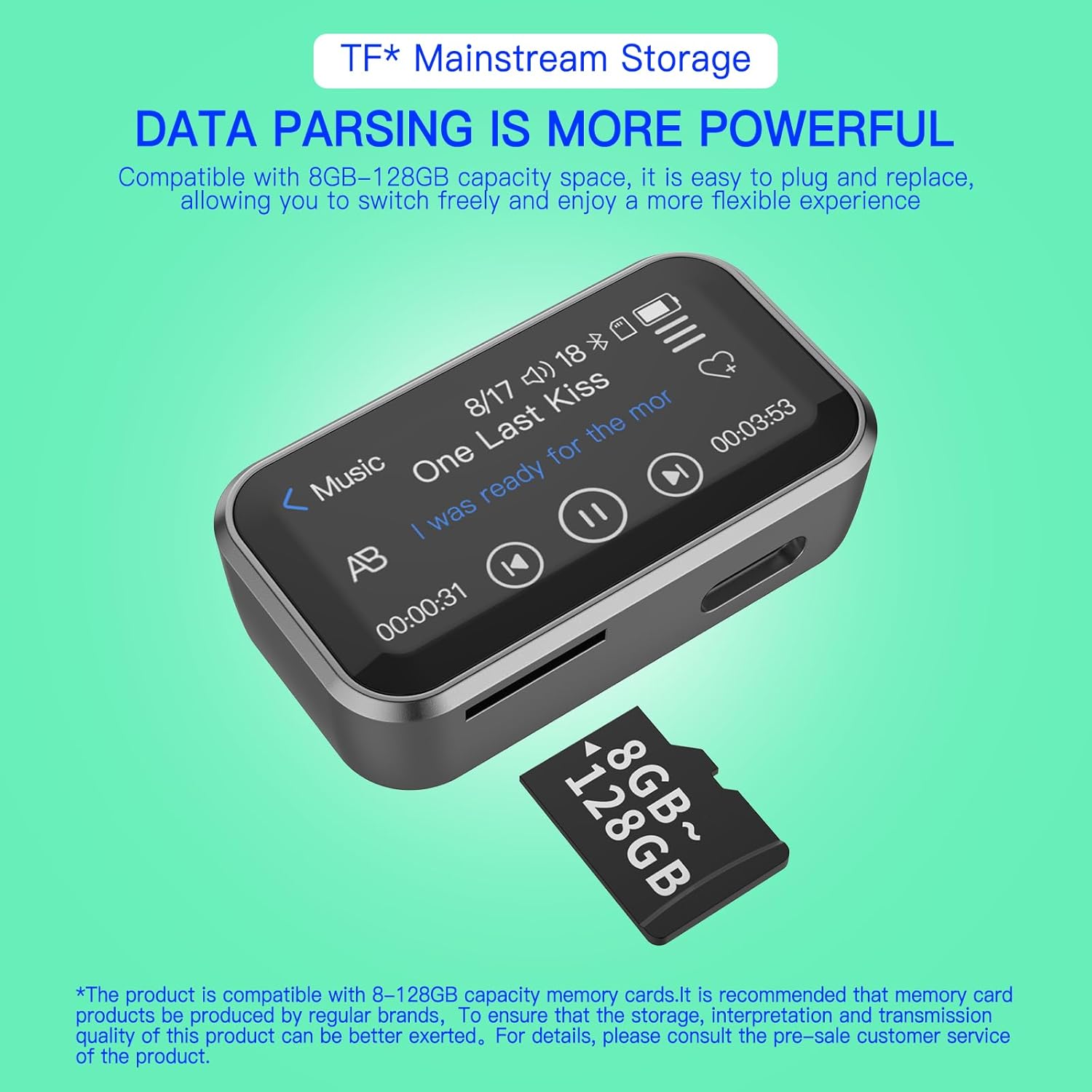
Figure 5.3: The MP3 player showing the TF card slot on the bottom edge, next to a Micro SD card labeled 8GB~128GB, indicating expandable storage.
Video 5.3: Demonstrates inserting and removing a TF card from the MP3 player's dedicated slot, highlighting the ease of expanding storage.
5.4 Transferring Files from Computer
Connect the MP3 player to your computer using the Type-C USB cable. The device will prompt you to select "Charging only" or "File transfer". Choose "File transfer" to access the device's internal storage or inserted TF card. You can then drag and drop music, e-books, or other supported files directly to the player's folders.
Video 5.4: Illustrates connecting the MP3 player to a computer via USB cable and transferring music files by dragging and dropping them into the device's storage folder.
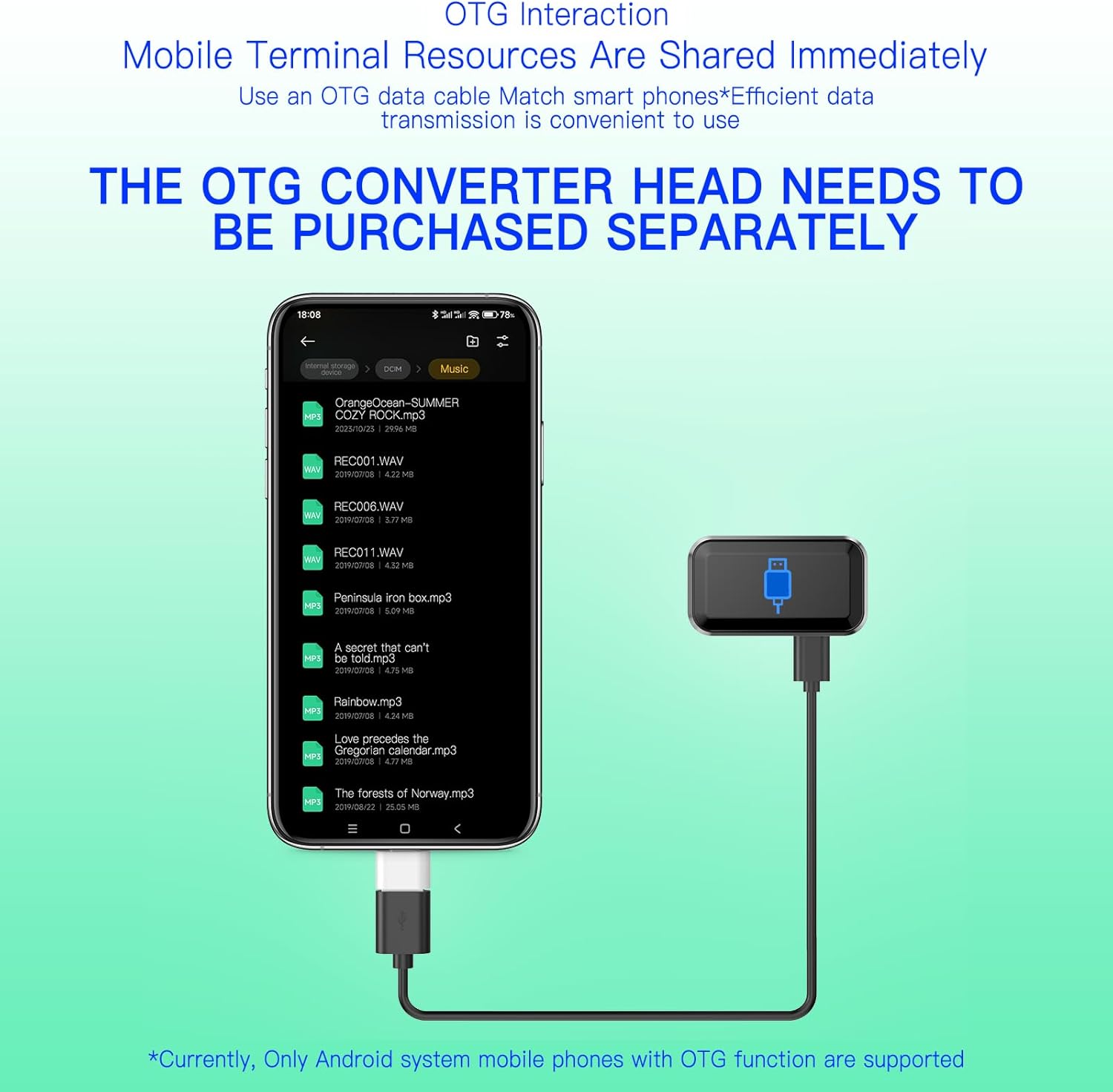
Figure 5.4: The MP3 player connected to an Android smartphone via an OTG data cable, demonstrating mobile file transfer. Note that an OTG converter head needs to be purchased separately.
6. Operating Instructions
6.1 Navigating the Interface
The Pmjebe M6 features a full touch screen for easy navigation. Swipe left or right to browse through different application screens. Tap on an icon to open an application. Use the back arrow icon (usually in the top-left corner) to return to the previous screen.
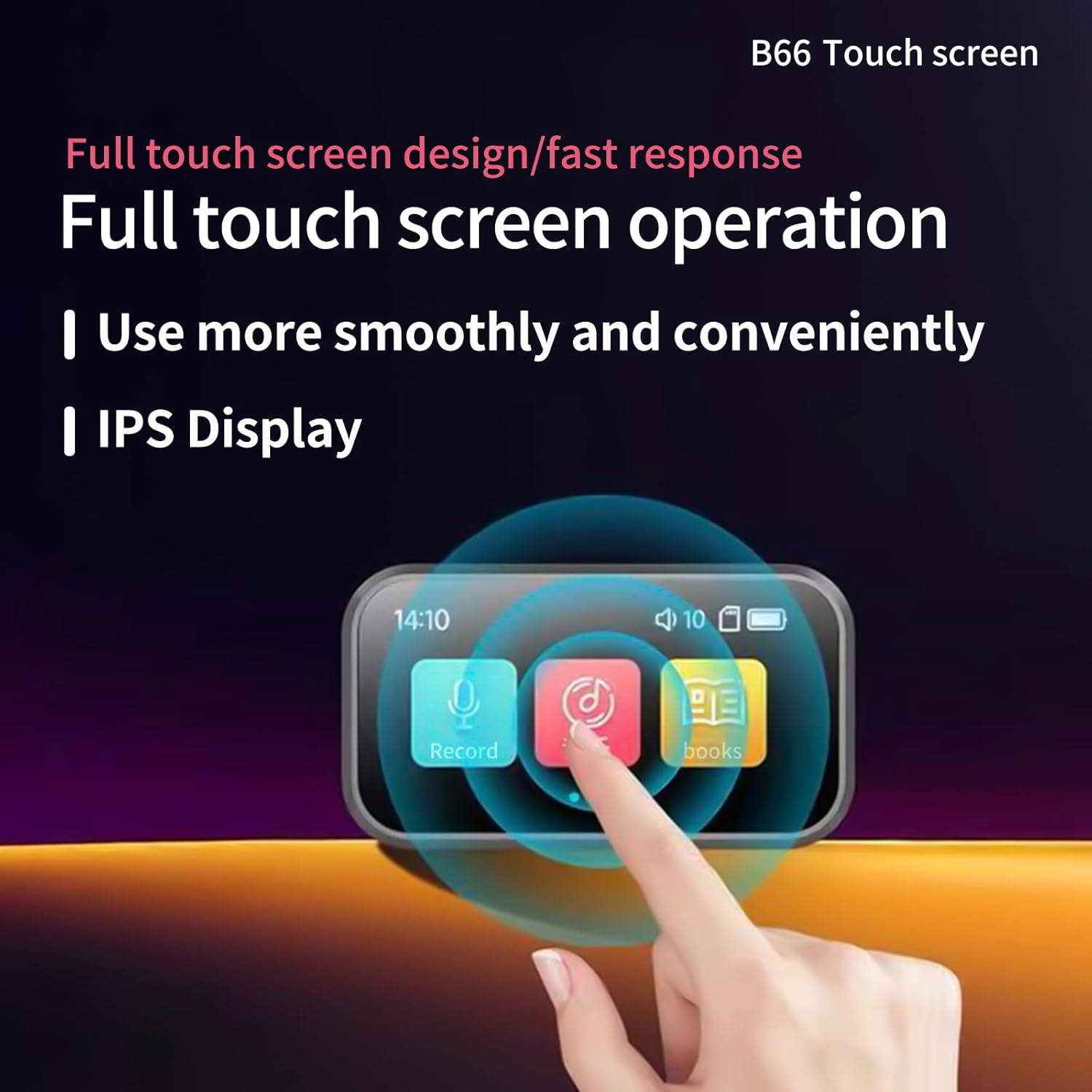
Figure 6.1: A hand interacting with the 1.47-inch full touch screen of the MP3 player, demonstrating its responsive and convenient operation.
6.2 Music Playback
Tap the "Music" icon on the main screen to enter the music player. You can browse your music library, play songs, pause, skip tracks, and adjust the volume. To adjust volume, slide your finger left and right on the upper speaker icon on the playback screen.
Video 6.2: Demonstrates navigating to the music player, playing songs, switching tracks, and adjusting the volume by sliding on the screen.
The device supports various lossless audio formats including MP3, WMA, OGG, WAV, APE, FLAC, AAC-LC, and R4A (music downloaded from Apple devices). For APE and FLAC, ensure files are 8KHz-48KHz, 1000Kbps.
The built-in speaker allows for direct playback without headphones. For private listening, connect your wired headphones to the 3.5mm jack.
6.3 Bluetooth Connection
The MP3 player features Bluetooth 5.3 for wireless audio. Tap the "Bluetooth" icon to access Bluetooth settings. Turn on Bluetooth and search for available devices. Select your Bluetooth headphones or speaker from the list to pair and connect.

Figure 6.3: The MP3 player displaying the Bluetooth icon and a Bluetooth 5.3 logo, shown alongside wireless headphones and a portable Bluetooth speaker, illustrating its wireless connectivity.
Video 6.3: Demonstrates how to enable Bluetooth, search for devices, and connect to a Bluetooth headset from the MP3 player's interface.
6.4 Voice Recording
Tap the "Record" icon to access the voice recorder. Tap the center of the screen to start recording. Tap again to pause or stop. The recording can be saved and played back from the voice file list. The device features a dynamic noise reduction microphone and PCM intelligent noise reduction technology for clear audio.
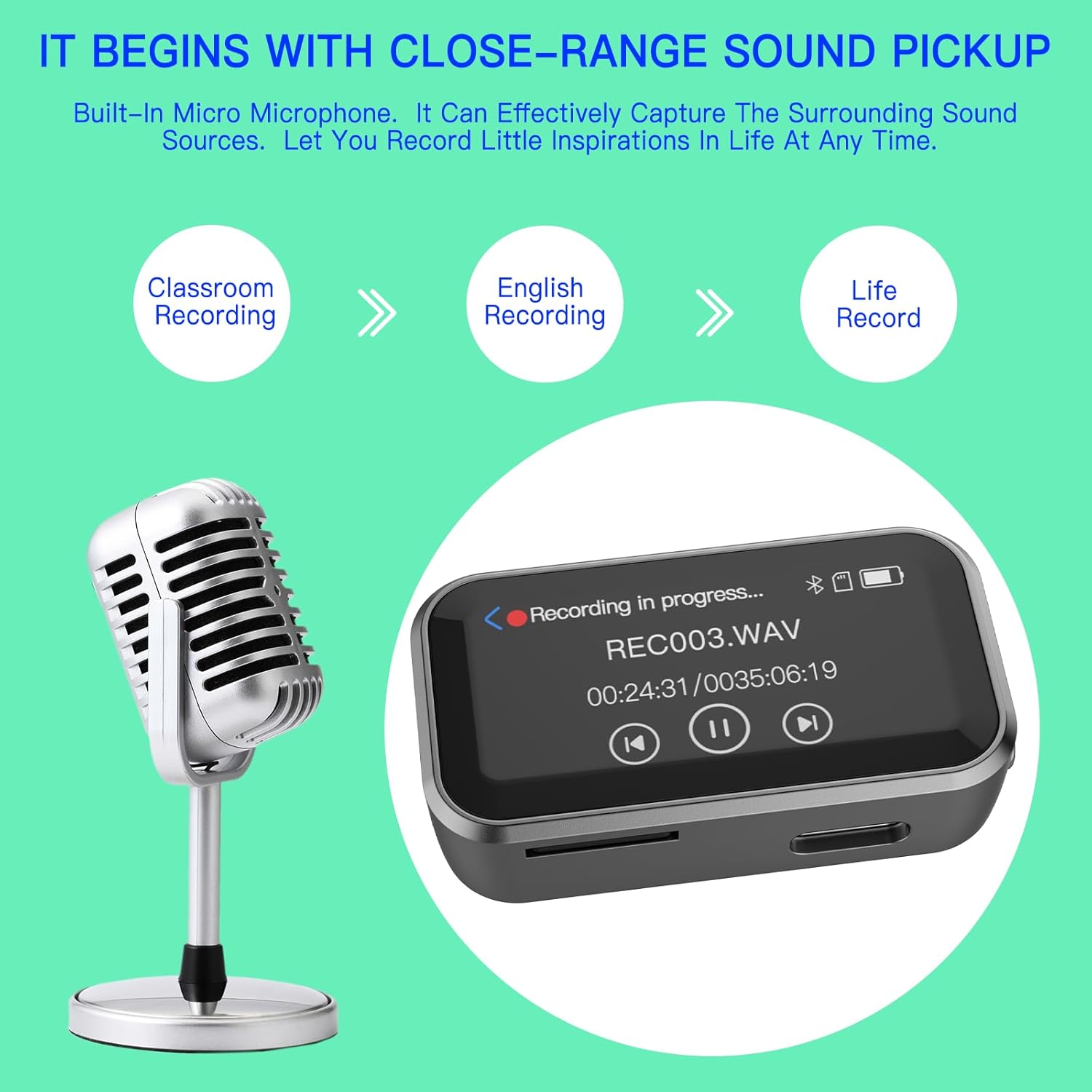
Figure 6.4: The MP3 player displaying its recording interface, with a microphone icon and a waveform, emphasizing its built-in micro microphone for capturing sound sources.
Video 6.4: Illustrates how to start and stop voice recording by tapping the screen, and then saving and playing back the recorded audio file.
6.5 E-Book Reading
Tap the "Ebook" icon to open the e-book reader. You can load and read text files. Tap anywhere on the screen to advance pages. Use the top-left corner to return to the previous page or menu.
Video 6.5: Shows how to access the e-book function, open a text file, and navigate through pages by tapping the screen or using the back button.
6.6 FM Radio
To use the FM radio, you must first plug in wired headphones into the 3.5mm jack, as they act as the antenna. Tap the "FM" icon to open the radio. You can then scan for stations and listen to broadcasts.

Figure 6.6: The MP3 player displaying the FM radio interface with a frequency tuner, shown with a person jogging while listening to music through wired headphones.
Video 6.6: Demonstrates plugging in wired headphones to enable the FM radio function and then navigating the FM radio interface to tune into stations.
6.7 Sleep Music and Toolbox
Access "Settings" to find "Sleep music" which includes built-in ASMR, white noise, and other sounds designed to aid sleep. The "Toolbox" function provides additional utilities like a stopwatch and alarm clock.
Video 6.7: Shows navigating through the settings menu to find "Sleep music" options and the "Toolbox" functions like stopwatch and alarm.
7. Maintenance
- Keep the device dry and away from extreme temperatures.
- Clean the screen and body with a soft, dry cloth. Avoid using harsh chemicals.
- Do not attempt to disassemble or repair the device yourself.
- Store the device in a safe place when not in use to prevent damage.
8. Troubleshooting
| Problem | Solution |
|---|---|
| Device does not power on. | Ensure the device is fully charged. Long press the power button for several seconds. |
| Cannot connect via Bluetooth. | Ensure Bluetooth is enabled on both the MP3 player and the target device. Make sure both devices are within range and in pairing mode. Try restarting both devices. |
| No sound from FM radio. | Wired headphones must be plugged into the 3.5mm jack to act as an antenna for the FM radio function. |
| Files not transferring to/from computer. | Ensure the USB cable is securely connected. On the MP3 player, select "File transfer" when prompted. Try a different USB port or cable. |
| Screen is unresponsive. | Try restarting the device by long-pressing the power button. If the issue persists, contact customer support. |
9. Specifications
| Feature | Detail |
|---|---|
| Brand | Pmjebe |
| Model Name | M6 |
| Connectivity Technology | Bluetooth 5.3 |
| Memory Storage Capacity | 32 GB (expandable up to 128 GB via Micro SD/TF card) |
| Screen Size | 1.47 Inches |
| Compatible Devices | Headphones, Bluetooth Speakers |
| Media Type | Micro SD, ACC, MP3, WMA, OGG, WAV, APE, FLAC, AAC-LC, R4A |
| Included Components | MP3 Player, Type-C Charging Cable, User Manual (FM Radio, Speaker, Voice Recorder are built-in functions) |
| Battery | 200mAh Lithium polymer (Up to 20 hours playback) |
| Charging Time | Approx. 2 hours |
10. Warranty and Support
For warranty information or technical support, please refer to the product packaging or contact Pmjebe customer service through the retailer where you purchased the device. Keep your purchase receipt as proof of purchase.