
1. Introduction
The UMEIJA OBD2 Scanner with Battery Tester (Model OBD-V620-04) is a comprehensive diagnostic tool designed for vehicles compliant with OBD II protocols. This device allows users to quickly read and clear engine error codes, view live data streams, perform battery tests, and conduct O2/EVAP diagnostics. It is an essential tool for understanding vehicle health and performing maintenance.
2. Product Overview
The UMEIJA OBD2 Scanner is a compact and durable device featuring an upgraded microprocessor for fast and accurate results. Its user-friendly interface and plug-and-play design make it accessible for both mechanics and DIY enthusiasts.
Key Features:
- Multi-Function Diagnostics: Reads and clears engine error codes, displays live data streams with graphic displays, views freeze frame data, and checks MIL readiness status.
- Wide Vehicle Compatibility: Supports all OBDII protocols (KWP2000, J1850 VPW, ISO9141, J1850 PWM, CAN) for most US (1996+), EU, and Asian (2000+) cars, SUVs, and light trucks.
- Durable & Compact Design: Weighs 9.9 ounces, measures 8.9 x 6.9 x 1.4 inches, and includes a 2.5-foot heavy-duty cable with a standard 16-pin OBD connector.
- Fast & Accurate Results: Upgraded microprocessor ensures real-time vehicle diagnostics.
- Advanced Features: Integrated battery tester for monitoring battery life and voltage, plus O2 sensor and EVAP system diagnostics.
- Multi-Language Support: Supports English, German, French, Spanish, Finnish, Dutch, Russian, and Portuguese.

Figure 1: UMEIJA OBD2 Scanner displaying various diagnostic functions including Voltage, Read DTC, O2 Sensor, Clear DTC, EVAP, Vehicle Info, I/M, OBD/EOBD, RT Curve, Freeze, Live Data, and DTC Lib.
3. Setup
- Locate the OBD2 Port: The OBD2 port is typically located under the dashboard on the driver's side of the vehicle. Refer to your vehicle's owner's manual for the exact location.
- Connect the Scanner: Plug the 16-pin OBD connector from the scanner into your vehicle's OBD2 port. Ensure a secure connection.
- Power On: The scanner will automatically power on once connected to the vehicle's OBD2 port. If it does not, ensure your vehicle's ignition is in the 'ON' position (engine off).
Figure 2: UMEIJA OBD2 Scanner connected to a car's OBD2 port, showing the easy setup process.
4. Operating Instructions
The scanner features intuitive buttons for easy navigation. Use the directional arrows to move through menus and 'OK' to confirm selections. 'ESC' is used to go back.
Basic Navigation:
- Arrow Buttons: Navigate up, down, left, or right through menu options.
- OK Button: Confirm a selection or enter a sub-menu.
- ESC Button: Exit the current screen or return to the previous menu.
- DTC Button: Directly access Diagnostic Trouble Code functions.
- BAT Button: Directly access Battery Test functions.
5. Diagnostic Functions
5.1. Reading and Clearing DTCs (Diagnostic Trouble Codes)
- From the main menu, select 'OBD/EOBD' or press the 'DTC' button.
- Choose 'Read DTC' to view current, pending, or permanent trouble codes. The scanner will display the code and its definition.
- To clear codes, select 'Clear DTC'. Confirm your choice when prompted. This will turn off the Check Engine Light.
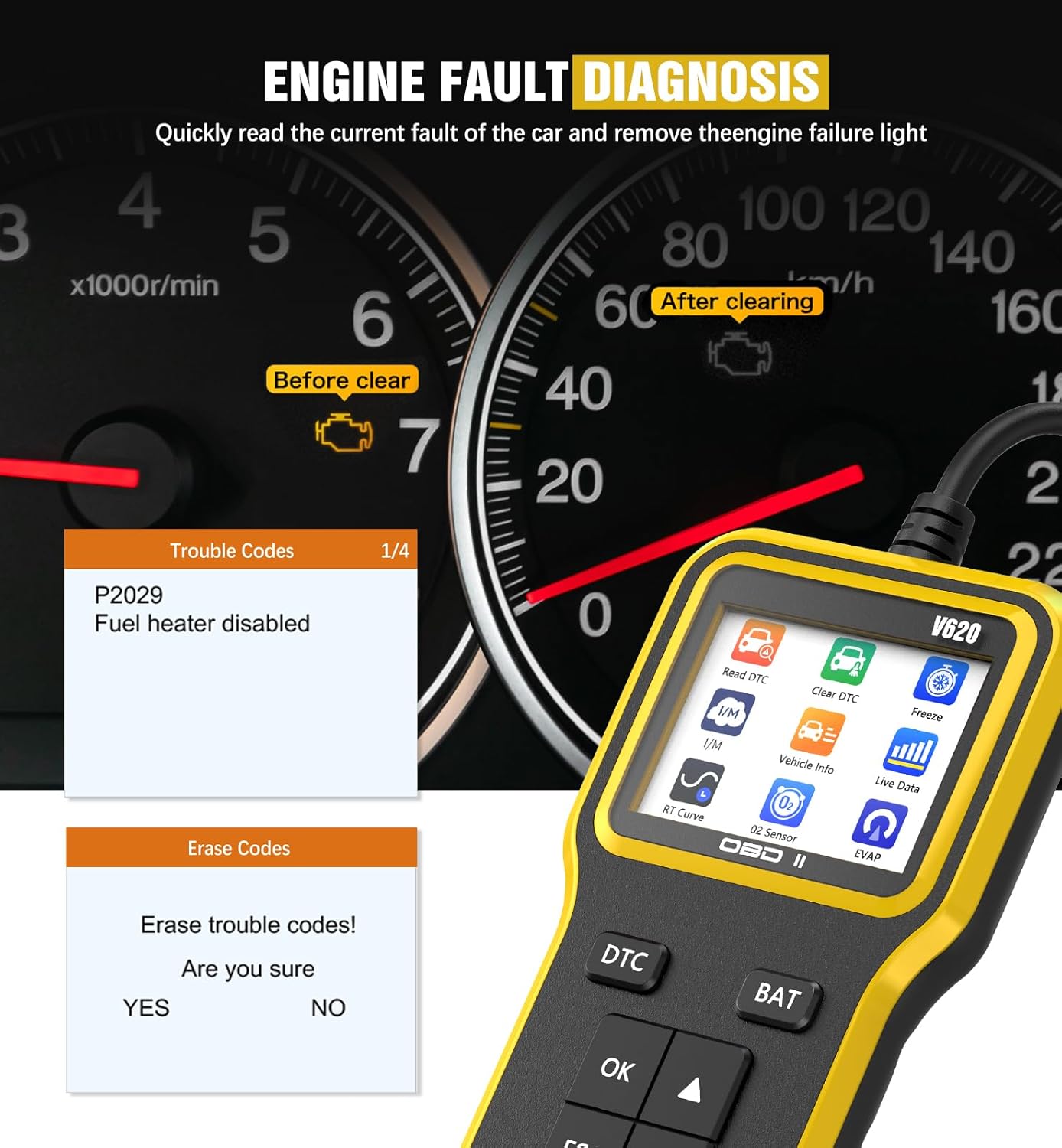
Figure 3: UMEIJA OBD2 Scanner displaying engine fault codes (e.g., P02029) and the option to erase them, indicating a successful diagnosis and clearing process.
5.2. Live Data Stream
- From the main menu, select 'Live Data' or navigate to the 'Data Stream' option.
- The scanner will display real-time sensor data from your vehicle, such as RPM, speed, coolant temperature, and more.
- Use the arrow buttons to scroll through different data parameters.

Figure 4: UMEIJA OBD2 Scanner displaying multiple real-time data streams, including FUEL SYS, LOAD_PCT, ECT, SHRFT, LONGFT, FRP, MAP, RPM, SPEED, and SPARKADV, providing a comprehensive view of vehicle performance.
5.3. Battery Test
- From the main menu, select 'Battery' or press the 'BAT' button.
- The scanner will display the current battery voltage, helping you assess the battery's health.
5.4. O2 Sensor and EVAP System Diagnostics
- Navigate to the 'O2 Sensor' or 'EVAP' options from the main menu.
- These functions allow for advanced diagnostics related to oxygen concentration, fuel injection control, and evaporative emission systems, contributing to improved fuel efficiency and reduced emissions.
6. Troubleshooting
- Scanner Does Not Power On:
- Verify the OBD2 connector is securely plugged into the vehicle's port.
- Ensure the vehicle's ignition is in the 'ON' position (engine off).
- Check the vehicle's battery voltage using the scanner's battery test function. A low battery might prevent the scanner from powering on.