
Introduction
This manual provides instructions for the operation and maintenance of your Generic S80 Pro AI Translation Device. Please read this manual thoroughly before using the device to ensure proper functionality and to maximize your user experience.

Image: Front view of the S80 Pro AI Translation Device, displaying its user interface with options for online, offline, photo translation, and simultaneous interpretation.
Package Contents
Verify that all items are present in the package:
- 1 x S80 Pro AI Translation Device
- 1 x USB Cable
- 1 x English Instruction Manual (this document)
Setup
1. Charging the Device
Before first use, fully charge the device. Connect the provided USB cable to the device's charging port and plug the other end into a compatible USB power adapter (not included) or a computer's USB port. The charging indicator will show the charging status.
2. Powering On/Off
- Power On: Press and hold the power button (usually located on the side) until the screen illuminates.
- Power Off: Press and hold the power button until a power-off option appears on the screen. Select "Power Off" to shut down the device.
3. Initial Setup and Network Connection
Upon first power-on, follow the on-screen prompts to select your preferred language and connect to a Wi-Fi network. A stable internet connection is required for online translation features.
Operating Instructions
Overview of Main Interface
The device features a 3-inch full touch screen. The main screen provides access to various translation modes and functions.

Image: The S80 Pro device displaying its main menu with options like Online Translation, Offline Translation, Photo Translate, and Simultaneous Interpretation.
1. Online Translation (138 Languages)
Connect the device to Wi-Fi. Select "Online Translation" from the main menu. Choose your source and target languages. Press and hold the designated button to speak, then release to hear the translation. This mode supports 138 languages including German, Russian, French, Korean, Japanese, Thai, Spanish, English, Traditional and Simplified Chinese, Portuguese, and Vietnamese.
2. Offline Translation (17 Languages)
The device includes built-in offline translation packages for 17 languages. This feature allows translation without an internet connection. Select "Offline Translation" from the main menu. Supported languages include Traditional Chinese, Simplified Chinese, English, Japanese, Korean, German, Russian, French, Thai, Spanish, Arabic, Portuguese, Vietnamese, Dutch, Italian, Cantonese, and Traditional Cantonese.
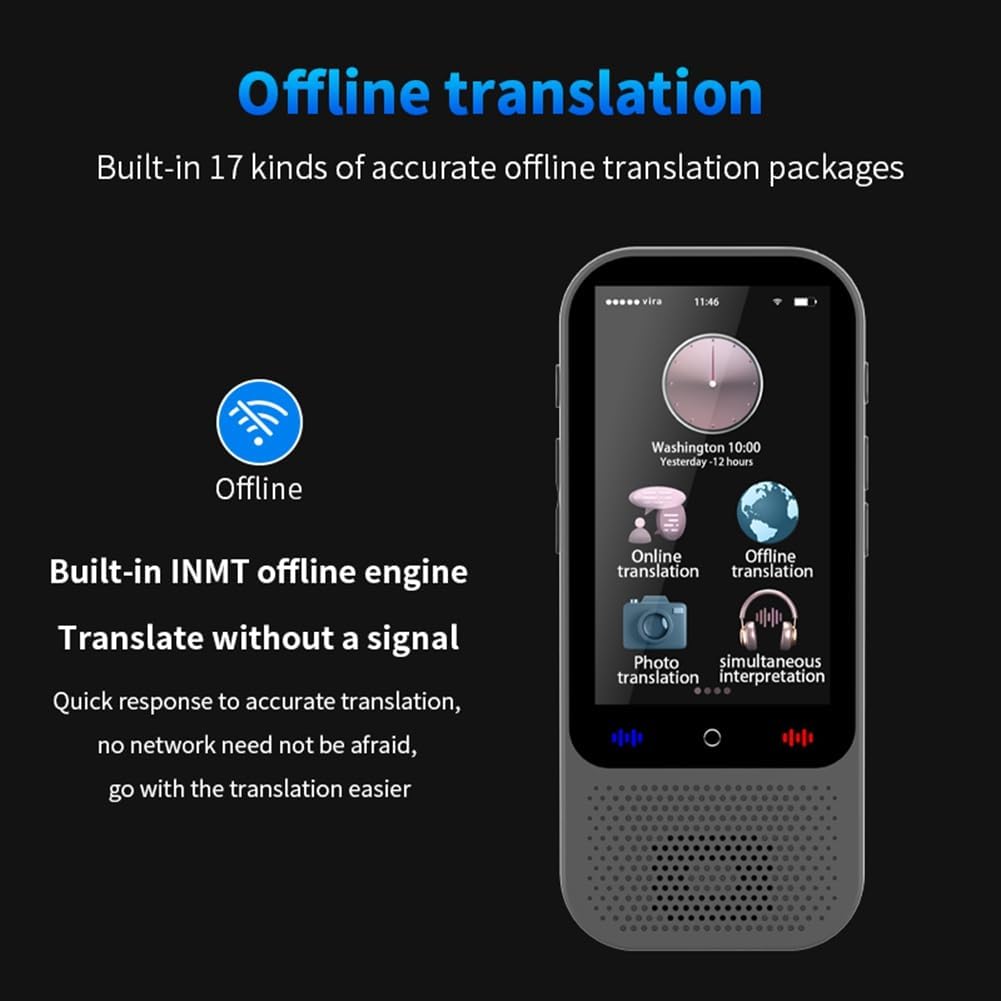
Image: The S80 Pro device screen showing the "Offline translation" option and text indicating support for 17 offline translation packages and an INMT offline engine.
3. Photo Translation (40 Languages)
Select "Photo Translation" from the main menu. Use the device's camera to capture text from signs, menus, or documents. The device will process the image and provide a translation. This feature supports 40 languages for online photo translation, including Traditional Chinese, Simplified Chinese, English, Japanese, Korean, German, Russian, French, Thai, Spanish, Arabic, Portuguese, Vietnamese, Dutch, Italian, Cantonese, Traditional Cantonese, Indonesian, Hungarian, Greek, Turkish, Slovenian, Slovak, Norwegian, Romanian, Lithuanian, Croatian, Finnish, and Filipino.

Image: The S80 Pro device displaying a photo translation in progress, showing an image on the left and its translated text on the right.
4. Voice Recording and Transcription
The device can record spoken language and transcribe it into text, offering translation for the transcribed content. This feature supports multiple languages for transcription and translation, facilitating note-taking and access to translated texts.
5. Group Translation
Engage in group conversations with multiple participants speaking different languages. The device facilitates real-time translation within the group chat. This feature supports simultaneous chat for up to 117 people.

Image: The S80 Pro device screen displaying a group translation interface, showing a chat-like conversation with translated messages.
6. Mobile Translation (Scan Code Connection)
Connect the translator to your mobile phone by scanning a QR code. This allows for enhanced communication and translation capabilities, integrating with your smartphone for easier interaction.

Image: The S80 Pro device next to a smartphone screen, illustrating the mobile translation feature via scan code connection.
7. Language Learning
The device offers features for Chinese and English language learning, allowing users to practice and improve their language skills.
8. Unit Conversion
Access the unit conversion function to convert various units of measurement, which can be useful for travel or daily tasks.
9. Exchange Rate Conversion
The device can convert exchange rates in real-time, providing convenience for international travel and transactions.
10. Bluetooth-Compatible Connection
The S80 Pro supports connection to wireless Bluetooth-compatible headsets and Bluetooth-compatible speakers for private listening or amplified audio output.
11. ChatGPT Integration
The device is equipped with ChatGPT large model language processing technology, providing intelligent voice services such as weather information, time, and access to a travel encyclopedia.

Image: The S80 Pro device screen showing "ChatGPT" and text indicating its large model language processing technology for intelligent voice services.
Maintenance
Cleaning
Wipe the device with a soft, dry cloth. Do not use liquid cleaners or abrasive materials, as they may damage the screen or casing.
Storage
Store the device in a cool, dry place away from direct sunlight and extreme temperatures. If storing for an extended period, ensure the battery is partially charged (around 50%) to prolong its lifespan.
Battery Care
To maintain battery health, avoid fully discharging the device frequently. Charge the device regularly, even if not in active use.
Troubleshooting
- Device not powering on: Ensure the device is fully charged. If it still doesn't power on, try connecting it to a power source and attempting to power on again.
- Online translation not working: Verify that the device is connected to a stable Wi-Fi network. Check network settings.
- Inaccurate translation: Ensure clear pronunciation when speaking. For photo translation, ensure the text is well-lit and clear.
- Screen unresponsive: Restart the device. If the issue persists, contact customer support.
Specifications
| Storage | 1GB RAM + 8GB ROM |
| Memory Expansion | Supports up to 32GB memory card (not included) |
| Display | 3-inch Full Touch Screen, 480x854 resolution |
| Battery Type | Polymer |
| Battery Capacity | 1500mAh |
| Standby Time | Up to 10 days |
| Working Hours | Up to 16 hours |
| Networking | Wi-Fi, Offline Networking |
| Bluetooth | Supports wireless Bluetooth headsets and speakers |
| Dimensions | 116.5 x 50 x 12.6 mm |
| Unit Weight | 86.5g |
| Color | Black |
Warranty and Support
For warranty information or technical support, please refer to the documentation provided at the time of purchase or contact the seller directly. Keep your purchase receipt as proof of purchase.