
Hikity A7878A4294H6MI2-63EU
Hikity 4+128GB Android 15 Car Radio Instruction Manual
Model: A7878A4294H6MI2-63EU
1. Product Overview
This manual provides detailed instructions for the installation, operation, and maintenance of your Hikity 4+128GB Android 15 Car Radio. Designed for Citroen Berlingo B9 (2008-2017) and Peugeot Partner (2008-2019) vehicles, this car radio features a 9-inch In-Cell touchscreen, wireless CarPlay and Android Auto, Bluetooth 5.0, integrated GPS, Wi-Fi, FM/RDS tuner, and steering wheel control compatibility.
The unit offers 4GB RAM and 128GB internal storage for smooth performance and ample space for applications. It is equipped with a high-definition display for clear visuals and an intuitive user interface.
2. Package Contents
Verify that all items listed below are included in your package:
- 1 x Radio Housing
- 1 x Original USB Cable
- 1 x Radio Antenna
- 1 x Canbus Decoder
- 1 x Installation Tool
- 1 x Car Radio Unit
- 2 x Power Cables
- 1 x GPS Antenna
- 1 x Rear Camera
- 1 x Rear Camera Input Cable
- 1 x RCA Cable
- 2 x USB Cables
- 2 x Mounting Brackets
- 1 x Microphone
- 1 x User Manual
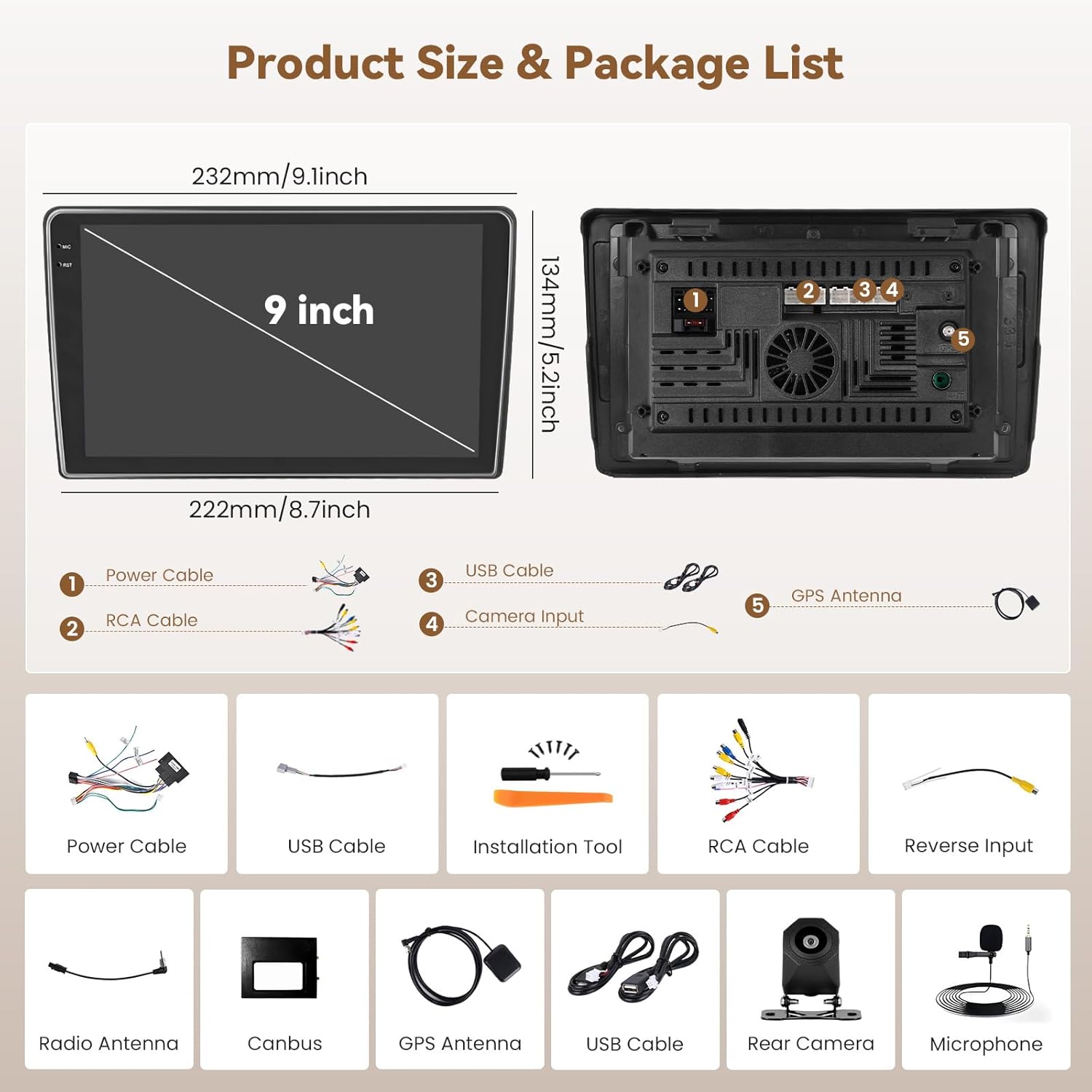
Figure 2.1: Product dimensions and included accessories.
3. Installation Guide
3.1 Vehicle Compatibility
This car radio is specifically designed for Citroen Berlingo B9 (2008-2017) and Peugeot Partner (2008-2019) models. Please confirm that your vehicle's center console matches the compatible models shown in the image below before proceeding with installation. If your console differs, contact customer service for guidance.

Figure 3.1: Compatible vehicle center console types.
3.2 Pre-Installation Steps
- Disconnect the vehicle's battery to prevent electrical shorts.
- Carefully remove the original car radio and trim panels using the provided installation tool.
- Identify the wiring harnesses from your vehicle.
3.3 Wiring Connections
Connect the provided cables to the corresponding ports on the Hikity car radio and your vehicle's wiring harness. Refer to the wiring diagram in the included user manual for specific connections. Key connections include:
- Power Cables: Connect to the vehicle's power supply.
- RCA Cable: For audio/video input/output.
- USB Cables: For external USB devices and data transfer.
- Camera Input Cable: For connecting the rear camera.
- GPS Antenna: Mount in a location with a clear view of the sky.
- Radio Antenna: Connect for FM/RDS reception.
- Canbus Decoder: Connect for steering wheel control and vehicle data integration.
- Microphone: Connect the external microphone for hands-free calling.

Figure 3.2: Visual comparison of the dashboard before and after installing the Hikity car radio.
3.4 Mounting the Unit
- Secure the car radio into the dashboard opening using the provided mounting brackets.
- Reinstall the trim panels.
- Reconnect the vehicle's battery.
4. Operating Instructions
4.1 Power On/Off and Basic Navigation
- Power On: Turn the vehicle ignition to ACC or ON. The unit will power on automatically.
- Power Off: Turn the vehicle ignition to OFF. The unit will power off.
- Touchscreen: Navigate the interface by tapping, swiping, and pinching on the 9-inch In-Cell touchscreen.
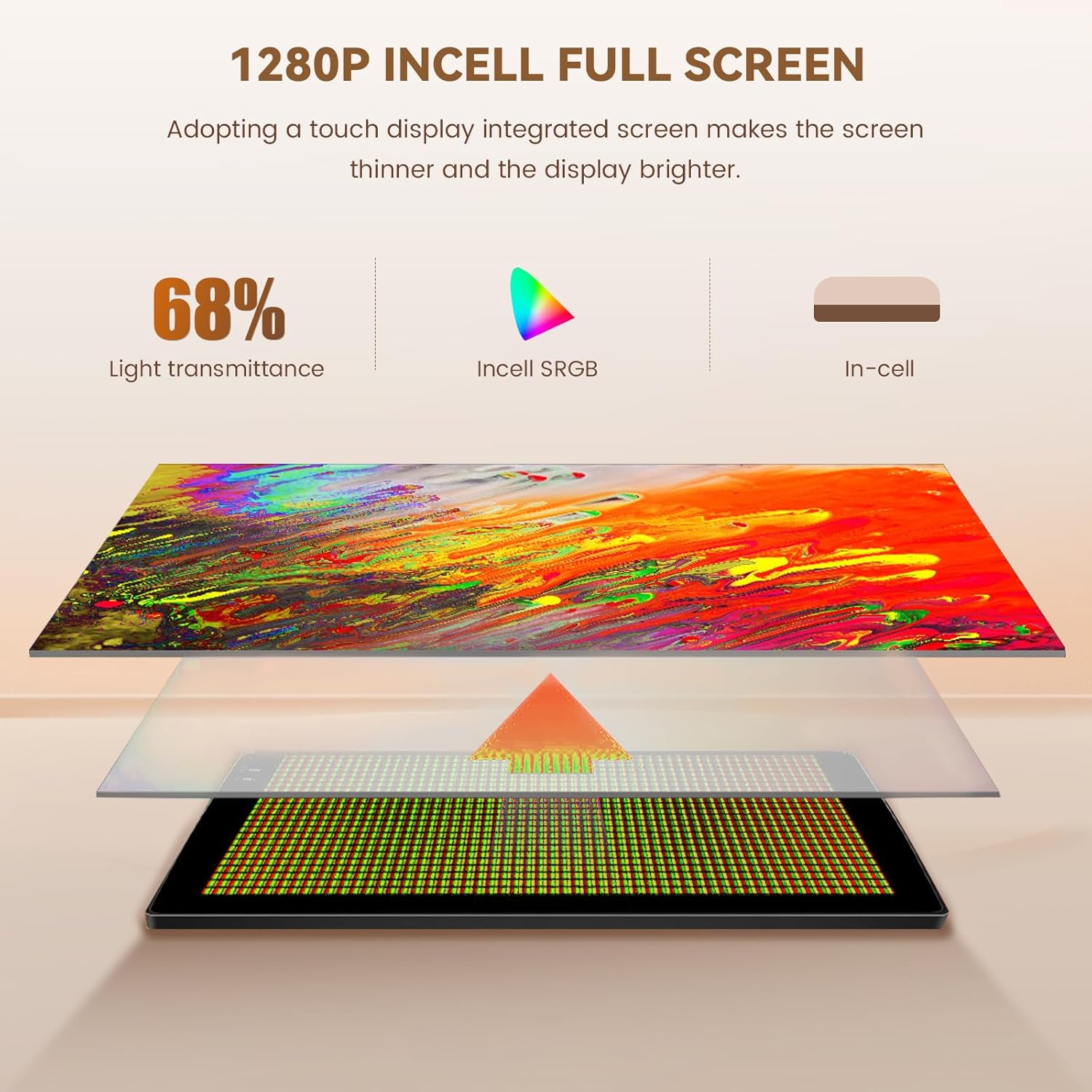
Figure 4.1: In-Cell touchscreen technology benefits.
4.2 Wireless CarPlay and Android Auto
The unit supports wireless CarPlay for iOS devices and wireless Android Auto for Android devices, allowing seamless integration of your smartphone's features onto the car radio display.
- Ensure Bluetooth and Wi-Fi are enabled on your smartphone.
- On the car radio, open the "CarPlay" or "Android Auto" application.
- Follow the on-screen prompts to pair your phone via Bluetooth. Once paired, the system will automatically establish a Wi-Fi connection for wireless CarPlay/Android Auto.
- You can now access navigation, music, calls, and messages directly from the car radio screen.

Figure 4.2: Wireless CarPlay, Android Auto, and Mirror Link interfaces.
4.3 Bluetooth Hands-Free Calling and Music
Connect your smartphone via Bluetooth 5.0 for hands-free calls and audio streaming.
- Go to the Bluetooth settings on the car radio.
- Enable Bluetooth on your smartphone and search for available devices.
- Select "Hikity Car Radio" (or similar name) from your phone's list and pair.
- Once connected, you can make/receive calls and play music through the car's speakers.

Figure 4.3: Bluetooth, Wi-Fi, GPS, and Equalizer features.
4.4 GPS Navigation
The integrated GPS module provides reliable navigation. You can use pre-installed maps or download online maps via Wi-Fi.
- Open the Navigation application from the main menu.
- Enter your destination. The system will calculate the route and provide turn-by-turn directions.
- Online maps support real-time traffic updates when connected to Wi-Fi.
4.5 FM/RDS Radio
Access FM radio stations with RDS (Radio Data System) for station information.
- Select the "Radio" application.
- Use the scan function to find available stations or manually tune to a frequency.
- RDS provides information such as station name and program type.
4.6 Steering Wheel Control (SWC)
The unit supports your vehicle's original steering wheel controls for convenient operation.
- Access the "Steering Wheel Control" settings in the system menu.
- Follow the on-screen instructions to program each button on your steering wheel to its corresponding function (e.g., volume up/down, next/previous track, answer/end call).
- Save the settings once configuration is complete.

Figure 4.4: Steering Wheel Control configuration interface.
4.7 Backup Camera
When the vehicle is shifted into reverse gear, the display will automatically switch to the rear camera view, assisting with parking and maneuvering.

Figure 4.5: Backup camera, radio, and other advanced features.
4.8 Split-Screen Functionality
The split-screen feature allows you to run two applications simultaneously on the display, such as navigation and music playback.
- While an application is open, long-press the recent apps button or drag from the side (depending on the Android version) to activate split-screen mode.
- Select a second application to display alongside the first.
5. Maintenance
To ensure the longevity and optimal performance of your Hikity car radio, follow these maintenance guidelines:
- Cleaning the Screen: Use a soft, lint-free cloth to gently wipe the touchscreen. Avoid abrasive cleaners or solvents that could damage the display.
- Software Updates: Periodically check for available software updates through the system settings to ensure you have the latest features and performance improvements.
- Environmental Conditions: Avoid exposing the unit to extreme temperatures, direct sunlight for prolonged periods, or excessive moisture.
6. Troubleshooting
If you encounter issues with your car radio, refer to the following common troubleshooting steps:
| Problem | Possible Cause | Solution |
|---|---|---|
| Unit does not power on. | Loose power connection, blown fuse, vehicle battery issue. | Check power cable connections. Inspect vehicle fuses. Ensure vehicle battery is charged. |
| No sound. | Volume too low, incorrect audio source, speaker wiring issue. | Increase volume. Select correct audio source. Check speaker connections. |
| Wireless CarPlay/Android Auto not connecting. | Bluetooth/Wi-Fi off on phone, incorrect pairing, software glitch. | Ensure phone's Bluetooth and Wi-Fi are on. Re-pair the device. Restart both phone and car radio. |
| Backup camera not displaying. | Loose camera connection, faulty camera, incorrect wiring. | Check the camera input cable connection. Verify camera functionality. Ensure reverse trigger wire is correctly connected. |
| Steering wheel controls not working. | Canbus not connected, incorrect programming. | Ensure Canbus decoder is correctly installed. Re-program the steering wheel controls in settings. |
If the problem persists after attempting these solutions, please contact Hikity customer support for further assistance.
7. Specifications
| Feature | Detail |
|---|---|
| Model Number | A7878A4294H6MI2-63EU |
| Operating System | Android 15 |
| RAM | 4GB |
| Internal Storage (ROM) | 128GB |
| Screen Type | 9-inch In-Cell Touchscreen |
| Connectivity | Bluetooth 5.0, USB, Wi-Fi (5G compatible) |
| Special Functions | GPS Navigation, RDS, FM Tuner, Wireless CarPlay, Wireless Android Auto |
| Audio Output Mode | Stereo |
| Surround Sound Channels | 4.0 |
| Output Power | 45 Watts (per channel, total 180 Watts) |
| Video Encoding | H.264, H.265/HEVC, MPEG-4, etc. |
| Compatible Devices | Smartphone |
| Product Dimensions (DxWxH) | 23.5 x 13.5 x 4.5 cm |
| Weight | 1.29 kg |
| Origin | China |
8. Warranty and Support
Your Hikity car radio comes with a 24-month warranty. For any technical assistance, product inquiries, or warranty claims, please contact Hikity customer support. Online assistance is available, with responses typically provided within 24 hours.
For the most up-to-date support information, please visit the official Hikity store on Amazon or refer to the contact details provided in your warranty card.
Online Store: Hikity Amazon Store
Ask a question about this manual
Ask about setup, troubleshooting, compatibility, parts, safety, or missing instructions. Manuals+ will review the question and use this page’s manual context to help answer it.