
NINEYIN D61M
NINEYIN Single Din Car Stereo with CarPlay Android Auto (Model D61M) User Manual
Model: D61M
Introduction
This manual provides detailed instructions for the installation, operation, and maintenance of your NINEYIN Single Din Car Stereo. Please read this manual thoroughly before using the product to ensure proper function and safety. Keep this manual for future reference.
Safety Information
- Always consult a professional for installation if you are unsure about any steps. Incorrect installation can damage the vehicle's electrical system or the stereo unit.
- Do not operate the device in a way that distracts you from driving. Always prioritize road safety.
- Avoid exposing the unit to extreme temperatures, direct sunlight for prolonged periods, or excessive moisture.
- Use only approved accessories and parts.
- Disconnect the vehicle's battery before beginning installation to prevent electrical shorts.
Package Contents
Verify that all items listed below are included in your package:
- Head Unit (NINEYIN Single Din Car Stereo)
- Power Cord (Main wiring harness)
- Remote Control (Battery not included)
- Brackets (for installation)
- User Manual

Image: Contents of the NINEYIN Single Din Car Stereo package, including the head unit, power cords, remote control, brackets, and user manual.
Product Overview
The NINEYIN D61M is a single DIN car stereo featuring a 6-inch in-cell touch screen. It supports wireless CarPlay and Android Auto, Bluetooth audio, FM radio, USB and Type-C charging, and steering wheel controls.

Image: Front view of the NINEYIN Single Din Car Stereo, showing the 6-inch touchscreen display with various app icons, a volume knob, and USB/Type-C ports.
Front Panel Features
- 6-inch In-Cell Touch Screen: Main interface for all functions.
- Volume Adjustment Knob: Controls audio volume. Press to mute/unmute.
- Microphone (MIC): For hands-free calling and voice commands.
- Reset Button: Resets the unit to factory settings (typically a small pinhole).
- USB Interface: For media playback and fast charging.
- Type-C Interface: For media playback and fast charging.

Image: Detailed view of the car stereo's front panel, highlighting the volume knob, microphone, reset button, USB, and Type-C ports.
Installation Guide
This unit is designed for standard Single DIN dash openings. Before installation, ensure your vehicle's compatibility. Professional installation is recommended.
Pre-Installation Steps:
- Disconnect Battery: Turn off the vehicle and disconnect the negative terminal of the car battery to prevent electrical shorts.
- Remove Old Stereo: Carefully remove the existing car stereo from the dashboard.
- Check Fitment: Ensure the NINEYIN D61M unit fits into your vehicle's single DIN opening.
Wiring Connections:
Refer to the wiring diagram below for correct connections. Incorrect wiring can damage the unit or vehicle.
Image: Detailed wiring diagram for the NINEYIN Single Din Car Stereo, showing connections for power, speakers, steering wheel controls, and RCA outputs.
- Power Connections:
- Yellow (B+): Constant 12V power.
- Red (ACC): Switched 12V power (ignition).
- Black (GND): Ground connection.
- Speaker Connections: Connect each speaker wire (e.g., White/White-Black for Left Front, Grey/Grey-Black for Right Front, etc.) to the corresponding vehicle speaker wires.
- Steering Wheel Control (SWC): Connect KEY1 and KEY2 wires to your vehicle's SWC wires. Refer to your vehicle's manual for specific wire identification.
- Antenna: Connect the FM radio antenna.
- RCA Outputs: For external amplifiers or subwoofers (RCA L, RCA R, Subwoofer Output).
- Video Inputs/Outputs: For video output, reverse video input.
Mounting the Unit:
- Secure the provided mounting brackets to the sides of the head unit.
- Slide the unit into the dash opening until it clicks into place or can be secured with screws.
- Reconnect the vehicle's battery.
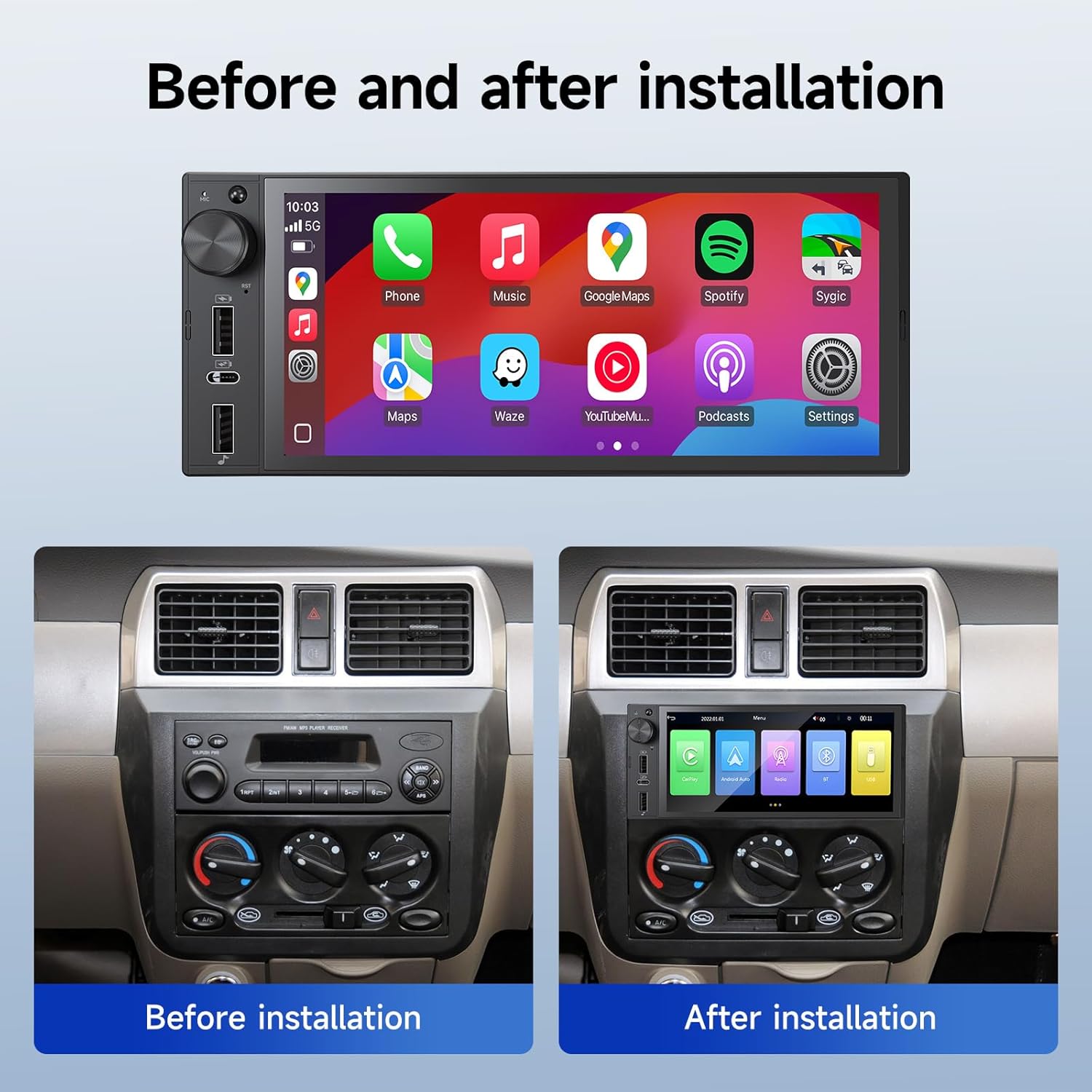
Image: Comparison showing a car dashboard before and after the installation of the NINEYIN Single Din Car Stereo, demonstrating its integrated appearance.
Initial Setup
- Power On: Turn on your vehicle's ignition. The stereo should power on automatically.
- Language Selection: Follow the on-screen prompts to select your preferred language.
- Time and Date: Set the correct time and date through the system settings menu.
- Radio Region: Select your geographical radio region for proper FM tuning.
Operating Instructions
General Interface Navigation
The 6-inch touchscreen allows for intuitive control. Tap icons to open applications or settings. Swipe gestures may be supported for navigation.
Bluetooth Pairing
- Go to the "Bluetooth" application on the stereo's main screen.
- Enable Bluetooth on your smartphone and search for available devices.
- Select "NINEYIN D61M" (or similar name) from the list on your phone.
- Confirm the pairing code on both devices if prompted.
- Once paired, you can make/receive calls and stream audio wirelessly.

Image: Display showing the Bluetooth function interface, indicating successful connection for audio streaming.
Wireless CarPlay & Android Auto
Connect your smartphone wirelessly for access to navigation, music, messages, and voice assistants.
- Ensure Bluetooth is enabled on your phone and the stereo.
- For CarPlay (iOS): Open the CarPlay app on the stereo. Your iPhone should automatically detect the stereo. Confirm connection.
- For Android Auto (Android): Open the Android Auto app on the stereo. Your Android phone should detect the stereo. Confirm connection.
- Follow any on-screen prompts on both your phone and the stereo to complete the setup.

Image: Car stereo display showing both Wireless CarPlay and Android Auto interfaces, demonstrating seamless smartphone integration for navigation and media.
Screen Mirroring (Mirrorlink)
Mirror your smartphone's screen to the stereo display. Note: Some streaming services may restrict mirroring due to copyright protection.
- Connect your smartphone to the stereo via a USB cable.
- Select the "Mirrorlink" or "Screen Mirroring" option on the stereo.
- Follow the instructions on the stereo and your phone to enable screen mirroring.

Image: Car stereo displaying a mirrored smartphone screen, showing content from an Android and iOS device.
FM Radio Operation
- Select the "FM" application from the main menu.
- Use the on-screen controls to scan for stations, manually tune, or select presets.
Image: Display showing the FM radio interface with frequency tuning and station selection options.
USB/Type-C Media Playback and Charging
- Insert a USB drive or connect a device to the USB or Type-C port.
- The stereo will detect media files (audio/video) and allow playback through the respective media player application.
- The USB and Type-C ports also provide fast charging for compatible devices.
DSP (Digital Signal Processor) and EQ Settings
Access the DSP/EQ settings from the main menu to customize your audio experience. Adjust bass, treble, and specific frequency bands to match your preferences. The DSP also helps reduce background noise for clearer sound.
Image: Display showing the Equalizer (EQ) settings interface, allowing users to adjust audio frequencies for personalized sound.
Steering Wheel Control (SWC) Setup
If your vehicle supports steering wheel controls and you have connected the SWC wires during installation, you can configure them:
- Go to "Settings" and find the "Steering Wheel Control" or "SWC" menu.
- Follow the on-screen instructions to program each button on your steering wheel to the desired function (e.g., volume up, track skip, answer call).
Maintenance
- Cleaning the Screen: Use a soft, lint-free cloth to gently wipe the touchscreen. For stubborn smudges, slightly dampen the cloth with water or a screen-safe cleaner. Avoid harsh chemicals.
- General Cleaning: Keep the unit free from dust and debris. Use a soft brush or compressed air for hard-to-reach areas.
- Software Updates: Periodically check the manufacturer's website for any available software updates to ensure optimal performance and new features.
Troubleshooting
| Problem | Possible Cause | Solution |
|---|---|---|
| No power | Incorrect wiring; Blown fuse; Disconnected battery. | Check power connections (Yellow, Red, Black wires). Inspect vehicle's fuse box and the stereo's fuse. Ensure battery is connected. |
| No sound | Speaker wires incorrectly connected; Volume too low; Mute activated. | Verify speaker wiring. Increase volume. Check if the unit is muted. |
| Bluetooth not connecting | Bluetooth not enabled on phone/stereo; Device not in pairing mode; Interference. | Ensure Bluetooth is on for both devices. Put stereo in pairing mode. Try restarting both devices. |
| CarPlay/Android Auto not starting | Incorrect connection method; Phone software issue; App not updated. | Ensure wireless connection via Bluetooth is established. Update CarPlay/Android Auto apps on your phone. Restart phone and stereo. |
| Screen mirroring issues | Incorrect cable; App restrictions; Phone settings. | Use a high-quality USB cable. Check phone's developer options for USB debugging/mirroring settings. Note that some apps may block mirroring. |
| Steering wheel controls not working | SWC wires not connected; Incorrect programming. | Verify SWC wire connections. Re-program the SWC buttons in the stereo settings. |
If the problem persists after trying these solutions, please contact customer support.
Specifications
| Feature | Detail |
|---|---|
| Model Number | D61M |
| Brand | NINEYIN |
| Display | 6-inch In-Cell Touch Screen |
| Connectivity Technology | Bluetooth |
| Controller Type | Touch |
| Special Features | Wireless CarPlay, Android Auto, Mirrorlink, Built-in DSP, FM Radio, SWC Compatible |
| Compatible Devices | Smartphone (iOS & Android) |
| Connector Type | USB Type-C, USB |
| Audio Output Mode | Surround |
| Surround Sound Channel Configuration | 5.1 |
| Video Encoding | H.264, H.265/HEVC |
| Audio Output Type | Speakers |
| Item Weight | 1.63 pounds |
| Package Dimensions | 8.74 x 5.51 x 4.8 inches |
Warranty and Support
NINEYIN products are designed for quality and reliability. For specific warranty details, please refer to the warranty card included with your product or visit the official NINEYIN website.
Customer Support:
If you encounter any issues or have questions regarding your NINEYIN D61M car stereo, please contact our customer support team. We offer lifetime technical guidance and aim to provide solutions within 24 hours.
- Online Support: Visit the NINEYIN Brand Store on Amazon for FAQs and contact options.
- Email Support: Refer to your product packaging or the official website for the customer service email address.
When contacting support, please have your model number (D61M) and purchase information ready.