
1. Introduction
The Creality Sermoon S1 is a high-precision, metrology-grade 3D scanner designed for a wide range of applications, from small objects to large industrial components and human bodies. It integrates advanced blue laser and Near-Infrared (NIR) structured light technologies to deliver accurate and efficient 3D data acquisition. This manual provides essential information for the proper setup, operation, maintenance, and troubleshooting of your Sermoon S1 3D Scanner.
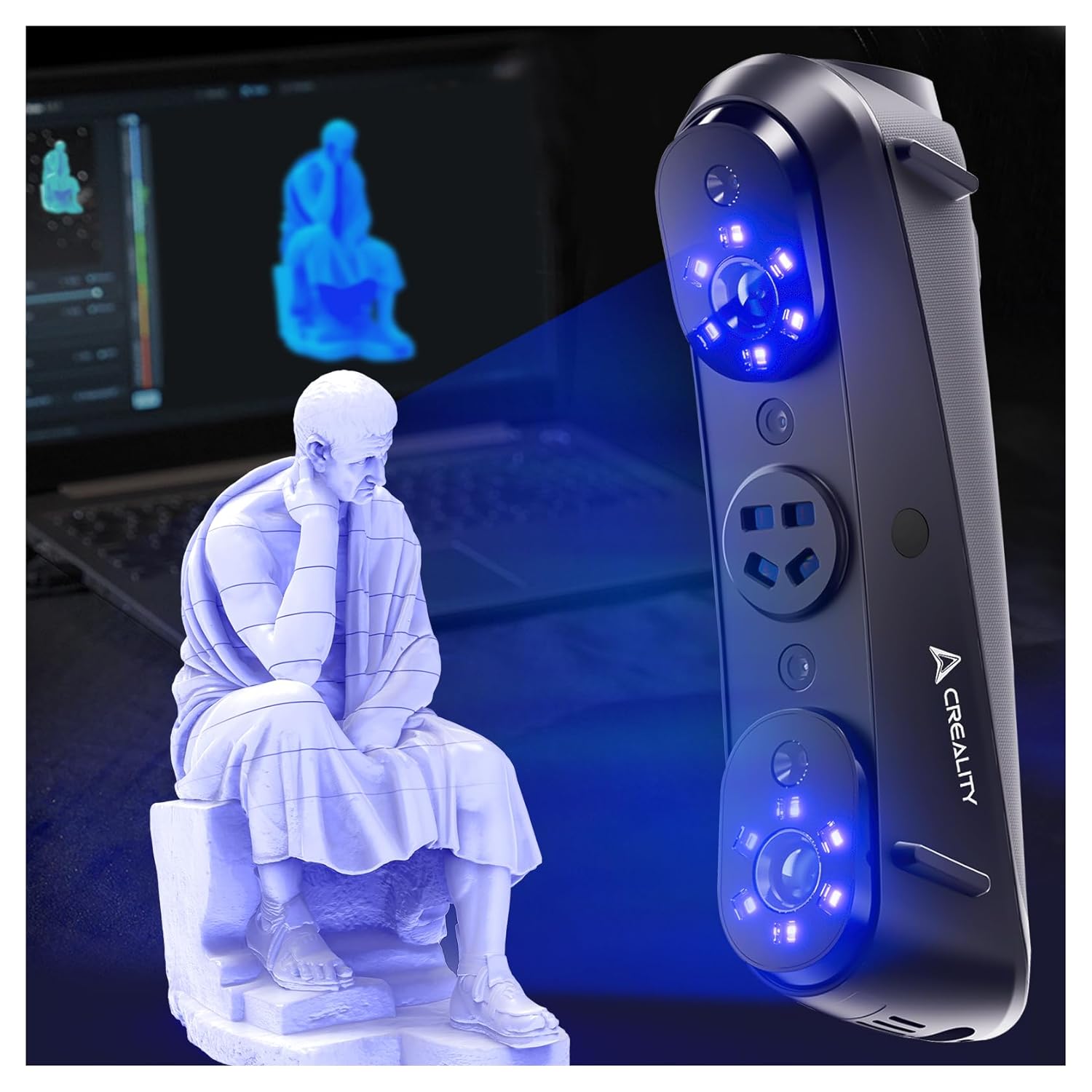
The Creality Sermoon S1 3D Scanner in operation, capturing a detailed 3D model of a statue.
2. Key Features
- 3-in-1 Blue Laser Lines: Features exclusive single-line deep hole scanning technology, 34 cross laser lines for medium to large objects, and 7 parallel laser lines for fine details with 0.02mm accuracy.
- Innovative 4-Lens NIR Structured Light: Equipped with standard stereo lenses for high-accuracy scanning and wide FOV lenses for fast, marker-free scanning of large objects and human bodies.
- High Accuracy: Achieves a minimum scanning accuracy of 0.02 mm and a minimum volumetric accuracy of 0.02mm + 0.08mm/m, suitable for metrology-grade precision.
- High Efficiency: Offers 90FPS high-speed scanning, with data acquisition speeds up to 1,428,000 points per second.
- Versatile Scanning Range: Supports objects from 5mm³ to 4000mm³, handling various sizes and complexities.
- Material Adaptability: Capable of scanning black and reflective metal objects without the need for spray powder.
- Environmental Adaptability: Performs consistently in both bright outdoor light and complete indoor darkness.
- Smart Stabilization: Utilizes an AI-driven temperature compensation algorithm and efficient thermal management for stable output during prolonged sessions.
- Expandable Scan Bridge Support: Allows for switching to wireless scanning mode for enhanced mobility.
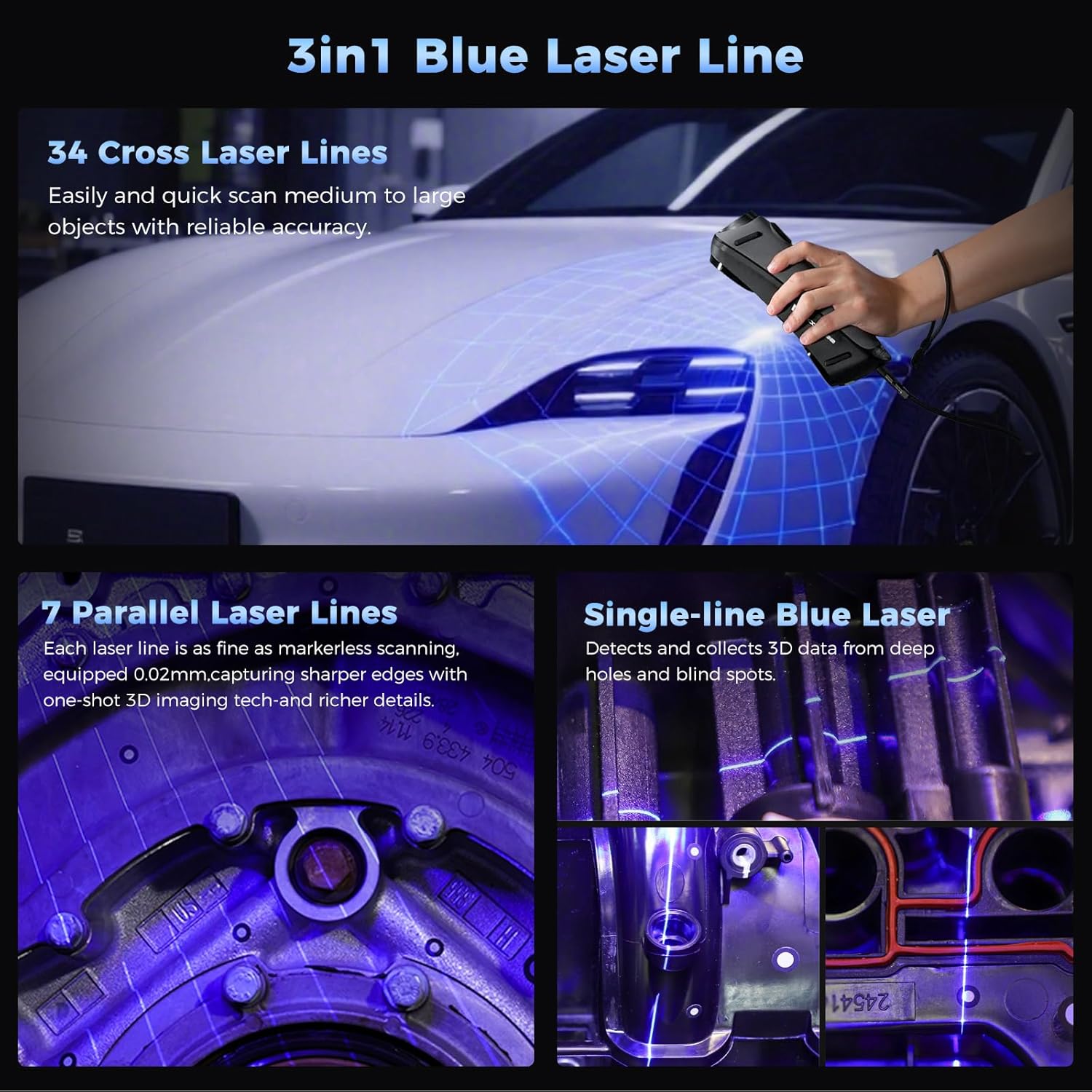
Illustration of the Creality Sermoon S1's 3-in-1 blue laser technology, showing 34 cross laser lines for large objects, 7 parallel laser lines for fine details, and a single-line blue laser for deep hole scanning.

Diagram illustrating the innovative 4-lens Near-Infrared (NIR) structured light system, designed for high-accuracy scanning and wide field-of-view for large objects and human bodies.

Visual representation of the Creality Sermoon S1's high-speed scanning capability (90 FPS), highlighting its 0.02mm scanning accuracy and 0.02mm + 0.08mm/m volumetric accuracy.

Demonstration of the scanner's ability to capture black and metal objects without the need for spray powder, and its consistent performance in various lighting conditions, both indoors and outdoors.

Examples of objects with varying sizes (from 5mm³ to 4000mm³) that can be scanned by the Sermoon S1, including a coin, a person, a motorcycle, and a car.
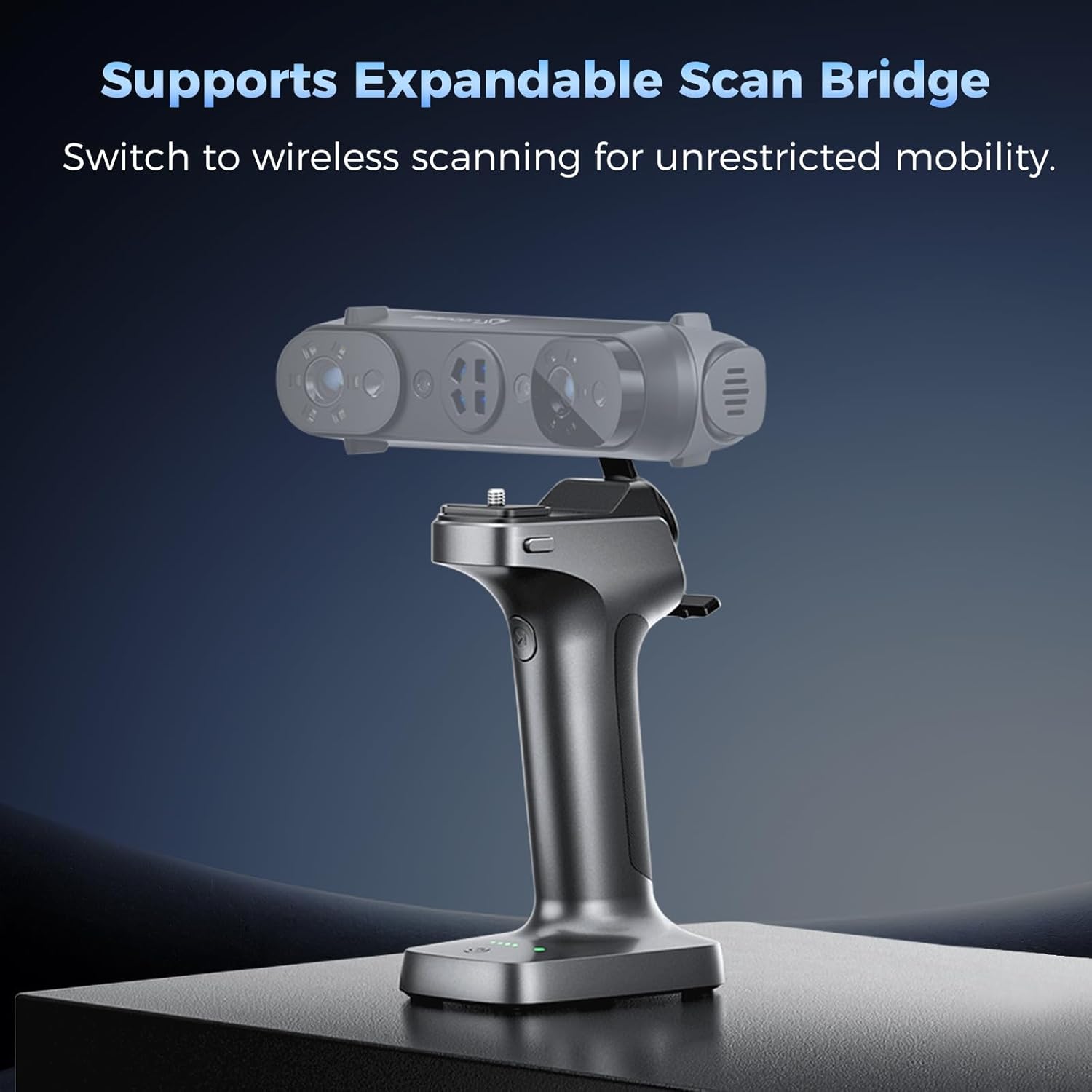
The Creality Sermoon S1 scanner mounted on the optional Scan Bridge, enabling wireless scanning for enhanced mobility.

An internal view of the Sermoon S1's intelligent chip, illustrating the AI-driven temperature compensation algorithm and efficient thermal management system for stable output during prolonged use.
3. Package Contents
Verify that all items are present in the package before proceeding with setup:
- Sermoon S1 3D Scanner
- USB 3.0 Data Cable (Type-C / Type-A)
- Power Plug
- Reflective Markers (D6mm*10 sheets, D3mm*10 sheets)
- High-precision Glass Calibration Plate
- Type-C Adapter
- Lanyard
- Cleaning Cloth
- Quick Start Guide
- Certificate of Conformity & Warranty Card
- Waterproof Box
4. Setup and Connection
4.1 Hardware Connection
- Connect the Sermoon S1 scanner to your computer using the provided USB 3.0 data cable. Ensure the connection is secure.
- If using the optional Scan Bridge for wireless operation, connect the scanner to the Scan Bridge and ensure the Scan Bridge is powered on and connected to your computer or network as per its separate instructions.
4.2 Software Installation (CrealityScan 4.0)
The Creality Sermoon S1 requires the CrealityScan 4.0 software for operation. This software is compatible with Windows, macOS, Android, and iOS.
- Download the latest version of CrealityScan 4.0 from the official Creality website or the provided installation media.
- Follow the on-screen instructions to complete the software installation.
- Launch CrealityScan 4.0 after installation.

Screenshot of the CrealityScan 4.0 software interface, showing its compatibility with Windows, macOS, Android, and iOS, and its user-friendly design for 3D scanning and processing.
5. Operating Instructions
5.1 Calibration
Before the first use and periodically thereafter, calibrate the scanner using the provided high-precision glass calibration plate as instructed by the CrealityScan 4.0 software. Proper calibration ensures optimal scanning accuracy.
5.2 Selecting Scanning Mode
CrealityScan 4.0 allows you to select the appropriate scanning mode based on the object's size, detail requirements, and surface properties:
- 34 Cross Laser Lines: Ideal for quick scanning of medium to large objects.
- 7 Parallel Laser Lines: Suitable for capturing finer details and markerless scanning.
- Single-line Blue Laser: Specialized for detecting and collecting 3D data from deep holes and blind spots.
- NIR Structured Light (Wide FOV): Best for fast, marker-free scanning of large objects and human bodies.
5.3 Scanning Process
- Prepare the Object: Ensure the object is stable and well-lit. For complex geometries or highly reflective/transparent surfaces, consider using scanning spray if the scanner's native capabilities are insufficient.
- Position the Scanner: Hold the scanner at an optimal distance from the object, as indicated by the software's real-time feedback.
- Start Scanning: Initiate the scan within CrealityScan 4.0. Move the scanner smoothly around the object, maintaining consistent coverage.
- Monitor Progress: Observe the real-time 3D model being generated on your screen. Adjust scanning speed and angle as needed to capture all desired areas.
- Complete Scan: Stop the scan once all necessary data has been acquired.
5.4 Post-Processing
After scanning, CrealityScan 4.0 provides tools for post-processing the 3D data, including:
- Alignment of multiple scans.
- Mesh smoothing and hole filling.
- Data cleaning and noise reduction.
- Exporting models in various formats for use with other 3D design and printing software.
6. Maintenance and Care
- Cleaning: Use the provided cleaning cloth or a soft, lint-free cloth to gently wipe the scanner's lenses and body. Avoid abrasive materials or harsh chemicals.
- Storage: Store the scanner in its waterproof box or a clean, dry environment when not in use to protect it from dust, moisture, and physical damage.
- Temperature: Operate and store the scanner within the recommended temperature range to ensure optimal performance and longevity.
- Software Updates: Regularly check for and install updates for CrealityScan 4.0 to benefit from performance improvements, bug fixes, and new features.
7. Troubleshooting
This section addresses common issues you might encounter with your Sermoon S1 3D Scanner.
| Problem | Possible Cause | Solution |
|---|---|---|
| Scanner not recognized by computer. | Loose USB connection, driver issue, incompatible USB port. | Ensure USB cable is securely connected. Try a different USB 3.0 port. Reinstall CrealityScan 4.0 drivers. |
| Poor scanning accuracy or tracking loss. | Insufficient lighting, excessive movement, uncalibrated scanner, highly reflective/transparent surface. | Ensure adequate and stable lighting. Maintain smooth, consistent scanner movement. Perform calibration. Consider using scanning spray for difficult surfaces. |
| Software crashes or freezes. | Outdated software, insufficient system resources, conflicting software. | Update CrealityScan 4.0 to the latest version. Close other demanding applications. Ensure your computer meets minimum system requirements. |
| Cannot scan black or metal objects. | Incorrect scanning mode selected, extreme reflectivity. | Ensure the scanner is in a mode suitable for these materials. While the Sermoon S1 is designed for this, extreme cases may still require a light dusting of scanning spray. |
8. Technical Specifications
| Feature | Specification |
|---|---|
| Model Number | Sermoon S1 |
| Scanning Accuracy | 0.02 mm |
| Volumetric Accuracy | 0.02mm + 0.08mm/m |
| Scanning Speed | Up to 90 FPS (frames per second) |
| Data Acquisition Speed | Up to 1,428,000 points per second |
| Scanning Range | 5mm³ - 4000mm³ |
| Laser Type | Blue Laser (3-in-1: Cross, Parallel, Single-line) |
| Structured Light | 4-Lens NIR Structured Light |
| Connectivity | USB 3.0 (Type-C / Type-A), Wireless (with optional Scan Bridge) |
| Software Compatibility | CrealityScan 4.0 (Windows, macOS, Android, iOS) |
| Dimensions (Package) | 13.86 x 12.36 x 6.54 inches |
| Weight (Package) | 9 Pounds |
9. Warranty and Support
The Creality Sermoon S1 3D Scanner comes with a warranty. Please refer to the 'Warranty Card' included in your package for detailed terms and conditions. For technical support, software assistance, or warranty claims, please contact Creality customer service through their official website or the contact information provided in your product documentation.
For further assistance, visit the official Creality website: www.creality.com