
1. Introduction
This manual provides detailed instructions for the setup, operation, and maintenance of your DINGETU V108 4K 80MP Camcorder. Please read this manual thoroughly before using the device to ensure proper functionality and to maximize your user experience. This camcorder is designed for general video recording and photography.

Figure 1.1: DINGETU V108 Camcorder Overview
2. Setup
2.1 Package Contents
Verify that all items are present in the package:
- 1 x 4K Video Camera
- 1 x Remote Control
- 2 x NP-40 Rechargeable Batteries
- 1 x TYP-C Cable
- 1 x External Microphone
- 1 x Handheld Stabilizer
- 1 x Lens Cap
- 1 x Camera Bag
- 1 x User Manual
- 1 x 32GB SD Card

Figure 2.1: Included Accessories
2.2 Battery Installation
- Locate the battery compartment on the camcorder.
- Open the battery compartment cover.
- Insert the NP-40 rechargeable battery, ensuring correct polarity.
- Close the battery compartment cover securely.
- Charge the batteries fully before first use.
2.3 SD Card Installation and Formatting
The camcorder supports SD/SDHC Class 10 cards up to 128 GB. A 32GB SD card is included.
- Locate the SD card slot on the camcorder.
- Insert the SD card with the metal contacts facing the correct direction until it clicks into place.
- Turn on the camcorder.
- Navigate to the system settings menu.
- Select the 'Format SD Card' option and confirm. Formatting the card prepares it for use with the camcorder and deletes all existing data.
2.4 Attaching External Accessories
External Microphone: Connect the external microphone to the designated microphone port on the camcorder. This enhances audio recording quality.
Handheld Stabilizer: Attach the camcorder to the handheld stabilizer using the 1/4 inch thread mount. This accessory helps achieve stable video recordings, especially during movement.
3. Operating the Camcorder
3.1 Powering On/Off
- To power on, press and hold the power button until the screen illuminates.
- To power off, press and hold the power button again until the screen turns off.
3.2 Recording Video
- Ensure the camcorder is in video mode.
- Press the 'Record' button to start recording. A red indicator light or on-screen icon will confirm recording is active.
- Press the 'Record' button again to stop recording.
3.3 Capturing Photos
- Ensure the camcorder is in photo mode.
- Frame your shot using the IPS screen.
- Press the 'Photo' button to capture a still image.
3.4 Using the 3.0-inch 270° Rotating IPS Screen
The camcorder features a 3.0-inch IPS screen that can rotate up to 270 degrees. This allows for flexible viewing angles, including self-recording. Gently rotate the screen to your desired position.

Figure 3.1: 270° Rotating IPS Screen and Digital Zoom
3.5 Digital Zoom (18X)
Utilize the zoom controls on the camcorder to adjust the 18X digital zoom. This allows you to magnify distant subjects. Note that digital zoom may affect image quality at higher magnifications.
3.6 IR Night Vision
The camcorder includes an infrared (IR) night vision function for recording in low-light or dark conditions. When activated, the camera captures clear black and white images and videos. To activate/deactivate, locate the IR function button or setting in the menu.
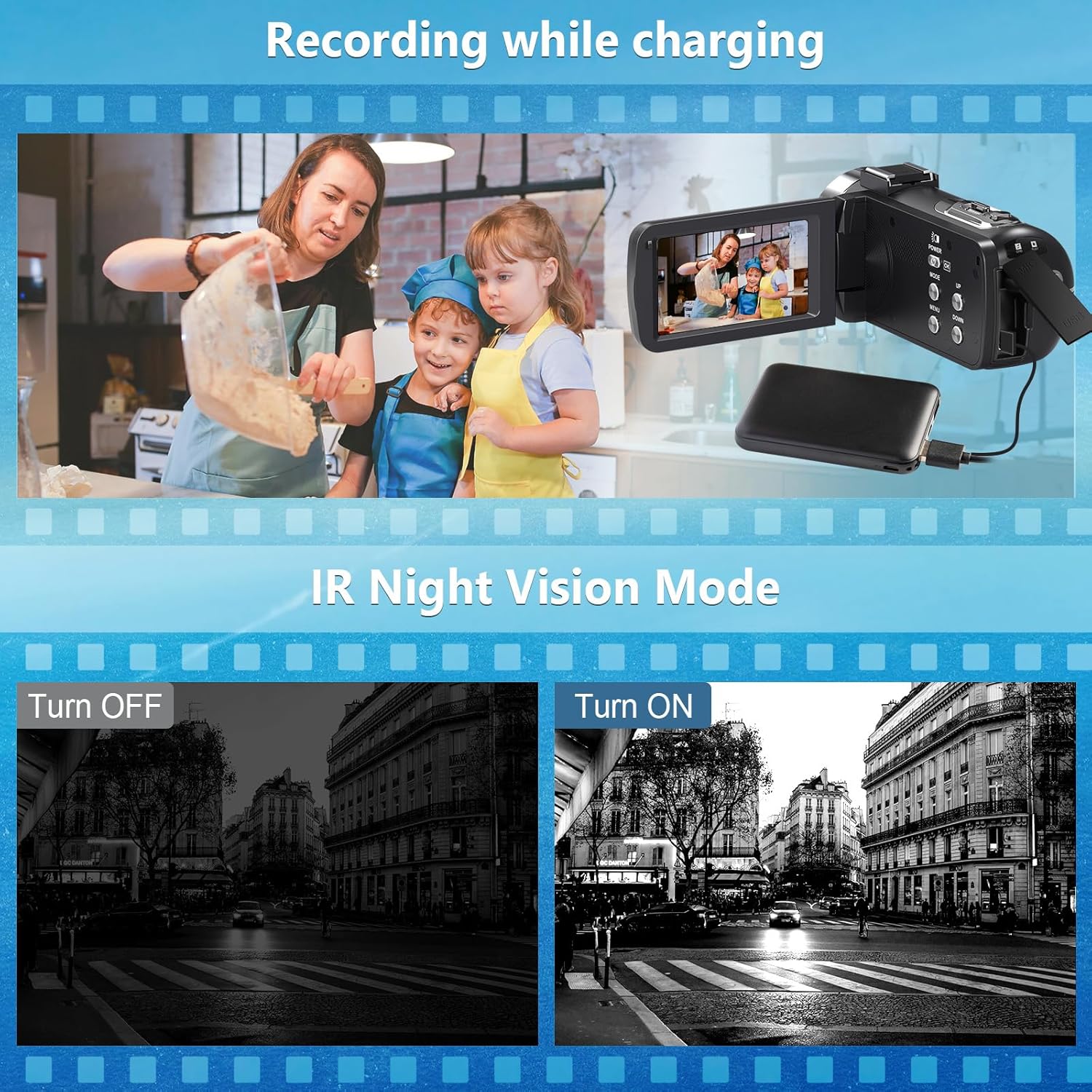
Figure 3.2: IR Night Vision Mode and Charging Functionality
3.7 Remote Control Operation
The included remote control allows for convenient operation of the camcorder from a distance. Functions such as starting/stopping recording, taking photos, and navigating menus can be controlled remotely. Ensure the remote control is pointed towards the camcorder's IR receiver.
3.8 Webcam and Live Streaming Functionality
The camcorder can function as a webcam when connected to a computer via the USB cable. This enables its use for remote meetings, online teaching, or live streaming platforms. Connect the camcorder to your computer, then select 'Webcam Mode' if prompted on the camcorder screen or in your computer's camera settings.

Figure 3.3: Webcam and Live Streaming Use
3.9 Advanced Shooting Modes
The camcorder offers various shooting modes to enhance your recording and photography experience:
- Loop Recording: Records video continuously, overwriting the oldest files when the memory card is full.
- Motion Detection: Starts recording automatically when motion is detected within the frame.
- Interval Recording (Time-lapse): Captures frames at set intervals to create a time-lapse video.
- Pause Function: Allows pausing and resuming video recording within a single file.
- Slow Photography (Slow Motion): Records video at a higher frame rate for slow-motion playback.
- Continuous Shooting: Captures multiple photos in quick succession.
- Automatic Photography: Takes photos automatically based on detected faces or other criteria.
- Timed Photography: Sets a timer before taking a photo.

Figure 3.4: Multifunctional Shooting Modes
3.10 Recording While Charging
The camcorder supports recording video while connected to a power source via the TYP-C cable. This feature allows for extended recording sessions without interruption due to battery depletion.
4. Maintenance
4.1 Cleaning the Camcorder
- Lens: Use a soft, lint-free cloth specifically designed for camera lenses. Avoid using harsh chemicals.
- Screen: Wipe the IPS screen gently with a microfiber cloth.
- Body: Use a dry, soft cloth to clean the camcorder body. Do not use water or cleaning solutions directly on the device.
4.2 Battery Care
- Store batteries in a cool, dry place when not in use.
- Avoid fully discharging batteries regularly to prolong their lifespan.
- Do not expose batteries to extreme temperatures.
4.3 SD Card Care
- Always power off the camcorder before inserting or removing the SD card.
- Avoid touching the metal contacts of the SD card.
- Keep the SD card away from strong magnetic fields.
5. Troubleshooting
If you encounter issues with your camcorder, refer to the following common problems and solutions:
- Camcorder does not power on:
- Ensure the battery is fully charged and correctly inserted.
- Try using the second included battery.
- Connect the camcorder to a power source using the TYP-C cable to check if it powers on while charging. - SD card not recognized or error message:
- Ensure the SD card is inserted correctly and fully.
- Format the SD card through the camcorder's settings menu (Note: This will erase all data on the card).
- Try a different compatible SD card. - Poor image or video quality:
- Ensure the lens is clean and free from smudges.
- Check lighting conditions; use IR Night Vision in low light.
- Avoid excessive digital zoom, which can reduce clarity. - Remote control not responding:
- Ensure the remote control's battery is functional.
- Point the remote directly at the camcorder's IR receiver.
- Ensure there are no obstructions between the remote and the camcorder. - Short battery life:
- Ensure batteries are fully charged before use.
- Reduce screen brightness if possible.
- Avoid continuous use of power-intensive features like IR Night Vision for extended periods.
6. Specifications
| Feature | Specification |
|---|---|
| Brand | DINGETU |
| Model Number | V108 |
| Photo Sensor Technology | CMOS |
| Video Capture Resolution | 4K (UHD 4K 30FPS, 2.7K 30FPS, FHD 60/30FPS, HD 30FPS) |
| Effective Still Resolution | 80 MP |
| Digital Zoom | 18x |
| Screen Size | 3 Inches IPS with 270° rotation |
| Flash Memory Type | SD (supports up to 128 GB Class 10) |
| Video Format | MP4 |
| Photo Format | JPG |
| Connectivity Technology | USB 2.0 |
| Image Stabilization | Digital |
| Item Weight | 300 Grams |
| Power Supply | Li-ion rechargeable battery NP-40 (2 included) |
| Special Features | IR Night Vision, Webcam Function, External Microphone Support, Remote Control, Handheld Stabilizer, Loop Recording, Motion Detection, Interval Recording, Pause Function, Slow Photography, Continuous Shooting, Automatic Photography, Timed Photography |
7. Warranty Information
This DINGETU V108 Camcorder comes with a 1-year warranty from the date of purchase. Please retain your proof of purchase for warranty claims. The warranty covers manufacturing defects and malfunctions under normal use. It does not cover damage caused by misuse, accidents, unauthorized repairs, or natural disasters.
8. Customer Support
For any questions, concerns, or technical assistance regarding your DINGETU V108 Camcorder, please contact customer support. You can typically find contact options by navigating to your order history and selecting 'Contact Seller' for the specific product. Our support team aims to respond within 12 hours.


