
1. Introduction
This manual provides detailed instructions for the installation, operation, and maintenance of your Hikity 4+128G Android 15 Car Radio. Designed specifically for Nissan Qashqai J10 models from 2006 to 2013, this unit offers advanced features including a 9-inch Incell touchscreen, Wireless CarPlay, Android Auto, Bluetooth 5.0, GPS navigation, and more. Please read this manual thoroughly before installation and use to ensure proper functionality and safety.
2. Product Overview and Features
The Hikity Android 15 Car Radio is equipped with a powerful quad-core processor and ample memory to deliver a smooth and responsive user experience. Key features include:
- Powerful Quad-Core Performance: Features 4GB RAM + 128GB ROM, a 1.5GHz Cortex-A35 quad-core processor, and Mali G31 GPU for lag-free multitasking and 1080P video decoding.
- 9-inch Incell Touchscreen: Offers faster touch response and improved clarity with a Zero Air Gap display, reducing sunlight glare by 60%.
- Wireless CarPlay & Android Auto: Seamlessly integrates with your smartphone for navigation, music, and hands-free calls via Bluetooth. Supports voice commands (Siri/Google Assistant).
- Bluetooth 5.0: Ensures quick pairing, stable music streaming, and crystal-clear hands-free calling.
- GPS Navigation & 5G WiFi: Supports online and offline maps with real-time traffic information (when connected to WiFi/hotspot). Allows internet browsing, streaming, and app downloads.
- EQ Audio & FM/RDS: Professional-grade sound optimization with an integrated EQ tuning software. FM/RDS radio provides news and information. DAB support available with external connection.
- Multitasking Features: Includes Split Screen and Picture-in-Picture functionality for simultaneous use of multiple applications.
- Customizable Interface: Personalize your home screen with custom desktop applications.
- Rear View Camera Support: Compatible with AHD backup cameras for enhanced parking safety.
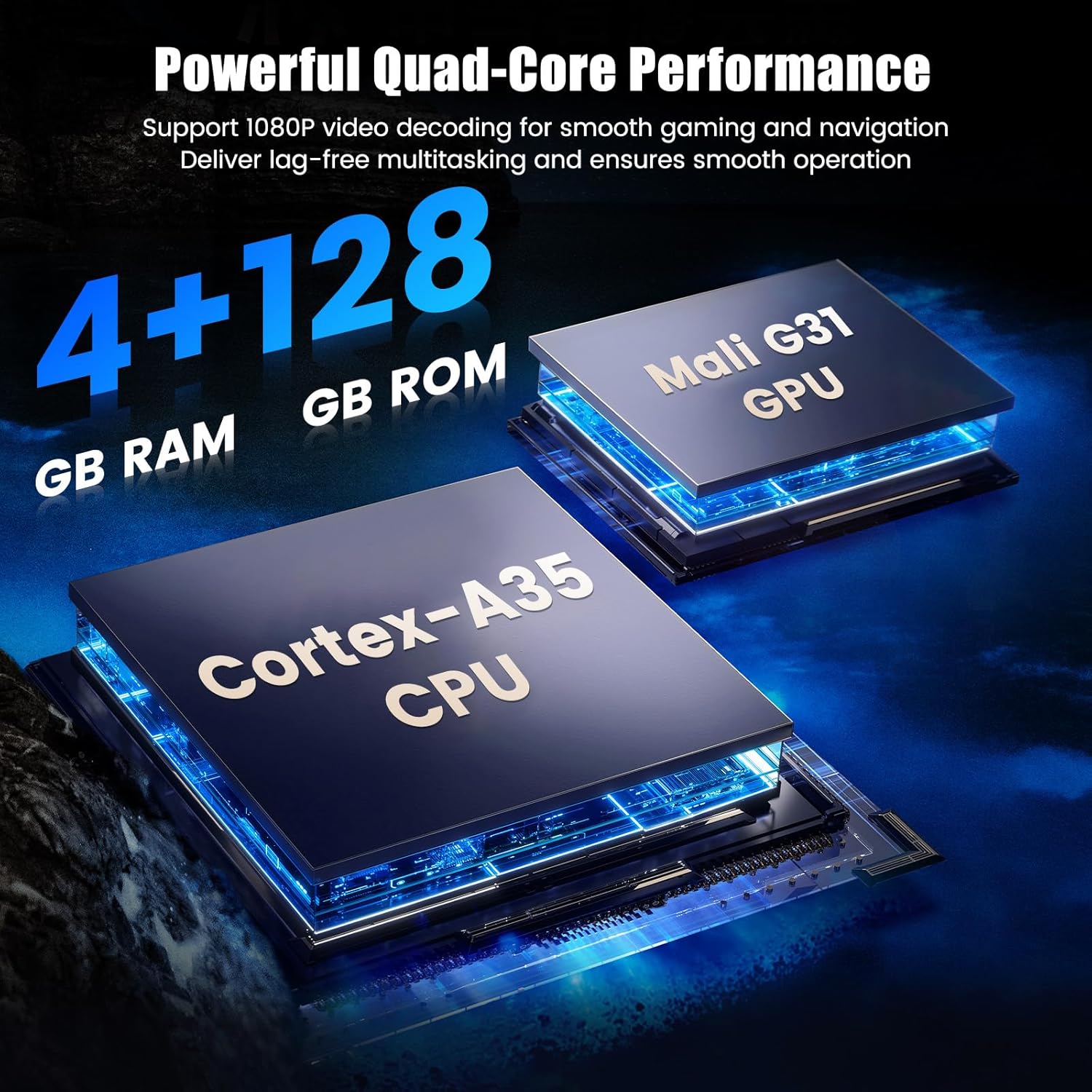
Figure 2.1: Illustration of the powerful quad-core processor and memory configuration.
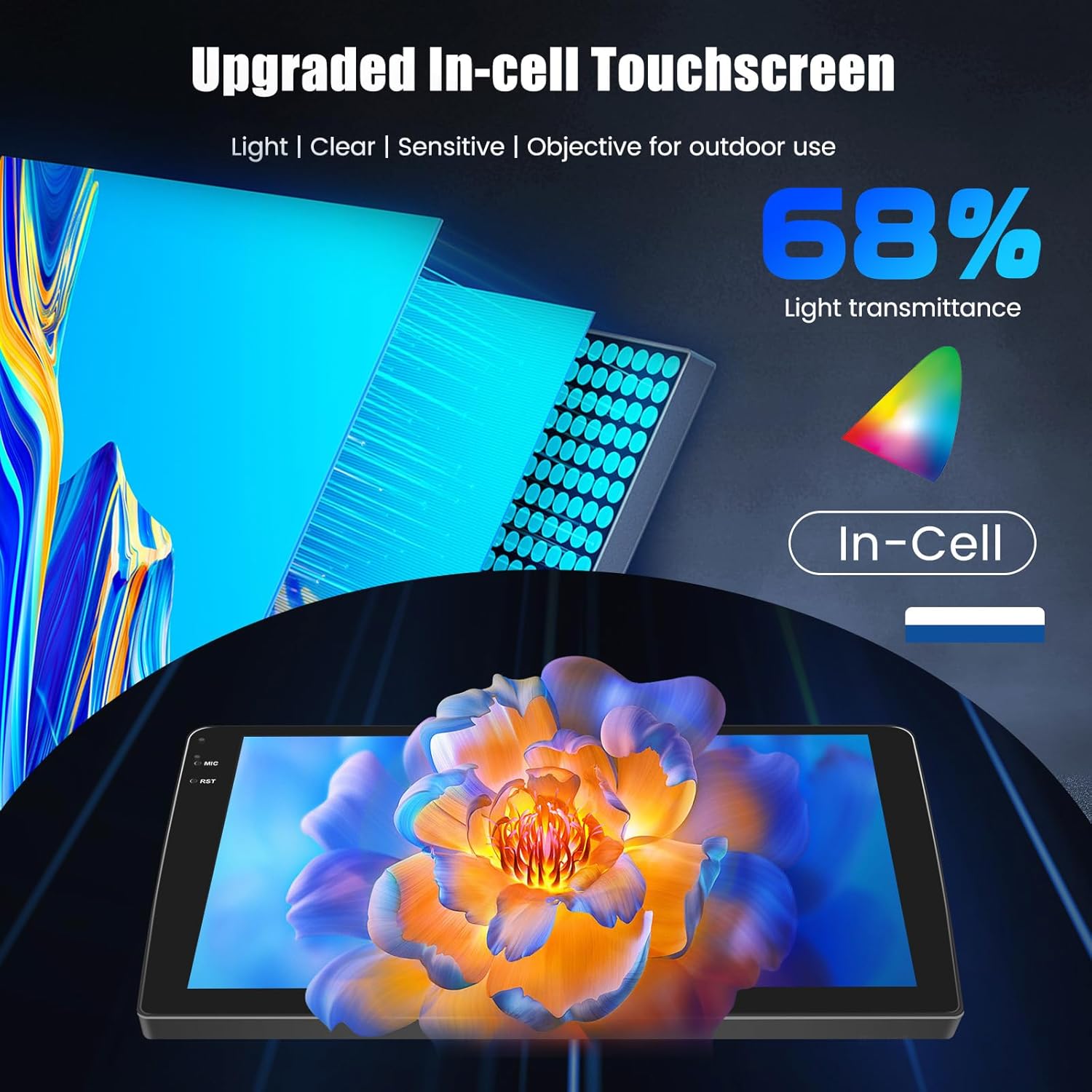
Figure 2.2: The upgraded Incell touchscreen technology for enhanced clarity and responsiveness.
3. Package Contents
Please check the box for the following items:
- 1 x Car Radio Unit
- 1 x Power Cable
- 1 x GPS Antenna
- 1 x Rear Camera Input Cable
- 1 x RCA Cable
- 2 x USB Cables
- 1 x User Manual
- 1 x Rear View Camera
- 1 x Microphone
- 1 x Installation Tool

Figure 3.1: All items included in the package.
4. Setup and Installation
4.1 Vehicle Compatibility
This car radio is designed for Nissan Qashqai J10 models manufactured between 2006 and 2013. Please ensure your vehicle's dashboard matches the compatible configurations shown below.
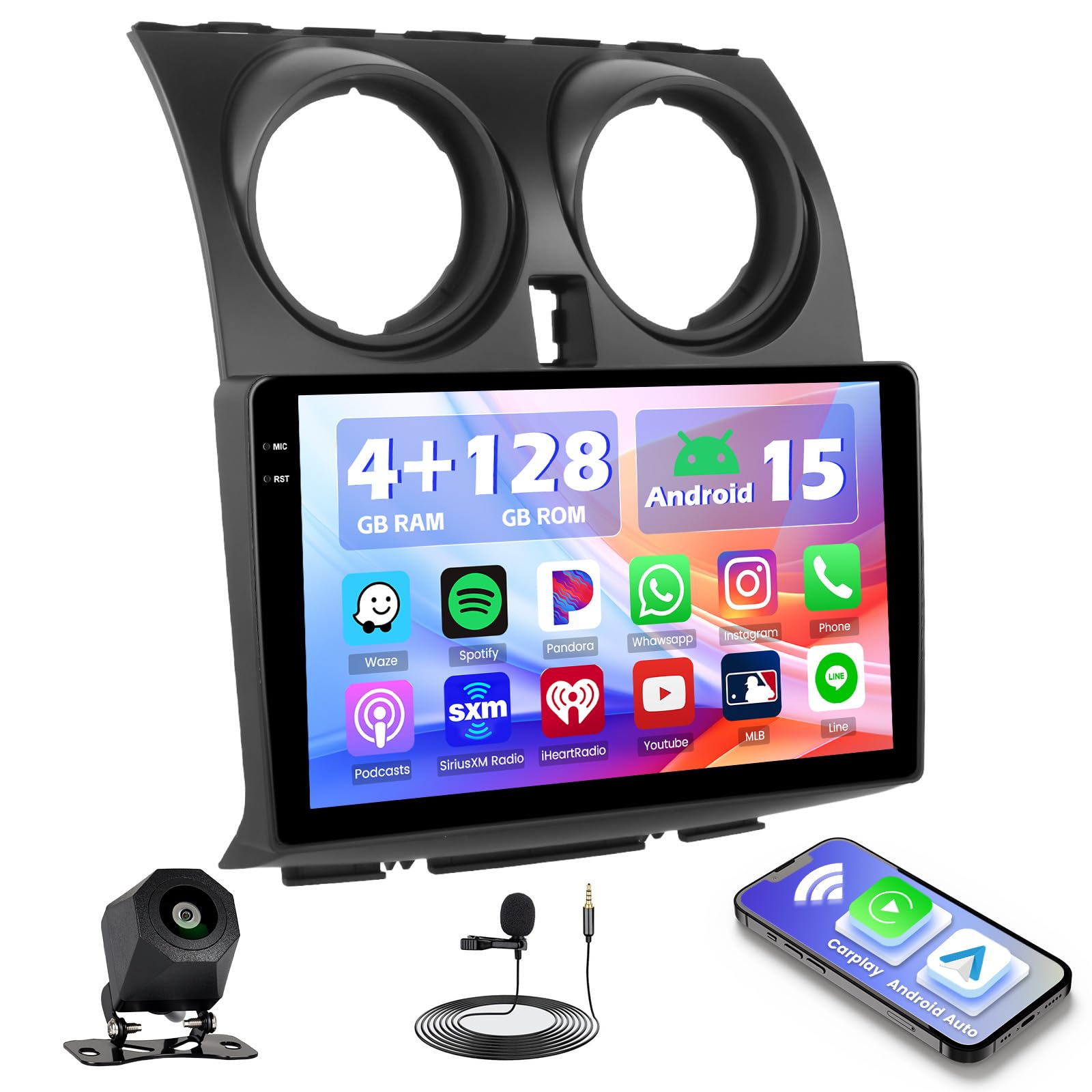
Figure 4.1: Compatible and incompatible dashboard configurations for Nissan Qashqai J10 (2006-2013).
4.2 Wiring Diagram
Refer to the following diagrams for correct wiring connections. Incorrect wiring can damage the unit or your vehicle's electrical system. If you are unsure, consult a professional.

Figure 4.2: Main wiring connections for the car radio unit.
4.3 Rear Camera Connection
Connect the included AHD rear view camera as shown in the diagram. Ensure the reverse trigger wire is correctly connected to enable automatic display when reversing.

Figure 4.3: AHD Backup Camera wiring diagram.
5. Operating Instructions
5.1 Wireless CarPlay & Android Auto
Enjoy seamless integration with your smartphone for navigation, music, and communication.
- Turn on Bluetooth on your car radio and your smartphone.
- Find your phone's Bluetooth name on the car radio and click to pair.
- Find and touch the 's-play' icon on the car radio to enter the CarPlay/Android Auto interface.
- Wait for the automatic connection. The interface will confirm a successful connection.
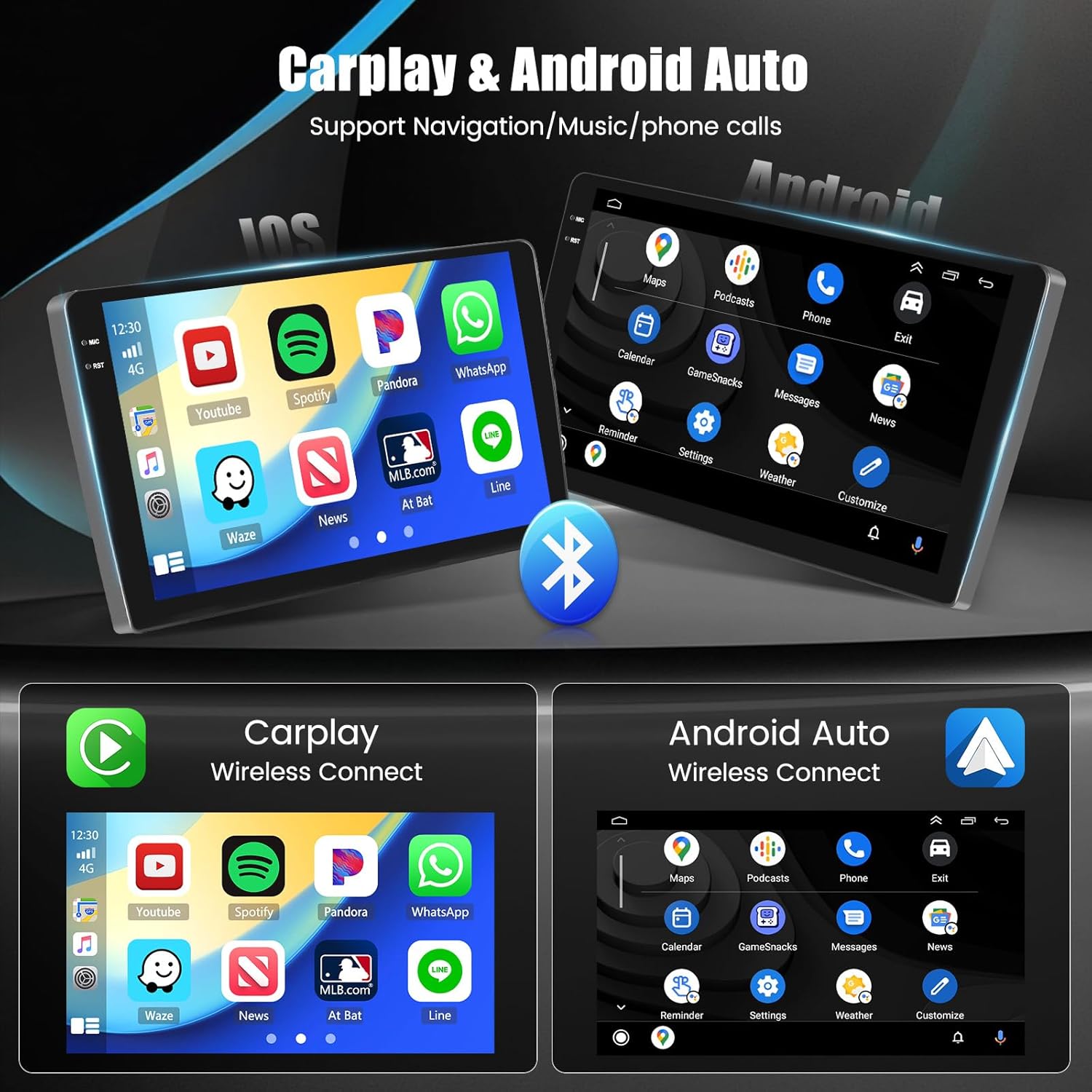
Figure 5.1: Wireless CarPlay and Android Auto interfaces.
5.2 Bluetooth 5.0
Connect your phone via Bluetooth for hands-free calls and audio streaming.
- Go to the Bluetooth settings on the car radio.
- Enable Bluetooth on your smartphone and search for the car radio's device name.
- Pair the devices. Once connected, you can make/receive calls and stream music.
5.3 GPS Navigation & 5G WiFi
The unit supports both online and offline navigation. Connect to a WiFi hotspot for real-time traffic updates and access to online services.
- Online Navigation: Connect to your phone's hotspot or a WiFi network to use online maps with live traffic data.
- Offline Navigation: Download map data for your region to use GPS navigation without an internet connection.
- 5G WiFi: Provides fast internet access for browsing, streaming, and downloading apps from the Google Play Store.
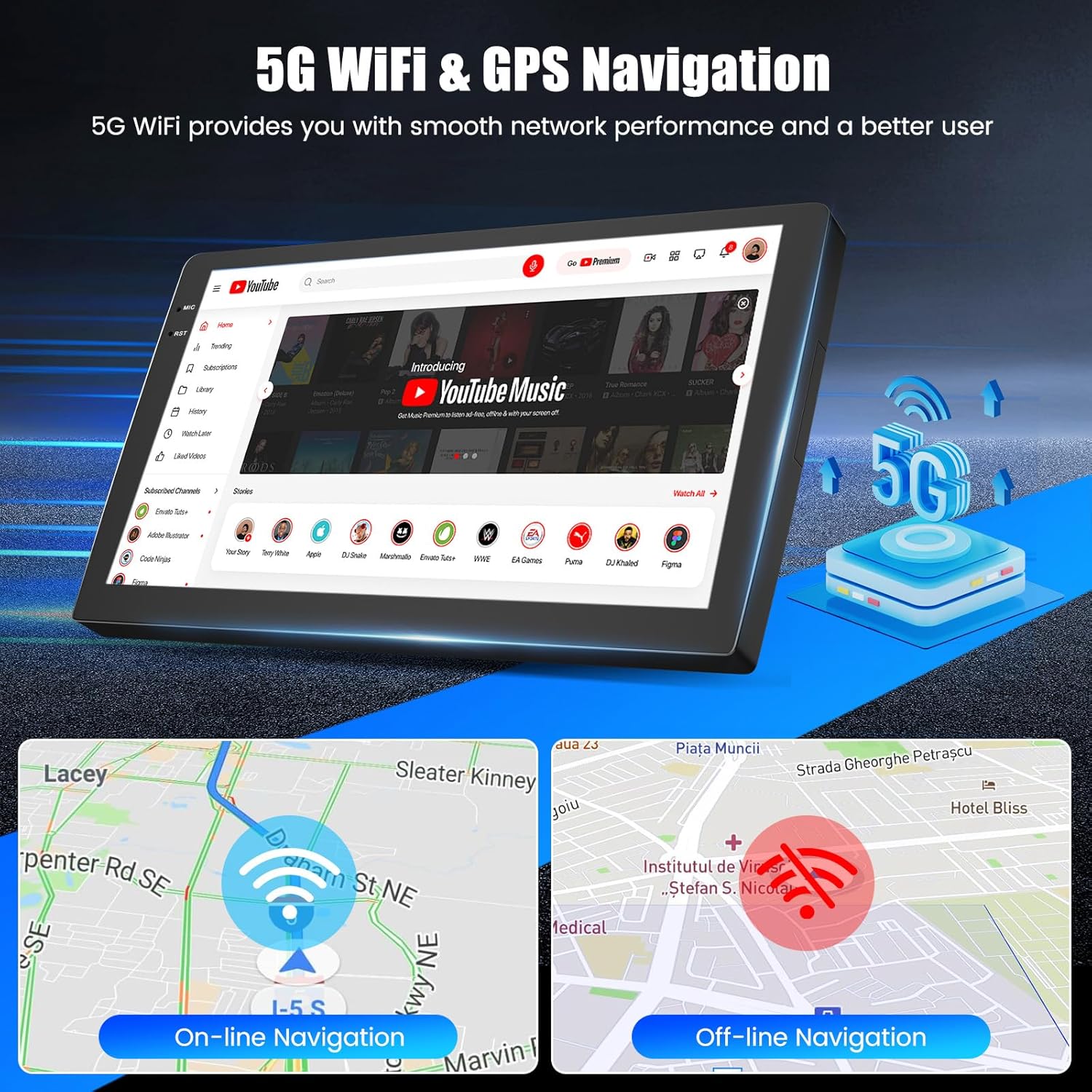
Figure 5.2: GPS Navigation with 5G WiFi connectivity.
5.4 EQ Audio & FM/RDS
Customize your audio experience and stay updated with radio broadcasts.
- EQ Adjustment: Access the built-in equalizer software to fine-tune sound frequencies for optimal acoustics.
- FM/RDS Radio: Tune into FM radio stations. RDS (Radio Data System) provides additional information like station name and song title where available.
5.5 Steering Wheel Control
Program your steering wheel buttons to control the car radio for convenience and safety.
- Connect the steering wheel control cables of the unit to the corresponding car cables.
- Enter "Setting" (slide the icon down to the left) and select "learn the steering".
- Before programming, press the "reset" button to clear any previous memory.
- Long press a function icon on the radio screen, then simultaneously press the relevant button on your car's steering wheel. Repeat for all desired functions.
5.6 Multitasking Features (Split Screen, Picture-in-Picture, Custom Desktop)
Enhance your in-car experience with advanced display options.
- Split Screen: Allows you to run two applications simultaneously, such as navigation and music playback.
- Picture-in-Picture: Display a video or navigation window in a smaller overlay while using another application.
- Custom Desktop APP: Organize and access your favorite applications directly from the home screen.
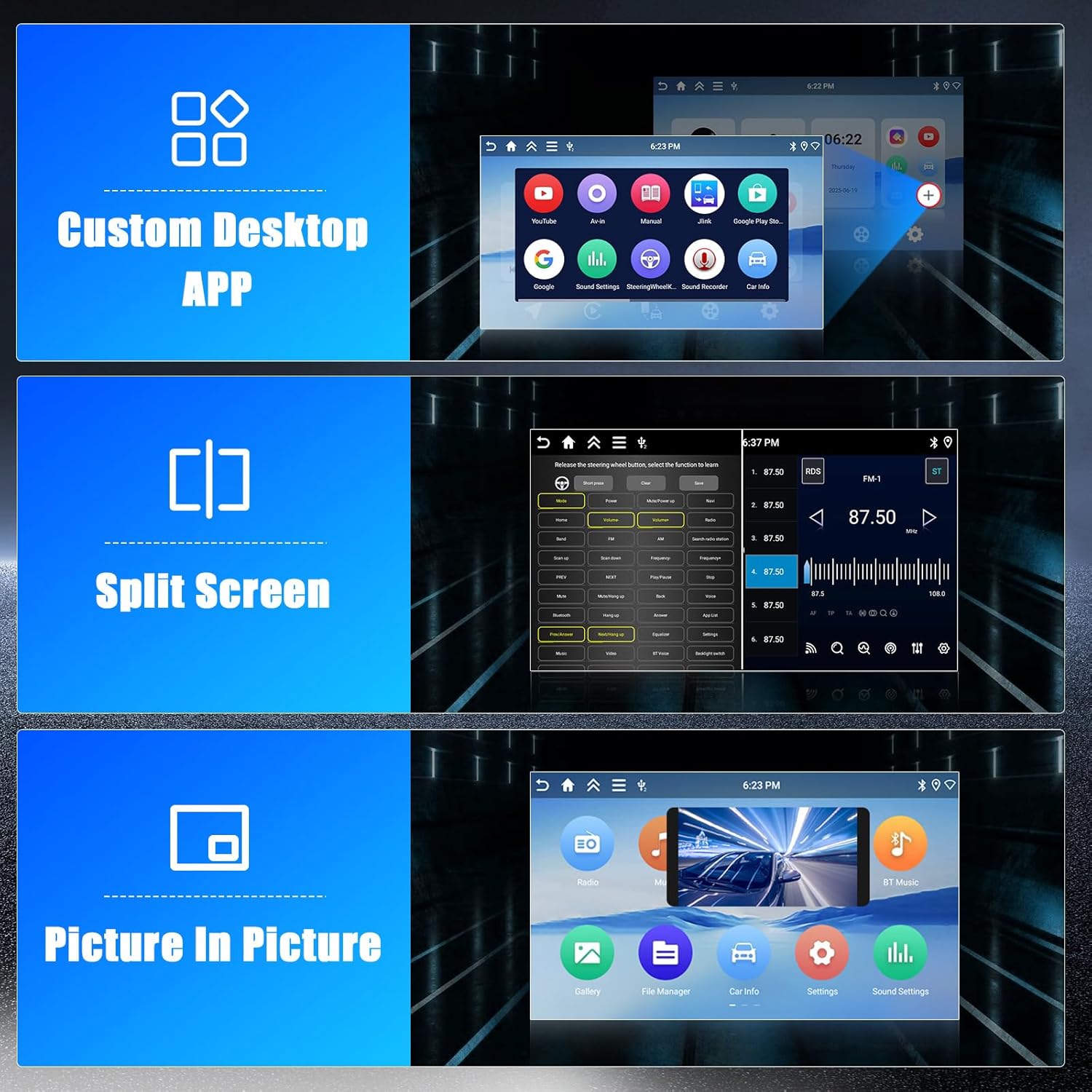
Figure 5.3: Custom Desktop, Split Screen, and Picture-in-Picture functionalities.
5.7 Mirror Link Function
Mirror your smartphone screen onto the car radio display.
- Supports both wireless and wired connections for Android and iOS devices.
- Follow the on-screen instructions in the 'Mirror Link' application on the car radio to establish the connection.
6. Maintenance
To ensure the longevity and optimal performance of your Hikity car radio, follow these general maintenance guidelines:
- Screen Cleaning: Use a soft, lint-free cloth to gently wipe the touchscreen. For stubborn smudges, slightly dampen the cloth with water or a screen-safe cleaner. Avoid harsh chemicals or abrasive materials.
- Software Updates: Periodically check for software updates provided by Hikity to ensure you have the latest features and bug fixes.
- Avoid Extreme Temperatures: Do not expose the unit to extreme heat or cold for extended periods, as this can affect its electronic components.
- Power Management: Ensure your vehicle's electrical system is in good condition to prevent power fluctuations that could harm the unit.
7. Troubleshooting
If you encounter issues with your car radio, refer to the following common troubleshooting steps:
- Unit Does Not Power On:
- Check all power connections to ensure they are secure.
- Verify the vehicle's fuse for the radio is not blown.
- Ensure the vehicle's ignition is on.
- Delayed Startup: Some units may experience a brief delay before fully booting up. If the delay is excessive (e.g., more than 1-2 minutes), ensure all wiring is correct and the unit is receiving stable power. A factory reset might resolve persistent delays.
- No Sound:
- Check volume levels on the unit and your connected device.
- Verify speaker wiring connections.
- Ensure the correct audio source is selected.
- GPS Signal Lost/Inaccurate:
- Ensure the GPS antenna is properly installed and has a clear view of the sky.
- Check for any obstructions that might block the signal.
- Bluetooth Connection Issues:
- Ensure Bluetooth is enabled on both the car radio and your smartphone.
- Delete previous pairings and try reconnecting.
- Restart both devices.
- Touchscreen Unresponsive:
- Restart the unit.
- Ensure the screen is clean and free of debris.
If these steps do not resolve the issue, please contact Hikity customer support for further assistance.
8. Specifications
| Feature | Detail |
|---|---|
| Brand | Hikity |
| Model Number | Hikity-A7174A4294H6MI2EU26 |
| Operating System | Android 15 |
| RAM | 4GB |
| ROM | 128GB |
| Processor | Quad-core Cortex-A35 @ 1.5 GHz |
| GPU | Mali G31 (supports 1080P video decoding) |
| Screen Size | 9 inches |
| Screen Type | Incell Touchscreen, 1280*720 resolution |
| Connectivity | Auxiliary, Bluetooth 5.0, USB, 5G Wi-Fi |
| Special Features | Wireless CarPlay, Android Auto, GPS Navigation, FM RDS, Home Page App Customization, Split Screen |
| Audio Output Mode | Stereo |
| Surround Sound Channels | 5.1 |
| Output Power | 45 Watts (per channel), 180 Watts total |
| Compatible Devices | Smartphone |
| Media Formats | AVI, WAV, WMA, MKV/RMVB/AVI/MP4/MDV etc. |
| Dimensions (L x W x H) | 27 x 23.5 x 8.5 cm |
| Item Weight | 1.89 Kilograms |
| Country of Origin | China |
9. Warranty and Support
9.1 Warranty Information
Your Hikity car radio comes with a 24-month warranty from the date of purchase. This warranty covers manufacturing defects and ensures the product meets its specified performance standards.
9.2 Customer Support
For any inquiries, technical assistance, or warranty claims, please contact Hikity Electronic customer support. We offer lifetime online support and aim to respond to all queries within 48 hours.
Seller: Hikity Electronic
Email: hikitysales@163.com
You can also visit the Hikity Storefront on Amazon for more information and support resources.