
1. Introduction
This manual provides detailed instructions for the installation, operation, and maintenance of your Jennov 4K 8MP Outdoor PTZ IP POE Camera. This camera is designed for outdoor security surveillance, featuring 4K Ultra HD resolution, 20X optical zoom, human detection, auto-tracking, 320ft IR night vision, and two-way audio capabilities.
2. Safety Information
- Ensure the power supply voltage matches the camera's requirements.
- Do not expose the camera to extreme temperatures, humidity, or strong magnetic fields.
- Avoid pointing the camera directly at strong light sources for extended periods.
- Disconnect power before performing any maintenance or installation.
- Only use accessories specified by the manufacturer.
- Keep out of reach of children.
3. Package Contents
Verify that all items are present in your package:

Image Description:
This image displays the Jennov PTZ camera along with its dimensions and a detailed packing list. The camera's components are labeled: 1) Bracket Base, 2) Bracket, 3) Metal Shell, 4) Sensor, 5) 6 IR LEDs, 6) Lens, 7) SD Card Slot. The packing list includes: 1M Ethernet cable, User Manual, Waterproof Cap, 12V 2A Power Supply, Warning Sticker, and Screws.
- Jennov 4K 8MP PTZ IP POE Camera
- 1M Ethernet Cable
- User Manual
- Waterproof Cap
- 12V 2A Power Supply
- Warning Sticker
- Mounting Screws
4. Product Overview
The Jennov 4K 8MP PTZ IP POE Camera is a high-performance surveillance device designed for comprehensive outdoor monitoring. It features advanced imaging and motion capabilities.

Image Description:
This image shows the Jennov 4K 8MP Outdoor PTZ IP POE Camera from a front-side angle. The camera is white with a black dome housing the lens, mounted on a white wall bracket. The Jennov logo is visible on the side of the camera body.
Key Features:
- Ultra 4K HD (8MP) Resolution: Provides clear and detailed video footage (3840*2160 pixels).
- 20X Optical Zoom & 10X Digital Zoom: Allows for detailed viewing of distant objects without loss of image quality.
- Pan-Tilt-Zoom (PTZ) Functionality: 360° pan and 90° tilt for wide area coverage.
- Auto Tracking & Human Detection: Automatically tracks detected human figures and sends alerts.
- Power Over Ethernet (POE): Simplifies installation with a single cable for power and data.
- 320ft IR Night Vision: Enhanced night vision with 6 high-performance infrared LEDs.
- Two-Way Audio: Built-in microphone and speaker for real-time communication.
- IP66 Weatherproof: Durable design for outdoor use in various weather conditions.
5. Setup and Installation
5.1 Mounting the Camera
Choose a suitable outdoor location for mounting the camera, ensuring a clear field of view and stable surface. Use the provided mounting screws and bracket base.
5.2 Power Over Ethernet (POE) Connection
This camera supports Power Over Ethernet (POE), simplifying installation by delivering both power and data through a single Ethernet cable. It is compatible with POE NVRs that support the Onvif protocol or a POE switch.
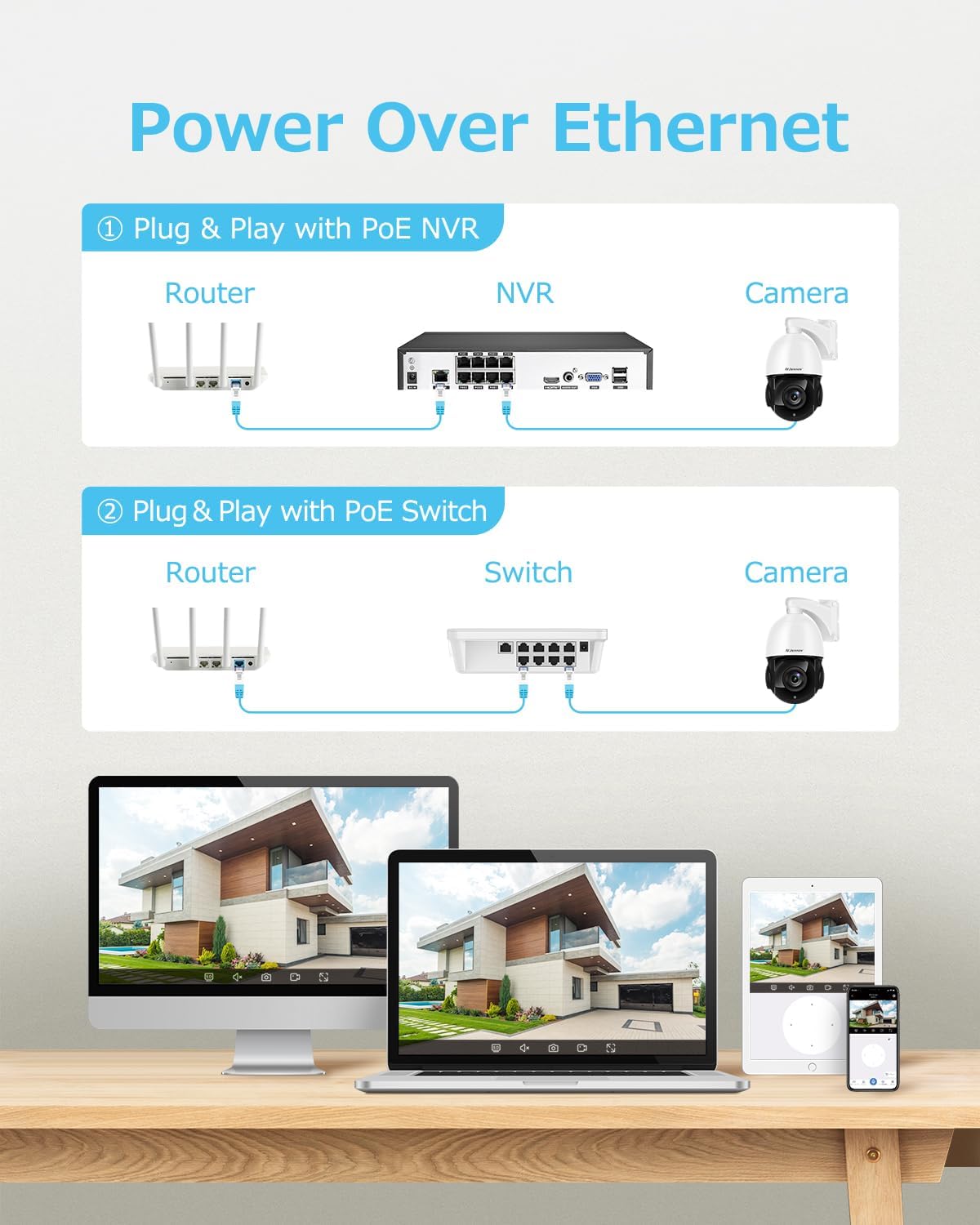
Image Description:
This diagram illustrates two methods for Power Over Ethernet (POE) connection. The first method shows the camera connected to a POE NVR, which is then connected to a router. The second method shows the camera connected to a POE Switch, which is then connected to a router. Below these diagrams, there are images of a desktop computer, laptop, and mobile phone displaying the camera's interface, indicating remote access capabilities.
- Connect one end of the Ethernet cable to the camera's Ethernet port.
- Connect the other end of the Ethernet cable to a POE NVR or a POE switch.
- Ensure the NVR or switch is connected to your network router.
- If not using POE, connect the provided 12V 2A power supply to the camera's power input.
Note:
- This camera is only compatible with POE NVRs that support the Onvif protocol.
- It cannot work with WiFi NVRs.
- 4K cameras have high network requirements; ensure your network environment is suitable.
5.3 Initial Configuration
After connecting the camera, use your POE NVR's interface or a compatible client software (Windows only, Mac users can use a browser) to discover and configure the camera. Refer to your NVR's manual for specific steps on adding IP cameras.
6. Operating Instructions
6.1 Pan, Tilt, and Zoom (PTZ) Control
The camera offers 360° pan and 90° tilt capabilities, allowing you to adjust the viewing angle remotely. The 20X optical zoom and 10X digital zoom enable close-up viewing of specific areas.
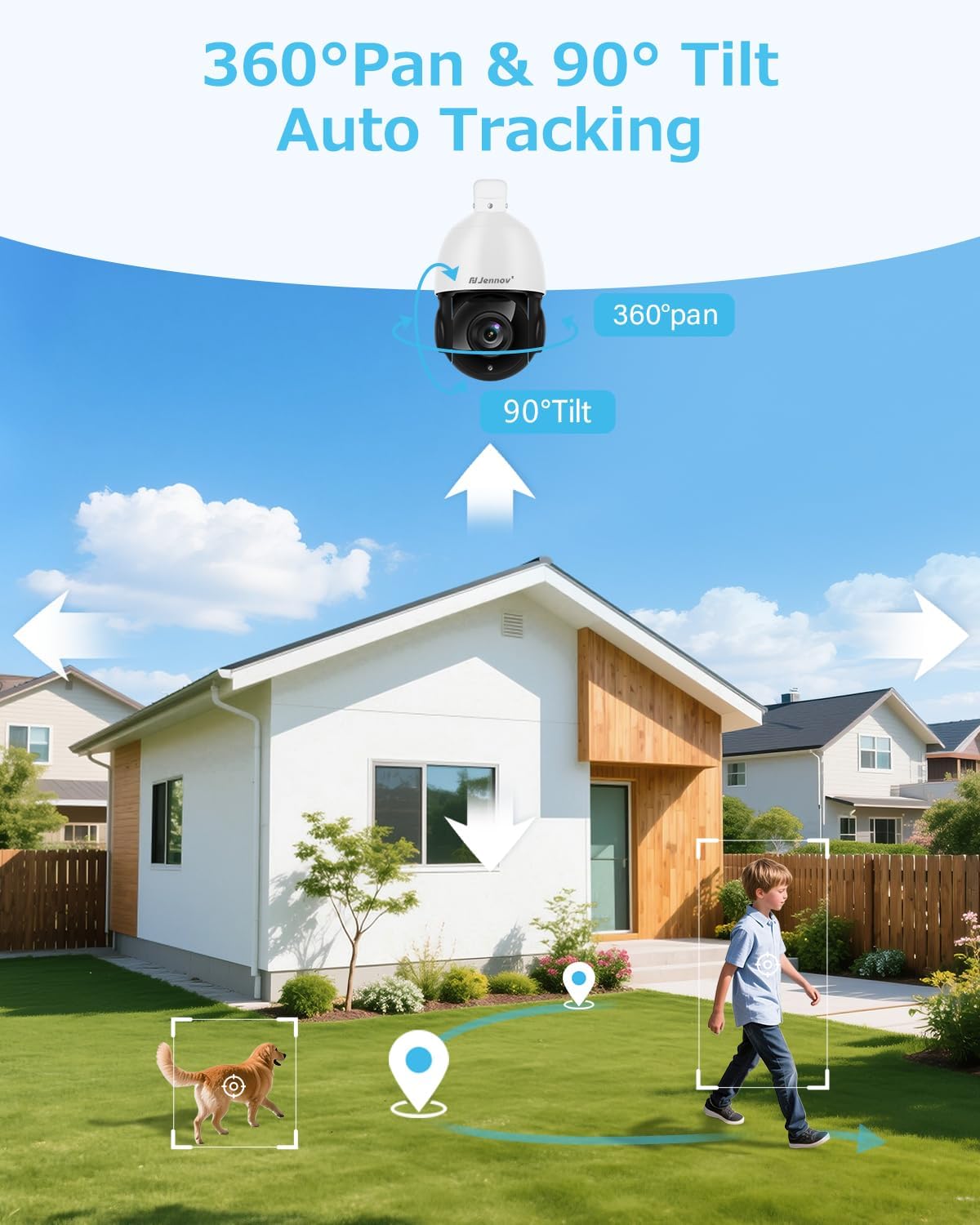
Image Description:
This image illustrates the 360° Pan and 90° Tilt capabilities of the Jennov PTZ camera, along with its auto-tracking feature. The camera is shown mounted above a house, with arrows indicating its pan and tilt range. Below, a child and a dog are shown moving across a lawn, with a blue line indicating the camera's auto-tracking path, demonstrating its ability to follow subjects.

Image Description:
This image demonstrates the camera's 30X zoom capability, combining 20X optical zoom and 10X digital zoom. The top part shows a wide view of a landscape with buildings and a pool, with a small inset showing a zoomed-in view of a distant tower. The bottom part shows three comparative images: 1X Optical Zoom, 10X Optical Zoom, and 20X Optical Zoom, clearly illustrating the increasing detail as the zoom level increases, focusing on a distant wind turbine.
Use the control interface in your NVR or mobile application to manually adjust the camera's pan, tilt, and zoom. You can also set up preset positions and cruising routes for automated monitoring.
- Supports 8 groups of cruising routes.
- Each route can be set to 16 preset positions.
6.2 Auto Tracking & Human Detection
The camera can automatically detect and track human figures within its field of view. This feature helps in focusing on relevant events and reducing false alarms.
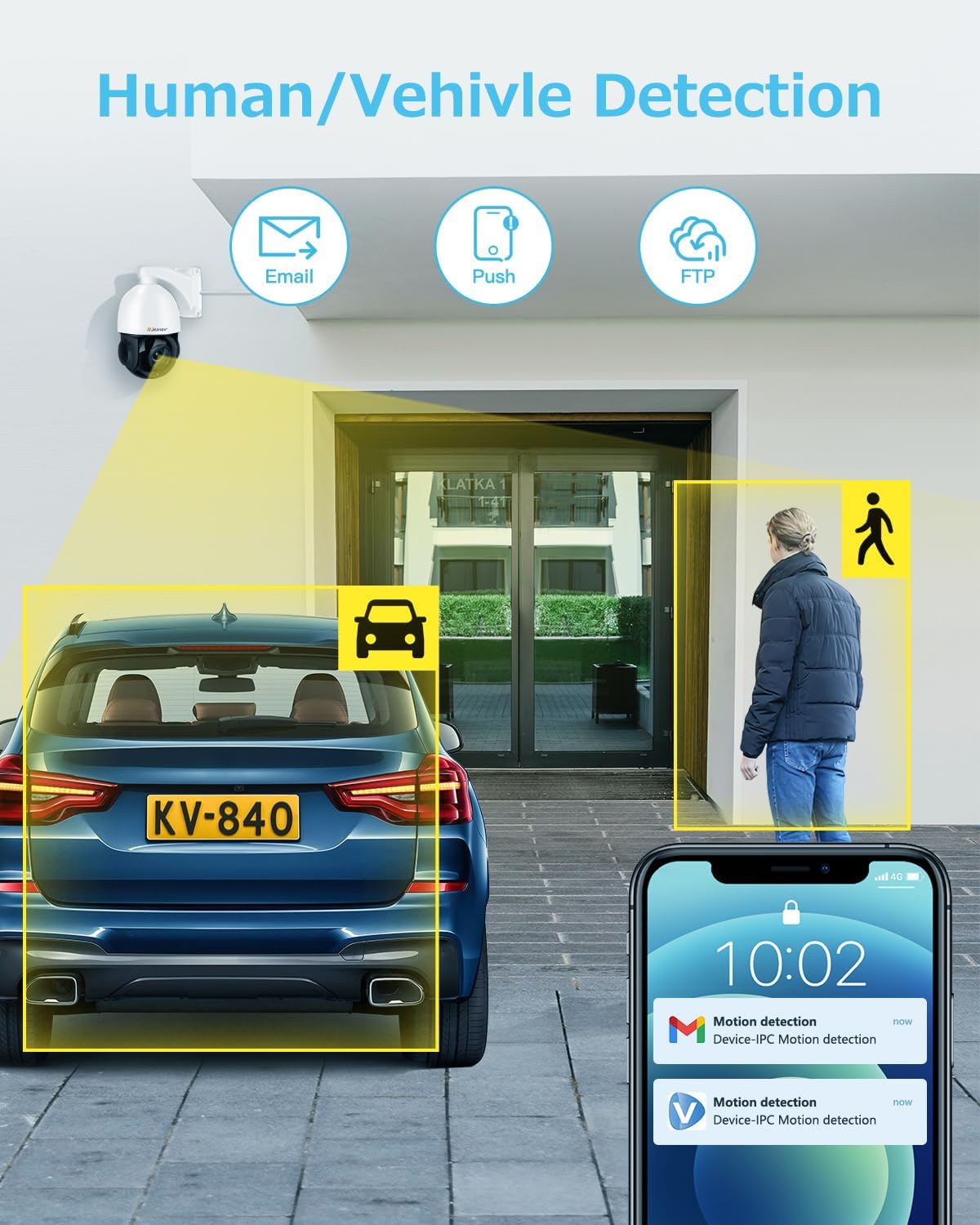
Image Description:
This image illustrates the camera's human and vehicle detection capabilities. A Jennov camera is shown mounted above an entrance, with yellow boxes highlighting a car and a person, indicating detection. Icons for Email, Push notifications, and FTP are shown, representing alert methods. A smartphone screen displays a notification for "Motion detection" and "Device-IPC Motion detection," demonstrating real-time alerts.
Configure detection areas and sensitivity settings through the camera's software interface to optimize performance and minimize unwanted alerts. When a person is detected, the camera will automatically track them and send real-time video/snapshots to your mobile phone.
Note: The camera can only track one target in the picture at a time.
6.3 Night Vision
The camera is equipped with 6 high-performance infrared LED lights, providing clear night vision up to 320 feet (approximately 97.5 meters). The IR-cut filter automatically switches between day and night modes.

Image Description:
This image demonstrates the camera's 328ft IR Night Vision. The top panel shows a clear, color daytime view of a residential area with the camera mounted on a house. The bottom panel shows the same scene in black and white, illustrating the advanced night vision capability, maintaining clarity even in darkness.
6.4 Two-Way Audio
The built-in microphone and speaker allow for real-time two-way communication. You can listen to audio from the camera's location and speak through the camera using the mobile application.
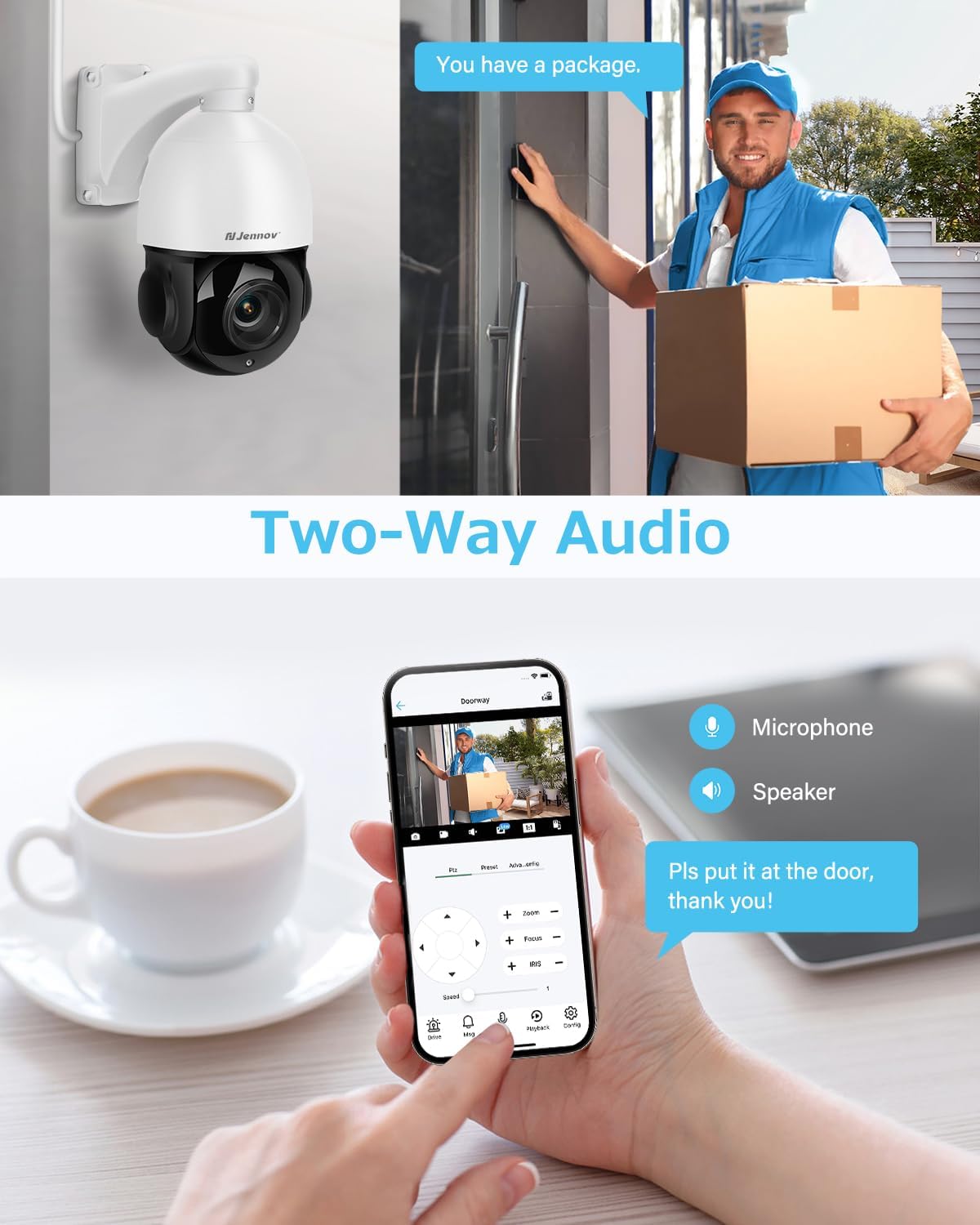
Image Description:
This image illustrates the two-way audio functionality of the Jennov camera. The top part shows a delivery person at a door, with a speech bubble indicating "You have a package." The bottom part shows a hand interacting with a mobile phone app interface, which includes microphone and speaker icons, and a text bubble saying "Pls put it at the door, thank you!", demonstrating remote communication.
Access the two-way audio feature via the dedicated button in the mobile application.
6.5 Remote Access
You can access your camera remotely via a mobile application (for smartphones) or a browser (for Mac users) and client software (for Windows users). This allows you to view live video, play back recordings, take snapshots, and receive motion alerts from anywhere.
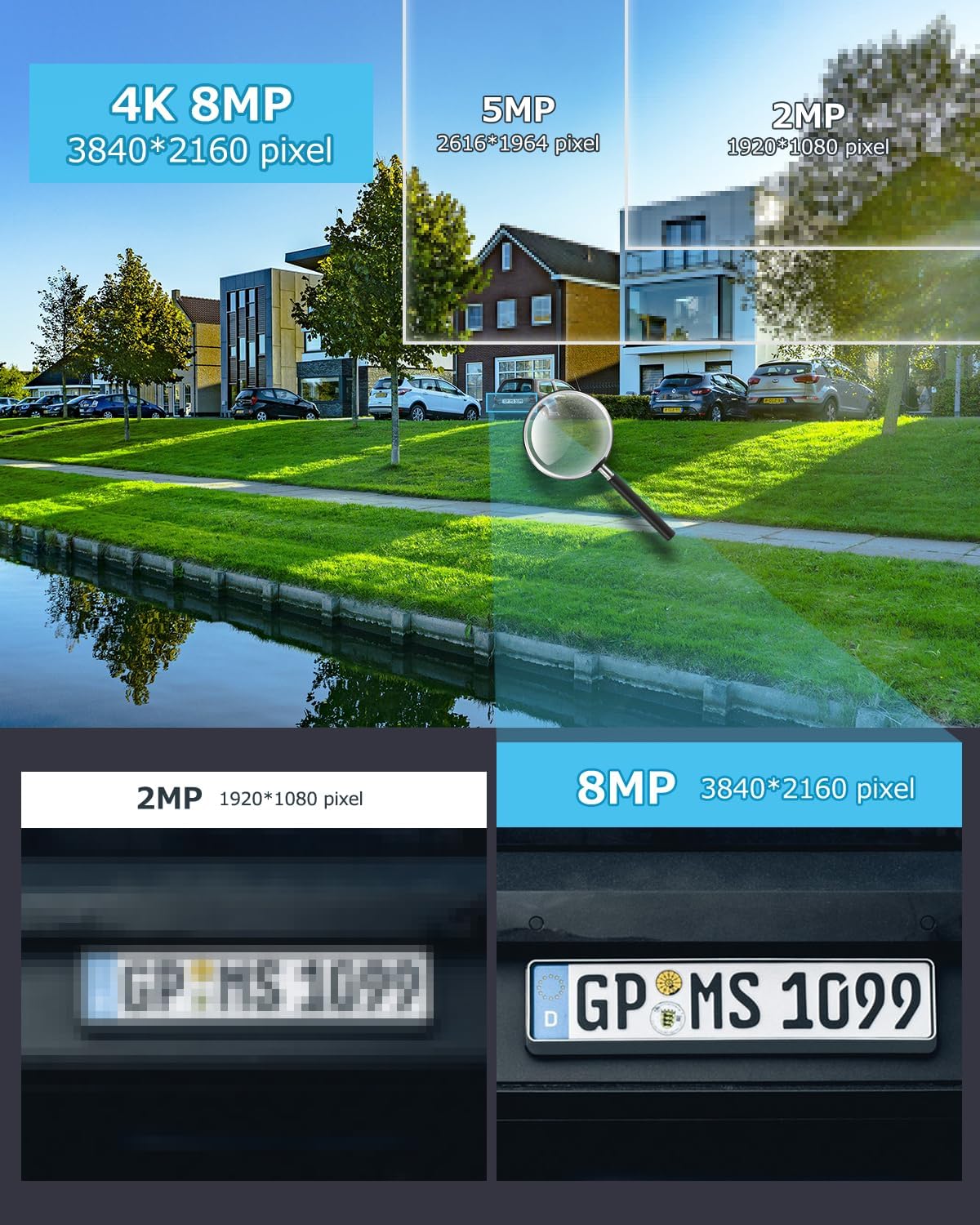
Image Description:
This image compares the clarity of 4K 8MP resolution (3840*2160 pixel) against 5MP (2616*1964 pixel) and 2MP (1920*1080 pixel) resolutions. The top part shows a scene with buildings and water, with a magnifying glass highlighting a section. The bottom part provides a direct comparison of a license plate, showing a blurred 2MP image versus a clear and readable 8MP image, emphasizing the superior detail of 4K resolution.
Ensure your camera is properly connected to the network and configured for remote access. Share access with family and friends as needed.
7. Maintenance
- Cleaning: Regularly clean the camera lens with a soft, dry cloth to ensure clear image quality. Do not use harsh chemicals.
- Firmware Updates: Check for and install firmware updates periodically to ensure optimal performance and security. Refer to the manufacturer's website or app for update instructions.
- Cable Inspection: Periodically inspect all cables for any signs of wear or damage, especially in outdoor environments.
- Environmental Protection: While IP66 rated, avoid direct exposure to extreme weather conditions if possible, and ensure the waterproof cap is securely installed.
8. Troubleshooting
| Problem | Possible Cause | Solution |
|---|---|---|
| No image/video output. | No power; Network connection issue; NVR/software not configured correctly. | Check power supply/POE connection. Verify Ethernet cable. Ensure camera is added and configured in NVR/software. |
| Poor image quality. | Dirty lens; Insufficient lighting; Network bandwidth issues (for 4K). | Clean the lens. Ensure adequate lighting or proper night vision settings. Check network speed and stability. |
| Auto-tracking not working. | Detection area/sensitivity not set correctly; Only one target can be tracked. | Adjust detection settings. Ensure only one primary target is in the tracking zone. |
| Cannot access camera remotely. | Network configuration issues (firewall, port forwarding); Incorrect app/software settings. | Verify network settings, router configuration. Ensure correct IP address/DDNS settings in app. |
| Two-way audio not functioning. | Microphone/speaker settings disabled; Network latency. | Check audio settings in the app/software. Ensure stable network connection. |
9. Specifications
| Feature | Description |
|---|---|
| Model Name | PS6006-NEW |
| Resolution | 8MP (4K Ultra HD, 3840*2160 pixel) |
| Optical Zoom | 20X (4.7~94mm motorized lens) |
| Digital Zoom | 10X |
| Pan Range | 360° |
| Tilt Range | 90° |
| Night Vision Range | Up to 320ft (6 high-performance IR LEDs) |
| Audio | Built-in Microphone & Speaker (Two-Way Audio) |
| Connectivity | Wired (Power Over Ethernet - POE) |
| Weatherproof Rating | IP66 |
| Compatibility | Onvif POE NVRs, Windows client, Mac (browser access) |
10. Warranty and Support
For warranty information and technical support, please refer to the official Jennov website or contact their customer service directly. Keep your purchase receipt as proof of purchase for warranty claims.
Jennov Official Website: Visit Jennov Store on Amazon
For common issues, refer to the troubleshooting section or online FAQs provided by Jennov.