1. Introduction
The Generic Q11 Smart Watch is a versatile digital device designed to integrate seamlessly into your daily life, offering both timekeeping and advanced smart functionalities. This device features Bluetooth calling, comprehensive fitness tracking, and smart notifications to keep you connected and informed.
Key features include:
- Bluetooth Calling: Make and receive calls directly from your wrist.
- Fitness Tracking: Monitor physical activities, steps, and exercise routines.
- Heart Rate Monitor: Track your heart rate throughout the day.
- Digital Display: Clear and easy-to-read interface for time, date, and notifications.
- Smart Notifications: Receive alerts for calls, messages, and app notifications.
- Waterproof Design: Suitable for everyday use, including exposure to splashes.
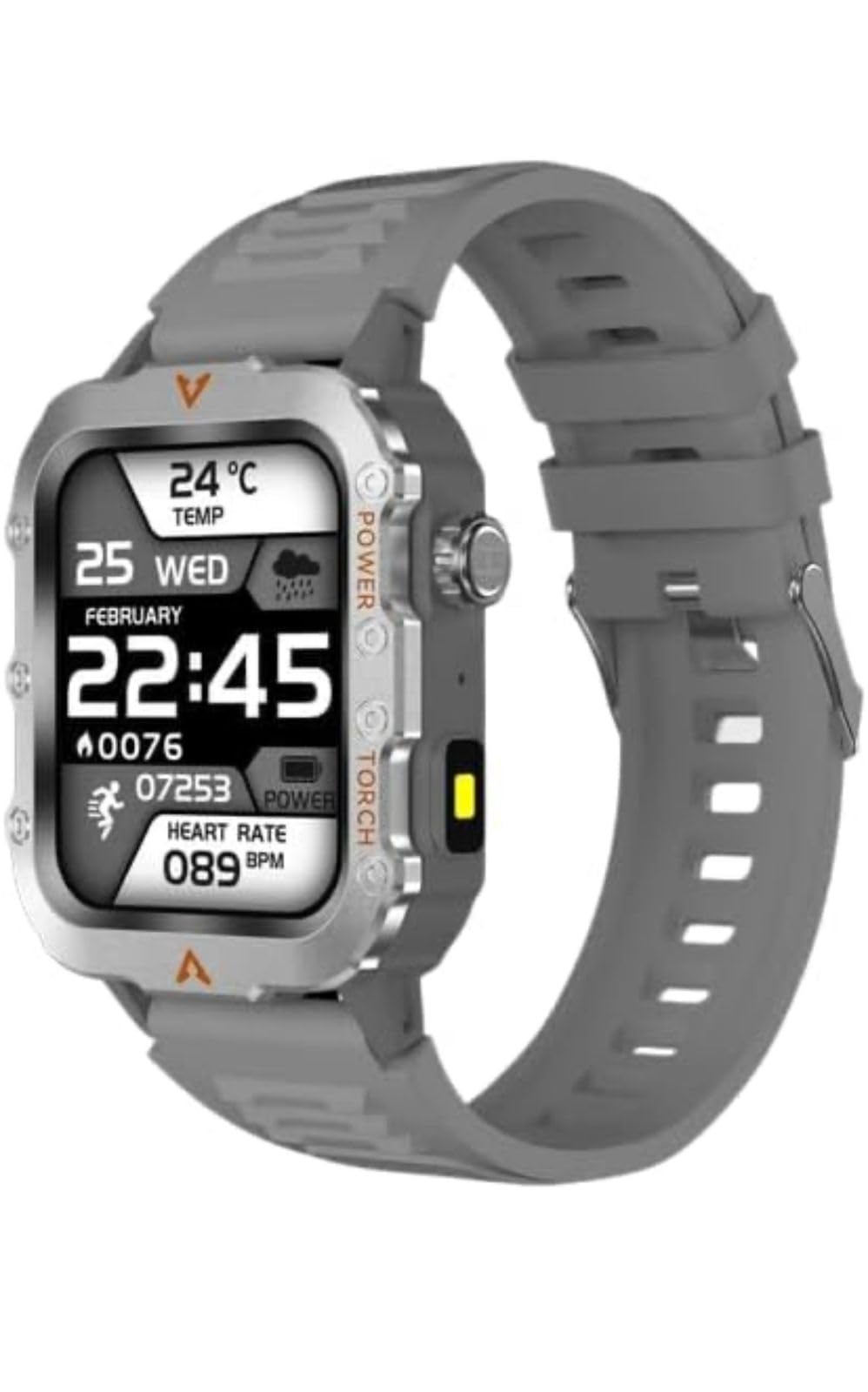
An image showing the Generic Q11 Smart Watch, highlighting its design with a dark gray strap and a square digital display.
2. Setup
2.1 Unboxing
Carefully remove all components from the packaging. The box should contain:
- 1 x Q11 Smartwatch
2.2 Charging the Device
Before first use, fully charge your Q11 Smart Watch.
- Connect the charging cable to the charging port on the back of the smartwatch.
- Plug the other end of the cable into a standard USB power adapter (not included) or a computer's USB port.
- The watch display will indicate charging status. A full charge typically takes approximately 2 hours.
2.3 Pairing with Your Smartphone
To access all smart features, pair your Q11 Smart Watch with a compatible smartphone (Android).
- Ensure Bluetooth is enabled on your smartphone.
- Download and install the companion app for the Q11 Smart Watch from your phone's app store. (Refer to the packaging or quick start guide for the specific app name).
- Open the app and follow the on-screen instructions to create an account or log in.
- In the app, select 'Add Device' or 'Pair New Device' and choose 'Q11' from the list of available devices.
- Confirm the pairing request on both your smartphone and the smartwatch.
3. Operating Instructions
3.1 Basic Navigation
The Q11 Smart Watch features both buttons and a touchscreen for navigation.
- Touchscreen: Swipe left, right, up, or down to navigate through menus and screens. Tap to select an item.
- Side Button(s): Typically used for power on/off, returning to the home screen, or accessing specific functions. Refer to the on-screen prompts for specific button actions.
3.2 Bluetooth Calling
Once paired with your smartphone, you can make and receive calls directly from your Q11 Smart Watch.
- Making a Call: Access the 'Phone' or 'Dialer' app on your watch. You can dial a number directly using the on-screen keypad or select a contact from your synced phonebook.
- Receiving a Call: When a call comes in, the watch will display the caller ID. You can answer or reject the call directly from the watch screen.

This image shows the Q11 Smart Watch on a wrist, with three screens illustrating its calling features: a call log with recent calls, a contacts list, and a numeric dial pad for making calls directly from the watch.
3.3 Fitness Tracking
The Q11 Smart Watch continuously monitors various fitness metrics.
- Steps: The watch automatically counts your daily steps.
- Heart Rate: Access the heart rate monitor function on the watch to measure your current heart rate. Continuous monitoring may be available through the companion app settings.
- Other Activities: The watch may offer modes for specific exercises. Consult the companion app for detailed tracking and historical data.
3.4 Smart Notifications
Receive notifications from your smartphone directly on your watch.
- Ensure notification permissions are granted to the companion app on your smartphone.
- Notifications for calls, messages, and selected apps will appear on your watch screen.
3.5 Outdoor Flashlight
The Q11 Smart Watch includes a convenient flashlight feature for low-light situations.
- To activate the flashlight, navigate to the 'Torch' or 'Flashlight' option in the watch's menu.
- The screen will illuminate brightly, providing a temporary light source.

The Q11 Smart Watch screen is illuminated, demonstrating its outdoor flashlight feature. The watch face shows 'POWER' and 'TORCH' labels, indicating the flashlight function.
4. Maintenance
4.1 Cleaning
To maintain the appearance and functionality of your smartwatch:
- Wipe the watch face and strap regularly with a soft, damp cloth.
- Avoid using harsh chemicals, abrasive cleaners, or solvents.
- Ensure the charging contacts are clean and dry before charging.
4.2 Water Resistance
The Q11 Smart Watch is designed to be waterproof, making it suitable for daily activities like hand washing or light rain. However, it is not recommended for swimming, diving, or prolonged submersion in water. Avoid exposure to hot water, steam, or high-pressure water jets.
4.3 Battery Care
To prolong battery life:
- Avoid fully discharging the battery frequently.
- Charge the watch using only the provided charging cable.
- Store the watch in a cool, dry place when not in use for extended periods.
5. Troubleshooting
If you encounter issues with your Q11 Smart Watch, try the following solutions:
- Watch not powering on: Ensure the watch is fully charged. Connect it to the charger and wait a few minutes before attempting to power it on again.
- Cannot pair with smartphone:
- Ensure Bluetooth is enabled on your phone and the watch is within range.
- Restart both your smartphone and the smartwatch.
- Check if the companion app is updated to the latest version.
- Forget the device in your phone's Bluetooth settings and attempt to pair again through the app.
- Inaccurate fitness data: Ensure the watch is worn snugly on your wrist, about one finger's width above your wrist bone. Clean the sensor on the back of the watch.
- Notifications not appearing: Check notification permissions for the companion app on your smartphone. Ensure the app is running in the background.
6. Specifications

This image illustrates the physical dimensions of the Q11 Smart Watch, including the watch face width (40mm), strap width (22mm), watch thickness (13mm), and total strap length (265mm). It also shows color options: dark gray, silver, and gold.
| Feature | Detail |
|---|---|
| Brand | Generic |
| Model Name | Q11 |
| Display Size | 1.78 Inches |
| Display Type | AMOLED |
| Battery Capacity | 350 Milliamp Hours |
| Charging Time | 2 Hours |
| Memory Storage Capacity | 32 GB |
| RAM Memory Installed Size | 1 GB |
| Operating System | Android |
| Connectivity Technology | Bluetooth |
| Special Features | Heart Rate Monitor |
| Compatible Devices | Smartphone |
| Device Interface | Buttons, Touchscreen |
| Item Weight | 45 g |
| Country of Origin | China |
7. Warranty Information
This product is typically covered by a 10-day replacement policy. For detailed warranty terms and conditions, please refer to the documentation provided at the time of purchase or contact the seller directly. Warranty policies may vary based on the retailer and region.
8. Support
For further assistance, technical support, or inquiries regarding your Q11 Smart Watch, please contact the manufacturer, GSMOBILE, or the seller, Gs electronic hub, through their respective customer service channels. Ensure you have your product model number (Q11) and purchase details available when contacting support.