Introduction
The XUMIUZIY Portable 4G/5G Mobile Hotspot provides high-speed wireless internet access on the go. This device allows you to connect multiple devices to a stable network using a 4G/5G SIM card, making it ideal for travel, home, or office use. It supports up to 10 connected devices simultaneously and features a built-in battery for extended operation.

Image: The mobile hotspot providing wireless internet coverage within a typical home environment, illustrating its signal reach.
Package Contents
Verify that all items are present in the package:
- 1 x Portable Hotspot Device
- 1 x USB Supply Cable
- 1 x User Manual
Product Overview
The XUMIUZIY Portable Hotspot is a compact device designed for ease of use. It features an LED display to indicate battery level, signal strength, and message notifications. The device includes a SIM card slot and a USB-C interface for charging.

Image: A close-up of the portable hotspot, showing its sleek design and key features such as the USB-C port, 4G/5G network support, and integrated 2100mAh battery.
Setup
1. Inserting the SIM Card
- Carefully remove the back cover of the hotspot device.
- Locate the SIM card slot.
- Insert your 4G/5G SIM card into the slot with the gold contacts facing down and the notched corner aligned correctly. Ensure it clicks into place.
- Replace the back cover securely.
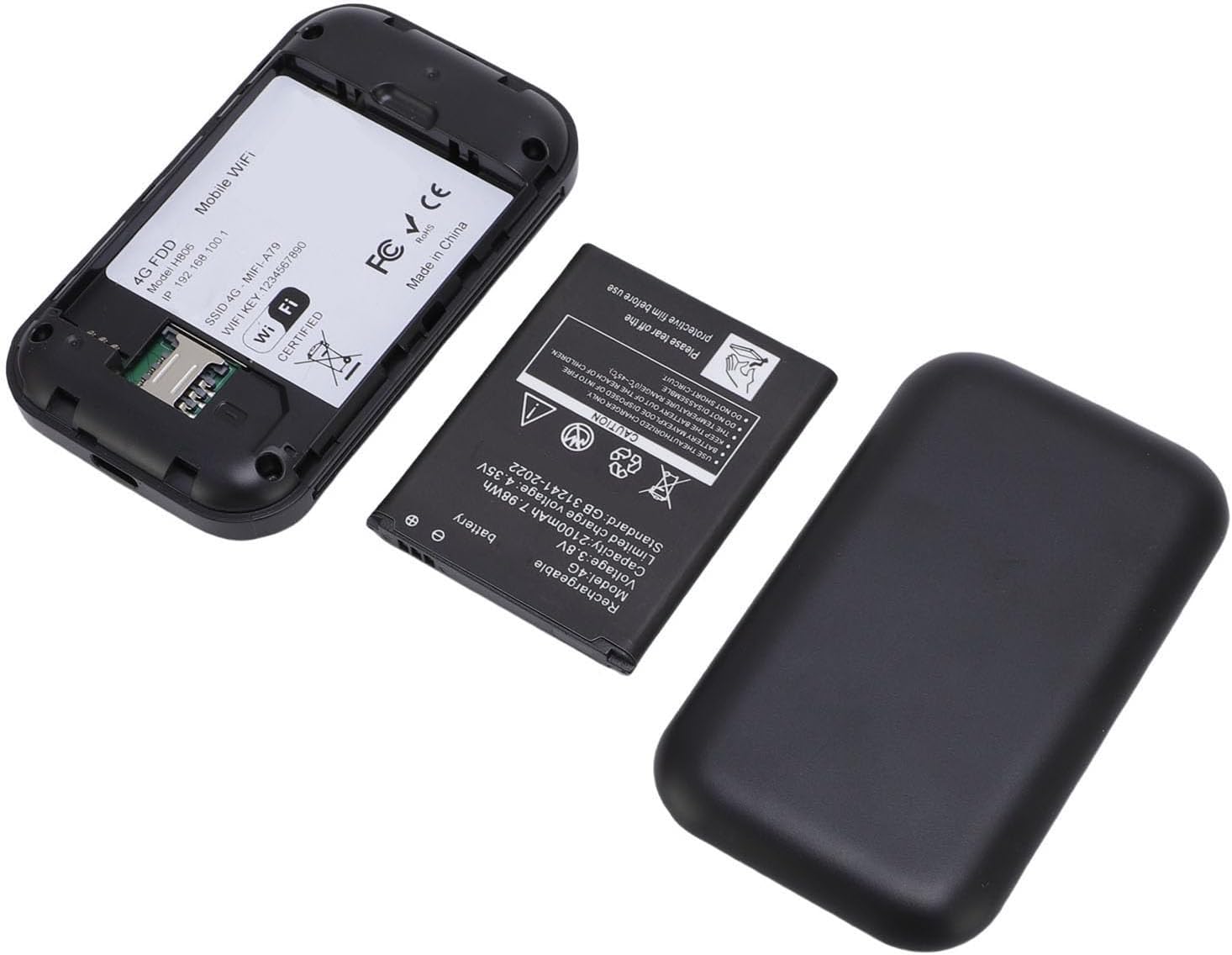
Image: The internal view of the hotspot with the back cover and battery removed, clearly showing the slot for SIM card insertion.
2. Charging the Device
- Connect the provided USB supply cable to the USB-C port on the hotspot.
- Connect the other end of the USB cable to a compatible USB power adapter (not included) or a computer's USB port.
- The LED display will indicate the charging status. Ensure the device is fully charged before first use for optimal battery performance.

Image: The portable hotspot displayed alongside its USB-C charging cable, illustrating the connection method for power supply.
3. Powering On/Off
- To Power On: Press and hold the power button located on the side of the device until the LED display illuminates.
- To Power Off: Press and hold the power button until the LED display turns off.
Operating Instructions
1. Connecting Devices to the Hotspot
- Ensure the hotspot is powered on and has an active SIM card with a data plan.
- On your Wi-Fi enabled device (smartphone, tablet, laptop), search for available Wi-Fi networks.
- Select the network name (SSID) corresponding to your XUMIUZIY hotspot. The SSID and password are typically found on a label inside the device or on the packaging.
- Enter the Wi-Fi password when prompted.
- Your device should now be connected to the internet through the hotspot. The hotspot supports connecting up to 10 devices simultaneously.
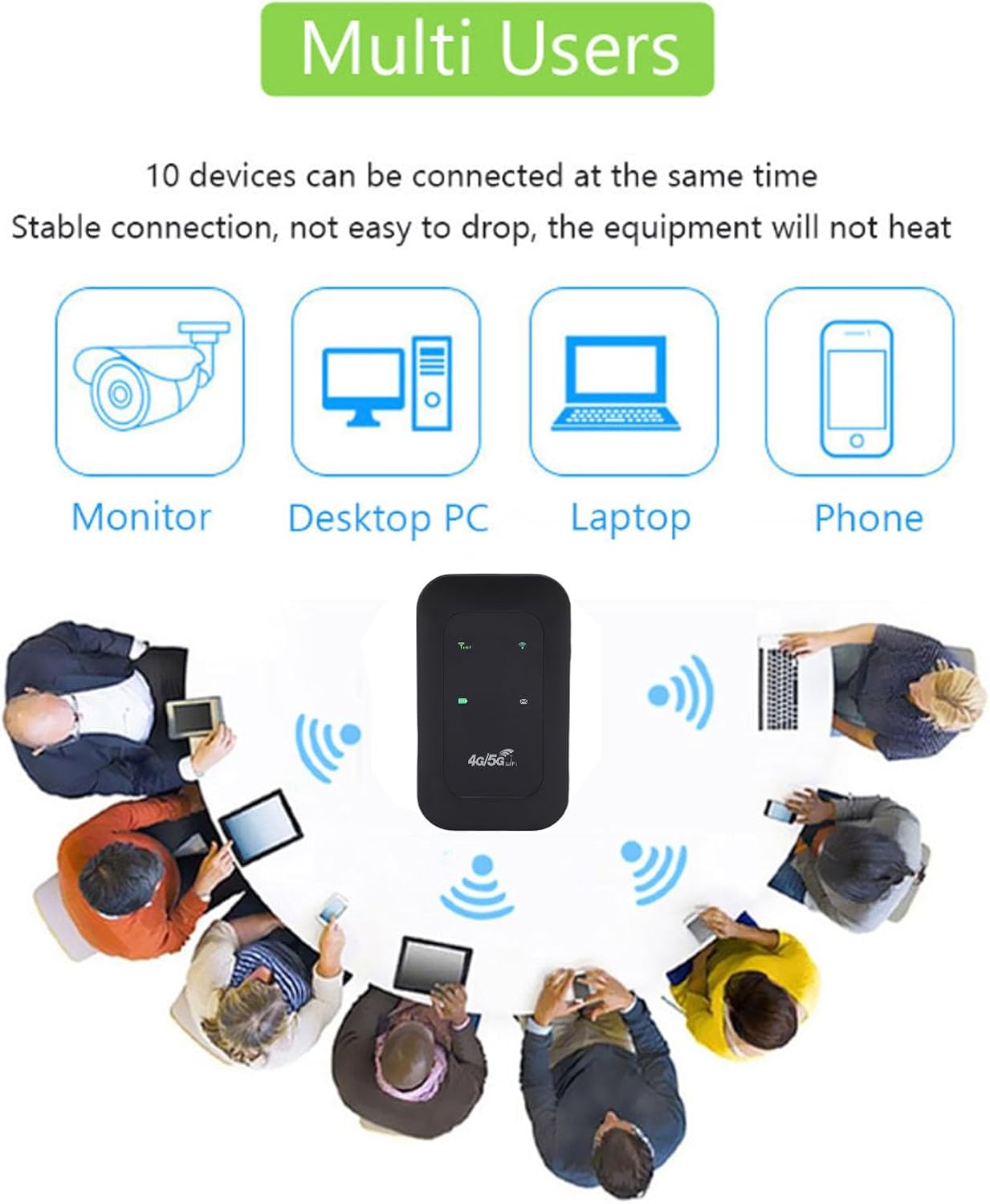
Image: A visual representation of the hotspot's capability to connect up to 10 devices concurrently, including various types of personal electronics.
2. Understanding LED Indicators
The LED display provides important status information:
- Signal Indicator: Shows the strength of the 4G/5G network signal. More bars indicate a stronger signal.
- Battery Indicator: Displays the current battery charge level.
- Wi-Fi Indicator: Illuminates when Wi-Fi is active and broadcasting.
- Message Indicator: May light up to indicate new SMS messages received on the SIM card.
3. Battery Management
The hotspot is equipped with a built-in 2100mAh Lithium-ion battery, providing over 10 hours of continuous use on a full charge. To maximize battery life:
- Charge the device fully before extended use.
- Reduce the number of connected devices if not all are needed.
- Avoid extreme temperatures.

Image: A graphic depicting the hotspot's battery status, highlighting its 2100mAh capacity which allows for over 10 hours of continuous operation.
Specifications
| Feature | Specification |
|---|---|
| Item Model Number | XUMIUZIY2sbknmqz0w |
| Network Bands | LTE: B1/B3/B5/B40, WCDMA: B1 |
| Wi-Fi Support | 802.11 b/g/n |
| Wireless Transmission Speed | Up to 300Mbps |
| SIM Card Slot | 1 x SIM Card (not included) |
| Battery Type | Built-in 2100mAh Lithium-ion Battery |
| Connected Devices | Up to 10 devices simultaneously |
| Item Weight | 3.84 ounces |
| Package Dimensions | 4.33 x 2.76 x 1.18 inches |
Maintenance
To ensure the longevity and optimal performance of your XUMIUZIY Portable Hotspot, follow these maintenance guidelines:
- Cleaning: Use a soft, dry cloth to clean the device. Avoid using liquid cleaners or abrasive materials.
- Storage: Store the device in a cool, dry place away from direct sunlight and extreme temperatures.
- Battery Care: If storing for an extended period, charge the battery to about 50% to prevent deep discharge. Recharge periodically if not in use.
- Avoid Impact: Protect the device from drops and physical shocks.
Troubleshooting
If you encounter issues with your hotspot, refer to the following common problems and solutions:
- No Network Signal:
- Ensure the SIM card is correctly inserted and activated with a data plan.
- Move to an area with better cellular coverage.
- Restart the hotspot device.
- Cannot Connect to Wi-Fi:
- Verify that the Wi-Fi password entered is correct.
- Check if the hotspot's Wi-Fi function is enabled (indicated by the Wi-Fi LED).
- Ensure you are within the Wi-Fi range of the hotspot.
- Restart both the hotspot and the connecting device.
- Slow Internet Speed:
- Check the network signal strength on the hotspot's LED display. A weak signal will result in slower speeds.
- Reduce the number of connected devices.
- Ensure your data plan has not been exhausted or throttled by your service provider.
- Battery Not Charging:
- Verify that the USB cable and power adapter are working correctly.
- Ensure the USB-C cable is securely connected to both the hotspot and the power source.
- Try a different USB cable or power adapter.
Safety Information
Please read and follow these safety precautions to prevent damage to the device or injury to yourself:
- Do not expose the device to water, moisture, or high humidity.
- Avoid exposing the device to extreme heat or cold.
- Do not attempt to disassemble, repair, or modify the device yourself. This may void the warranty and cause damage.
- Use only approved chargers and accessories.
- Dispose of the device and its battery responsibly according to local regulations. Do not dispose of in household waste.
Warranty and Support
Warranty information for your XUMIUZIY Portable 4G/5G Mobile Hotspot is typically provided at the time of purchase or can be found on the manufacturer's official website. Please retain your proof of purchase for warranty claims.
For technical support, troubleshooting assistance beyond this manual, or warranty inquiries, please contact XUMIUZIY customer service through the contact information provided with your product or on the manufacturer's website.