1. Introduction
This manual provides detailed instructions for setting up, operating, and maintaining your Tenda N300 WiFi Extender (Model R10-WT). This device is designed to expand your existing Wi-Fi network coverage, eliminate dead zones, and provide stable internet access to more devices in your home or office.
The Tenda N300 WiFi Extender supports both wireless extension (Repeater Mode) and wired extension (Access Point Mode) to suit various networking needs. It operates on the 2.4GHz band, offering speeds up to 300Mbps, and includes an Ethernet port for wired connections.
2. Product Overview

Image: Tenda N300 WiFi Extender (Model R10-WT) plugged into a wall outlet, showing its compact design.
Key Features:
- Reliable N300 WiFi Speed: Delivers up to 300Mbps on the 2.4GHz band for smooth browsing and streaming.
- Extended Coverage: Boosts existing Wi-Fi signal to cover up to 1200 sq. ft., supporting over 20 devices.
- Ethernet Port: Includes a 100Mbps Ethernet port for stable wired connections to devices like Smart TVs or game consoles.
- Dual Operating Modes: Functions as a WiFi Repeater or an Access Point (AP Mode).
- Easy Setup: Quick and simple setup process via a web browser, with intelligent signal indicators.
- Universal Compatibility: Works with most standard Wi-Fi routers and access points.
- IPv6 Support: Optimizes IPv6 traffic for improved performance.

Image: Visual representation of the Tenda N300's features, highlighting its 2x3 dBi high-gain omnidirectional antennas, intelligent LED, integrated design, easy setup, and excellent compatibility.
What's in the Box:
- Tenda N300 WiFi Extender (R10-WT)
- Quick Installation Guide
3. Setup and Installation
The Tenda N300 WiFi Extender can be configured in two primary modes: Wireless Extension (Repeater Mode) or Wired Extension (Access Point Mode). Follow the steps below for your preferred setup.
Installation Guide Video:
Video: Official Tenda N300 Wi-Fi Range Extender Installation Guide, demonstrating both wireless and wired setup procedures.
3.1. Wireless Extension (Repeater Mode)
This mode extends the coverage of your existing Wi-Fi network wirelessly.
- Placement: Plug the extender into a wall socket halfway between your main router and the Wi-Fi dead zone. Ensure the extender receives a fair signal from the router for optimal performance. Avoid placing it too close (can cause signal overlap) or too far (weak signal reception). The indicator light should be solid green after setup for a good connection.
- Power On: The system will start up when the indicator light blinks green.
- Connect to Extender: On your smartphone or computer, connect to the Wi-Fi network named "Tenda_EXT".
- Access Setup Page: A configuration page should automatically pop up in your web browser. If not, open a web browser and navigate to re.tenda.cn. (If using a smartphone, temporarily disable mobile data traffic if the page doesn't load).
- Select Network: Tap "Start Now" and select your home Wi-Fi network from the list.
- Enter Password: Enter the password for your home Wi-Fi network and tap "Next".
- Configure Extender Wi-Fi: You can choose to use your existing Wi-Fi password or set a new one for the extender's network. Tap "Next".
- Completion: Once the extension is successful, the indicator light on the extender will turn solid green. Connect your devices to the new extended Wi-Fi network (e.g., "your_wifi_name_EXT") using the password you set.
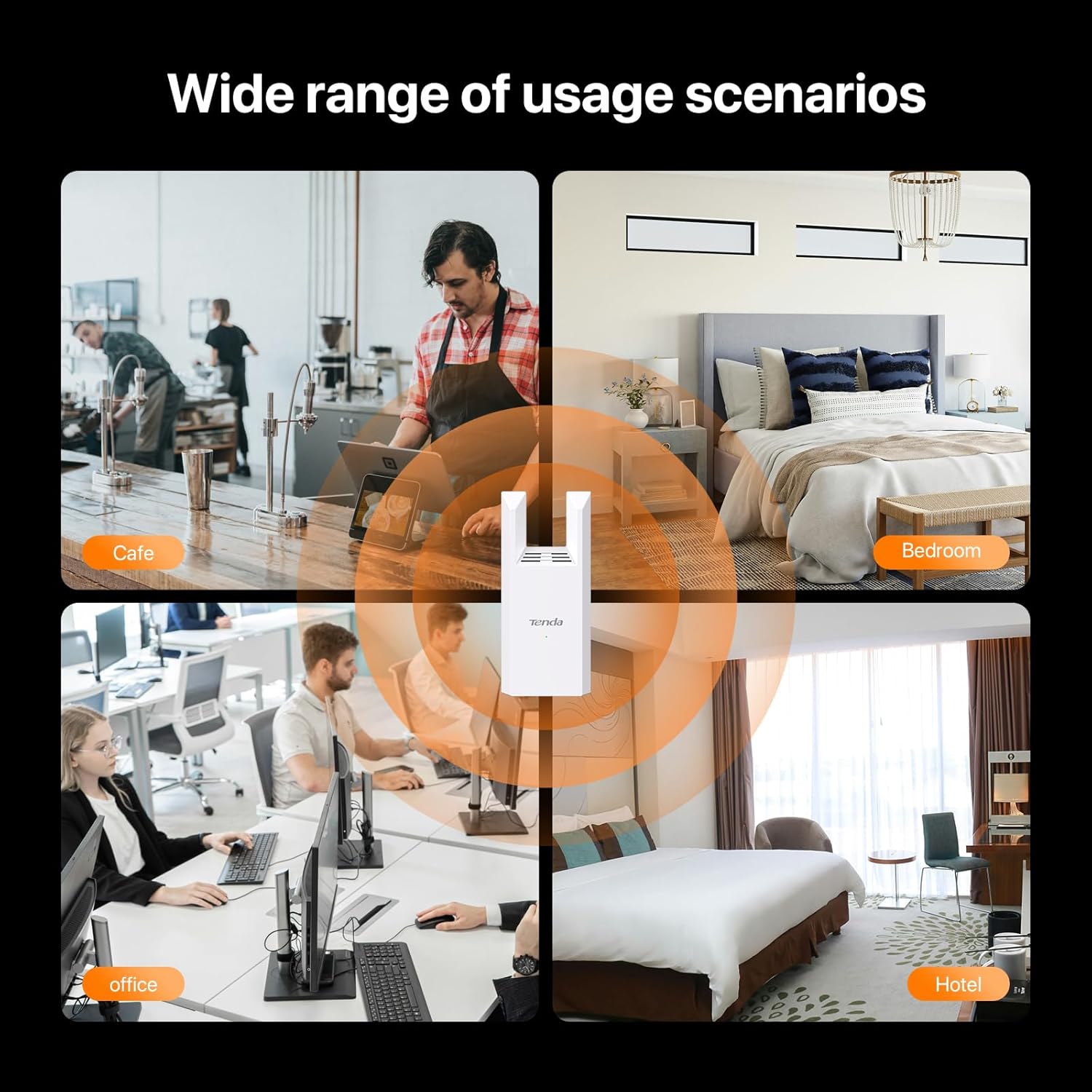
Image: Intelligent LED indicators on the extender. Green indicates a good connection, orange a fair connection, and red a poor connection.
3.2. Wired Extension (Access Point Mode)
This mode converts a wired internet connection into a Wi-Fi hotspot, ideal for rooms with Ethernet cables deployed.
- Connect Ethernet Cable: Connect an Ethernet cable from your router's LAN port (or a wall Ethernet port connected to the internet) to the Ethernet port on the Tenda N300 Extender.
- Power On: Plug the extender into a wall socket. The system will start up when the indicator light blinks green.
- Access Setup Page: On your smartphone or computer, connect to the Wi-Fi network named "Tenda_EXT". A configuration page should automatically pop up. If not, open a web browser and navigate to re.tenda.cn.
- Set Wi-Fi Password: The extender will detect "Wired Extension" mode. Set the Wi-Fi password for the extender's network.
- Completion: Once settings are completed, the indicator light on the extender will turn solid green. Your devices can now connect to the extender's Wi-Fi network for internet access.
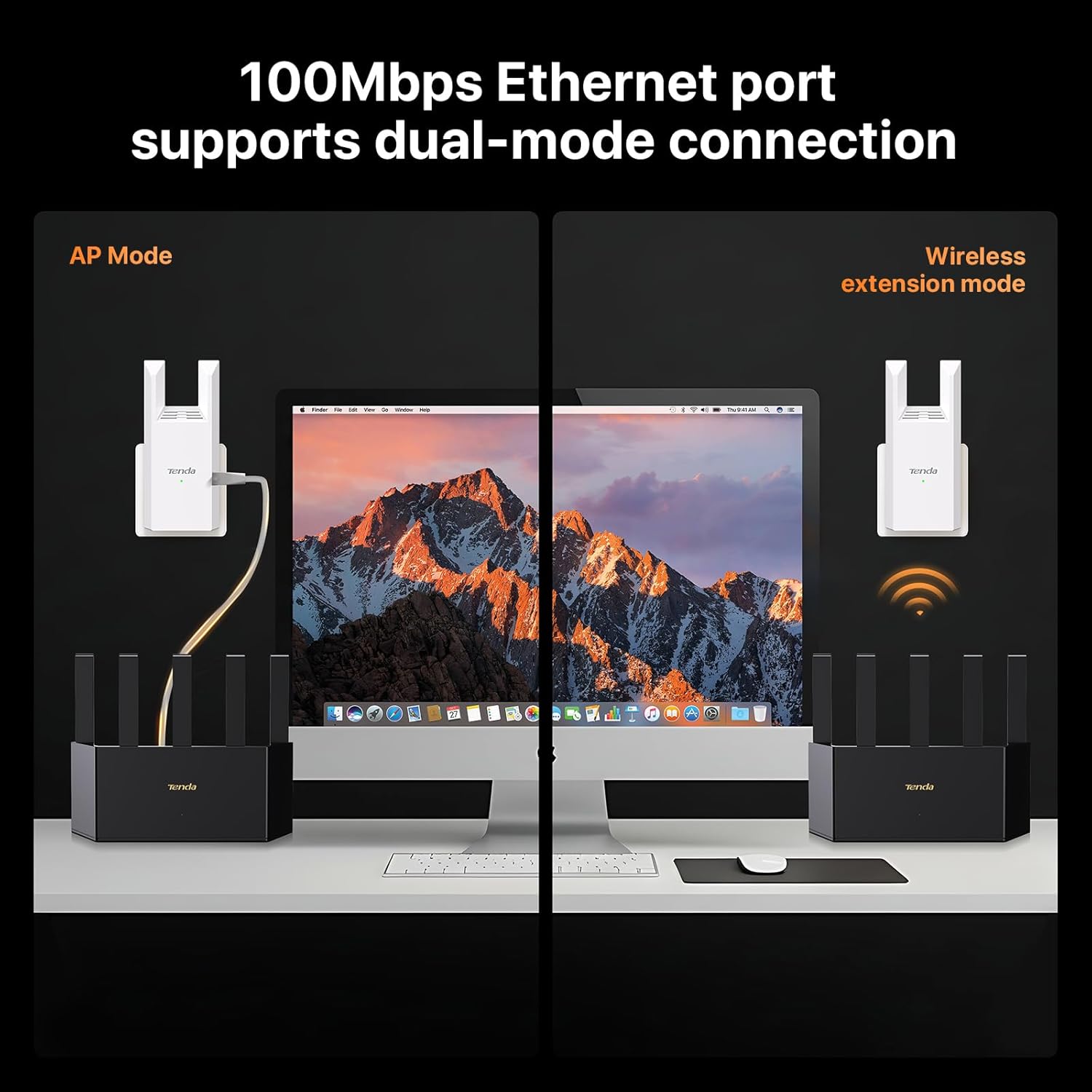
Image: The 100Mbps Ethernet port supports dual-mode connection, allowing the extender to function as an Access Point (AP Mode) or for wired client connections in Wireless Extension mode.
4. Operating Modes
4.1. Repeater Mode (Wireless Extension)
In Repeater Mode, the Tenda N300 Extender connects wirelessly to your existing router and re-broadcasts the signal, extending its range. This is ideal for covering areas where the main router's signal is weak or non-existent.
4.2. Access Point (AP) Mode (Wired Extension)
In AP Mode, the extender connects to your router via an Ethernet cable and creates a new Wi-Fi network. This is useful for providing Wi-Fi coverage in areas where running an Ethernet cable is feasible, offering a more stable connection than a purely wireless repeater.
5. Specifications
| Feature | Detail |
|---|---|
| Model | R10-WT |
| Brand | Tenda |
| Data Transfer Rate | 300 Megabits Per Second (Mbps) |
| Wireless Standard | 802.11a/b/g/n |
| Frequency Band Class | Single-Band (2.4 GHz) |
| Ethernet Port | 1 x 100Mbps Ethernet Port |
| Antennas | 2 x 3 dBi high-gain omnidirectional antennas |
| Coverage Area | Up to 1200 sq. ft. (approx. 111 m²) |
| Special Features | 1-Tap Setup, Access Point Mode, LED Indicator, IPv6 Support |
| Compatible Devices | IP Camera, Personal Computer, Router, Smartphone, Tablet |
| Product Dimensions | 7.4D x 9.9W x 18.2H Centimetres |
| Item Weight | 127 g |
| Color | White |
6. Troubleshooting
- No Setup Page Appears: If the configuration page does not automatically pop up after connecting to "Tenda_EXT", open a web browser and manually type re.tenda.cn into the address bar. If using a smartphone, ensure your mobile data traffic is temporarily disabled.
- Extender Indicator is Solid Red: A solid red light indicates a poor connection to the main router. Move the extender closer to your main router until the indicator light turns solid green.
- Extender Indicator Blinks Yellow (Wired Extension): If the indicator blinks yellow in Wired Extension (AP) mode, ensure the Ethernet cable is securely connected to both the extender and the internet source, and that the upstream router is connected to the internet.
- No Internet Access After Setup: Verify that your main router has an active internet connection. Recheck the Wi-Fi password entered during the extender setup. Ensure your device is connected to the extender's new Wi-Fi network (e.g., "your_wifi_name_EXT").
- Slow Speed: Wireless extenders improve coverage, not necessarily internet speed. If speeds are slower than expected, try repositioning the extender to a location with a stronger signal from the main router (aim for a solid green indicator). Ensure there are no major obstructions like thick walls or metal objects between the router and the extender.
7. Warranty and Support
For technical assistance or warranty inquiries, please contact Tenda support:
- Email: support.usa@tenda.cn (Monday to Friday)
- Phone: +1 800-570-5892


