
1. Introduction
The BEELINK EX Mate SE-A is an aluminum alloy stand designed to expand the capabilities of your compatible mini PC. It integrates dual M.2 PCIe SSD slots for significant storage expansion and multiple connectivity ports to enhance your workstation setup. This manual provides essential information for setup, operation, and maintenance.
2. Package Contents
Please verify that all items are present in your package:
- Mate SE-A Docking Station
- USB-C to USB-C 80Gbps PCB Cable (short)
- USB-C to USB-C 80Gbps PCB Cable (long)
- Instruction Manual (this document)
Video: Beelink EX Mate mini Unboxing
This video demonstrates the unboxing process of the Mate mini, showcasing the contents of the package including the main unit and connecting cables.
3. Product Overview
The Mate SE-A is designed for seamless integration with your mini PC, offering enhanced functionality and a sleek aesthetic.
Key Features:
- Dual M.2 PCIe SSD Expansion: Supports two M.2 NVMe SSDs (2280 size), each up to 8TB, for ultra-fast data storage and transfer.
- Blazing-Fast USB-C: Delivers up to 80Gbps data bandwidth, supports multi-display setups, external GPU, and high-speed data transmission.
- Comprehensive Connectivity: Includes 2× USB-A 3.0 ports, 1× Type-C (PD 3.0), 1× 2.5G Ethernet port, and 1× SD 4.0 slot.
- Premium Aluminum Alloy Design: Durable, elegant, and excellent for passive cooling. Acts as a stylish and functional stand for your Mini PC.
- Wide Compatibility: Tailored for BEELINK SER8, SER9, SEi13, SEi14 models.
Port Layout:
Familiarize yourself with the ports on your Mate SE-A docking station:
- Front: Power Indicator, USB-A 3.0 Ports, USB-C 80Gbps Port (for PC Connection)
- Side: SD 4.0 Card Slot
- Rear: 2.5Gbps Ethernet Port, USB-A 3.0 Ports, Type-C (PD 3.0)

Image: Mate SE-A Docking Station Port Layout
This image displays the various ports available on the Mate SE-A, including USB-A 3.0, 2.5Gbps Ethernet, USB-C 80Gbps, and SD 4.0 Card Slot.

Image: Minimalist Aesthetics and Seamless Integration
This image highlights how the Mate SE-A perfectly mirrors the design of compatible mini PCs, focusing on details for visual harmony and a clean setup.
Video: Beelink Mate mini 80Gbps Dock for Mac mini M4
This video provides an overview of the Mate mini 80Gbps dock, highlighting its features and design, and demonstrating its compatibility with Mac mini M4.
4. Setup
4.1 SSD Installation
The Mate SE-A supports dual M.2 PCIe SSDs for storage expansion. Follow these steps to install your SSDs:
- Carefully open the SSD compartment on the bottom of the Mate SE-A.
- Insert your M.2 NVMe SSD (2280 size) into the available slot. Ensure it is seated correctly.
- Secure the SSD with the provided screw or rubber stand-off.
- Close the SSD compartment cover.
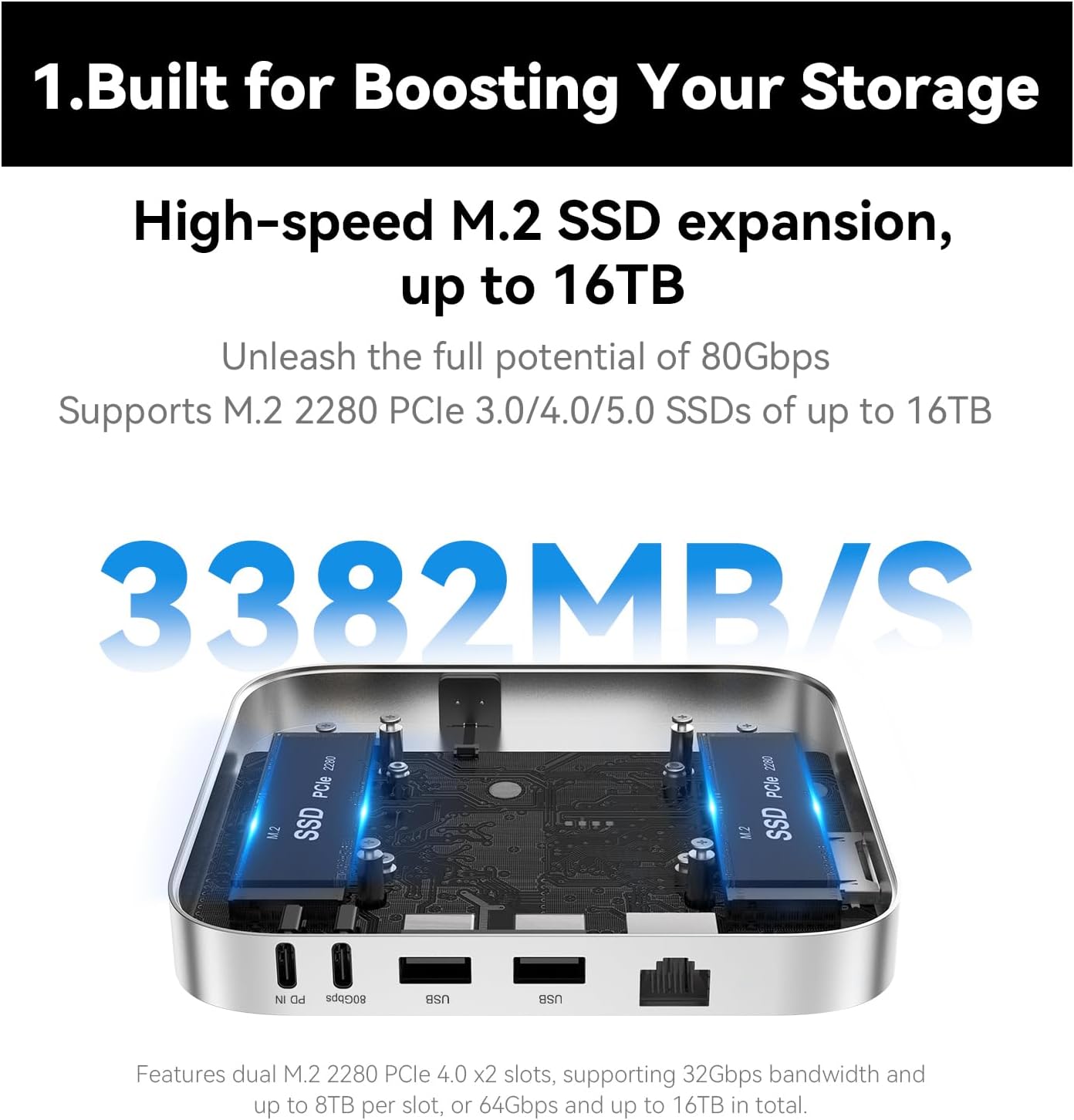
Image: High-speed M.2 SSD Expansion
This image illustrates the dual M.2 2280 PCIe 4.0 x2 slots, supporting up to 16TB of storage and high-speed data transfer.
Video: How to Install macOS onto the Mate mini's SSD
This video provides a detailed guide on installing an SSD into the Mate mini and subsequently installing macOS onto it. It covers formatting the SSD and migrating data.
Video: ACASIS M4 Mac Mini Workstation SSD Installation Guide
This video demonstrates the process of installing SSDs and thermal pads into a Mac Mini workstation, providing visual instructions for proper setup.
4.2 Connecting to your Mini PC
The Mate SE-A is designed to sit directly beneath your compatible mini PC. Use the provided 80Gbps USB-C PCB cable to connect the two devices.
- Place your mini PC (e.g., BEELINK SER8) on top of the Mate SE-A docking station.
- Connect one end of the 80Gbps USB-C PCB cable to the USB-C 80Gbps port on the Mate SE-A.
- Connect the other end of the cable to a compatible Thunderbolt/USB-C port on your mini PC.

Image: 80Gbps USB-C Cable Connection
This image shows how to connect the Mate SE-A to your mini PC using the included 80Gbps USB-C cable, illustrating both top and bottom connection methods.
5. Operating Instructions
5.1 Powering On/Off
The Mate SE-A draws power directly from your mini PC via the 80Gbps USB-C connection. The power indicator on the front will glow white when active.
5.2 Connecting Peripherals
Utilize the various ports on the Mate SE-A to connect your peripherals:
- USB-A 3.0 Ports: For keyboards, mice, external hard drives, and other USB-A devices.
- 2.5Gbps Ethernet Port: For high-speed wired network connectivity.
- SD 4.0 Card Slot: For fast data transfer from SD cards (up to 300MB/s).
- Type-C (PD 3.0) Port: This port can be used for supplementary power if your connected peripherals demand more than 15W in total. Use an external PD adapter (not included) for power supply.

Image: Supplementary Power Port
This image highlights the Type-C (PD 3.0) port, which can be used with an external PD adapter for power supply if peripherals exceed 15W total power demand.
6. Maintenance
6.1 Cleaning
To maintain the appearance and functionality of your Mate SE-A, wipe it gently with a soft, dry, lint-free cloth. Avoid using harsh chemicals or abrasive materials.
6.2 Storage
When not in use for extended periods, store the Mate SE-A in a cool, dry place away from direct sunlight and extreme temperatures.
7. Troubleshooting
7.1 Connectivity Issues
- No power/device not recognized: Ensure the 80Gbps USB-C PCB cable is securely connected between the Mate SE-A and your mini PC. Check the power indicator light on the Mate SE-A.
- Peripherals not working: If multiple power-hungry peripherals are connected, consider using an external PD adapter with the Mate SE-A's Type-C (PD 3.0) port.
- SSD not detected: Verify that the M.2 SSD is correctly installed and secured in its slot. Ensure your operating system drivers are up to date.
7.2 Linux Compatibility
While the Mate SE-A functions with Windows 11, some users have reported compatibility issues with certain Linux distributions (e.g., Ubuntu 24.04.3) regarding drive and Ethernet port recognition. Beelink EX does not officially support Linux for the Mate SE-A. If you encounter issues, ensure your Linux kernel and drivers are up to date, or consider using a supported operating system.
8. Specifications
| Model | Mate SE-A |
| Material | Aluminum Alloy |
| Product Dimensions | 5 x 5 x 0.7 inches (135 x 135 x 18mm without foot pads) |
| Item Weight | 14.4 ounces (284g) |
| SSD Expansion | Dual M.2 2280 PCIe SSD slots (up to 8TB*2) |
| USB-C Port | 1x USB-C 80Gbps (for PC Connection) |
| USB-A Ports | 2x USB-A 3.0 |
| Ethernet Port | 1x 2.5G LAN |
| SD Card Slot | 1x SD 4.0 |
| Power Delivery | 1x Type-C (PD 3.0) for supplementary power (15W) |
| Compatible Devices | BEELINK SER8, SER9, SEi13, SEi14 |
9. Warranty and Support
For warranty information and technical support, please refer to the documentation included with your purchase or visit the official BEELINK EX website. Contact information for customer service can typically be found on the product packaging or the brand's online store.