1. Introduction
This manual provides essential information for the proper installation, operation, and maintenance of your MikroTik hEX S (E60iUGS) wired router. Please read this document thoroughly before using the device to ensure optimal performance and safety.
1.1 Package Contents
- MikroTik hEX S (E60iUGS) wired router
- Power adapter
- Quick start guide
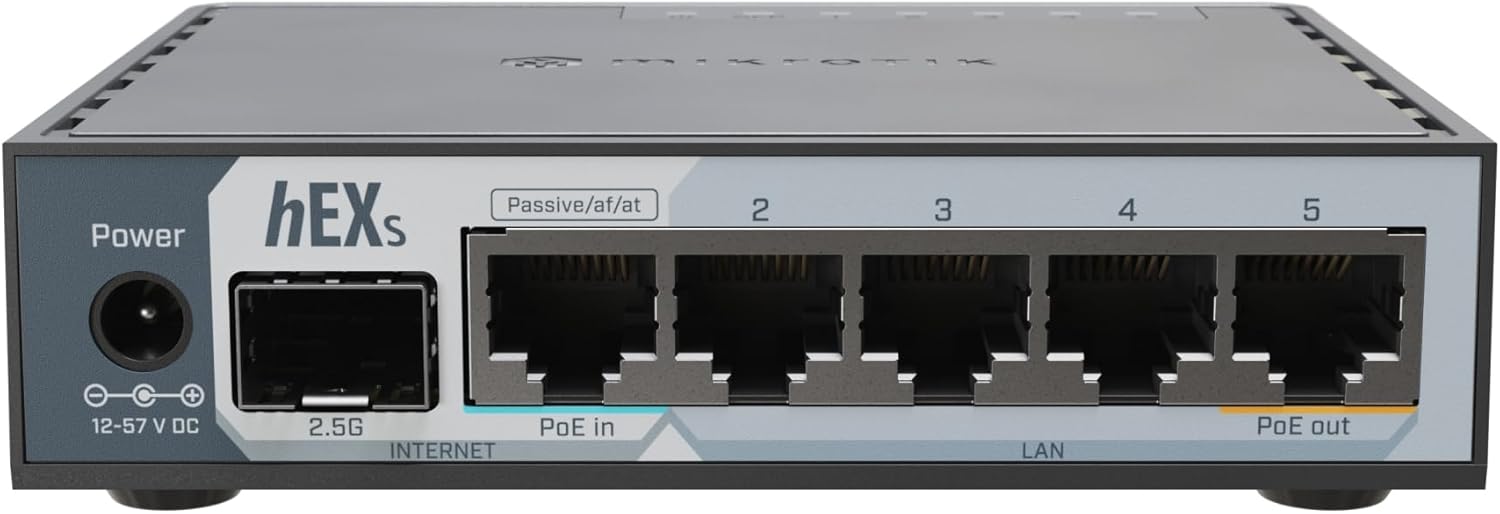
Figure 1: MikroTik hEX S (E60iUGS) wired router. This image shows the front panel of the router, highlighting the power input, 2.5G SFP port, and five Gigabit Ethernet ports, with one supporting PoE in and another supporting PoE out.

Figure 2: Power adapter for the MikroTik hEX S. This image displays the black power adapter with its cable and barrel connector, used to power the router.
2. Setup
2.1 Physical Installation
- Placement: Position the router on a flat, stable surface in a well-ventilated area, away from direct sunlight and heat sources. Ensure the ambient temperature is within the tested range of -40°C to 70°C.
- Power Connection: Connect the provided power adapter to the DC jack input on the router and then plug the adapter into a power outlet. The router supports 12-57 V DC input. Alternatively, the device can be powered via PoE-IN on the Ether1 port (18-57 V).
- Ethernet Connections:
- Connect your internet source (e.g., modem) to the Ether1 port (labeled 'Internet' or 'PoE in').
- Connect your local network devices (computers, switches, access points) to the Ether2-Ether5 ports.
- The Ether5 port supports Passive PoE out up to 57V, with a current limit of 0.5 A for both low and high voltage.
- SFP Port Connection: If using fiber optic connectivity, insert a compatible 2.5G SFP module into the SFP port.
- USB Connection: The USB 3.0 Type A port can be used for external storage or other compatible USB devices.
2.2 Initial Configuration Access
The MikroTik hEX S runs on RouterOS. For initial configuration, connect a computer directly to one of the LAN Ethernet ports (Ether2-Ether5). The device typically has a default IP address (e.g., 192.168.88.1) and can be accessed via a web browser (WinBox utility is also available for Windows users).
Refer to the MikroTik documentation for detailed RouterOS configuration guides, as the initial setup may require network knowledge.
3. Operating the Device
The hEX S is a powerful wired router designed for advanced network management. It does not include wireless functionality.
3.1 RouterOS Overview
RouterOS is a highly versatile operating system offering extensive control over network functions including routing, firewall rules, Quality of Service (QoS), VLANs, and more. While powerful, it has a learning curve for users unfamiliar with advanced networking concepts.
3.2 Key Features
- CPU: Dual-core EN7562CT at 950 MHz for efficient processing.
- Memory: 512 MB RAM and 128 MB NAND storage.
- Ethernet Ports: Five 10/100/1000 Gigabit Ethernet ports.
- SFP Port: One 2.5G SFP port for high-speed fiber connectivity.
- PoE Capabilities: PoE-IN on Ether1 (802.3af/at) and Passive PoE-OUT on Ether5.
- USB: One USB 3.0 Type A port with USB Power Reset functionality.
- IPsec Hardware Acceleration: Enhances VPN performance.
4. Maintenance
4.1 Firmware Updates
Regularly update RouterOS to the latest stable version to ensure security, stability, and access to new features. Updates can be performed via the RouterOS interface (WebFig or WinBox).
4.2 Environmental Conditions
The device is designed for operation in ambient temperatures from -40°C to 70°C. Ensure proper airflow around the device as it uses passive cooling. Avoid exposing the device to excessive dust or moisture.
4.3 Cleaning
Use a soft, dry cloth to clean the exterior of the device. Do not use liquid cleaners or aerosols.
5. Troubleshooting
5.1 Common Issues
- No Power: Ensure the power adapter is securely connected to both the router and a working power outlet. Check the power LED indicator.
- Cannot Access Configuration Interface:
- Verify your computer is connected to a LAN port (Ether2-Ether5).
- Check your computer's IP settings to ensure it's on the same subnet as the router (e.g., 192.168.88.x).
- Try accessing via WinBox if web access fails.
- No Internet Connectivity:
- Ensure the internet source is connected to Ether1.
- Verify your ISP connection is active.
- Check RouterOS configuration for correct WAN settings (IP address, gateway, DNS).
5.2 Resetting the Device
The hEX S features a Mode button. Pressing and holding this button during power-up can initiate various reset options, including resetting to factory defaults. Consult the RouterOS documentation for specific reset procedures and their implications.
6. Specifications
| Feature | Detail |
|---|---|
| Product Code | E60iUGS |
| Architecture | ARM |
| CPU | EN7562CT, Dual-core 950 MHz |
| RAM | 512 MB |
| Storage | 128 MB NAND |
| Operating System | RouterOS v7 (License 4) |
| Ethernet Ports | 5x 10/100/1000 Gigabit Ethernet |
| SFP Ports | 1x 2.5G SFP |
| PoE In | 802.3af/at (18-57 V) |
| PoE Out | Passive PoE up to 57V on Ether5 (0.5 A limit) |
| USB Port | 1x USB 3.0 Type A (with Power Reset) |
| Max Power Consumption | 23 W (5 W without attachments) |
| Dimensions | 2.36 x 0.79 x 0.79 inches (approximate) |
| Item Weight | 13.1 ounces (370 Grams) |
| Tested Ambient Temperature | -40°C to 70°C |
| Certification | CE, EAC, ROHS |
7. Warranty and Support
7.1 Product Warranty
MikroTik products are covered by a limited warranty. Please refer to the official MikroTik website or the warranty card included with your product for specific terms and conditions regarding warranty coverage, duration, and claims.
7.2 Technical Support
For technical assistance, detailed documentation, and community forums, please visit the official MikroTik website. The RouterOS documentation provides comprehensive guides for configuration and advanced features.
- Official Website: mikrotik.com
- Documentation: wiki.mikrotik.com


