1. Introduction
Thank you for choosing the Generic Smart Stylus (2nd Generation). This stylus is designed to enhance your experience with compatible tablets, offering precision, comfort, and advanced features for writing, drawing, and navigation. Please read this manual carefully to ensure proper use and maintenance of your device.
Compatible Devices:
- Xiaomi Pad 5 Series
- Xiaomi Pad 6 Series
2. Package Contents
Verify that all items are present in your package:
- Generic Smart Stylus (2nd Generation)
- USB-C Charging Cable
- Replacement Stylus Tips (multiple)
- User Manual
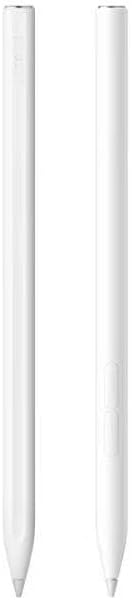
Image: The stylus and its included accessories, such as the USB-C charging cable and replacement tips, neatly arranged within the product packaging.
3. Setup and Initial Use
Charging the Stylus:
- Locate the USB-C charging port on the stylus.
- Connect the provided USB-C charging cable to the stylus and a compatible USB power source.
- A full charge takes approximately 40 minutes. The indicator light will show charging status.
Powering On/Off:
The stylus features touch control for easy activation. Simply touch the designated area (often the top cap) to power it on or off. No complicated pairing process is required; the stylus is ready for use immediately upon activation with compatible devices.
4. Operating Instructions
Writing and Drawing:
The stylus offers a smooth and responsive experience with no noticeable lag. Its 1.5mm fine tip provides high precision for detailed work, making it ideal for handwriting, note-taking, and digital art.

Image: A hand holding the stylus, actively writing on a tablet screen, demonstrating its use for note-taking or drawing.
Palm Rejection:
This stylus features advanced palm rejection technology, allowing you to rest your hand comfortably on the tablet screen while writing or drawing without creating unintended marks. This mimics the natural feel of writing on paper.
Screenshot Function:
To capture a screenshot, long-press the auxiliary part (typically a button or touch-sensitive area) on the stylus. Refer to your tablet's specific settings for screenshot saving locations.
Video: This video demonstrates the stylus in action, showcasing its smooth writing capabilities, magnetic attachment feature, and overall compatibility with various devices.
5. Maintenance
Replacing Stylus Tips:
Over time, the stylus tip may wear down. To replace it:
- Gently twist and pull the old tip to remove it.
- Insert a new tip from the provided replacements and push it firmly until it clicks into place.
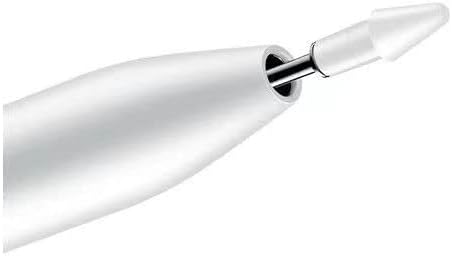
Image: A detailed view of the stylus tip, illustrating the process of removing and replacing the fine point for continued optimal performance.
General Care:
- Keep the stylus clean by wiping it with a soft, dry cloth.
- Avoid exposing the stylus to extreme temperatures or moisture.
- Store the stylus in a safe place to prevent damage to the tip.
6. Troubleshooting
Stylus Not Responding:
- Ensure the stylus is fully charged.
- Confirm the stylus is powered on (check indicator light).
- Verify your tablet is compatible with the stylus.
- Restart your tablet.
Inaccurate or Skipping Input:
- Check if the stylus tip is securely attached and not worn out. Replace if necessary.
- Ensure your tablet screen is clean and free of debris.
- Disable any other active styluses or input devices.
7. Specifications
| Brand | Generic |
| Model | Stylus (2nd generation) |
| Material | Plastic |
| Color | White |
| Battery Average Life (Writing) | 7 hours |
| Battery Average Life (Standby) | 0-150 hours |
| Charging Time | Approximately 40 minutes |
| Charging Style | Type-C, Magnetic Suction |
| Compatible Devices | Tablet (Xiaomi Pad 5/Pad 6 series) |
| Minimum Required OS | Android 11.0 |
8. Warranty and Support
For warranty information and customer support, please refer to the documentation provided at the time of purchase or contact your retailer. Keep your proof of purchase for any warranty claims.


