
1. Introduction
The GETPARTS P1009634 Xi4 Series Wireless Plus Board is a network card designed to enable wireless printing capabilities for compatible Zebra thermal label printers. This board allows for flexible printer placement and reduces the need for physical network cables, enhancing the versatility of your printing setup.
Compatibility: This wireless plus board is specifically designed for use with Zebra ZM400, Zebra 105SL Plus, and Zebra 110Xi4 thermal label printer models.
2. Setup and Installation
Before beginning installation, ensure the printer is powered off and disconnected from all power sources. Exercise caution when handling electronic components to prevent electrostatic discharge.
2.1 Package Contents
- 1x Xi4 Series Wireless Plus Board (P1009634)
2.2 Installation Steps
- Power Off and Disconnect: Ensure the Zebra printer is completely powered off and unplugged from the electrical outlet. Disconnect any existing network cables.
- Access Printer Interior: Refer to your specific Zebra printer model's service manual for instructions on how to safely open the printer casing and access the internal expansion slots where the wireless board will be installed.
- Install Wireless Board: Carefully align the P1009634 Wireless Plus Board with the designated expansion slot. Gently press the board into place until it is securely seated. Avoid excessive force.
- Secure the Board: If applicable, use any provided screws or clips to secure the wireless board within the printer chassis.
- Close Printer Casing: Carefully reassemble the printer casing, ensuring all connections are secure and no wires are pinched.
- Reconnect Power: Plug the printer back into the electrical outlet and power it on.
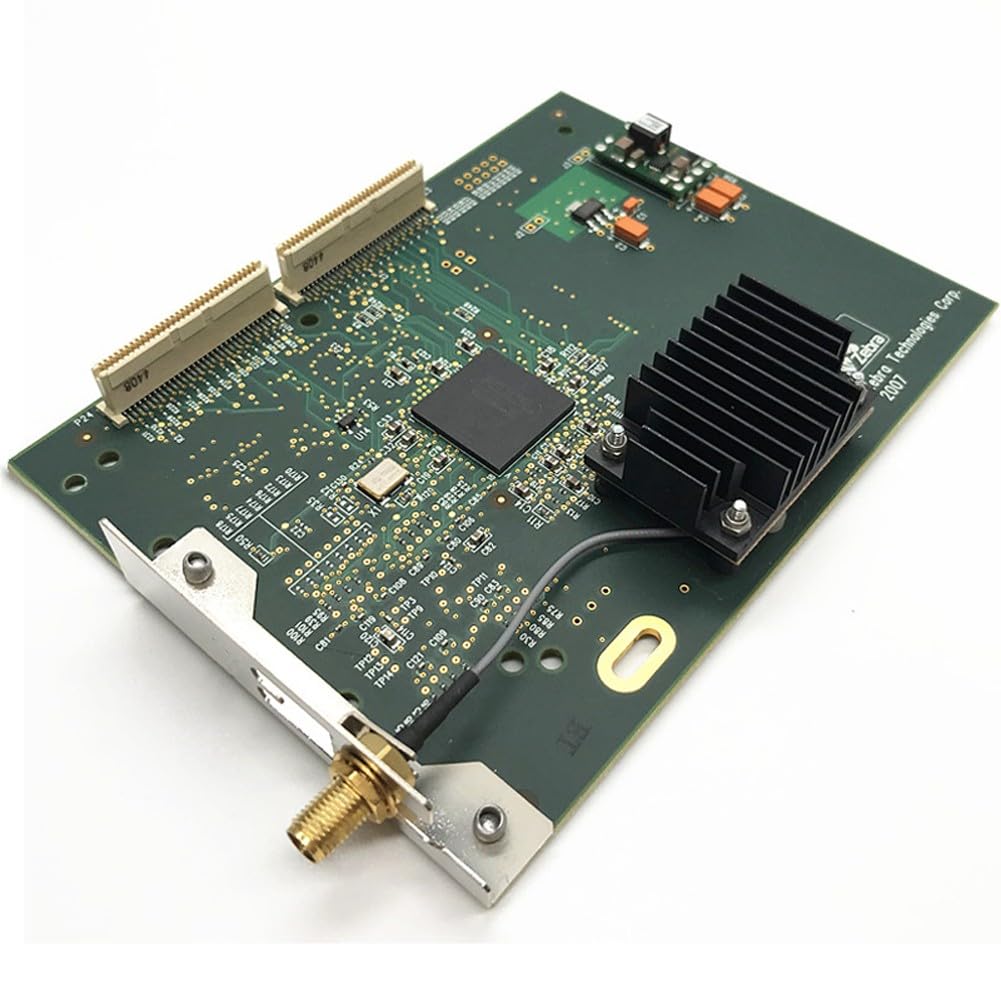
An image showing the GETPARTS P1009634 Xi4 Series Wireless Plus Board, a green circuit board with various electronic components and connectors.
3. Operating Instructions
Once the wireless board is physically installed, you will need to configure the printer's network settings to enable wireless connectivity.
3.1 Network Configuration
- Access Printer Menu: Use the printer's control panel to navigate to the network settings menu. The exact steps may vary by printer model (ZM400, 105SL Plus, 110Xi4). Refer to your printer's user manual for detailed navigation instructions.
- Enable Wireless: Locate the option to enable wireless networking or Wi-Fi.
- Scan for Networks: Initiate a scan for available wireless networks.
- Select Network: Choose your desired Wi-Fi network (SSID) from the list.
- Enter Password: If prompted, enter the network's security key or password (WPA/WPA2 passphrase).
- Confirm Settings: Save the network settings and allow the printer to connect to the wireless network.
- Verify Connection: Print a network configuration report from the printer's menu to verify that the printer has obtained an IP address and is connected to the wireless network.
3.2 Driver Installation
Ensure that the appropriate printer drivers are installed on your computer. You may need to update existing drivers or install new ones to recognize the wireless network interface. Visit the official Zebra support website for the latest drivers compatible with your printer model and operating system.
4. Maintenance
The P1009634 Wireless Plus Board requires minimal maintenance once installed. Adhering to general electronic component care practices will ensure its longevity.
- Keep Clean: Ensure the printer's interior, where the board is located, remains free of dust and debris. Use compressed air to gently clean if necessary, with the printer powered off.
- Environmental Conditions: Operate the printer within the recommended environmental conditions (temperature and humidity) specified by Zebra to prevent damage to internal components, including the wireless board.
- Firmware Updates: Periodically check the Zebra support website for firmware updates for your printer model. These updates can improve performance and compatibility, including for network components.
5. Troubleshooting
If you encounter issues with the wireless functionality, consider the following troubleshooting steps:
- Board Not Detected:
- Ensure the printer is powered off, then open the casing and verify the wireless board is securely seated in its slot.
- Check for any visible damage to the board or the printer's expansion slot.
- No Wireless Connection:
- Verify that the wireless network (Wi-Fi) is active and broadcasting.
- Confirm the correct SSID and password have been entered in the printer's network settings.
- Ensure the printer is within range of the wireless access point/router.
- Restart the printer and the wireless router.
- Printing Issues Over Wireless:
- Check if the printer has a valid IP address on the network.
- Ensure your computer's firewall is not blocking communication with the printer.
- Update your printer drivers to the latest version.
- Try printing from a different computer or application to isolate the issue.
6. Specifications
| Feature | Detail |
|---|---|
| Part Number | P1009634 |
| Compatibility | Zebra ZM400, 105SL Plus, 110Xi4 Thermal Label Printers |
| Function | Wireless Network Connectivity |
| Package Dimensions | 12 x 8 x 4 inches |
| Item Weight | 8 ounces |
| Manufacturer | GETPARTS |
| Date First Available | July 16, 2025 |
7. Warranty Information
GETPARTS offers a customer satisfaction guarantee. All customers enjoy a 30-Day Money Back policy. Customers can return the product and receive a refund if the purchase is not satisfactory for any reason within this period.
8. Support
For any product problems or technical assistance, please contact GETPARTS customer support. We are committed to resolving any issues you may encounter promptly.
Manufacturer: GETPARTS
Please refer to your purchase documentation or the GETPARTS official website for specific contact details.