
1. Introduction
The ByteCintia C80 is a compact and lightweight portable A4 thermal printer designed for mobile printing needs. Utilizing advanced inkless thermal technology, it provides clear black and white prints without the need for ink cartridges or toner. This manual provides detailed instructions for setting up, operating, and maintaining your C80 printer.
Key features include:
- Portable Design: Weighing less than 0.5 kg (0.88 lbs), it fits easily into a backpack or bag.
- Inkless Thermal Technology: Direct thermal printing eliminates the need for ink or toner, reducing operational costs.
- Versatile Connectivity: Supports Bluetooth connection for iOS (13+) and Android devices via the SharpFox app, and USB wired connection for PCs (Windows/Mac).
- High-Quality Printing: Produces crisp, high-resolution prints for documents, lists, receipts, and more.
- Long Battery Life: Up to 4 hours of operational work or approximately 200 sheets on a single charge.
- Multi-purpose Use: Suitable for office, school, home, or outdoor use, supporting various document types including PDFs, Word documents, images, and web content.
2. Package Contents
Please verify that all items are present in your package:
- ByteCintia C80 Portable Thermal Printer
- 2 rolls of dedicated thermal paper
- 10 sheets of A4 thermal paper
- USB charging cable
- User Manual (this document)
3. Product Overview
Familiarize yourself with the main components of your ByteCintia C80 printer.

Figure 3.1: ByteCintia C80 Portable Thermal Printer in operation, demonstrating its compact size and ability to print various document types from a smartphone.
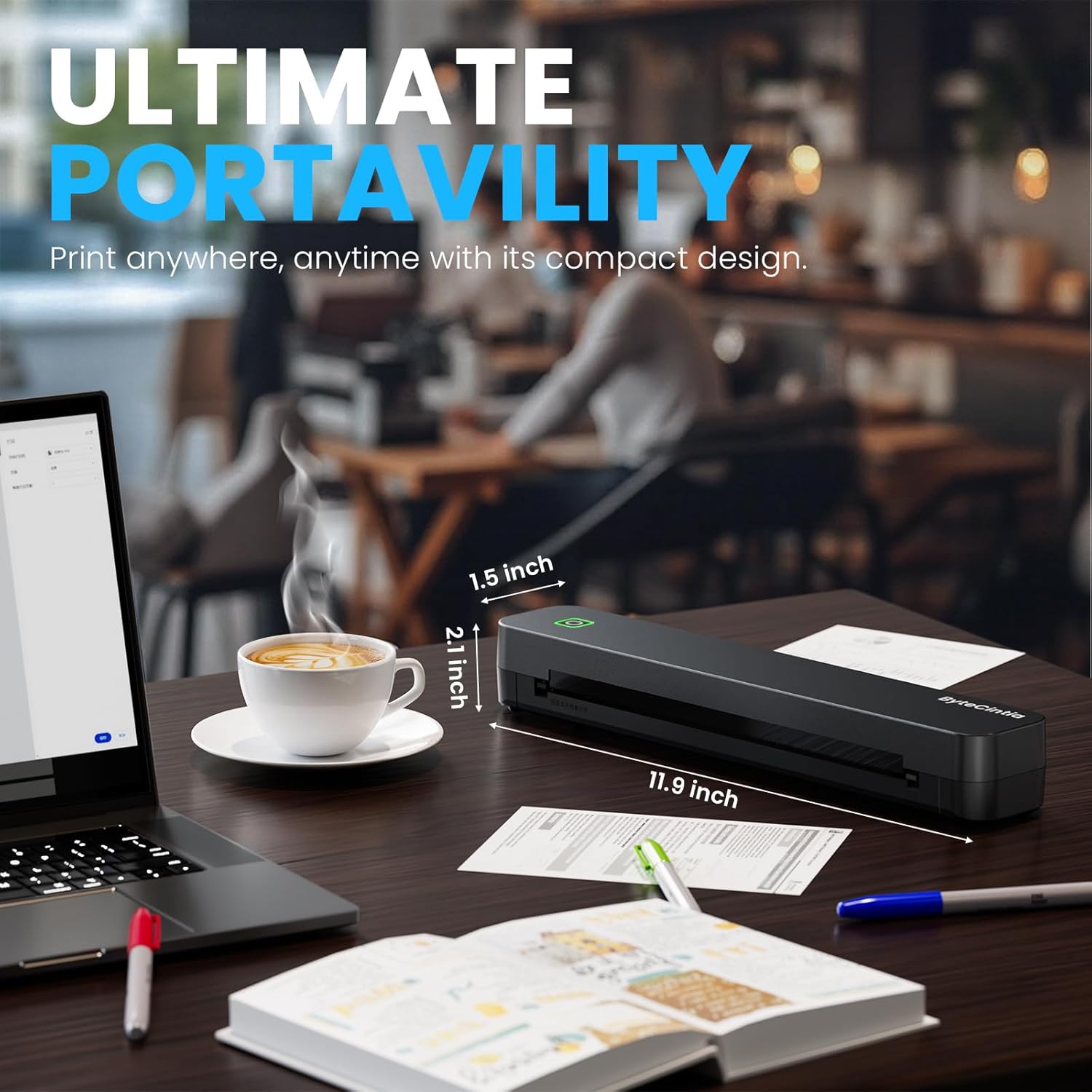
Figure 3.2: Physical dimensions of the ByteCintia C80 printer, highlighting its portability and compact design suitable for any workspace.
- Power Button: Located on the top surface, used to turn the printer on/off.
- Paper Feed Slot: Front opening where paper is inserted for printing.
- USB Port: For charging and wired connection to a PC.
- Indicator Lights: Provide status information (e.g., power, battery, error).
4. Setup
4.1 Charging the Printer
Before first use, fully charge the printer. Connect the provided USB cable to the printer's USB port and the other end to a compatible USB power adapter (not included) or a computer's USB port. The indicator light will show charging status and turn off when fully charged.

Figure 4.1: Battery specifications and charging time for the ByteCintia C80 printer.
4.2 Loading Thermal Paper
The ByteCintia C80 uses dedicated thermal paper. Ensure the paper is inserted correctly for optimal print quality.
- Open the paper cover.
- Insert the thermal paper into the feed slot, ensuring the printable side (usually the smoother side) is facing the print head.
- Adjust the paper guides to fit the width of the paper.
- Close the paper cover.
The printer supports various thermal paper types, including A4, US Letter, B5, and A5. For best results, use ByteCintia's recommended thermal paper.

Figure 4.2: Supported thermal paper sizes and types for the ByteCintia C80 printer.
4.3 Connecting to Mobile Devices (Bluetooth)
For wireless printing from iOS (version 13 or higher) and Android devices, use the SharpFox application.
- Download the SharpFox App: Search for "SharpFox" in the Apple App Store or Google Play Store and install it on your mobile device.
- Enable Bluetooth: Turn on Bluetooth on your mobile device.
- Power On Printer: Press and hold the power button on the ByteCintia C80 printer until the indicator light turns on.
- Connect via App: Open the SharpFox app. Do not connect directly through your phone's Bluetooth settings. Within the SharpFox app, navigate to the device connection section and select your C80 printer (e.g., "C80_XXXX" or "80CC_XXXX") from the list of available devices.
- Once connected, the app will indicate a successful connection, and you can proceed to print.

Figure 4.3: Steps for connecting the ByteCintia C80 printer to a mobile device using the SharpFox app.
4.4 Connecting to PC (USB Wired)
For printing from Windows or Mac laptops, use a USB wired connection. The ByteCintia C80 is not compatible with Chromebooks.
- Download Drivers: Visit the official ByteCintia website (www.bytecintia.com/driver_download) to download the appropriate printer drivers for your operating system (Windows or Mac).
- Install Drivers: Open the downloaded compressed package and follow the on-screen instructions to install the printer drivers.
- Connect Printer: Connect the ByteCintia C80 printer to your PC using the provided USB cable.
- Power On Printer: Ensure the printer is powered on.
- Your PC should recognize the printer, and it will be ready for use.

Figure 4.4: Steps for connecting the ByteCintia C80 printer to a PC via USB and installing drivers.
5. Operation
5.1 Basic Printing from Mobile Devices
Once connected via the SharpFox app:
- Open the document, image, or web page you wish to print within the SharpFox app.
- Select the print option within the app.
- Adjust print settings such as paper size, orientation, and number of copies as needed.
- Confirm the print job. The printer will begin feeding and printing the document.

Figure 5.1: The SharpFox application interface, demonstrating its various printing functionalities and supported file types.
5.2 Basic Printing from PC
Once connected via USB and drivers are installed:
- Open the document or image you wish to print on your computer.
- Select "Print" from the application's menu (e.g., File > Print).
- Choose "ByteCintia C80" from the list of available printers.
- Adjust print settings as required (e.g., paper size, layout).
- Click "Print" to send the job to the printer.
5.3 Print Quality and Media
The ByteCintia C80 uses thermal direct technology, resulting in black and white prints. Print quality is optimized for text and line art. For optimal results, use ByteCintia's recommended thermal paper. The printer supports various paper widths from 5 cm to 21.6 cm (2 to 8.5 inches).

Figure 5.2: Detail of print quality from the ByteCintia C80, showcasing the clarity of text produced by inkless thermal technology.
6. Maintenance
6.1 Cleaning the Print Head
To maintain print quality, periodically clean the print head. Ensure the printer is turned off and cooled down before cleaning.
- Gently wipe the print head with a soft, lint-free cloth lightly dampened with isopropyl alcohol.
- Allow the print head to dry completely before using the printer again.
- Avoid touching the print head with bare hands to prevent oil transfer.
6.2 Paper Storage
Store thermal paper in a cool, dry place away from direct sunlight and heat to prevent degradation and ensure print longevity.
7. Troubleshooting
7.1 Printer Not Turning On
- Ensure the printer is fully charged. Connect it to a power source and allow it to charge for at least 1-2 hours.
- Verify the power button is pressed and held correctly.
7.2 Connection Issues (Bluetooth)
- Ensure Bluetooth is enabled on your mobile device.
- Confirm you are connecting through the SharpFox app, not directly through your device's Bluetooth settings.
- Restart both the printer and your mobile device.
- Ensure the printer is within the Bluetooth range of your device.
- If issues persist, try unpairing and re-pairing the device within the SharpFox app.
7.3 Poor Print Quality
- Ensure you are using high-quality thermal paper, preferably ByteCintia brand.
- Check if the thermal paper is loaded correctly with the printable side facing the print head.
- Clean the print head as described in the Maintenance section.
- Ensure the paper is not old or damaged, as thermal paper can degrade over time.
- Verify that the document resolution is adequate for printing.
7.4 Paper Jams
- Turn off the printer immediately.
- Gently pull out any jammed paper. Avoid tearing the paper inside the printer.
- Ensure paper guides are properly adjusted to the paper width.
- Make sure the paper is inserted straight and not at an angle.
8. Specifications
| Feature | Detail |
|---|---|
| Brand | ByteCintia |
| Model | C80 |
| Printing Technology | Thermal |
| Connectivity Technology | Bluetooth, USB |
| Compatible Devices | Laptops, Smartphones, Tablets |
| Max Print Resolution (B&W) | 203 dpi |
| Max Print Speed (B&W) | 20 ppm |
| Max Paper Size Supported | A4 (210 x 297 mm) |
| Media Type | Thermal Paper, Labels |
| Sheet Input Capacity | 10 sheets |
| Battery Type | Lithium Polymer |
| Battery Capacity | 2000 mAh |
| Operational Battery Life | Up to 4 hours / approx. 200 sheets |
| Product Dimensions | 5.3 x 30.5 x 3.9 cm |
| Item Weight | 840 grams |
| Color | Black |
9. Warranty and Support
For warranty information and technical support, please refer to the official ByteCintia website or contact their customer service directly. Details are typically provided on the product packaging or the manufacturer's website.


