
NOVIC WA7-D
WA7-D Body Worn Camera User Manual
Model: WA7-D | Brand: NOVIC
1. Introduction
The WA7-D is a state-of-the-art body-worn camera specifically designed for law enforcement and security professionals. It offers high-definition video recording, clear still image capture, and robust features to ensure reliable evidence collection in various operational environments. This manual provides detailed instructions on how to set up, operate, and maintain your WA7-D camera.
Package Contents
Please check the package for the following items:
- 1 x WA7-D Main Camera
- 1 x Remote Control
- 1 x USB Cable
- 1 x Shoulder Clip
- 1 x Vest Clip
- 1 x Instruction Manual

Image: Contents of the WA7-D camera package, including the camera, remote, clips, USB cable, power adapter, and manual.
2. Product Overview
The WA7-D camera is designed for ease of use and durability. Familiarize yourself with the camera's components and controls.

Image: Front view of the WA7-D body worn camera with a clip attached, showcasing its robust design.
Camera Components and Controls

Image: Diagram illustrating the WA7-D body worn camera's various buttons and ports for user reference.
- Video Key: Initiates or stops video recording.
- Audio Key / Menu Key: Starts or stops audio recording; navigates menu options.
- OK Key / Night Vision Key: Confirms selections; activates/deactivates IR night vision.
- UP Key / Night Vision Key: Navigates up in menus; activates/deactivates IR night vision.
- Down Key / White LED Lights: Navigates down in menus; controls white LED lights.
- Camera Key: Takes a still photograph.
- Walkie-Talkies Key: For optional PTT functionality.
- Reset Hole: For resetting the device.
- USB Interface: For charging and data transfer.
- Power Key / Back Key: Powers the device on/off; goes back in menus.
3. Setup
Initial Charging
Before first use, fully charge the WA7-D camera. Connect the camera to the charging dock, then connect the USB cable to the dock and a power adapter (not included) or a computer USB port. The charging indicator will show the charging status. A full charge typically takes several hours.
Powering On/Off
- To Power On: Press and hold the Power Key (10) for a few seconds until the device vibrates and the screen turns on.
- To Power Off: Press and hold the Power Key (10) for a few seconds until the device vibrates and the screen turns off.
4. Operating Instructions
Video Recording
The WA7-D supports one-button recording for quick activation.
- To Start Recording: Press the Video Key (1). The camera will provide audio, visual (LED light), and vibration indicators to confirm recording has started.
- To Stop Recording: Press the Video Key (1) again. The camera will provide indicators to confirm recording has stopped.
Still Photo Capture
You can capture high-resolution still images even while recording video.
- To Take a Photo: Press the Camera Key (6). The camera will capture a still image.
Night Vision (IR)
The camera features automatic IR night vision for low-light conditions.
- The camera automatically activates its 8 high-power infrared lights in low-light environments to support night photography and video, capable of identifying faces within 8 meters.
Remote Control Operation
The included wireless remote control allows for discreet operation of the camera.
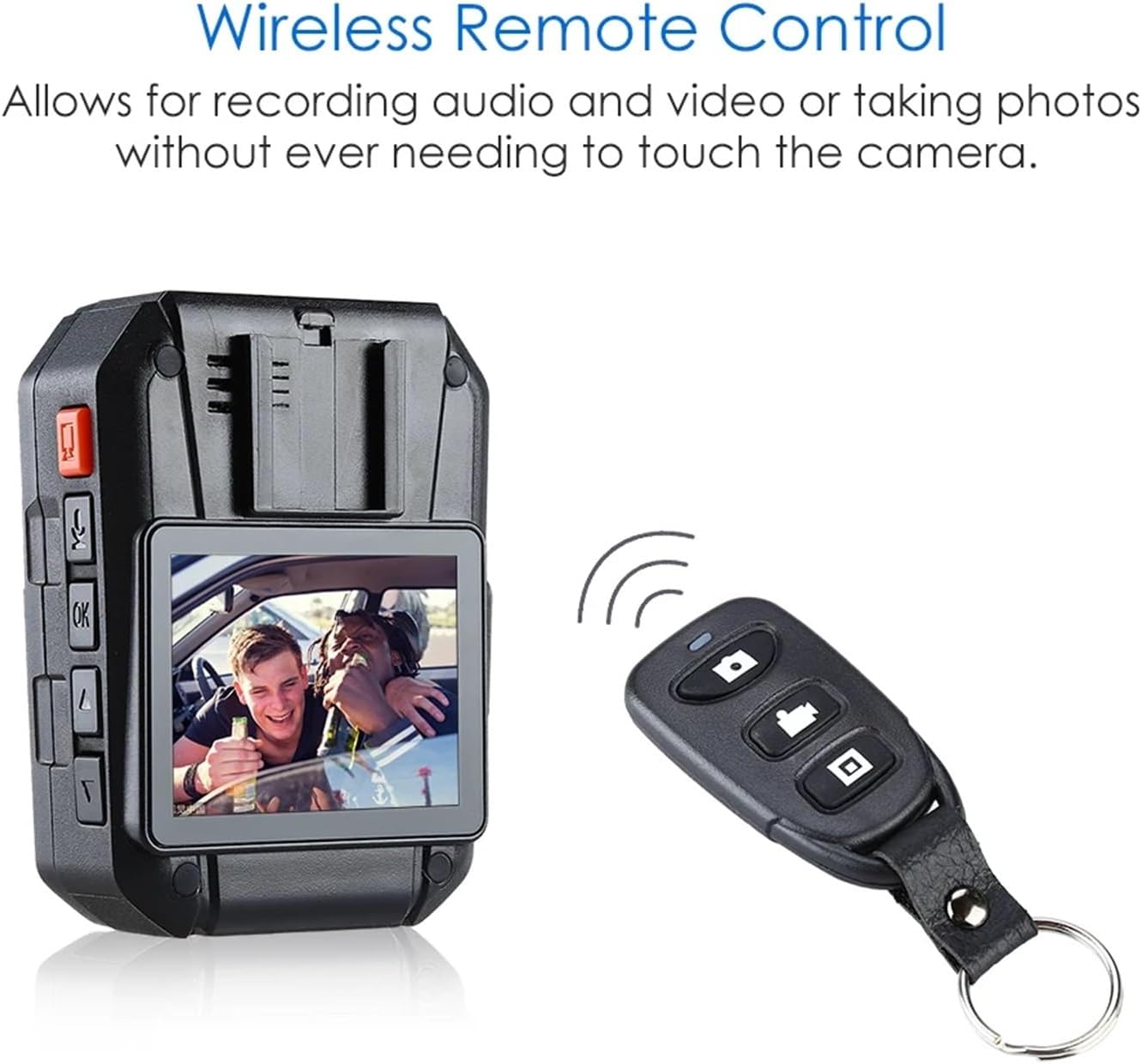
Image: The WA7-D body worn camera displaying a live view on its screen, with the wireless remote control next to it, demonstrating its remote functionality.
- Use the remote control to start/stop video recording or take photos without directly interacting with the camera. Refer to the remote control's specific buttons for their functions.
5. Battery Information
The WA7-D is equipped with a high-capacity 4000mAh lithium battery.

Image: Visual representation highlighting the WA7-D camera's 4000mAh high capacity battery and its capability for over 9 hours of continuous use.
- Battery Capacity: 3.7V 4000mAh
- Battery Life: Over 9 hours of recording in 1296P Ultra HD resolution on a single charge.
- Charging Cycles: Rated for 500 full charge cycles.
Charging the Battery
To charge the camera, connect it to the charging dock and then connect the dock to a power source using the provided USB cable. The charging indicator will illuminate during charging and turn off when fully charged.
6. Storage
The WA7-D camera comes with internal storage for recording video and photos.
- Internal Storage: Available in 32GB or 64GB variants.
- Memory: 32MB main unit memory.
Estimated Recording Times (HD)
- 16GB: Approximately 9 hours
- 32GB: Approximately 18 hours
- 64GB: Approximately 36 hours
Approximate File Sizes per Hour
- 1296P 30fps: 5GB per hour
- 1080P 30fps: 3.1GB per hour
- 720P 30fps: 1.6GB per hour
- 480P 30fps: 1.2GB per hour
7. Specifications
| Feature | Description |
|---|---|
| Model | WA7-D |
| Video Input | Built-in Camera: 2560x1080 1296P (Ultra HD); External Camera (Optional): 848x480 (VGA) |
| Screen | 2.0 inch 16:9 TFT LCD 960*240 |
| Lens | Built-in Lens: 1296P Ultra HD; External Lens: VGA 90-degree wide angle |
| Field of View (FOV) | 170° |
| Still Image Resolution | Max 32MP |
| Still Image Format | JPEG |
| Status Indicator | Notifies start/stop of recording with sound, visual (LED), and vibration. |
| Standby Time | 24 hours (pre-effective) |
| Focus Range | 0.3m ~ ∞ |
| CMOS Sensor | 1/2.5 inch Color CMOS Sensor |
| Body Size | 57.8mm × 32.9mm × 78mm (Length × Width × Height) |
| Weight | 153g |
| Video Resolution | 2560x1080 @ 30fps (1296P), 2304x1296 @ 30fps, 1920x1080 @ 30fps (1080p), 1920x1080 @ 45fps, 1280x720 @ 60fps, 1280x720 @ 30fps (720P), 848x480 @ 30fps (VGA) |
| Video Format | H.264 compression, MP4 format |
| Built-in Mic/Speaker | Yes |
| Battery | 3.7V 4000mAh Lithium Battery |
| Storage Capacity | 32GB/64GB (internal) |
| Remote Control | 2.4G Wireless Remote Control by key operation |
| GPS | Built-in |
| Watermark | Officer ID and Date/Time stamp embedded in video |
| Exposure Mode | Automatic Exposure |
| IR Night Vision | 8 high-power IR lights, auto activation, face identification within 8 meters. |
| Shutter Speed | Electronic Shutter / 1/2 ~ 1/2000 |
8. Troubleshooting
If you encounter issues with your WA7-D camera, please refer to the following common problems and solutions:
- Camera not turning on:
Ensure the battery is charged. Connect the camera to the charger and try again. If the issue persists, perform a reset using the Reset Hole (8). - Recording issues (e.g., no recording, corrupted files):
Check available storage space. Ensure the camera is fully charged. If files are corrupted, try formatting the internal storage (refer to menu settings). - Battery not charging:
Verify the USB cable and power adapter are working correctly. Ensure the camera is properly seated in the charging dock. Try a different USB port or power source. - Remote control not working:
Ensure the remote control's battery is not depleted. Make sure there are no obstructions between the remote and the camera. - Poor video quality in low light:
Ensure the IR night vision is functioning correctly. The camera should automatically activate IR in low light. Clean the lens if it's dirty.
If the problem persists after trying these solutions, please contact customer support.
9. Maintenance
Proper care and maintenance will extend the life of your WA7-D camera.
- Cleaning: Use a soft, dry cloth to clean the camera body. For the lens, use a specialized lens cleaning cloth and solution. Do not use harsh chemicals or abrasive materials.
- Storage: Store the camera in a cool, dry place away from direct sunlight and extreme temperatures. If storing for extended periods, ensure the battery is partially charged (around 50%) to preserve battery health.
- Water and Dust Resistance: The camera is designed with IP67 water and dust resistance. While robust, avoid submerging the device in water or exposing it to excessive dust for prolonged periods.
10. Warranty and Support
Your WA7-D camera is covered by a manufacturer's warranty. Please refer to the warranty card included in your package for specific terms and conditions.
Customer Support
For technical assistance, troubleshooting, or warranty claims, please contact NOVIC customer support through the retailer where you purchased the product or visit the official NOVIC website for contact information.
Ask a question about this manual
Ask about setup, troubleshooting, compatibility, parts, safety, or missing instructions. Manuals+ will review the question and use this page’s manual context to help answer it.