
1. Introduction
This user manual provides detailed instructions for the operation and maintenance of your CAMWORLD Portable Smart Projector. Please read this manual thoroughly before using the product to ensure proper function and to maximize your viewing experience. This projector features 4K support, 300 ANSI lumens brightness, Android 11 operating system, dual-band WiFi 6, Bluetooth 5.0, automatic keystone correction, a 220-degree rotatable stand, and integrated stereo speakers.
2. Safety Instructions
- Power Supply: Use only the provided power adapter. Ensure the voltage matches the projector's requirements.
- Ventilation: Do not block ventilation openings. Maintain adequate space around the projector for proper airflow to prevent overheating.
- Water and Moisture: Keep the projector away from water, rain, and excessive humidity. Do not operate with wet hands.
- Cleaning: Disconnect power before cleaning. Use a soft, dry cloth. Avoid liquid or aerosol cleaners.
- Lens Care: Do not touch the lens directly. Use a lens cleaning cloth if necessary.
- Placement: Place the projector on a stable, flat surface. Avoid direct sunlight or heat sources.
- Eye Protection: Do not look directly into the projector lens when the lamp is on.
3. Package Contents
Verify that all items are present in the package:
- Projector
- User Manual
- Power Cord
- Remote Control
4. Product Overview
Familiarize yourself with the components of your CAMWORLD Portable Smart Projector.
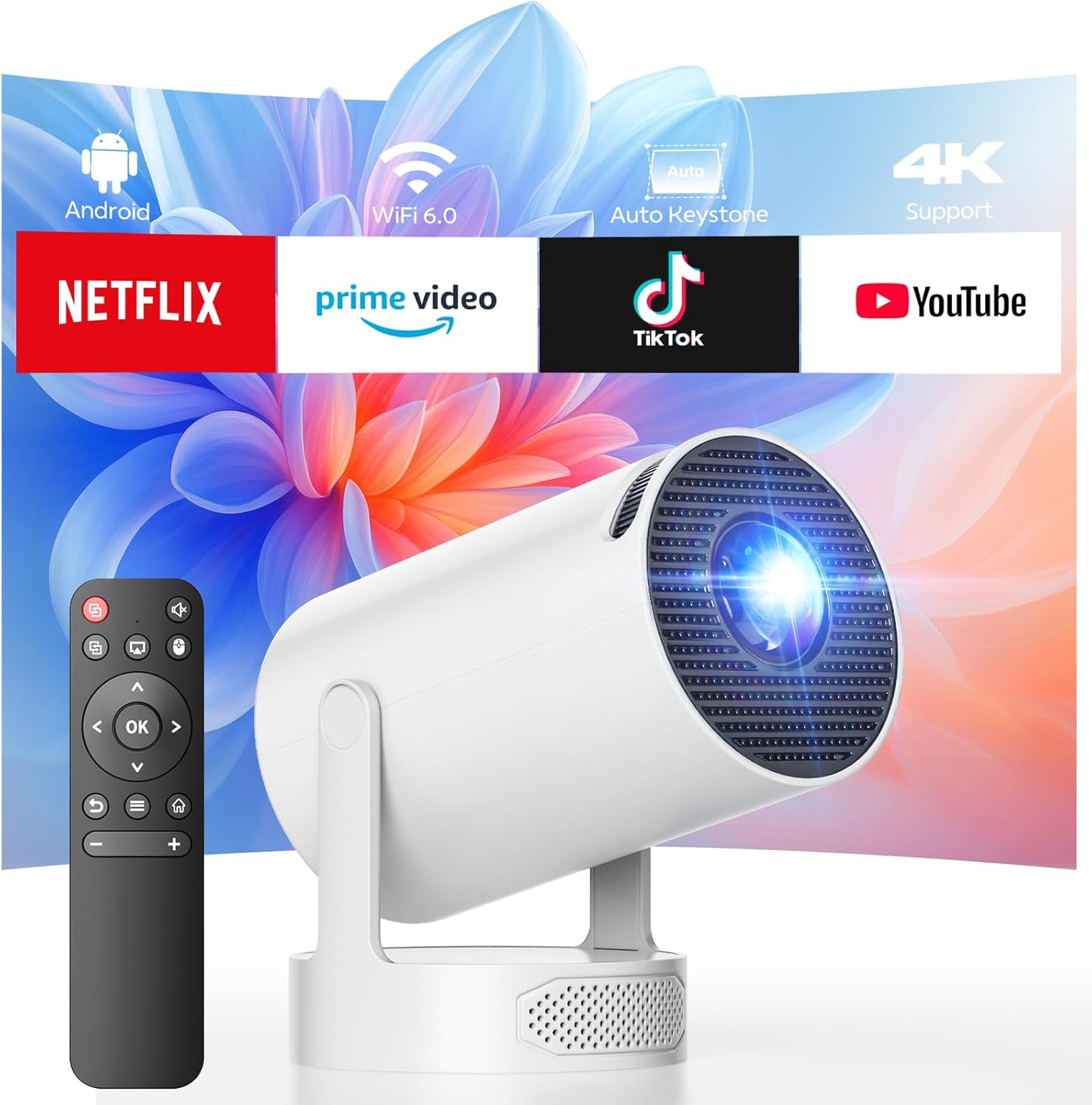
Front view of the CAMWORLD Portable Smart Projector, showcasing its compact design, lens, and included remote control. Icons above illustrate key features like Android OS, WiFi 6, Auto Keystone, and 4K support, along with popular streaming app logos.
4.1. Key Features
- High Resolution & Brightness: Native 720P resolution with 1080P/4K decoding support, 300 ANSI lumens, and 1500:1 contrast ratio.
- Smart Android 11 OS: Access to popular streaming apps like Netflix, Prime Video, and YouTube directly from the projector.
- Dual-Band WiFi 6: Fast and stable wireless connectivity for streaming and screen mirroring.
- Bluetooth 5.0: Seamless connection to external audio devices like headphones or speakers.
- Auto Keystone Correction: Automatic vertical image alignment for quick setup.
- 220° Rotatable Stand: Flexible projection angles for walls, ceilings, or any desired surface.
- Integrated Stereo Speakers: Enhanced base-type stereo speakers for immersive audio.
- Multiple Connectivity: HDMI, USB, and audio ports for various devices.

An illustration showing the CAMWORLD projector's 220-degree rotatable stand, allowing projection onto walls, ceilings, and various surfaces from different angles.
4.2. Ports and Connections

An illustration detailing the connectivity options of the CAMWORLD projector, showing how HDMI connects to laptops, PCs, PS consoles, and TV sticks, while USB connects to phones and USB drives. It also labels the power, speaker, and headphone jack ports.
- HDMI Port: Connects to laptops, PCs, gaming consoles (e.g., PS), and TV sticks.
- USB Port: Connects to USB drives for media playback or smartphones.
- Audio Jack: For connecting headphones or external wired speakers.
- Power Input: Connects the power cord to supply electricity to the projector.
- ON/OFF Button: Powers the projector on or off.
5. Setup
5.1. Power Connection
- Connect the provided power cord to the projector's power input port.
- Plug the other end of the power cord into a suitable electrical outlet.
5.2. Placement and Adjustment
The projector's compact size and rotatable stand allow for flexible placement.

An image demonstrating the compact and lightweight nature of the CAMWORLD Mini Projector, easily fitting into a handbag for portability. Dimensions are shown as 4.1 x 4.1 x 7.6 inches.
- Positioning: Place the projector on a stable surface at the desired distance from your projection surface (wall or screen).
- 220° Rotation: Adjust the projector's stand to direct the image onto a wall, ceiling, or any other surface. The stand allows for 220 degrees of rotation.
- Auto Keystone Correction: The projector will automatically adjust the vertical keystone to ensure a rectangular image. Minor manual adjustments may be performed if needed.
- Focus Adjustment: Rotate the focus ring located on the projector to achieve a sharp image.
5.3. Initial Network Connection (WiFi)
- Power on the projector.
- Navigate to the 'Settings' menu using the remote control.
- Select 'Network' or 'WiFi Settings'.
- Choose your desired WiFi network from the list.
- Enter the network password if prompted and confirm.
- Once connected, the projector will indicate a successful WiFi connection.
6. Operating Instructions
6.1. Power On/Off
- Power On: Press the power button on the projector or the remote control.
- Power Off: Press the power button on the projector or the remote control. Confirm shutdown if prompted.
6.2. Navigating the Interface
Use the included remote control to navigate the projector's Android 11 interface.
- Directional Buttons: Use the arrow keys to move between menu items and options.
- OK Button: Confirms selections.
- Back Button: Returns to the previous screen or menu.
- Home Button: Returns to the main Android home screen.
- Volume Buttons: Adjusts the audio output level.
6.3. Using Android 11 Apps
The projector comes with Android 11 pre-installed, allowing direct access to various applications.

The CAMWORLD projector displaying its Android 11 interface, surrounded by icons of over 5000 supported applications like Netflix, YouTube, and Prime Video, highlighting its smart functionality.
- From the home screen, select the desired application (e.g., Netflix, Prime Video, YouTube).
- Log in with your account credentials if required.
- Begin streaming content directly from the projector.
- Additional apps can be downloaded from the integrated app store.
6.4. Input Sources and Screen Mirroring
The projector supports various input methods:
- HDMI Input: Connect an HDMI cable (not included) from your external device (laptop, game console) to the projector's HDMI port. Select 'HDMI' as the input source from the projector's menu.
- USB Input: Insert a USB drive into the USB port. The projector's media player will typically launch automatically, allowing you to browse and play media files.
- Wireless Screen Mirroring: Connect your smartphone or tablet to the same WiFi network as the projector. Use the projector's screen mirroring function (e.g., 'Miracast' or 'AirPlay' equivalent) and follow the on-screen instructions to cast your device's screen.
6.5. Bluetooth Audio Connectivity
Connect external Bluetooth speakers or headphones for an enhanced audio experience.
- Ensure your Bluetooth audio device is in pairing mode.
- On the projector, navigate to 'Settings' > 'Bluetooth'.
- Turn on Bluetooth and scan for available devices.
- Select your audio device from the list to pair.
- Once paired, audio will be routed through the external device.
7. Maintenance
- Lens Cleaning: Gently wipe the projector lens with a soft, lint-free lens cleaning cloth. Avoid abrasive materials or harsh chemicals.
- Exterior Cleaning: Use a soft, dry cloth to clean the projector's exterior. For stubborn marks, a slightly damp cloth can be used, followed by a dry wipe.
- Storage: When not in use for extended periods, store the projector in a cool, dry place, protected from dust and direct sunlight.
8. Troubleshooting
| Problem | Possible Cause | Solution |
|---|---|---|
| No power | Power cord disconnected; Power outlet issue | Ensure power cord is securely connected. Test the outlet with another device. |
| No image | Incorrect input source; Device not connected | Select the correct input source (HDMI, USB). Verify external device is powered on and connected. |
| Image is blurry | Focus not adjusted | Rotate the focus ring on the projector until the image is sharp. |
| No sound | Volume too low; Incorrect audio output; Bluetooth not connected | Increase volume. Check audio settings. Ensure Bluetooth device is properly paired or disconnect if using internal speakers. |
| WiFi connection unstable | Weak signal; Router issues | Move projector closer to the WiFi router. Restart router. |
9. Specifications
| Feature | Specification |
|---|---|
| Brand | CAMWORLD |
| Model | B0FHPR9J1D |
| Display Resolution | Native 1280 x 720 (Supports 1080P/4K) |
| Brightness | 300 ANSI Lumens |
| Contrast Ratio | 1500:1 |
| Operating System | Android 11 |
| Connectivity Technology | Wi-Fi 6 (Dual-Band), Bluetooth 5.0 |
| Special Features | Automatic Keystone Correction, Built-In Stereo Speaker, Lightweight, Short Throw, 220° Rotation |
| Input Ports | HDMI, USB, Audio Jack |
| Recommended Uses | Home Cinema |
| Item Weight | 1.21 pounds |
| Product Dimensions | 4.1 x 4.1 x 7.6 inches |
10. Warranty and Support
CAMWORLD is committed to providing quality products and customer satisfaction. Your projector is covered by the following:
- 30-Day Refund Guarantee: If you are not satisfied with your purchase, you may be eligible for a full refund within 30 days.
- 12-Month Repair Warranty: The projector is covered by a 12-month warranty for repairs against manufacturing defects.
- Lifetime Technical Support: Our professional support team is available to provide technical assistance for the lifetime of your product.
For warranty claims or technical support, please contact our customer service team through the retailer's platform or visit the official CAMWORLD website for contact information.