1. Setup and Connectivity
The ONIKUMA GAMING MT706 keyboard offers versatile connectivity options to suit various devices and preferences. It supports three modes: 2.4G Wireless, Bluetooth, and USB-C Wired.
1.1 Package Contents
- ONIKUMA GAMING MT706 Mechanical Keyboard
- USB-C to USB-A Cable
- 2.4G Wireless USB Dongle (stored in the keyboard)
- Keycap Puller Tool
- Extra Keycaps (standard Escape and Enter keys)
- Extra Linear Switches
1.2 Connecting Your Keyboard
Locate the connectivity switch on the back of the keyboard to select your desired mode.

Image: The ONIKUMA GAMING MT706 Wireless Mechanical Gaming Keyboard, shown with its included USB-C cable and 2.4G wireless dongle. The keyboard features a compact 75% layout with RGB backlighting and a multi-function knob.
1.2.1 2.4G Wireless Mode
- Locate the 2.4G wireless USB dongle. It is typically stored in a dedicated slot on the back of the keyboard.
- Plug the 2.4G USB dongle into an available USB-A port on your computer or device.
- Slide the connectivity switch on the back of the keyboard to the '2.4G' position.
- The keyboard will automatically connect. An indicator light will confirm successful connection.

Image: A diagram showcasing the three available connection modes for the MT706 keyboard: 2.4G Wireless for low latency, USB-C Wired for a stable connection, and Bluetooth for fast transmission across multiple devices.
1.2.2 Bluetooth Mode
- Slide the connectivity switch on the back of the keyboard to the 'BT' position.
- On your device (PC, tablet, phone), enable Bluetooth and search for new devices.
- Select 'ONIKUMA MT706' from the list of available devices to pair.
- An indicator light on the keyboard will confirm successful pairing.
1.2.3 USB-C Wired Mode
- Connect one end of the provided USB-C cable to the keyboard's USB-C port.
- Connect the other end of the cable (USB-A) to an available USB port on your device.
- Slide the connectivity switch on the back of the keyboard to the 'USB' position.
- The keyboard will function immediately.
1.3 Mac/Windows System Switch
The keyboard features a dedicated switch on the back to toggle between Mac and Windows operating system layouts, ensuring full compatibility and correct key functions for your chosen platform.
2. Operating Instructions
2.1 RGB Backlighting Control
The MT706 keyboard features vibrant 16.8M RGB lighting with multiple effects. Use the following FN key combinations to customize your lighting:

Image: The keyboard showcasing its adjustable RGB backlighting. The image includes a legend detailing FN key combinations for controlling backlight color, effect, speed, and brightness, allowing users to personalize their lighting experience.
- FN + \|: Keyboard backlight color switch
- FN + Enter: Keyboard backlight effect switch (19 effects available)
- FN + Shift_R: Keyboard LOGO effect switch
- FN + T: Keyboard backlight switch (on/off)
- FN + →: Light speed increase
- FN + ←: Light speed decrease
- FN + ↑: Light brightness increase
- FN + ↓: Light brightness decrease
2.2 Multi-Function Control Knob
The integrated knob provides quick access to volume and mute functions.
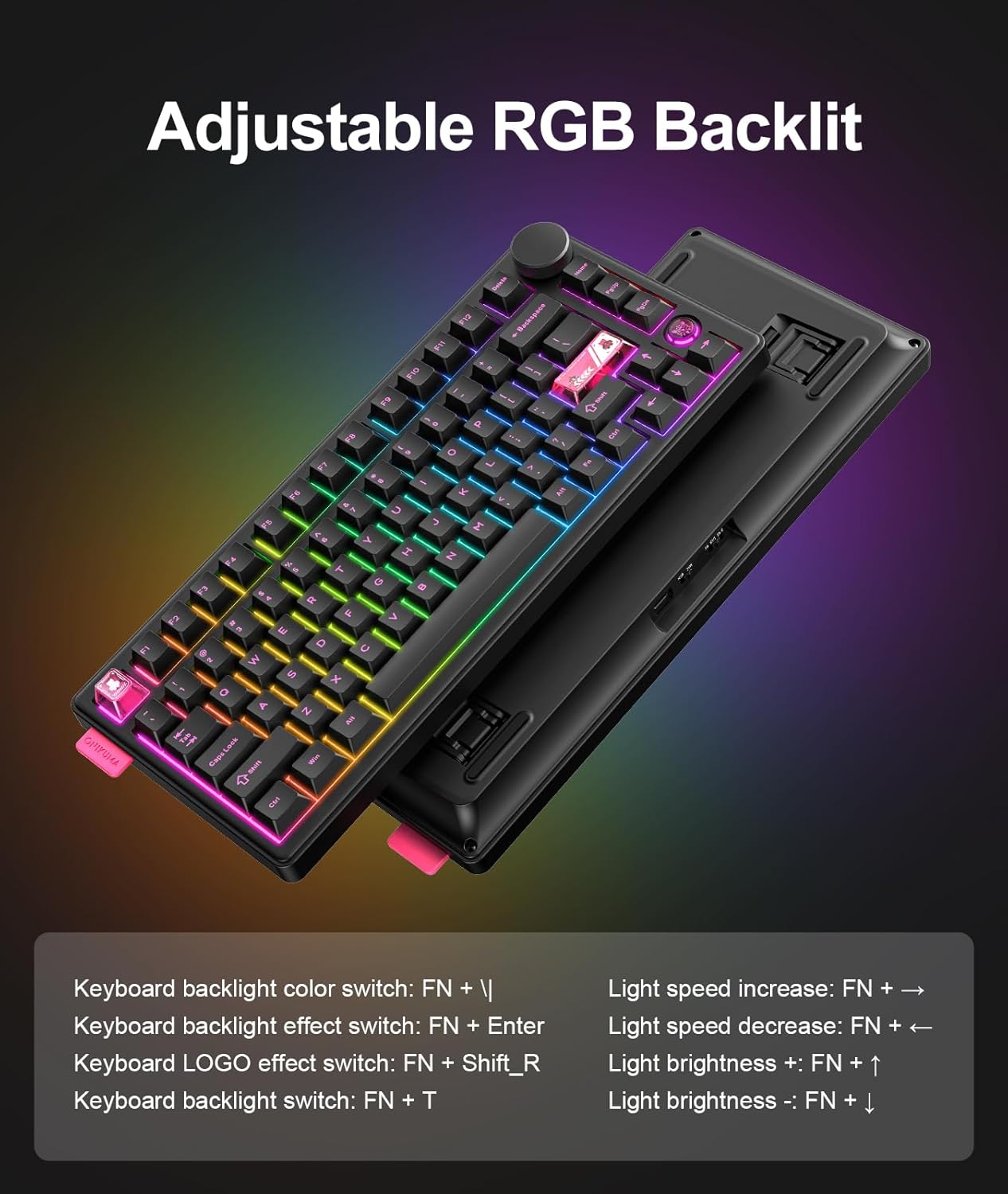
Image: A detailed view of the multi-function control knob. Instructions indicate turning left to reduce volume, turning right to increase volume, and pressing down to toggle mute on/off.
- Turn Left: Reduce volume
- Turn Right: Increase volume
- Press Down: Mute on/off
2.3 Hot-Swappable Keys
The MT706 keyboard features hot-swappable sockets, allowing you to easily change switches without soldering. This enables customization of your typing feel.

Image: The keyboard's single-key slot PCBA design, supporting 3-pin/5-pin switches. The image shows switches being removed and replaced using a keycap puller, highlighting the hot-swappable feature and pre-lubed linear switches.
To swap switches:
- Use the provided keycap puller to gently remove the keycap from the desired switch.
- Use the switch puller (often integrated with the keycap puller) to carefully grip and pull the switch straight up from its socket.
- Align the pins of the new switch with the holes in the PCB socket.
- Gently press the new switch into place until it clicks securely.
- Reattach the keycap.
2.4 Macro Definition Programming
The keyboard supports macro definition programming for personalized key functions. Refer to the official ONIKUMA GAMING website for software and driver downloads to access these advanced customization options.

Image: A visual representation of the macro definition programming interface, allowing users to program custom buttons and personalize their keyboard layout.
2.5 Battery Status Indicator
To check the battery level, press FN + Backspace. The indicator lights will display the battery status:
- Red: Less than 30% battery
- Yellow: Less than 50% battery
- Green: More than 50% battery

Image: The keyboard illustrating its 4000mAh high-capacity battery and how to check its level using FN+Backspace. The image shows different key colors corresponding to battery percentages: red for less than 30%, yellow for less than 50%, and green for more than 50%.
3. Maintenance
Proper maintenance ensures the longevity and optimal performance of your ONIKUMA GAMING MT706 keyboard.
3.1 Cleaning
- Keycaps: Use the provided keycap puller to remove keycaps. Clean them with a soft cloth dampened with mild soap and water. Ensure they are completely dry before reattaching.
- Keyboard Body: Wipe the keyboard body with a soft, dry, or slightly damp cloth. Avoid using harsh chemicals or abrasive materials.
- Between Keys: Use compressed air to remove dust and debris from between the keys.
3.2 Storage
When not in use, store the keyboard in a cool, dry place away from direct sunlight and extreme temperatures. If using the 2.4G wireless mode, ensure the USB dongle is stored securely in its designated slot on the keyboard to prevent loss.
4. Troubleshooting
If you encounter issues with your MT706 keyboard, refer to the following common solutions:
- Keyboard not responding: Ensure the keyboard is charged or connected via USB-C. Check the connectivity switch position (2.4G, BT, or USB).
- Bluetooth pairing issues: Ensure the keyboard is in Bluetooth mode and discoverable. Remove previous pairings from your device and try pairing again.
- 2.4G wireless connection issues: Ensure the 2.4G USB dongle is securely plugged in and the keyboard is in 2.4G mode. Try a different USB port.
- Backlighting not working/incorrect: Use the FN key combinations (FN + \|, FN + Enter, FN + T) to adjust or reset the lighting effects. Ensure brightness is not set to minimum.
- Keys not registering: If a specific key is not working, try hot-swapping the switch with a known working one or one of the spare switches provided. Ensure the switch is fully seated.
- Software/Driver issues: For advanced customization or if experiencing software-related problems, visit the official ONIKUMA GAMING website for the latest drivers and support.
5. Specifications
| Feature | Description |
|---|---|
| Model Name | MT706 |
| Brand | ONIKUMA GAMING |
| Connectivity Technology | 2.4G Wireless, Bluetooth, USB-C Wired (Tri-Mode) |
| Keyboard Description | Mechanical, Gasket Mount |
| Layout | 75% Compact (81 Keys) |
| Switches | Hot-Swappable, Factory-Lubed Linear Switches |
| Keycaps | Durable PBT Keycaps |
| Backlighting | 16.8M RGB, Programmable (19 effects, 7 single colors) |
| Sound Dampening | 5-Layer Sound-Absorbing Padding (PORON/IXPE/PET/SILICONE) |
| PCB | 1.2mm Reinforced PCB, Pre-tuned Stabilizers |
| Battery Capacity | 4000mAh |
| Special Features | Multi-Function Knob, N-key Rollover, Mac/Win System Switch, 2-Stage Adjustable Feet |
| Compatible Devices | PC, Tablets, Phones (via Bluetooth/2.4G/USB-C) |
| Item Weight | 2.4 pounds |
| Package Dimensions | 15.12 x 7.13 x 2.09 inches |

Image: A detailed diagram of the customized pre-lubed linear switch, showing its internal components like the POM axle, NL-PRO lid, spring, and spring plate. Key specifications such as key life (50 million times), operating load (40g ± 10g), operating route (2.0 ± 0.5mm), and working voltage (5V ± 0.5V) are also displayed.

Image: An exploded view demonstrating the Gasket Mount Design of the keyboard. It highlights the various layers contributing to sound absorption and typing feel, including the keycap, top cover, switch body, slot PC positioning plate, PO sound-absorbing cotton, gasket structure, IXPE switch pad, PET sound pad, PO base cotton, silicone base pad, and case bottom.
6. Warranty and Support
For warranty information, technical support, and driver downloads, please visit the official ONIKUMA GAMING website or contact their customer service. Keep your purchase receipt for warranty claims.
Official Driver Download Link: https://www.onikuma.rdmctmzt.com/