
Product Overview
The Bewinner 1080P Action Camera is a versatile camcorder designed for outdoor photography and vlogging. It features 1080P HD video recording, a multi-axis stabilizer, and a 1.53-inch HD screen for convenient operation and playback. Its unique lens design allows for 270-degree and 180-degree rotation, offering flexible shooting angles.
- 1080P HD Video Recording: Captures high-definition videos with clear details, supported by supplementary light for improved nighttime recording.
- 1.53-inch HD Screen: Allows for immediate viewing of recorded content and easy control of camera functions.
- Smart Stabilization: Minimizes shakes during high-speed motion for smoother, more stable footage.
- Versatile Rotating Lens: Features a wide-angle lens with 270-degree and 180-degree rotation for diverse photographic perspectives.
- Multiple Mounting Options: Can be clipped to clothing or mounted on tripods using a 1/4 inch screw hole.
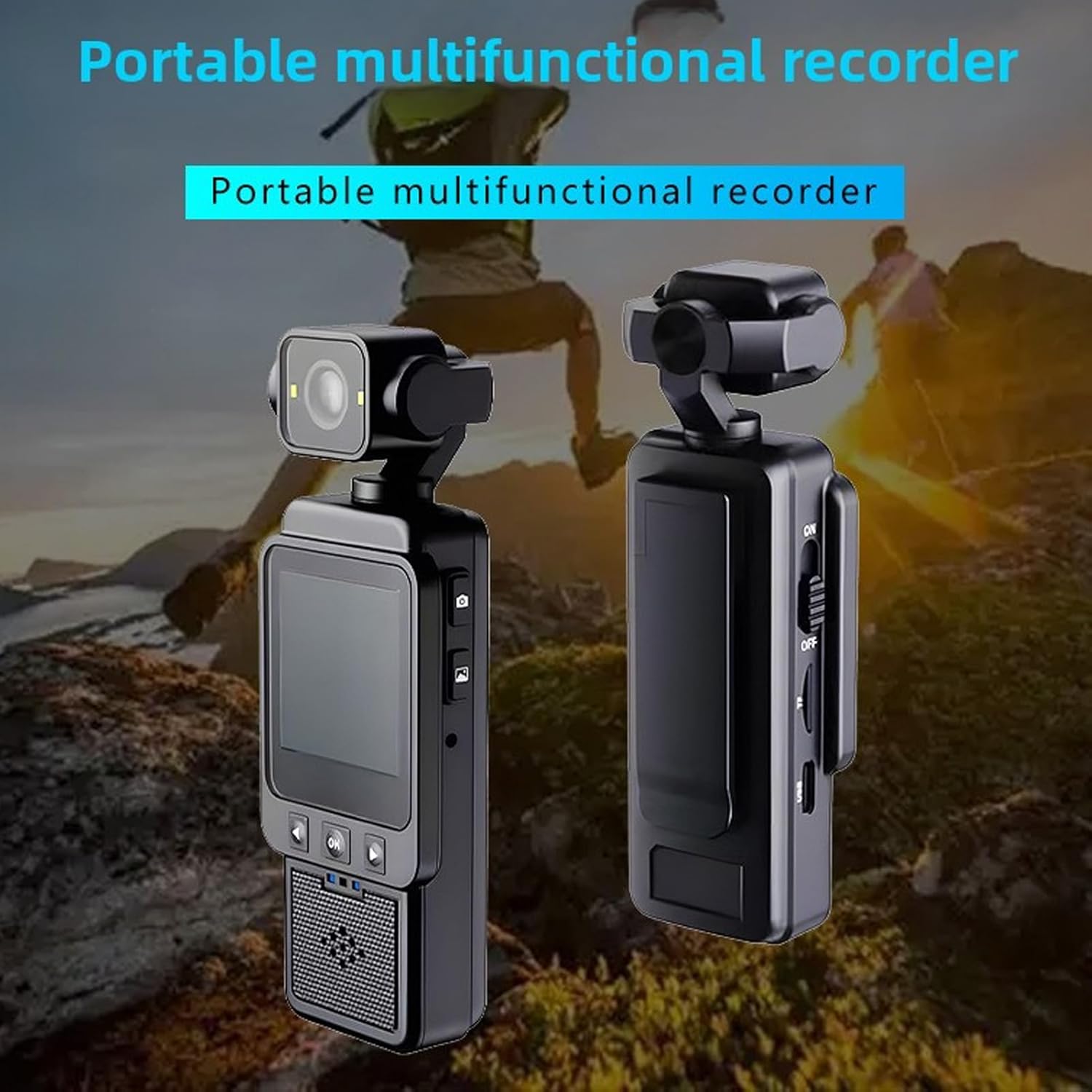
Image: Front and back view of the Bewinner 1080P Action Camera, highlighting its compact design and screen.
Package Contents
Verify that all items are present in the package:
- 1 x Bewinner 1080P Camera
- 1 x Instruction Manual (this document)
- 1 x Charging Cable (Type-C)

Image: The Bewinner 1080P Action Camera displayed alongside its USB charging cable.
Setup
1. Charging the Camera
Before first use, fully charge the camera's built-in high-capacity lithium polymer battery. Connect the provided Type-C charging cable to the camera's Type-C port and a suitable USB power source.

Image: Side view of the camera, indicating the Type-C charging port and the power switch.
2. Inserting a Memory Card
The camera supports up to a 256GB memory card (not included). Locate the memory card slot on the side of the camera and insert the card with the contacts facing the correct direction until it clicks into place.

Image: Close-up of the camera's side, showing the memory card slot for storage expansion.
3. Powering On/Off
To power on the camera, slide the ON/OFF switch to the "ON" position. The HD screen will illuminate. To power off, slide the switch to the "OFF" position.
4. Mounting Options
The camera offers flexible mounting:
- Clip-on: Use the integrated clip to attach the camera to clothing, such as a shirt pocket or backpack strap.
- Tripod Mounting: Utilize the 1/4 inch screw hole at the bottom of the camera to attach it to tripods, monopods, or other compatible accessories.

Image: The camera's rear view, showing the integrated clip for attachment to clothing or gear.
Operating Instructions
1. Recording Videos and Taking Photos
The camera features dedicated buttons for recording and photography:
- Press the Video Record Button (often marked with a camera icon) once to start recording. Press again to stop.
- Press the Photo Capture Button (often marked with a camera icon) once to take a still photograph.
Image: Side view of the camera, highlighting the distinct buttons for video recording and photo capture.
2. Using the HD Display Screen
The 1.53-inch HD screen allows you to:
- View Live Feed: See what the camera is capturing in real-time.
- Playback Recordings: Review your videos and photos directly on the device.
- Navigate Menus: Use the navigation buttons (Up, Down, OK) below the screen to access settings and playback options.

Image: The camera's HD screen displaying real-time images, demonstrating its utility for monitoring and playback.
3. Smart Stabilization
The camera incorporates intelligent stabilization technology to reduce blur and shakiness, especially during dynamic activities. This feature is automatically active to ensure smoother video capture.
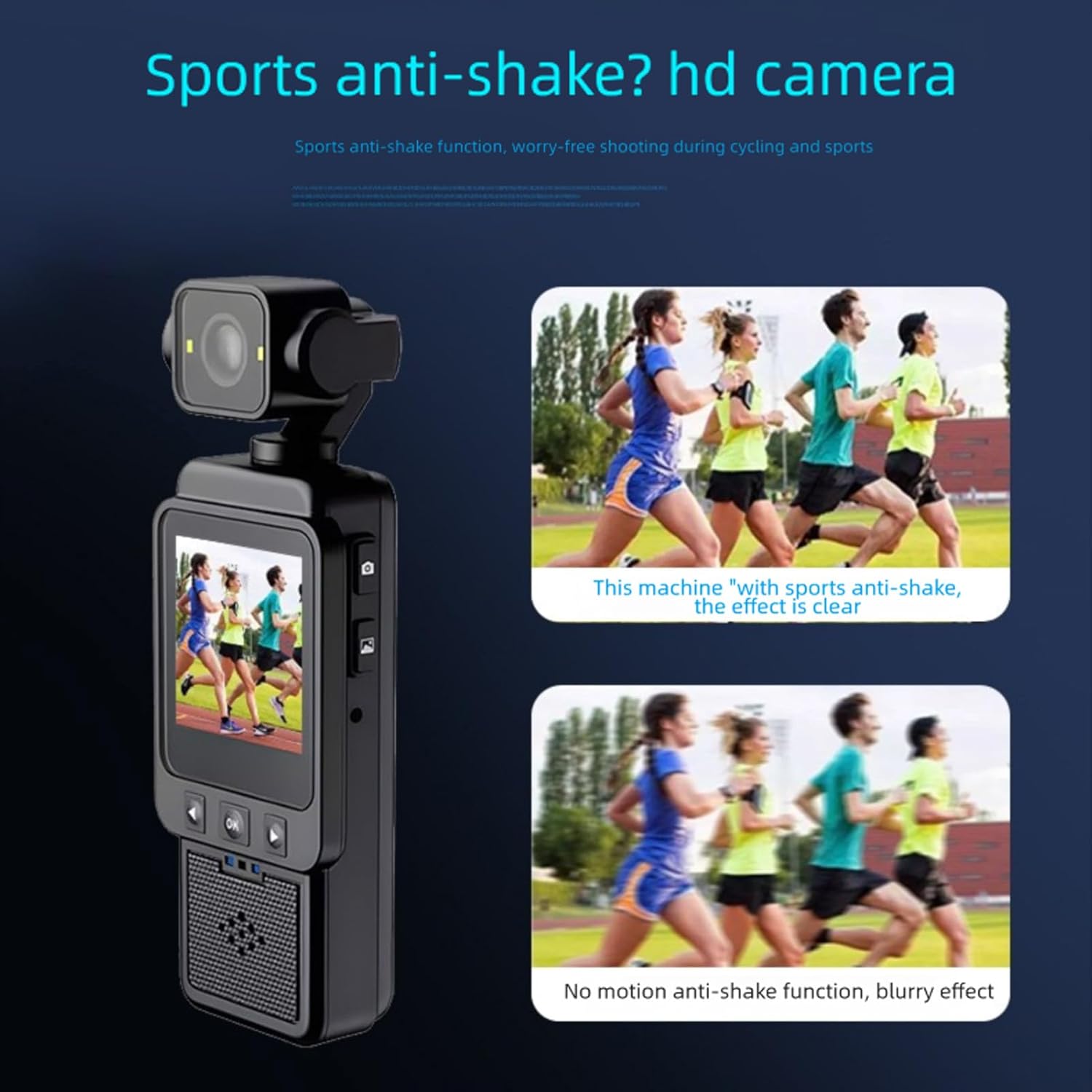
Image: A visual comparison showing the improved clarity of footage when smart anti-shake stabilization is active versus when it is not.
4. Adjusting the Rotating Lens
The camera's lens can be manually rotated 270 degrees and 180 degrees. Gently adjust the lens module to achieve desired shooting angles, such as forward-facing, backward-facing, or upward/downward perspectives.
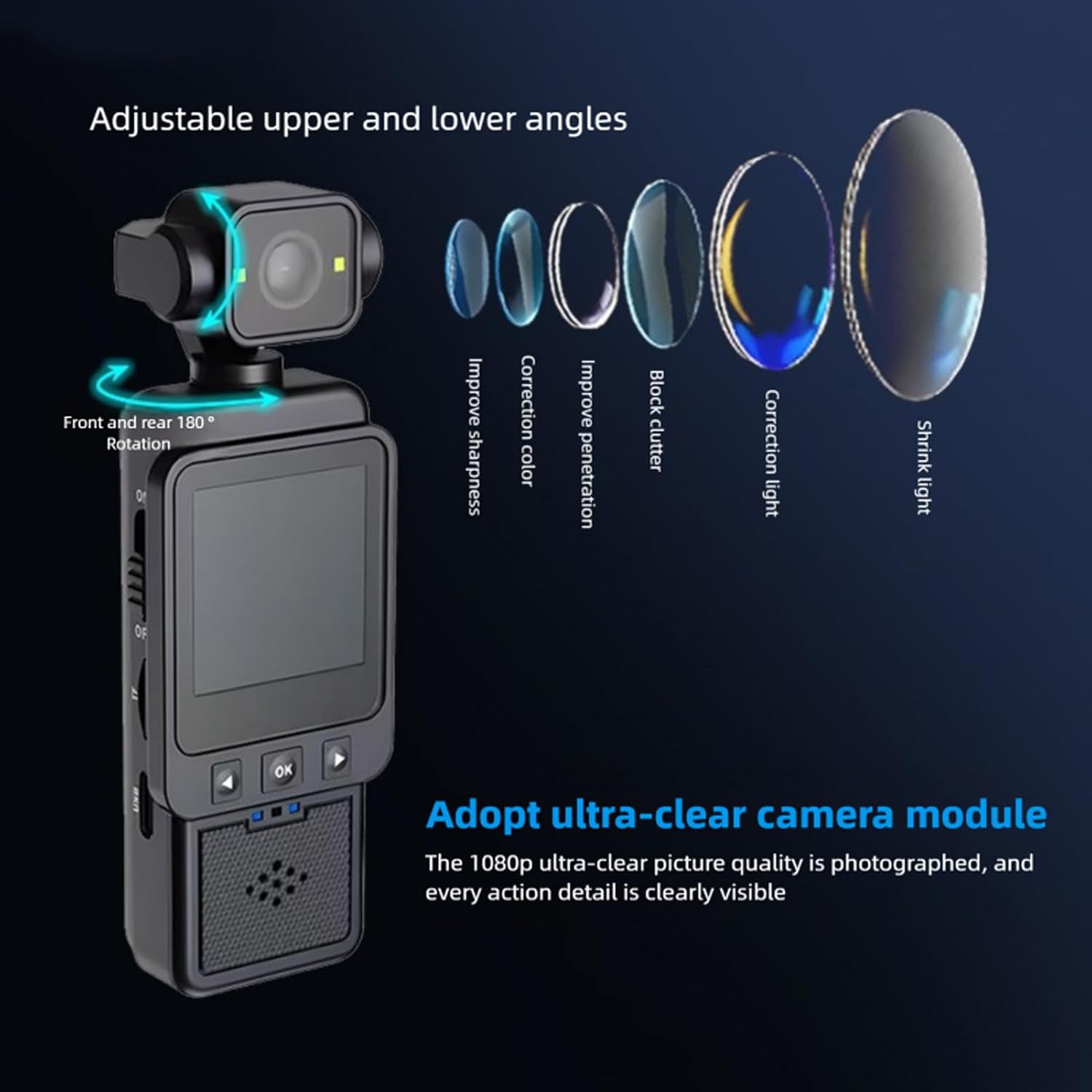
Image: The camera demonstrating its adjustable lens, capable of 180-degree front and rear rotation for varied shooting angles.
5. Using the Built-in Supplementary Light
For low-light conditions, activate the built-in supplementary light to enhance video and photo quality. Refer to the on-screen menu or dedicated button (if available) for activation.

Image: A visual comparison showing the improvement in image brightness and clarity when the built-in supplementary light is used in low-light environments.
6. Wi-Fi Mobile Phone Connection
Connect the camera to your mobile phone via Wi-Fi for remote control, live view, and file transfer. Download the "Viidure" application on your smartphone (available for Android, iOS, and Linux systems). Follow the app's instructions to pair with the camera.
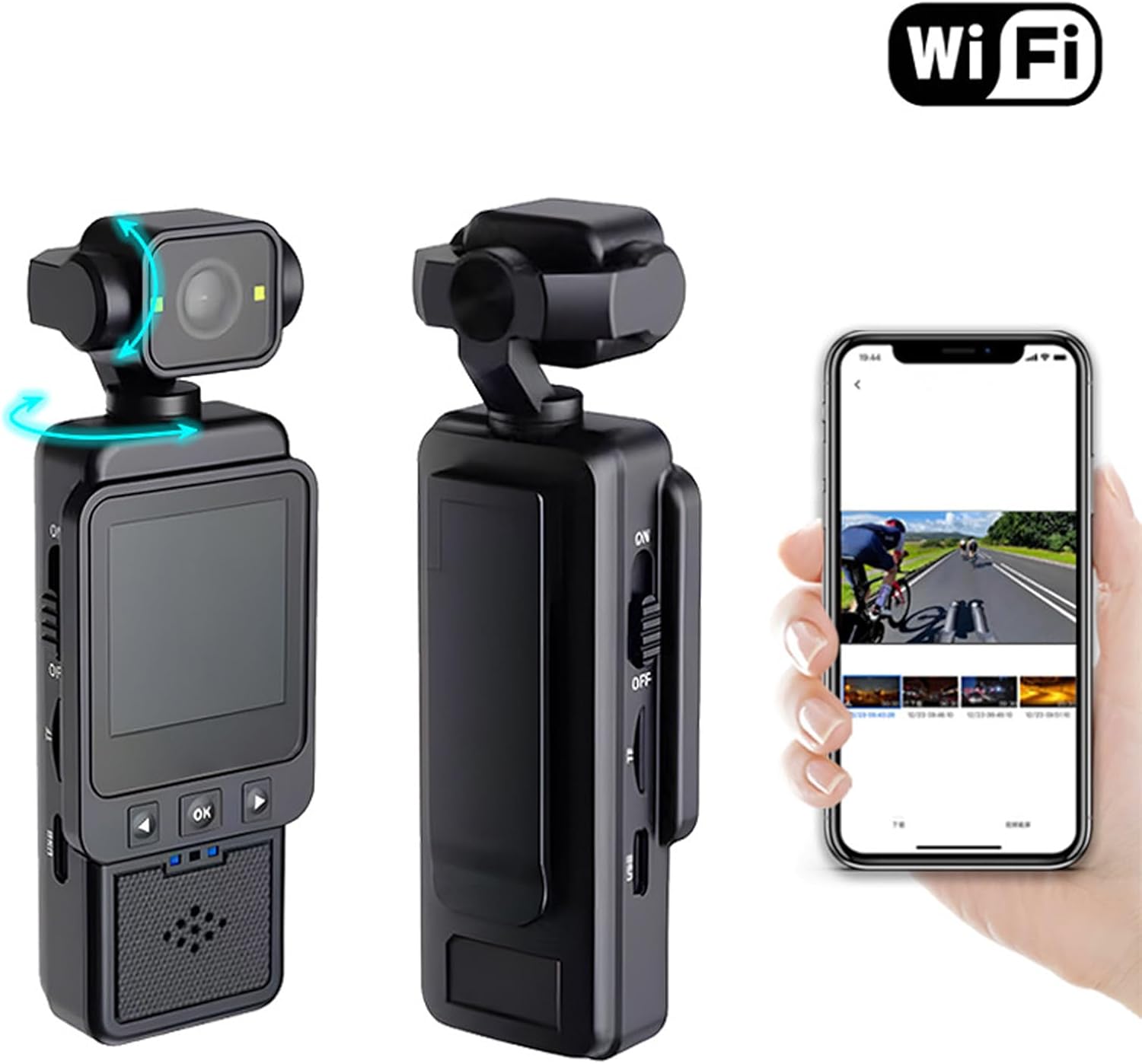
Image: The camera shown wirelessly connected to a smartphone, demonstrating the Wi-Fi connectivity feature for remote operation and data transfer.
Maintenance
- Cleaning: Use a soft, dry cloth to clean the camera body. For the lens, use a specialized lens cleaning cloth and solution. Avoid abrasive materials or harsh chemicals.
- Storage: Store the camera in a cool, dry place away from direct sunlight and extreme temperatures. Remove the memory card if storing for extended periods.
- Battery Care: To prolong battery life, avoid fully discharging the battery frequently. Charge it regularly, even if not in use.
Troubleshooting
- Camera not turning on:
- Ensure the battery is charged. Connect the camera to a power source using the Type-C cable.
- Verify the ON/OFF switch is fully in the "ON" position.
- Cannot record video/take photos:
- Check if a memory card is inserted correctly.
- Ensure the memory card has sufficient free space.
- The memory card might be full or corrupted. Try formatting the card (this will erase all data) or using a different card.
- Footage is blurry/shaky:
- Ensure the lens is clean.
- Confirm that the smart stabilization feature is active (it is usually automatic).
- Hold the camera as steadily as possible during recording.
- Wi-Fi connection issues:
- Ensure Wi-Fi is enabled on both the camera and your smartphone.
- Confirm you have the correct "Viidure" app installed.
- Try restarting both the camera and your smartphone.
Specifications
| Item Type | 1080P Camera |
| Material | ABS |
| Video Resolution | 1080P (Maximum) |
| Lens | Large Wide Angle 6 Glass Lens |
| Stabilization Type | Electronic Stabilization |
| Screen Size | 1.53 Inch |
| Aspect Ratio | 16:9 |
| Battery Type | Built-in High Capacity Lithium Polymer Battery |
| Battery Capacity | 1960mAh |
| Supported Storage | Up to 256GB Memory Card (Not Included) |
| Interface Type | Type-C |
| Supported Systems | Android, OS X, Linux |
| Playback APP | Viidure |
| Expansion Interface | 1/4 Inch Screw Port |
Warranty & Support
This Bewinner product comes with a manufacturer warranty for 90 days from the date of purchase. Please retain your proof of purchase for warranty claims.
For further assistance or technical support, please refer to the official Bewinner website or contact their customer service through the retailer where the product was purchased.