
1. Getting Started: Unboxing and Initial Setup
This section guides you through the initial unboxing and basic setup of your Winsing Android Tablet.
1.1 Package Contents
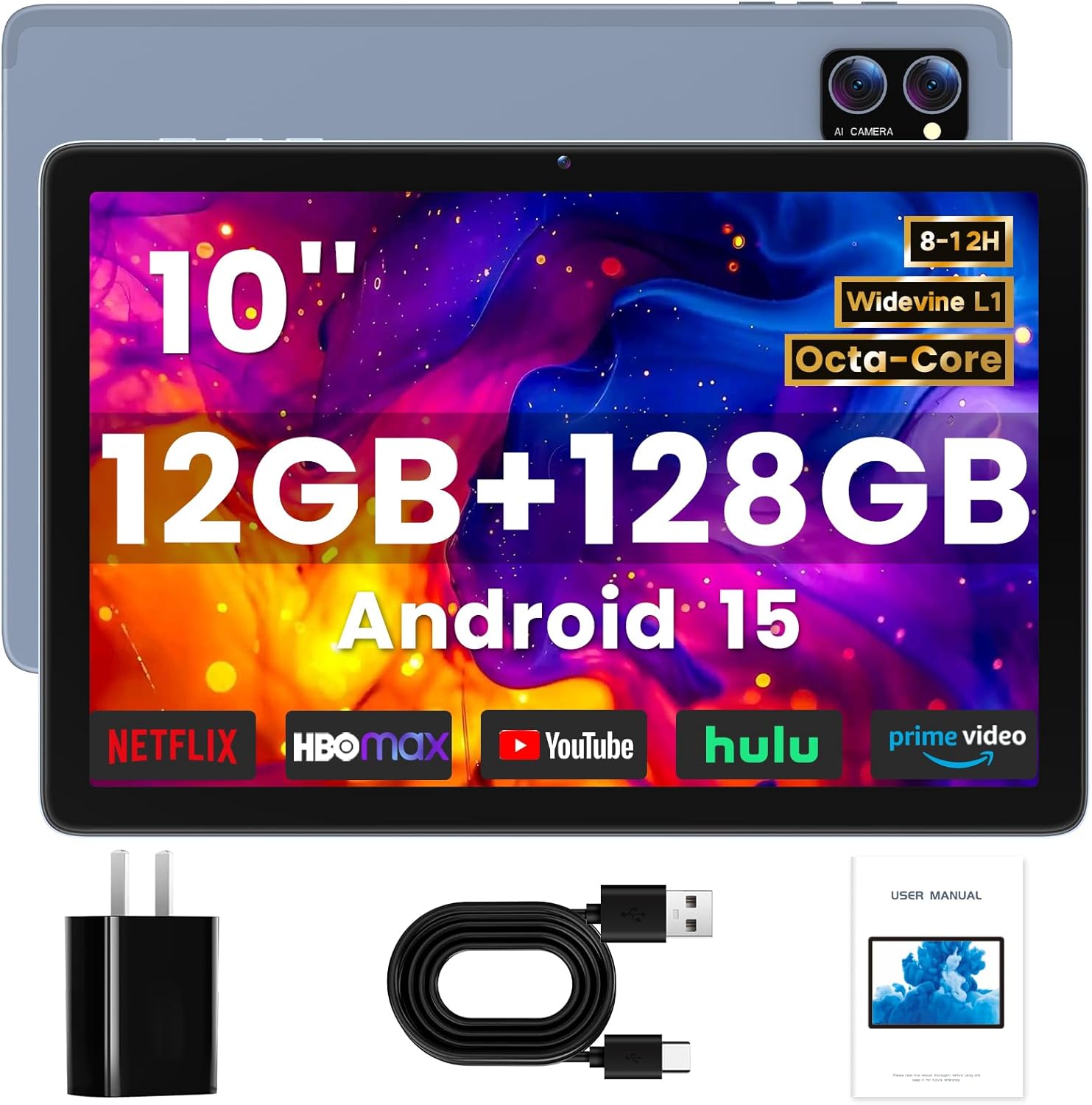
Verify that all items are present in your product package:
- Winsing Android Tablet (10 Inch)
- USB-C Cable
- AC Adapter (Charger)
- User Manual
1.2 Initial Power On
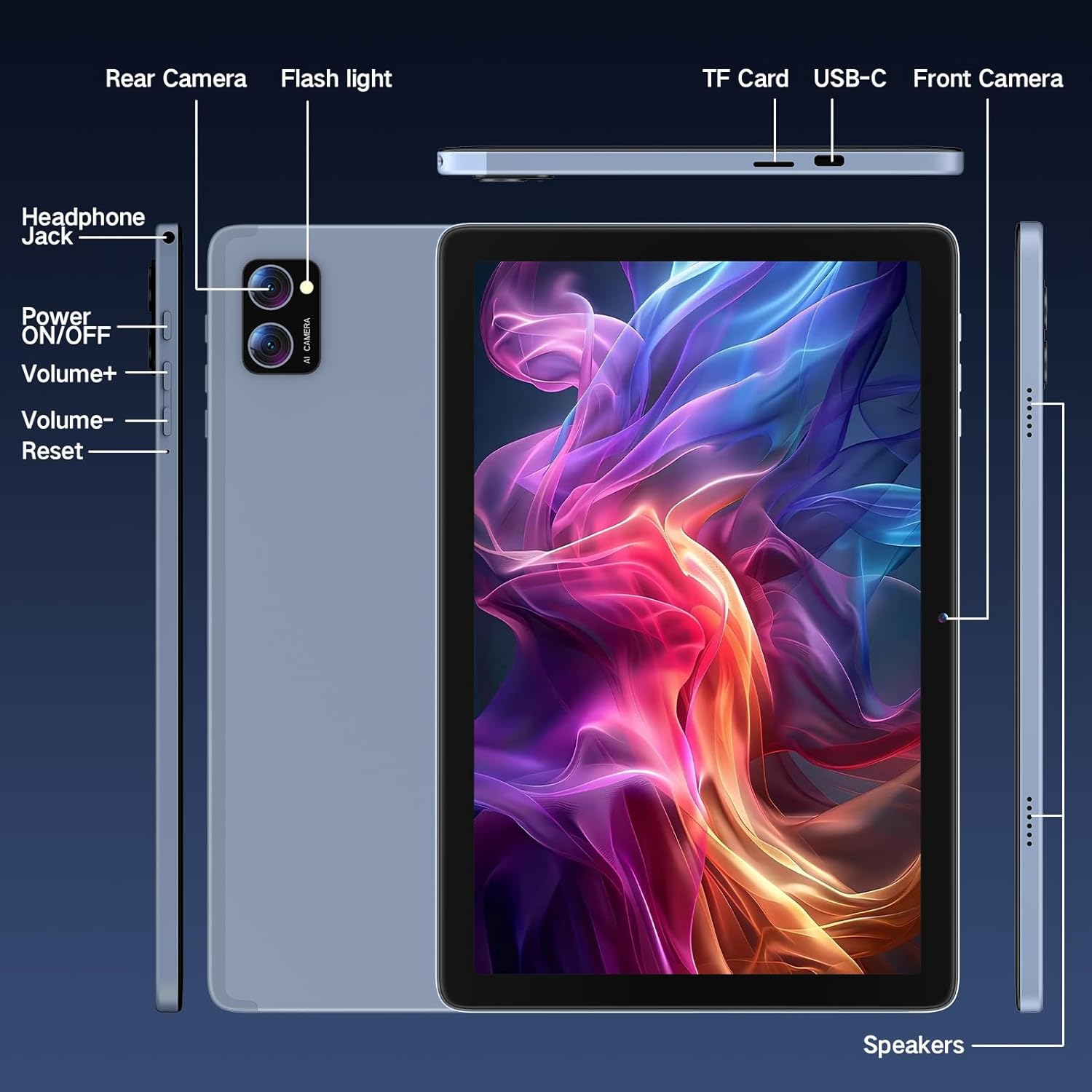
To power on your tablet for the first time, press and hold the Power/ON/OFF button located on the side of the device until the Winsing logo appears on the screen. The tablet may require charging before first use.
1.3 Wi-Fi Connection
After powering on, follow the on-screen prompts to select your language and connect to a Wi-Fi network. This is essential for downloading apps and accessing online content.
- Tap on the 'Settings' icon.
- Select 'Network & Internet'.
- Toggle Wi-Fi to 'On'.
- Choose your desired network from the list and enter the password if prompted.
1.4 Google Account Setup
To access the Google Play Store and synchronize your data, sign in with your Google account or create a new one. This step is crucial for a personalized experience.
Video 1.1: An overview of the Winsing Android Tablet, demonstrating its unboxing and initial setup process, including powering on and navigating basic settings.
2. Operating Your Tablet
Learn how to navigate the Android 15 interface and utilize your tablet's features.
2.1 Navigating the Interface
The tablet runs on Android 15, offering an intuitive user experience. Swipe up from the bottom to access the app drawer, swipe down from the top for quick settings and notifications.

2.2 App Management
Access the Google Play Store to download and install a wide variety of applications. To uninstall an app, press and hold its icon, then drag it to the 'Uninstall' option.
2.3 Display Settings
The 10-inch IPS HD display offers vivid colors and wide viewing angles. Adjust brightness and enable eye protection features in the display settings to reduce eye strain, especially during prolonged use.

2.4 Camera Usage
Your tablet is equipped with a 13MP rear camera and a 5MP front camera. Open the 'Camera' app to capture photos and videos. Explore various modes and settings for optimal results.
2.5 Audio Features
The tablet features dual speakers for enhanced audio output. Connect headphones via the 3.5mm headphone jack for private listening.
2.6 Storage Management
The tablet comes with 128GB of internal storage. For additional space, you can expand storage up to 2TB using a TF (microSD) card. Insert the TF card into the dedicated slot on the side of the tablet.

3. Maintenance
Proper maintenance ensures the longevity and optimal performance of your tablet.
3.1 Battery Charging
The tablet is equipped with a 6000mAh battery, providing up to 12 hours of mixed use. Use the provided USB-C cable and AC adapter for charging. A full charge typically takes several hours.

3.2 Cleaning the Tablet
Use a soft, lint-free cloth to clean the screen and body of the tablet. Avoid using harsh chemicals or abrasive materials that could damage the surfaces.
3.3 Software Updates
Regularly check for and install software updates to ensure your tablet has the latest features, security patches, and performance improvements. Navigate to 'Settings' > 'System' > 'System update'.
4. Troubleshooting
This section addresses common issues you might encounter with your Winsing Android Tablet.
4.1 Tablet Not Responding
If the tablet becomes unresponsive, press and hold the Power/ON/OFF button for approximately 10-15 seconds to force a restart.
4.2 Wi-Fi Connectivity Issues
If you experience problems connecting to Wi-Fi:
- Ensure Wi-Fi is enabled in 'Settings'.
- Restart your Wi-Fi router.
- Forget the network and reconnect.
4.3 Performance Slowdown
If the tablet's performance degrades:
- Close unused applications running in the background.
- Clear cache data for frequently used apps.
- Ensure sufficient free storage space.
4.4 Factory Reset
As a last resort for persistent issues, you can perform a factory reset. This will erase all data on the tablet, so ensure you back up important files. Go to 'Settings' > 'System' > 'Reset options' > 'Erase all data (factory reset)'.
5. Specifications
Detailed technical specifications for your Winsing Android Tablet.
| Feature | Specification |
|---|---|
| Brand | Winsing |
| Model Number | 9836b755-9f76-450b-9a3f-dc342de78015 |
| Operating System | Android 15 |
| Screen Size | 10 Inches |
| Screen Resolution | 1280 x 800 pixels (IPS HD) |
| Processor | Octa-Core, 2 GHz ARM |
| RAM | 12GB (4GB physical + 8GB virtual) |
| Internal Storage | 128 GB |
| Expandable Storage | Up to 2TB via TF Card |
| Wireless Type | 802.11a/b/g/n/ac (Wi-Fi) |
| Bluetooth | Bluetooth 5.0 |
| Battery Capacity | 6000mAh |
| Average Battery Life | 9-12 Hours (mixed use) |
| Front Camera | 5MP |
| Rear Camera | 13MP |
| Dimensions (LxWxH) | 9.5 x 6.3 x 0.31 inches |
| Item Weight | 1.83 pounds |
| Color | Gray Blue |
6. Warranty and Support
Information regarding your product's warranty and available support channels.
6.1 Product Warranty
Your Winsing Android Tablet comes with a 2-year protection plan, ensuring coverage against manufacturing defects and certain damages. Please refer to the warranty card included in your package for full terms and conditions.
6.2 Customer Support
For any technical assistance or inquiries, Winsing offers 24/7 online support. Visit the official Winsing website or refer to the contact information provided in your user manual for details.