
1. Introduction
Thank you for choosing the Caupureye HDV900pro 4K 48MP Camcorder. This device is designed to capture high-quality video and images, offering a range of features for both beginners and enthusiasts. With 4K video resolution, 48.0MP image resolution, and 21x digital zoom, it's ideal for vlogging, travel, and capturing everyday moments. The 270° rotatable screen provides flexible shooting angles, and included accessories like an external microphone and 64GB SD card enhance your recording experience.
Video: Overview of the Caupureye 4K 48MP Camcorder, showcasing its design and key features.
2. What's in the Box
Your Caupureye HDV900pro package includes the following items:
- 1 x Camcorder Video Camera
- 2 x Li-ion Batteries
- 1 x 64GB SD Card
- 1 x External Microphone
- 1 x HDMI Cable
- 1 x USB Cable
- 1 x Remote Control
- 1 x Camera Bag
- 1 x User Manual
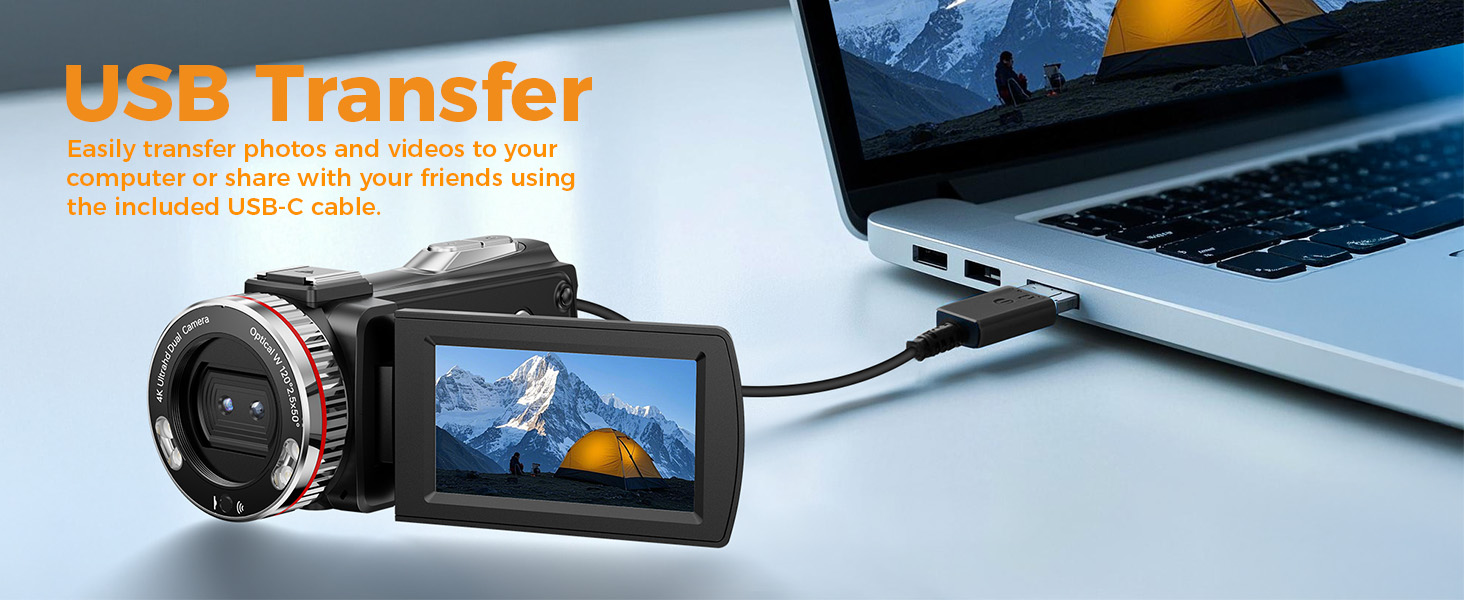
Image: A visual representation of all items included in the Caupureye HDV900pro Camcorder package.
3. Product Overview
The Caupureye HDV900pro camcorder features a compact design with a 3.0-inch 270° rotatable screen for versatile shooting. It supports 4K video and 48MP photos, with 21x digital zoom. The camera includes a built-in fill light for low-light conditions and dual lenses (wide-angle and narrow) for various scenarios.

Image: The camcorder capturing a scene, highlighting its 4K 48MP capabilities and rotatable screen.
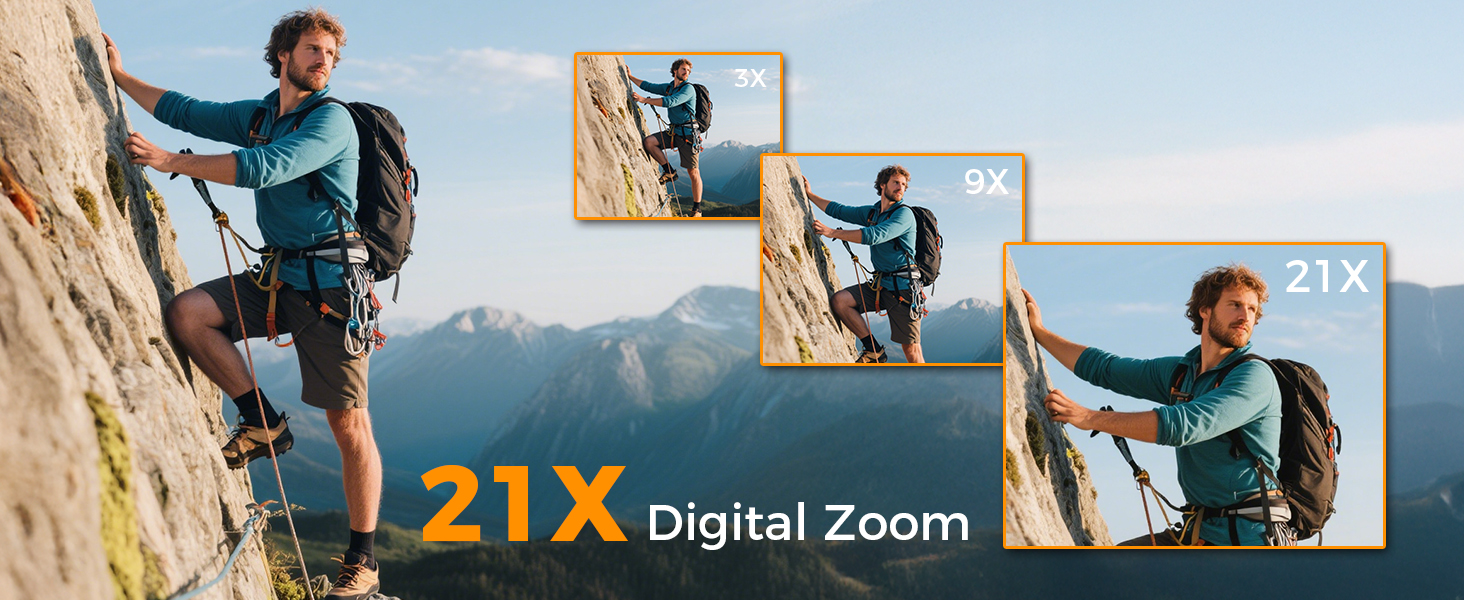
Image: Visual comparison of 3x, 9x, and 21x digital zoom, and the difference between normal and 120° wide-angle views.

Image: The LED Fill Light in action, demonstrating its ability to enhance image quality in low-light conditions.
4. Setup
4.1 Battery Installation and Charging
Insert one of the provided Li-ion batteries into the battery compartment. The camcorder supports recording while charging, ensuring you don't miss any moments. Use the included USB cable to charge the batteries.
4.2 SD Card Insertion
Insert the 64GB SD card (or your own U3 class 10 memory card up to 512GB) into the designated slot. Ensure it clicks into place.
4.3 External Microphone Attachment
Attach the external microphone to the camcorder's hot shoe mount and plug it into the microphone input for enhanced audio recording.
5. Basic Operation
5.1 Power On/Off
Open the 270° rotatable screen to power on the camcorder. Close the screen to power it off.
5.2 Recording Video and Taking Photos
To record video or take photos, follow these steps:
- Press the MODE button to select your desired mode (video or photo).
- Press the SHUTTER button to start/stop recording or take a photo.
- Use the W/T button to zoom in/out.
- Press the FILL LIGHT button to activate the LED light in dark areas.

Image: Step-by-step guide on using the camcorder's buttons for recording and photography.
6. Advanced Features
6.1 Webcam and HDMI Output
Connect the camcorder to your computer via USB and select "PC Camera" mode to use it as a webcam for live streaming. For an immersive viewing experience, connect the camcorder to a TV using the HDMI cable.

Image: The camcorder functioning as a webcam and connected to a TV via HDMI.
6.2 Special Recording Modes
The camcorder offers various modes to enhance your creativity:
- Pause Function: Pause and resume recording without creating multiple files.
- Slow-Motion Recording: Capture detailed slow-motion video.
- Time-Lapse Recording: Condense long events into short, engaging videos.
- Selfie: Use the rotatable screen to frame yourself perfectly.
- Continuous Shooting: Capture a rapid sequence of photos.
- Night Vision (LED Fill Light): Improve visibility in dark environments.

Image: Examples of different recording modes, including pause, slow-motion, and time-lapse.
7. Connecting to a Computer
Use the provided USB cable to connect your camcorder to a computer. This allows for easy transfer of photos and videos for editing or sharing.

Image: The camcorder connected to a laptop, illustrating the USB transfer function.
8. Playback
To review your recorded videos and photos:
- Press the PLAY/RIGHT button to enter playback mode.
- Use the UP/DOWN button to select the clip you wish to view.
- Press the OK button to play or stop the video.
- Press the MENU/LEFT button to delete a clip or return to the gallery.

Image: Step-by-step guide on how to access and control media playback on the camcorder.
9. Troubleshooting
- Camera not powering on: Ensure batteries are correctly inserted and fully charged.
- Poor video/image quality: Check lighting conditions, adjust exposure settings, or ensure the lens is clean.
- Microphone not recording audio: Ensure the external microphone is securely plugged in and powered on (if applicable).
- SD card error: Ensure the SD card is correctly inserted and not full. Try formatting the card (this will erase all data).
- Remote control not working: Ensure the battery in the remote is functional and there are no obstructions between the remote and the camcorder.
For further assistance, please contact customer service.
10. Specifications
| Feature | Detail |
|---|---|
| Brand | Caupureye |
| Model Number | HDV900pro |
| Video Capture Resolution | 4K |
| Photo Sensor Technology | CMOS |
| Maximum Aperture | 2 f |
| Screen Size | 3 Inches |
| Connectivity Technology | USB |
| Item Weight | 1.41 pounds |
11. Warranty and Support
For warranty information or technical support, please refer to the contact details provided in your product packaging or visit the official Caupureye website. Our customer service team is available to assist you with any questions or concerns.