1. Introduction
This manual provides detailed instructions for the installation, operation, and maintenance of your Jungle Leopard Interstellar V4 120mm Case Fan. Please read this guide thoroughly before installation and use to ensure optimal performance and longevity of your product.

Image: Overview of the Jungle Leopard Interstellar V4 120mm Case Fans, showcasing the digital display, three-speed control, and building-block splicing feature.
2. Package Contents
Verify that all components are present in your package:
- Jungle Leopard Interstellar V4 120mm Case Fan (Quantity as per pack)
- Mounting Screws (12 screws for a 3-pack)
- Fan Power Cable (2 cables for a 3-pack)
- Reusable Rubber Feet
3. Key Features
3.1. Three-Mode Digital Display & Speed Control
The fan supports three adjustable speed gears: Low (600-1300 RPM), Medium (600-1700 RPM), and High (600-2100 RPM). A power cord lever allows for convenient switching between these modes, adapting to various cooling and noise requirements. The axial circular digital display screen provides real-time fan speed (RPM) and mode information.

Image: Detailed view of the axial circular digital display screen, indicating RPM, mode (H, M, L), and the speed adjustment lever. This display also covers screw holes for a cleaner aesthetic.
3.2. Building-Block Splicing Design
The innovative building-block splicing design simplifies installation. Fans can be quickly connected with a press, allowing for easy creation of a personalized chassis air duct without complex wiring.

Image: Illustration of the building-block splicing mechanism, showing how fans connect with a simple click for streamlined installation.
3.3. Infinity Mirror ARGB Lighting Effect
Transparent and widened infinity mirrors, combined with high-brightness light beads, deliver translucent and brilliant Addressable RGB (ARGB) lighting effects, enhancing the aesthetic appeal of your PC chassis.
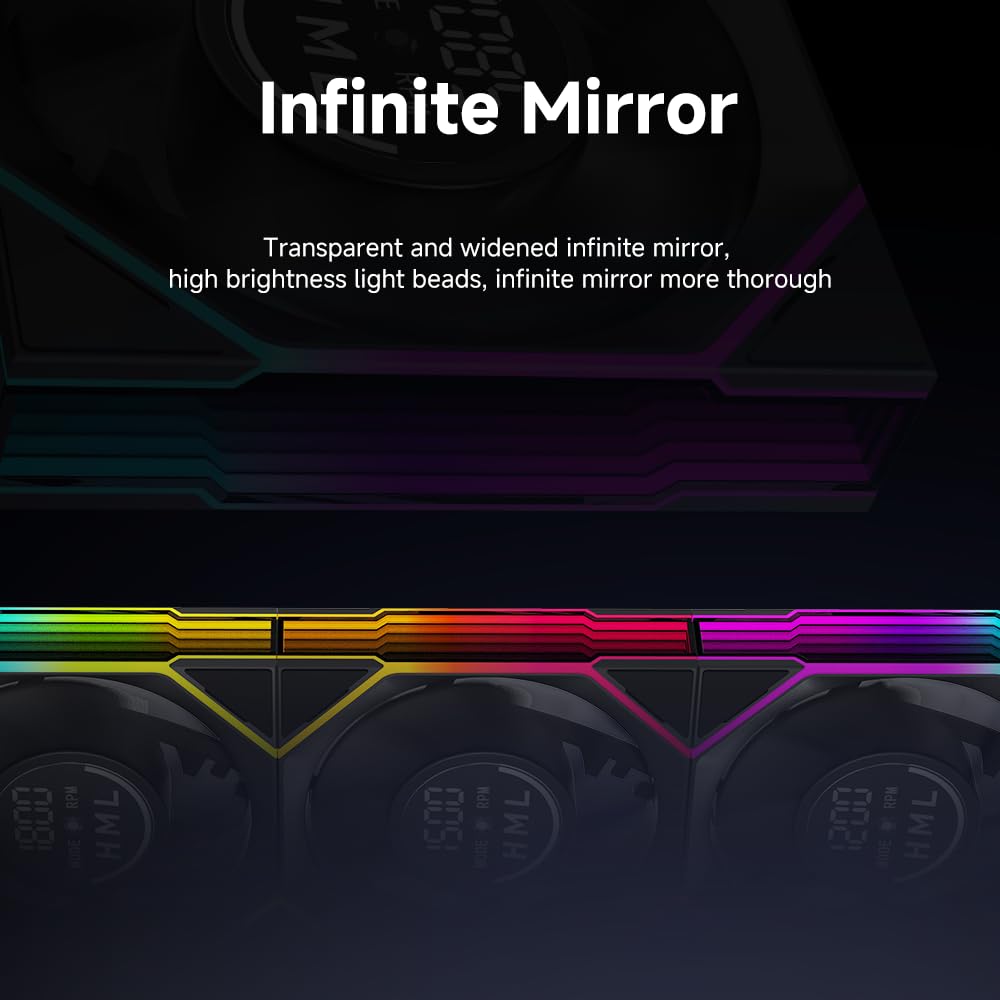
Image: Close-up view of the infinity mirror effect, demonstrating the depth and vibrancy of the ARGB lighting.
3.4. Efficient Cooling with Low Noise
The fan provides an air volume of up to 61.54 CFM. Its 28mm thickness enhances air pressure (Positive pressure 3.18mmH₂O, Negative pressure 2.89mmH₂O), ensuring effective cooling. Despite its performance, the operating noise level is maintained at a low 29 dBA, balancing quiet operation with cooling efficiency.

Image: A PC case featuring the installed Jungle Leopard fans, with callouts for air volume (61.54 CFM), air pressure (3.18mmH₂O), and noise level (29 dBA).
4. Specifications
| Feature | Specification |
|---|---|
| Product Dimensions | 120 x 120 x 28 mm |
| Fan Speed | 600 - 2100 ±10% RPM (Three-mode adjustable) |
| Rated Voltage | DC 12V |
| Wattage | 3.15 watts |
| Bearing Type | Hydraulic Bearings |
| Air Flow Capacity | 61.54 CFM |
| Air Pressure (Positive) | 3.18 mmH₂O |
| Air Pressure (Negative) | 2.89 mmH₂O |
| Noise Level | 29 dBA |
| LED Color | ARGB (Addressable RGB) |
| Power Connector Type | 4-Pin PWM + 5V 3-Pin ARGB |
| Material | Acrylonitrile Butadiene Styrene, Aluminum |
| Compatible Devices | Computer |
| Item Weight | 1.37 Pounds |

Image: Detailed product specifications for both forward and reverse fan models, including size, speed, voltage, bearing type, air pressure, air volume, noise, and interface.
5. Installation Guide
The Interstellar V4 fans feature a building-block splicing design for simplified installation.
- Preparation: Ensure your PC case has adequate space for 120mm fans. Identify the desired mounting locations (e.g., front, top, rear, bottom).
- Splicing Fans: Align the fans at a 45-degree angle to connect them. Gently press them together until you hear a click, indicating a secure connection. This method significantly reduces wiring complexity compared to traditional fan installations.
- Mounting: Secure the assembled fan unit to your PC case using the provided mounting screws. The fans feature hidden screw holes for a cleaner appearance.
- Connecting Cables: Connect the 4-Pin PWM cable to an available fan header on your motherboard or fan controller. Connect the 5V 3-Pin ARGB cable to a compatible ARGB header on your motherboard or ARGB controller for lighting synchronization.
- Power On: Once all connections are secure, power on your computer to test the fans and lighting.

Image: Visual guide demonstrating the three steps for convenient installation: approaching at a 45-degree angle, clicking for tactile feedback, and completed splicing. This system reduces installation time significantly.
6. Operation
The Interstellar V4 fans offer flexible operation modes:
- Speed Adjustment: Use the power cord lever to switch between Low (L), Medium (M), and High (H) speed modes.
- Digital Display: The integrated digital display on each fan shows the current RPM and the selected speed mode (L, M, or H).
- ARGB Control: If connected to a compatible ARGB header, the lighting effects can be controlled via your motherboard's software or a dedicated ARGB controller.
Video: An official product video showcasing the Jungle Leopard Interstellar V4 120mm Case Fan installed in a PC, demonstrating its ARGB lighting, digital display, and overall aesthetic appeal.
7. Maintenance
Regular maintenance ensures optimal performance and extends the lifespan of your fans:
- Dust Cleaning: Periodically clean the fan blades and housing to prevent dust buildup, which can impede airflow and increase noise. Use compressed air or a soft brush.
- Cable Management: Ensure all cables are neatly routed and secured to prevent interference with fan blades or other components.
- Inspection: Occasionally check for any loose connections or unusual noises.
8. Troubleshooting
If you encounter issues, refer to the following common problems and solutions:
- Fan Not Spinning:
- Check if the 4-Pin PWM cable is securely connected to the motherboard or fan controller.
- Ensure the power supply is functioning correctly.
- Verify fan settings in your motherboard's BIOS/UEFI or fan control software.
- No RGB Lighting:
- Confirm the 5V 3-Pin ARGB cable is correctly connected to a compatible ARGB header.
- Check your motherboard's ARGB software or dedicated controller for lighting settings.
- Ensure the ARGB header is enabled in your motherboard's BIOS/UEFI.
- Excessive Noise:
- Clean any dust buildup on the fan blades.
- Ensure the fan is securely mounted and not vibrating against the case.
- Check for any cables or obstructions interfering with the fan blades.
- Adjust the fan speed to a lower setting using the power cord lever.
- Digital Display Not Working/Flickering:
- Ensure all fan connections are firm.
- If multiple fans are spliced, check the connections between each fan.
- Contact support if the issue persists after checking connections.
9. Warranty and Support
For warranty information and technical support, please refer to the official Jungle Leopard website or contact their customer service directly. Keep your proof of purchase for any warranty claims.
For further assistance, you may visit the Jungle Leopard Store on Amazon.