
1. Product Overview
The aigolink Car Radio Bluetooth 5.0 (Model aigolink-123) is a 1-DIN car stereo designed for 12V vehicles, offering a range of audio and connectivity features. It includes Bluetooth 5.0 for hands-free calling and audio streaming, an AM/FM radio tuner, and multiple input options such as USB, AUX, and SD/TF card slots. The unit features a clear LCD screen, a digital clock, and comes with a remote control for convenient operation. Its compact design ensures compatibility with standard 1-DIN radio slots.

Image 1.1: Front view of the aigolink Car Radio, highlighting its multifunction capabilities including AUX, USB, Bluetooth, Memory Card, Music playback, and Digital Clock.
2. Setup and Installation
2.1 Package Contents
Before installation, ensure all components are present:
- aigolink Car Radio Unit
- Remote Control
- ISO Connection Cable
- User Manual
- Installation/Disassembly Tools

Image 2.1: Illustration of the items included in the product package, along with the unit's dimensions.
2.2 Installation Steps
The aigolink car radio is designed for easy installation into standard 1-DIN slots (dimensions: 178 x 50 x 60 mm). It is compatible with 12V vehicle electrical systems. Follow these general steps:
- Preparation: Disconnect the vehicle's battery to prevent electrical shorts.
- Remove Old Unit: Carefully remove the existing car radio from its slot.
- Connect Wiring: Use the provided ISO connection cable to connect the new aigolink car radio to your vehicle's wiring harness. Ensure all connections are secure. Refer to the wiring diagram below for proper connections.
- Insert Unit: Slide the aigolink car radio into the 1-DIN slot until it clicks into place.
- Reconnect Battery: Reconnect the vehicle's battery.
- Test Functionality: Turn on the vehicle and the car radio to test all functions (power, audio, radio, Bluetooth, USB).
Important Note: This unit is designed for 12V vehicles only. Do not attempt to install it in 24V vehicles.

Image 2.2: Front panel controls and rear connection diagram, showing ISO connector, audio output, and radio antenna port.
3. Operating Instructions
3.1 Power On/Off
Press the Power/Mode button (usually marked with a power symbol or 'MODE') to turn the unit on or off.
3.2 Source Selection
Press the MODE button repeatedly to cycle through available audio sources: FM Radio, Bluetooth, USB, SD/TF Card, and AUX.
3.3 Bluetooth Functionality
The car radio features Bluetooth 5.0 for wireless connectivity.
- Pairing: Select Bluetooth mode. On your smartphone or other Bluetooth device, search for available devices and select "aigolink" (or similar name). Enter "0000" if a PIN is required.
- Hands-Free Calling: Once paired, you can make and receive calls through the car radio. Use the Answer and Hang Up buttons on the unit or remote control. The built-in microphone on the front panel allows for clear communication.
- Audio Streaming: Play music from your paired device directly through the car speakers.
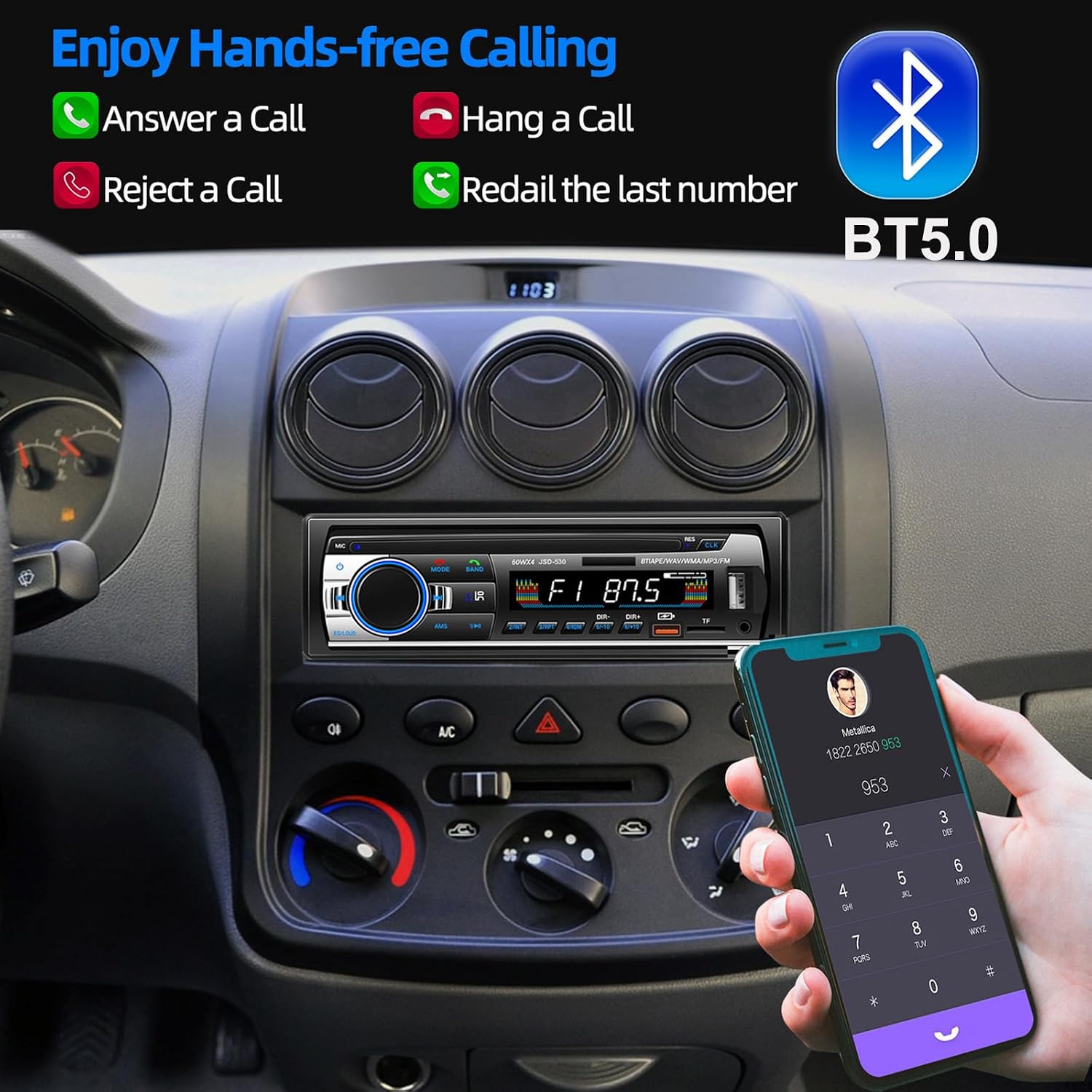
Image 3.1: Demonstrates the hands-free calling capabilities, including answering, hanging up, rejecting, and redialing calls via Bluetooth 5.0.
3.4 FM Radio Operation
The unit supports FM radio reception (87.5-107.9MHz).
- Automatic Search: Press the AMS button to automatically scan and store available stations. Up to 18 FM stations can be stored.
- Manual Tuning: Use the DIR- and DIR+ buttons to manually tune to specific frequencies.
- Preset Stations: Use the numbered buttons (1-6) to select stored preset stations.

Image 3.2: Shows the FM radio interface with various frequencies displayed, indicating the tuning range.
3.5 USB, SD/TF Card, and AUX Playback
The car radio supports various media inputs:
- USB Ports: Two USB ports are available. One port is dedicated for fast charging (2.1A) of devices, while the other is for music playback from USB flash drives.
- SD/TF Card Slot: Insert an SD or TF card (up to 32GB) into the designated slot for music playback.
- AUX Input: Connect external audio devices (e.g., MP3 players) via the 3.5mm AUX jack.
- Supported Formats: The unit plays MP3, WMA, and WAV audio formats.

Image 3.3: Illustrates the convenient USB charging port, AUX connection, and SD/TF card slot for versatile media playback.

Image 3.4: Depicts the four primary play modes: Bluetooth, USB, SD card, and AUX, offering diverse audio options.
3.6 Audio Settings (EQ/DSP)
Customize your audio experience with the integrated Digital Sound Processor (DSP) and Equalizer (EQ).
- EQ/LOUD Button: Press this button to cycle through preset sound styles: POP, CLASSIC, JAZZ, ROCK, and FLAT.
- Bass/Treble/Balance: Adjust these settings via the menu options to fine-tune the sound output.

Image 3.5: Shows the different equalizer presets (Rock, Pop, Classic, Jazz, Flat) for an optimized music experience.
3.7 Remote Control
The included remote control allows for convenient operation of various functions from a distance, including volume adjustment, track skipping, radio station changes, and source selection.
Note: Ensure there is no obstruction between the remote control and the car radio for optimal performance.
3.8 Clock Display
The unit features a self-defined clock. Refer to the on-screen menu for setting the time and toggling the clock display on or off.
4. Maintenance
To ensure the longevity and optimal performance of your aigolink Car Radio, follow these simple maintenance guidelines:
- Cleaning: Use a soft, dry cloth to wipe the front panel and LCD screen. Avoid using abrasive cleaners or solvents, as they can damage the surface.
- Dust Removal: Periodically clean any dust accumulation around the buttons and ports using a soft brush or compressed air.
- Avoid Liquids: Do not expose the unit to excessive moisture or liquids.
- Temperature: Operate and store the unit within recommended temperature ranges to prevent damage to electronic components.
5. Troubleshooting
If you encounter issues with your aigolink Car Radio, refer to the following common problems and solutions:
- No Power:
- Check the vehicle's fuse box and the fuse on the car radio's power cable. Replace if blown.
- Ensure all power connections (ISO cable) are securely attached.
- No Sound:
- Verify that the volume is not set to minimum or muted.
- Check speaker connections.
- Ensure the correct audio source is selected.
- Bluetooth Connection Issues:
- Ensure Bluetooth is enabled on both the car radio and your device.
- Delete previous pairings on your device and re-attempt pairing.
- Move your device closer to the car radio.
- Poor Radio Reception:
- Check if the antenna is properly connected and extended.
- Try tuning to a stronger station or moving to an area with better signal.
- Remote Control Not Working:
- Ensure there are no obstructions between the remote and the unit.
- Check and replace the remote control battery if necessary.
If the problem persists after attempting these solutions, please contact customer support.
6. Specifications
| Feature | Specification |
|---|---|
| Brand | aigolink |
| Model | aigolink-123 |
| DIN Size | 1 DIN |
| Output Power | 4 x 60 Watts |
| Bluetooth Version | 5.0 |
| FM Frequency Range | 87.5 - 107.9 MHz |
| Connectivity | 2x USB (1x Charging, 1x Music), AUX (3.5mm Jack), SD/TF Card Slot |
| Supported Audio Formats | MP3, WMA, WAV |
| Compatible Devices | Smartphone, Tablet, Personal Computer |
| Special Features | Hands-Free Function, Clock, Remote Control, LCD Screen, EQ/DSP (POP, CLASSIC, JAZZ, ROCK, FLAT) |
| Operating Voltage | 12V |
| Dimensions (W x H x D) | 178 x 50 x 60 mm |
| Item Weight | 400 Grams |
7. Warranty and Customer Support
7.1 Warranty Information
Specific warranty details for the aigolink Car Radio Bluetooth 5.0 (Model aigolink-123) are not provided in this manual. Please refer to your purchase documentation or contact the retailer for warranty terms and conditions.
7.2 Customer Support
For any questions, technical assistance, or support regarding your aigolink Car Radio, please contact our customer service team. Contact information can typically be found on the product packaging, retailer's website, or your purchase invoice.