
1. Introduction and Overview
The BLANBOK+ MFi Certified Flash Drive is a versatile external storage solution designed for seamless data transfer and backup across multiple devices, including iPhone, iPad, Android smartphones, and personal computers. This 256GB flash drive offers a convenient way to expand your device's storage, back up important photos, videos, and documents, and manage your files efficiently without relying on internet connectivity or cloud services.

Image 1.1: The BLANBOK+ MFi Certified Flash Drive, designed for compatibility with iPhone, iPad, and iPod devices.
Equipped with Lightning, Type-C, and USB interfaces, this device ensures broad compatibility and high-speed data transfer. Its compact design and durable construction make it an ideal companion for users needing portable and secure storage.
2. Product Features
- Convenient and User-Friendly: Easily back up photos, videos, and contacts with a single click via the dedicated app for iOS devices. For Android and PC, it offers plug-and-play functionality.
- Fast Data Transfer: Utilizes high-speed transfer ports and quality flash memory chips for rapid data transmission of large files, high-resolution photos, and HD videos.
- Document and Photo Storage: Provides 256GB of storage capacity with Lightning, Type-C, and USB interfaces for versatile data transfer without cables, iTunes, or iCloud.
- Freeing Up Phone Space: Compatible with iOS 12.1+ devices, OTG Android phones, and computers, allowing users to offload large files and optimize device performance.
- Protect Your Privacy: Offers options to encrypt the entire application or specific files, ensuring the security of your sensitive data.

Image 2.1: The BLANBOK+ flash drive showcasing its multi-interface design for broad compatibility.
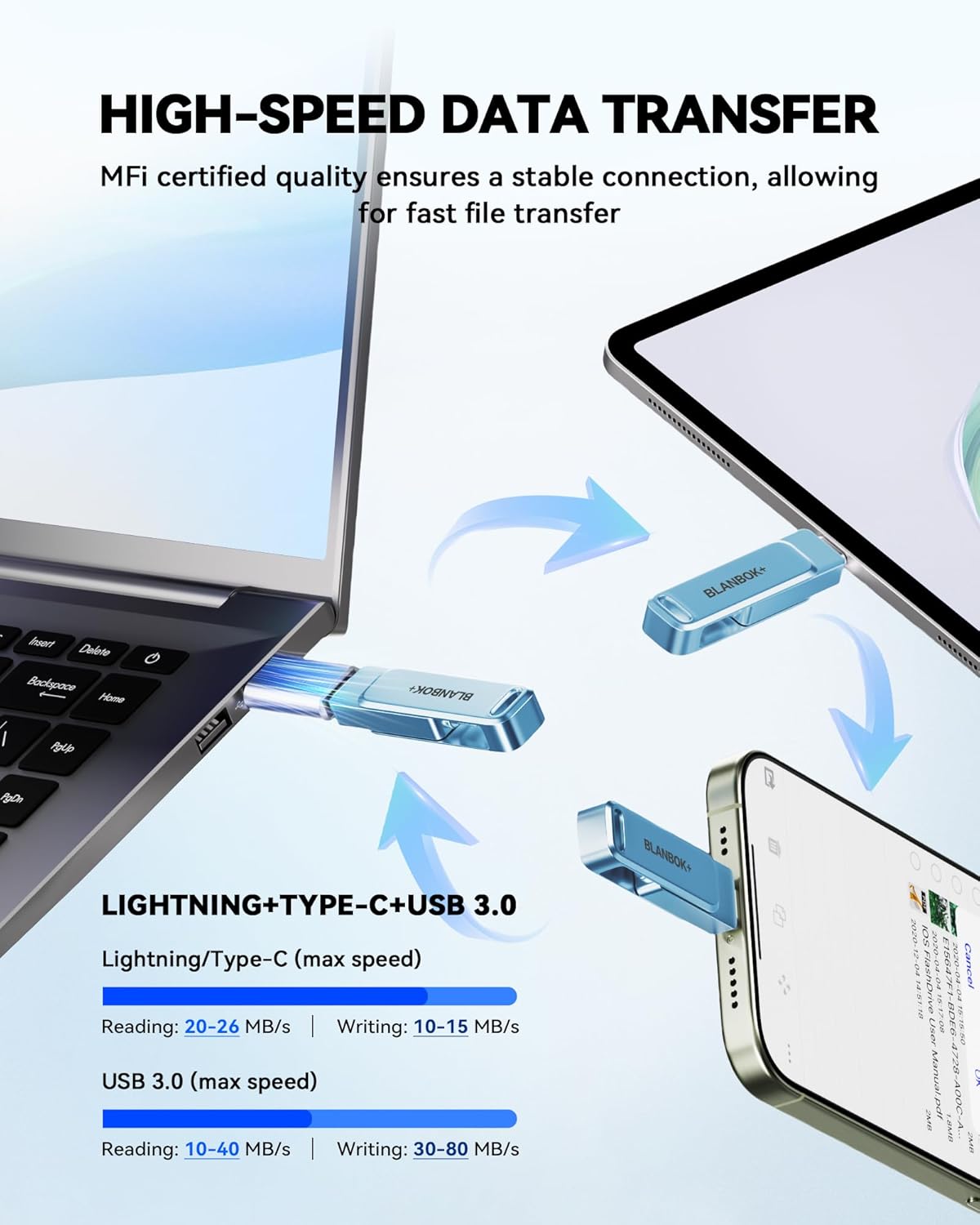
Image 2.2: Visual representation of high-speed data transfer between devices using the flash drive.
3. Setup
3.1 For iPhone/iPad (iOS Devices)
- Download the App: To use the flash drive with your iPhone or iPad, you must download and install the "LuxSync PRO" app from the Apple App Store.
- Connect the Drive: Insert the Lightning connector of the flash drive into your iPhone or iPad's charging port.
- Grant Permissions: The first time you connect, your device will prompt you to allow the "LuxSync PRO" app to communicate with the flash drive. Tap "Allow" to proceed.

Image 3.1: Instructions for installing the LuxSync PRO app and connecting the flash drive to an iOS device.
3.2 For Android Devices
The flash drive is compatible with Android phones that support the OTG (On-The-Go) function. No additional app download is required.
- Enable OTG: Ensure the OTG function is enabled in your Android phone's settings. This setting is often found under 'Connected devices', 'USB preferences', or 'Storage'.
- Connect the Drive: Insert the Type-C connector of the flash drive into your Android phone's charging port.
- Access Files: You can find the external USB storage in your phone's "File Manager" or similar file browsing app.
3.3 For PC/Mac (Computers)
The flash drive operates as a standard USB drive on computers, requiring no special software or drivers.
- Connect the Drive: Insert the USB-A connector of the flash drive into an available USB port on your computer.
- Access Files: The drive will appear as a removable storage device (e.g., "USB Drive" or "Removable Disk") in your computer's file explorer (Windows) or Finder (Mac).
4. Operating Instructions
4.1 Transferring Files (iOS)
Using the "LuxSync PRO" app, you can easily transfer photos, videos, and other files between your iOS device and the flash drive.
- Open App: Launch the "LuxSync PRO" app on your iPhone/iPad.
- Select Action: Choose to backup photos/videos, or browse files.
- Initiate Transfer: Follow the in-app prompts to select files from your device's library or the flash drive and initiate the transfer. The app supports one-click backup for convenience.
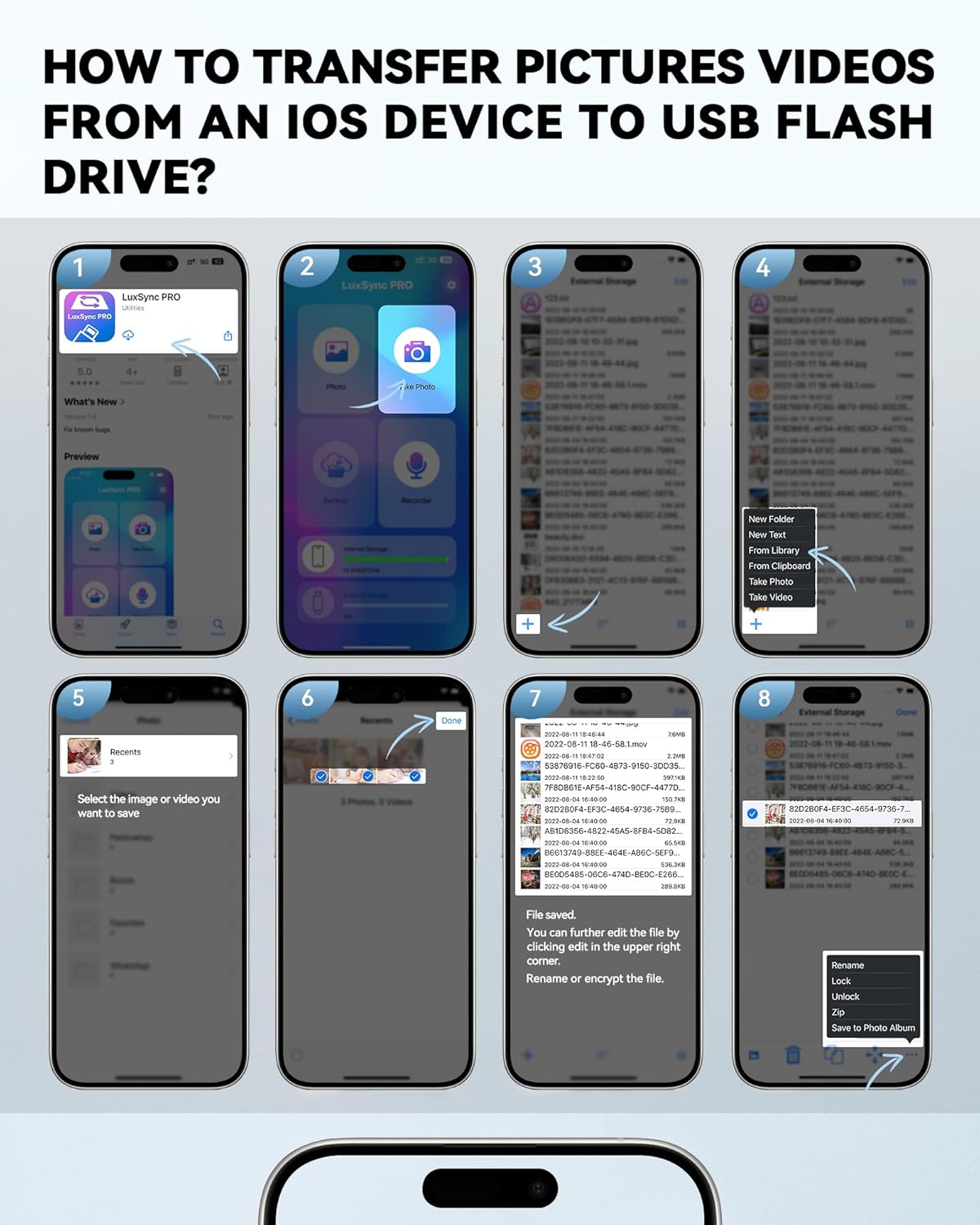
Image 4.1: Detailed steps for transferring media from an iOS device to the flash drive via the LuxSync PRO app.
4.2 Transferring Files (Android/PC)
For Android and PC, file transfer is managed through the device's native file management system.
- Locate Drive: Open your device's file manager (Android) or file explorer/Finder (PC/Mac) and navigate to the connected flash drive.
- Copy/Paste: Select the files you wish to transfer, then use the copy/paste or drag-and-drop function to move them to or from the flash drive.
4.3 Data Privacy and Encryption
The "LuxSync PRO" app for iOS allows you to protect your data with encryption.
- App Encryption: You can set a password to encrypt the entire "LuxSync PRO" app, preventing unauthorized access to its contents.
- File Encryption: Within the app, you have the option to encrypt specific files or folders stored on the flash drive.

Image 4.2: Illustration of the data privacy protection feature, allowing secure access to files.
4.4 Supported File Formats
The flash drive supports a wide range of file formats for storage and playback.

Image 4.3: Overview of the massive file formats supported by the flash drive, including video, picture, document, and music files.
5. Maintenance
- Safe Removal: Always ensure that any apps related to the flash drive are closed and gently unplug the drive from your device to prevent data corruption or damage to files.
- Cleaning: If connection issues arise, gently clean the Lightning or Type-C interface of the flash drive with a soft, dry cloth or a small amount of alcohol.
- Durability: The flash drive is designed with resistance to high temperatures, water, dust, drops, and magnetic interference. However, avoid exposing it to extreme conditions to ensure longevity.
- Storage Format: For optimal compatibility, small-capacity drives prefer FAT32 format. For large-capacity drives like this 256GB model, exFAT format is recommended. If you experience transfer issues, reformatting to exFAT may resolve them. Always back up your data before formatting.

Image 5.1: The compact and convenient design of the flash drive, highlighting its portability and keychain compatibility.
6. Troubleshooting
- Drive Not Recognized (iPhone/iPad): If the flash drive is not recognized by your iPhone or iPad, try uninstalling the "LuxSync PRO" app, restarting your phone, and then manually re-downloading the app from the App Store. Ensure you grant all necessary permissions upon reconnection.
- Drive Not Recognized (Android): Verify that the OTG function is enabled in your Android phone's settings. Some devices require this to be manually turned on.
- Cannot Transfer Certain Files: Media files downloaded from platforms like iTunes or other third-party applications may be protected by Digital Rights Management (DRM) and cannot be transferred or viewed directly from the flash drive.
- Transfer Issues/Errors: If you encounter difficulties transferring files, consider checking the format of the flash drive. For large capacities, exFAT is generally more stable. You may need to reformat the drive (after backing up all data) to exFAT if it is currently FAT32.
- App Issues: If the "LuxSync PRO" app behaves unexpectedly, try force-closing it and reopening. If the problem persists, reinstalling the app as described above may resolve it.
7. Specifications
| Feature | Specification |
|---|---|
| Model Name | BLA2504 |
| Memory Storage Capacity | 256 GB |
| Read Speed | 80 Megabytes Per Second |
| Write Speed | 40 MB per second |
| Connectivity Technology | USB |
| Hardware Interface | USB 3.0 |
| Color | Blue |
| Item Weight | 1.76 ounces |
| Package Dimensions | 4.17 x 3.7 x 0.67 inches |
| Special Features | Dust Proof, Encrypted, Lightweight, Magnetic Proof, Shockproof |
8. Support
For any questions, concerns, or technical assistance regarding your BLANBOK+ MFi Certified Flash Drive, please contact BLANBOK+ customer support. Refer to the product packaging or the retailer's website for specific contact information.
While specific product warranty details are not provided, the product is eligible for a 30-day refund/replacement policy through the retailer. Additionally, optional 2-year and 3-year Photo and Data Recovery Plans may be available for purchase separately to provide extended data protection.