
1. Introduction
This manual provides detailed instructions for the installation, operation, and maintenance of your Hodozzy 8-Core Car Radio. This unit features a 7-inch IPS touch screen, Android operating system, 6GB RAM, 128GB storage, Wireless Carplay, Android Auto, Bluetooth, GPS, DSP, and FM/RDS radio. Please read this manual thoroughly before using the product to ensure proper function and safety.
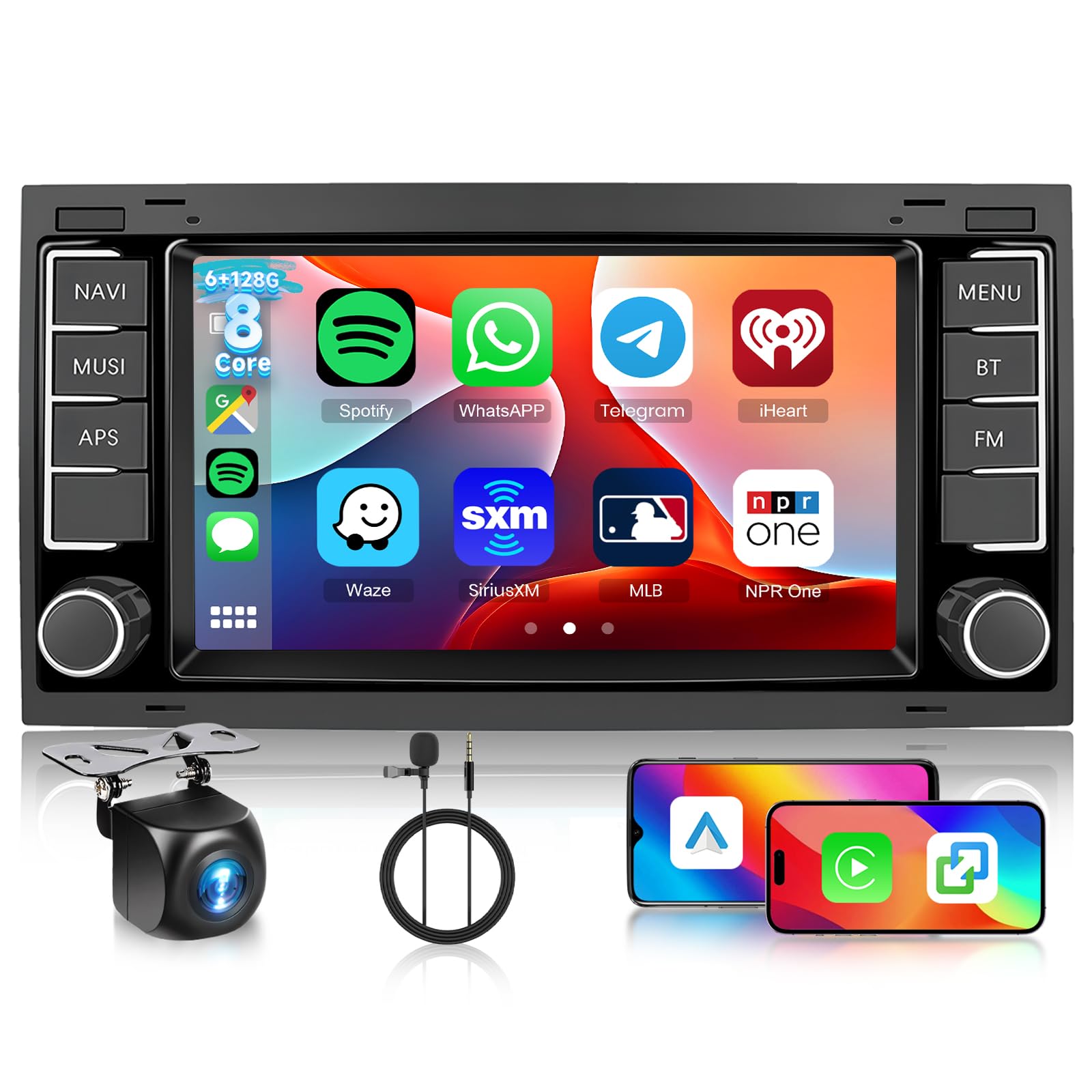
Figure 1: Hodozzy 8-Core Car Radio main unit.
2. Product Features
- IPS Touch Screen with Android System: High-resolution 7-inch IPS touch screen with the latest Android operating system for a seamless user experience.
- 8-Core Processor: Equipped with an 8-core processor, 6GB RAM, and 128GB storage for fast and efficient performance.
- Wireless Connectivity: Supports Wireless Carplay, Wireless Android Auto, and Mirror Link for smartphone integration.
- Audio Enhancements: Built-in 32 EQ DSP settings for customizable premium audio quality.
- Navigation & Radio: Integrated GPS navigation system and FM/RDS radio.
- Customizable Interface: Offers 59 desktop themes and 19 wallpaper choices.
- Multi-tasking: Split Screen feature allows for multiple applications to be displayed simultaneously.
- Additional Features: Dual USB ports, support for reversing camera (AHD wide-angle rear view camera included), microphone (MIC included), steering wheel control (SWC), and voice control.
3. Setup and Installation
3.1 Packing List
Before installation, verify that all components are present in the package:

Figure 2: Included components and rear view camera with steering wheel control functionality.
- Main Head Unit
- Power Cable
- RCA Cable
- GPS Antenna
- USB Cable (x2)
- User Manual
- Canbus Decoder
- Reverse Line
- Radio Antenna
- Rear Camera (AHD wide-angle)
- External Microphone (MIC)
3.2 Wiring and Connections
Refer to your vehicle's wiring diagram and the provided Hodozzy wiring harness for specific connections. Ensure all connections are secure to prevent malfunctions.
- Power Cable: Connect the main power harness to your vehicle's power supply. Ensure correct positive, negative, and accessory (ACC) connections.
- RCA Cables: Connect for audio output (speakers, subwoofer) and video input/output (e.g., external monitors).
- GPS Antenna: Mount the GPS antenna in a location with a clear view of the sky, typically on the dashboard or under the windshield.
- USB Cables: Connect the provided USB cables for external storage, charging, or wired Carplay/Android Auto connections.
- Canbus Decoder: Connect the Canbus decoder if your vehicle requires it for steering wheel controls, vehicle information display, or amplifier integration. Follow the specific instructions for your vehicle model.
- Reverse Line & Rear Camera: Connect the reverse trigger wire to your vehicle's reverse light circuit. Connect the rear camera video input to the head unit.
- Radio Antenna: Connect your vehicle's radio antenna to the head unit.
- External Microphone: Plug in the external microphone for improved call quality and voice commands.
3.3 Initial Power-On
After all connections are made, turn on your vehicle's ignition. The head unit should power on automatically. Follow the on-screen prompts for initial setup, including language selection and time zone.
4. Operating Instructions
4.1 Touch Screen and Android Interface
The unit operates like a standard Android tablet. Tap icons to open applications, swipe to navigate menus, and use pinch-to-zoom gestures where applicable. The main screen provides access to common functions like navigation, radio, music, and phone.
4.2 Wireless Carplay and Android Auto
To use Wireless Carplay or Android Auto:
- Ensure Bluetooth and Wi-Fi are enabled on your smartphone.
- On the head unit, open the Carplay or Android Auto application.
- Search for your phone via Bluetooth on the head unit, or initiate pairing from your phone.
- Confirm the pairing code on both devices.
- Once connected via Bluetooth, the system will prompt you to connect via Wi-Fi for the full Carplay/Android Auto experience.

Figure 3: Connectivity options including Wireless Carplay, Android Auto, and Mirror Link.
4.3 Mirror Link
Mirror Link allows you to display your smartphone's screen directly on the head unit. Connect your phone via USB or Wi-Fi and follow the on-screen instructions to enable screen mirroring.
4.4 Bluetooth Functions
Pair your phone via Bluetooth for hands-free calling and audio streaming.
- Go to the Bluetooth settings on the head unit.
- Enable Bluetooth on your smartphone and make it discoverable.
- Select your phone from the list of available devices on the head unit.
- Confirm the pairing code.
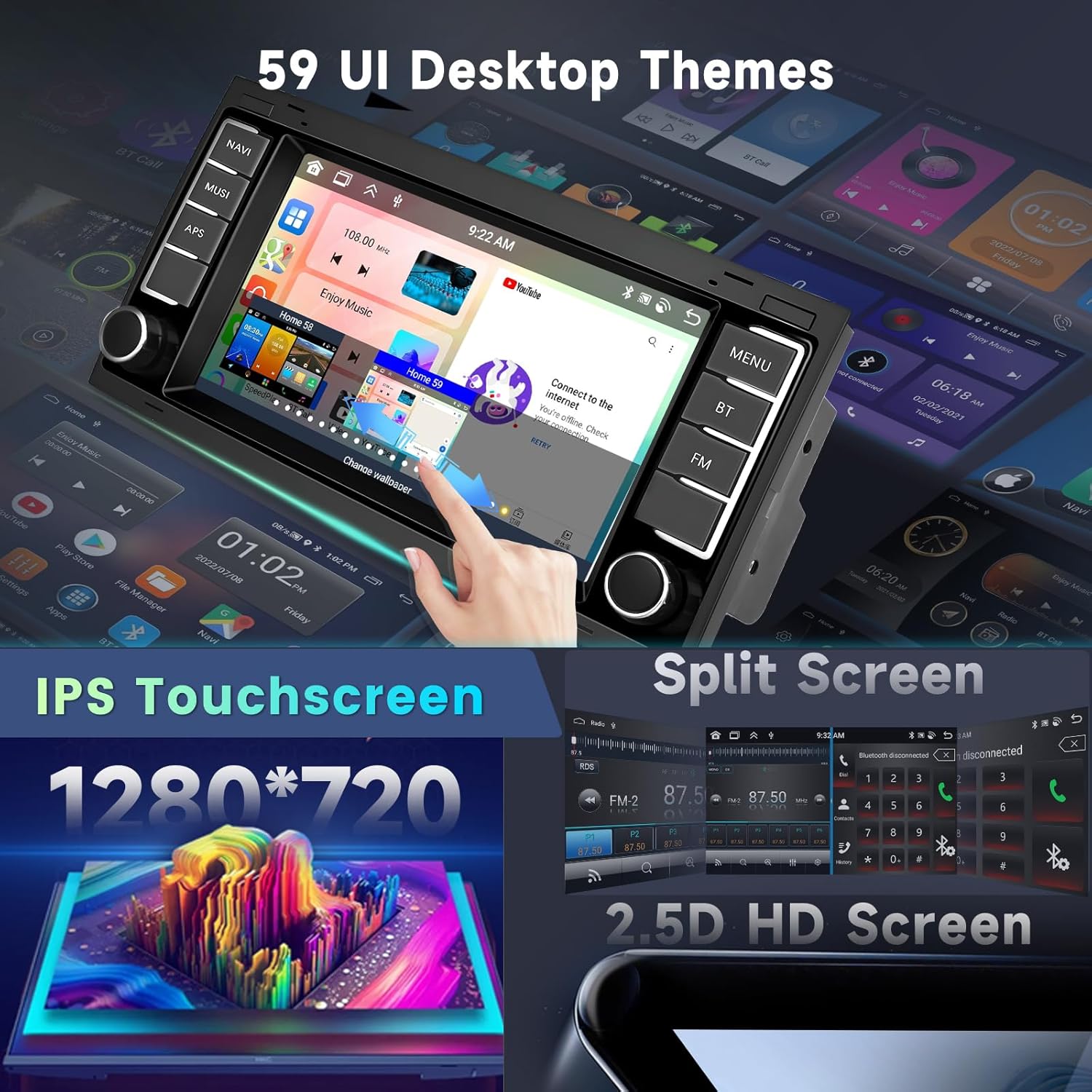
Figure 4: Bluetooth interface for calls and music, FM/RDS radio, and DSP settings.
4.5 GPS Navigation and Wi-Fi
The unit comes with pre-installed navigation software. Connect to Wi-Fi to download maps, receive traffic updates, and access online services. You can also use your phone's hotspot for internet access.

Figure 5: WiFi connection and GPS navigation display.
4.6 FM/RDS Radio
Access the radio application to tune into FM stations. The RDS (Radio Data System) feature displays station information where available.
4.7 DSP and Equalizer Settings
Customize your audio experience using the built-in Digital Sound Processor (DSP) and 32-band equalizer. Adjust frequency bands, balance, fader, and sound effects to your preference.

Figure 6: Detailed 32-band equalizer settings.
4.8 Customizable Interface and Split Screen
Personalize your head unit with various desktop themes and wallpapers. The Split Screen function allows you to run two applications side-by-side, such as navigation and music playback.
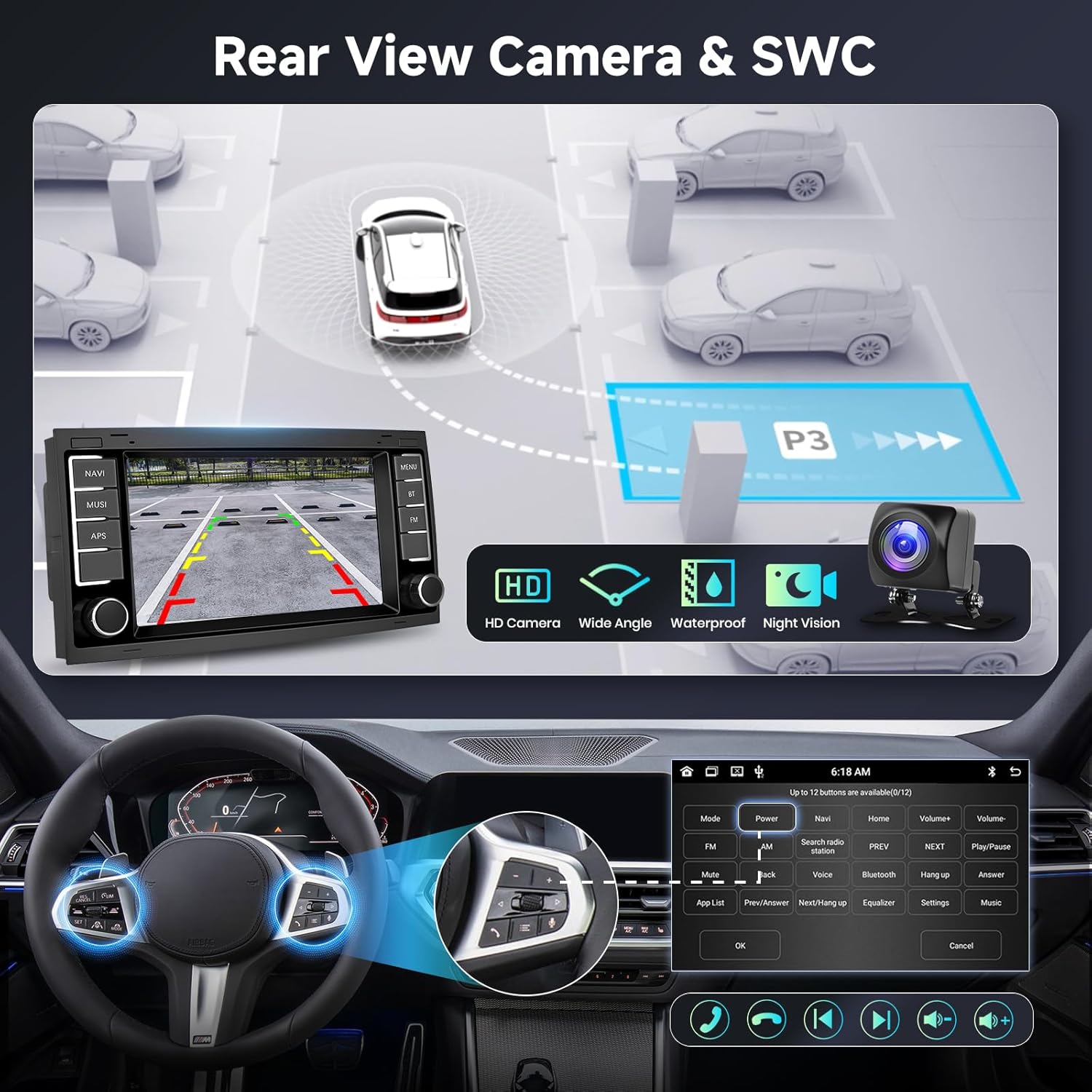
Figure 7: Examples of customizable desktop themes and split screen mode.
4.9 Rear View Camera and Steering Wheel Control (SWC)
The included rear view camera automatically displays the rear view when the vehicle is in reverse. Connect your vehicle's steering wheel controls to the head unit via the Canbus decoder for convenient operation of volume, track changes, and calls.

Figure 8: Rear view camera display and steering wheel control button mapping.
5. Maintenance
To ensure the longevity and optimal performance of your car radio, follow these maintenance guidelines:
- Cleaning the Screen: Use a soft, lint-free cloth to gently wipe the touch screen. For stubborn smudges, slightly dampen the cloth with water or a screen-safe cleaner. Avoid abrasive materials or harsh chemicals.
- Software Updates: Periodically check for software updates through the system settings or the manufacturer's website to ensure you have the latest features and bug fixes.
- Environmental Conditions: Avoid exposing the unit to extreme temperatures, direct sunlight for prolonged periods, or excessive moisture.
- Cable Connections: Periodically check all cable connections to ensure they are secure and free from damage.
6. Troubleshooting
If you encounter issues with your Hodozzy car radio, refer to the following common problems and solutions:
| Problem | Possible Cause | Solution |
|---|---|---|
| Unit does not power on. | Incorrect power wiring, blown fuse, vehicle ignition off. | Check power cable connections (ACC, B+, GND). Verify vehicle fuse. Ensure ignition is on. |
| No sound or distorted audio. | Incorrect speaker wiring, volume too low, DSP settings misconfigured, amplifier issues. | Check speaker connections. Adjust volume. Reset DSP/EQ settings. Verify external amplifier connection if applicable. |
| Bluetooth/Carplay/Android Auto not connecting. | Bluetooth/Wi-Fi off on phone/unit, incorrect pairing, software glitch. | Ensure Bluetooth/Wi-Fi are enabled. Delete previous pairings and re-pair. Restart both phone and head unit. |
| GPS signal lost or inaccurate. | GPS antenna obstructed or disconnected. | Ensure GPS antenna has a clear view of the sky and is securely connected. |
| Steering Wheel Controls not working. | Canbus decoder not connected or configured, incorrect wiring. | Verify Canbus decoder connection and configuration in settings. Check wiring. |
| Unit is slow or unresponsive. | Too many apps running, low memory, software issue. | Close unnecessary applications. Clear cache. Perform a system restart. Consider a factory reset if persistent (backup data first). |
| Rear camera not displaying. | Camera power issue, video cable disconnected, reverse trigger wire not connected. | Check camera power and video cable connections. Ensure reverse trigger wire is correctly connected to the vehicle's reverse light circuit. |
If the problem persists after attempting these solutions, please contact customer support.
7. Specifications
| Feature | Specification |
|---|---|
| Brand | Hodozzy |
| Model Number | B0FHHG6PHB |
| Operating System | Android |
| Processor | 8-Core |
| RAM | 6GB |
| Storage | 128GB |
| Screen Size | 7 Inches |
| Screen Type | IPS Touch Screen |
| Connectivity Technology | Bluetooth, Wi-Fi |
| Special Features | Android Auto, Apple CarPlay, Built-In Bluetooth, Touchscreen, GPS, DSP |
| Compatible Devices | Smartphone, Tablet, Personal Computer |
| Audio Output Mode | Stereo |
| Surround Sound Channel Configuration | 4.0 |
| Output Power | 45 Watts (per channel) |
| Total Output Wattage | 180 Watts |
| Supported Internet Services | Carplay, Android Auto |
| Built-In Media | Backup camera |
| Item Weight | 1.61 Kilograms |
8. Warranty and Support
8.1 Warranty Information
This Hodozzy car radio comes with a 2-year warranty from the date of purchase, covering manufacturing defects. Please retain your proof of purchase for warranty claims. Optional extended protection plans may be available from your retailer.
8.2 Customer Support
For technical assistance, troubleshooting, or warranty inquiries, please contact Hodozzy customer support:
- Email: hodozzyofficial@163.com
- Online Store: Visit the official Hodozzy store on Amazon for FAQs and additional resources: Hodozzy Store

Figure 9: Hodozzy customer support contact details.