
1. Introduction
This manual provides detailed instructions for the installation, operation, and maintenance of your MAHVEC Car Radio Stereo. Please read this manual thoroughly before installation and use to ensure proper function and safety. Keep this manual for future reference.
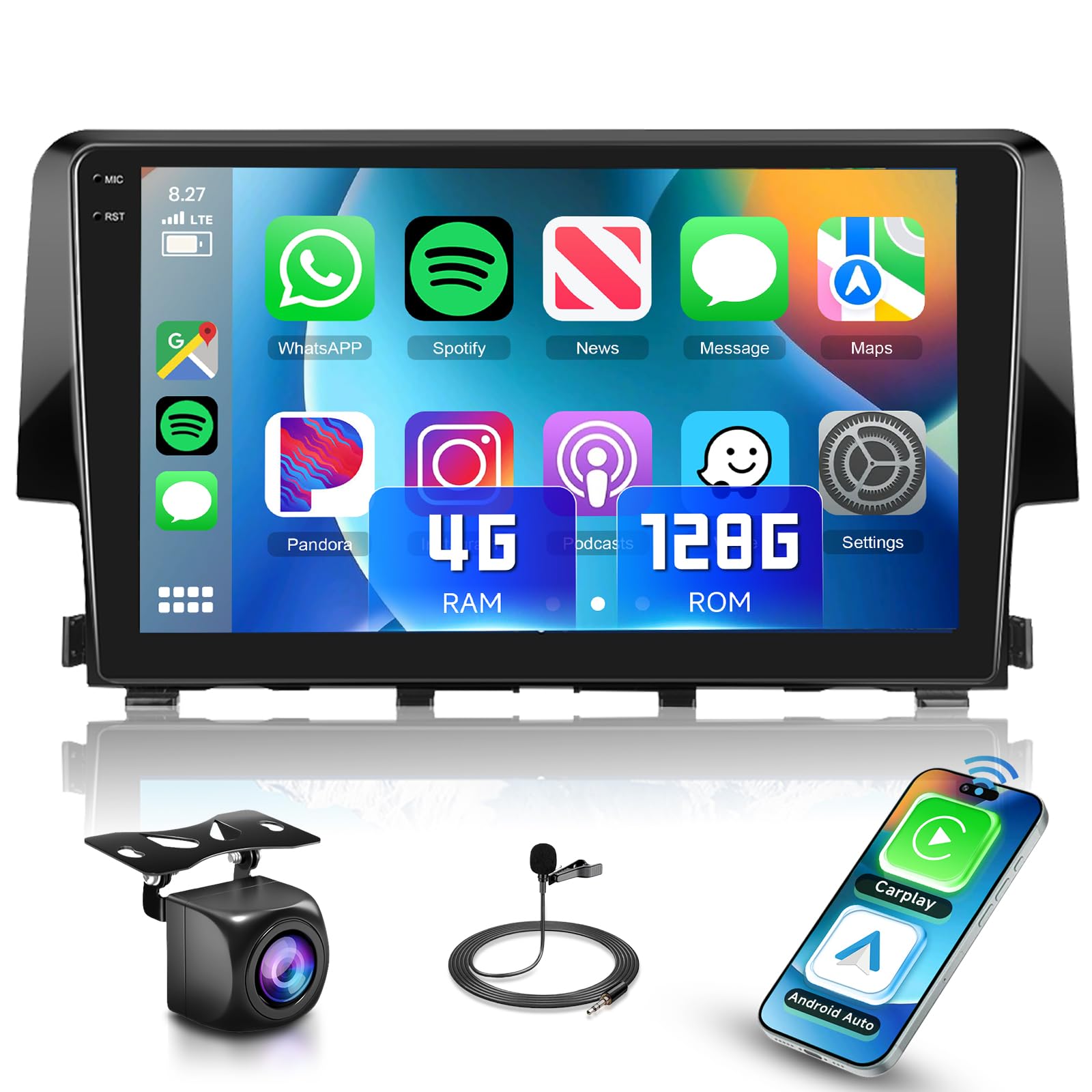
Image: MAHVEC Car Radio Stereo integrated into a Honda Civic dashboard.
2. Applicable Models
This car stereo is designed for compatibility with Honda Civic models from 2016 to 2020. It features a plug-and-play wiring harness for simplified installation.
Important: Before purchasing or installing, verify your car's model year and dashboard shape. If you are uncertain about compatibility, consult with MAHVEC support by providing a photo of your dashboard.

Image: Visual guide for Honda Civic 2016-2020 compatibility, showing the stereo installed and various rear unit configurations with 'Fit' or 'Not Fit' indicators.
3. Package Contents
Verify that all items listed below are included in your package:
- Android Car Radio Unit
- AHD Backup Camera
- External Microphone
- Power Cable
- 4 Pin USB Cable
- Rear Camera Input Cable
- RCA Cable
- 6 Pin USB Cable
- GPS Antenna
- Radio Antenna
- Canbus Decoder (if applicable)
- Installation Tool

Image: Overview of the car stereo unit's dimensions and a visual representation of all included accessories and cables.
4. Key Features
- Upgraded In-Cell Touch Screen: The 9-inch 1280x720P HD In-Cell full touch screen integrates touch sensors directly into the panel. This design results in a thinner and lighter display with over 95% light transmittance for brighter visuals and 20-30% faster touch response.
- Android 15 OS with 4GB RAM + 128GB ROM: The unit operates on an upgraded Android OS, providing smooth and reliable performance with ample storage for applications and media.
- Wireless CarPlay & Android Auto: Connect your smartphone wirelessly to access navigation, music, calls, and messages via Siri or Google Assistant, maintaining focus on the road.
- Online + Offline GPS & WiFi: The built-in GPS chip supports offline navigation. WiFi connectivity allows for online map updates and downloading of additional entertainment applications.
- Bluetooth 5.0: Enables faster pairing, stable connectivity, and precise positioning for hands-free calls and music streaming.
- FM/RDS Radio & Multi EQ Settings: Includes a built-in FM/RDS radio with multiple EQ settings, presets, and adjustable volume, fader, balance, treble, and bass.
- Steering Wheel Control (SWC): Supports integration with existing steering wheel controls for screen-free operation of various functions.
- AHD Backup Camera: Includes a 170° wide-angle, IP69 waterproof backup camera with night vision capabilities.
- Mirror Link: Allows mirroring of your smartphone screen (iOS and Android) to the car stereo display via Bluetooth or USB.

Image: Explanation of In-Cell screen technology, highlighting its advantages in touch sensitivity, slimness, clarity, and light transmission.

Image: Visual representation of Wireless CarPlay and Android Auto functionality, demonstrating smartphone integration and voice assistant activation.

Image: Illustration of GPS navigation capabilities, including online and offline maps, and WiFi for app downloads and streaming.

Image: Depiction of Bluetooth features, including hands-free calling interface and music streaming from a connected smartphone.

Image: Visuals of the FM/RDS radio interface and the graphical equalizer for sound customization.

Image: Illustration of steering wheel control integration, showing how physical buttons can be configured to control the stereo.

Image: Visual guide for Mirror Link, illustrating how smartphone content can be displayed on the car stereo screen.
5. Installation Guide
While the unit features a plug-and-play design, professional installation is recommended to ensure correct wiring and optimal performance. Incorrect installation can lead to damage to the unit or vehicle electrical systems.
5.1. General Installation Steps
- Carefully remove the original car radio unit and dashboard trim using the provided installation tool.
- Connect the main power harness from the new unit to the vehicle's wiring. Ensure all connections are secure.
- Connect the GPS antenna, WiFi/Bluetooth antenna, and any USB cables. Position antennas for optimal signal reception.
- Install the external microphone in a suitable location for clear audio input.
- Proceed with backup camera wiring as detailed below.
- Test all functions before reassembling the dashboard trim.
- Carefully reassemble the dashboard trim and secure the new car radio unit.
5.2. Backup Camera Wiring
Follow these steps for connecting the AHD backup camera:
- Identify the reverse trigger cable (labeled "back" or "reverse"). If this cable is tied with the power harness, no separate connection is needed.
- Connect the black cable (4) from the camera to the vehicle's ground (GND).
- Connect the red cable (5) from the camera to the backup light's positive (+) terminal.
- Connect the camera's video output cable to the "Rear Camera Input" port on the car radio unit.

Image: Step-by-step wiring diagram for the backup camera, indicating connections for the reverse trigger, ground, and power from the backup light.
6. Operating Instructions
6.1. Wireless CarPlay & Android Auto
- Ensure Bluetooth and Wi-Fi are enabled on your smartphone.
- On the car stereo, navigate to the "ZLink" application.
- Follow the on-screen prompts to pair your smartphone. Once connected, CarPlay or Android Auto will launch automatically.
- Use voice commands (Siri or Google Assistant) or the touch screen to access navigation, music, calls, and messages.
6.2. GPS Navigation
- Offline Maps: The unit comes with pre-installed offline maps. Select the navigation application and choose your destination.
- Online Maps: Connect the unit to a Wi-Fi hotspot (e.g., from your smartphone) to use online navigation apps or download map updates.
6.3. Bluetooth Functionality
- On the car stereo, go to the Bluetooth settings.
- Enable Bluetooth and make the device discoverable.
- On your smartphone, search for available Bluetooth devices and select the car stereo (e.g., "MAHVEC Car Stereo").
- Confirm the pairing code on both devices.
- Once paired, you can make/receive hands-free calls and stream audio from your phone.
6.4. FM/RDS Radio
- Select the Radio application from the main menu.
- Use the scan function to find available stations or manually tune to a frequency.
- Save your favorite stations as presets for quick access.
- Adjust sound settings using the Equalizer (EQ) menu to customize audio output.
6.5. Steering Wheel Controls
- Access the Steering Wheel Control settings in the unit's system menu.
- Follow the on-screen instructions to map your vehicle's steering wheel buttons to specific functions (e.g., volume up/down, track skip, answer call).
6.6. Mirror Link
- Connect your smartphone to the car stereo via USB or Bluetooth.
- Open the Mirror Link application on the car stereo.
- Follow the prompts on both your phone and the stereo to establish the connection and mirror your phone's screen.
7. Maintenance
- Cleaning: Use a soft, dry cloth to clean the screen and unit. Avoid abrasive cleaners or solvents.
- Software Updates: Periodically check for available software updates through the system settings or MAHVEC's official support channels to ensure optimal performance and access to new features.
- Temperature: Avoid exposing the unit to extreme temperatures for extended periods.
8. Troubleshooting
If you encounter issues, refer to the following common troubleshooting steps:
| Problem | Possible Solution |
|---|---|
| Unit does not power on. | Check all power connections and fuses. Ensure the vehicle's ignition is on. |
| Backup camera not displaying. | Verify camera wiring, especially the reverse trigger cable and power connection to the backup light. Ensure the camera is properly connected to the unit's input. Check camera settings in the unit. |
| No audio or low volume. | Check speaker wiring connections. Ensure volume is not muted or set too low. Verify EQ settings are not causing issues. Restart the unit. |
| Wireless CarPlay/Android Auto not connecting. | Ensure Bluetooth and Wi-Fi are active on your phone. Restart both the phone and the car stereo. Re-pair the devices through the "ZLink" app. |
| GPS signal is weak or inaccurate. | Ensure the GPS antenna is properly installed and has a clear view of the sky. Check for obstructions. Try updating maps if using online navigation. |
| Touch screen unresponsive or slow. | Restart the unit. Ensure the screen is clean and free of debris. If the issue persists, contact support. |
If these steps do not resolve the issue, please contact MAHVEC customer support for further assistance.
9. Specifications
| Feature | Detail |
|---|---|
| Model | 4Core 4G+128G |
| Operating System | Android 15 |
| RAM | 4GB |
| ROM | 128GB |
| Screen Size | 9 Inches |
| Display Type | HD In-Cell Touch Screen (1280x720P) |
| Connectivity | Bluetooth 5.0, Wi-Fi, USB |
| Navigation | Built-in GPS (Online/Offline), Worldwide Map Type |
| Special Features | Wireless CarPlay, Android Auto, FM/RDS Radio, Multi EQ Settings, Steering Wheel Control, Mirror Link, AHD Backup Camera Support |
| Included Components | Android Car Radio, AHD Backup Camera, External Microphone |
| Item Weight | 3.14 pounds |
| Package Dimensions | 12.01 x 7.17 x 5 inches |
10. Warranty Information
This MAHVEC Car Radio Stereo comes with a 3-year warranty from the date of purchase. This warranty covers manufacturing defects and malfunctions under normal use. It does not cover damage caused by improper installation, misuse, accidents, or unauthorized modifications.
For warranty claims, please retain your proof of purchase and contact MAHVEC customer support.
11. Customer Support
For any questions, technical assistance, or support regarding your MAHVEC Car Radio Stereo, please contact our customer service team.
- Manufacturer: MAHVEC
- Contact: Refer to the seller information on your purchase platform or visit the official MAHVEC store page for contact options.
- Online Resources: Check the MAHVEC brand store on Amazon for FAQs and additional support resources.

Image: MAHVEC customer support information, highlighting 24/7 support and quality guarantee.